
Release Schedule:
- All Training Sites: Tuesday, January 27, 2026
- All Production Sites: Tuesday, February 10, 2026
Feature Focus Recording:
Click here for a recording of the February 5 Feature Focus!
Clarity Human Services Updates
Featured Update:
- Connecting INVENTORY, Attendance, and Reservations (Management)
- Connecting INVENTORY, Attendance, and Reservations (Clarity Users)
The featured updates include:
Important Updates:
- Disabling Condition Warning Message
- Required Action Included
- Prioritization Logic
INVENTORY Updates:
- Pending Occupancy Status Start Date
- Pending Occupancy End Date Usage
- Unit/Bed Status Updates with Site/Building Status Updates
New Clarity Interface Updates:
- Global Referrals Tab: Analysis Tab
- Care Team Tab
- Navigator Widget
- Location Photos
- Program Documentation Requirements
- Global Referrals Tab: Availability Tab
- Direct Program Referrals from Eligibility
- Program Restrictions
- Files Tab: Search, Sort, and Filter Options
- Client Profile Photos
- Customer Portal Client-supplied Profile Photos
Customer Portal Updates:
- “New Account” Button Removed from Login
- Multi-select Fields on Assessments
- Location Photos
- Client-supplied Contact Records
- Client-supplied Profile Photos
Outreach Updates:
Interoperability Updates:
- Retirement of FY2024 Schemas
- Clarity Operational API and V1: Veteran's information
- PersonalID Updated to ClientID in Clarity Operational APIs
- New Start and End Date Filters for Listing Enrollments (Operational API)
- Support for CustomClientGender.csv and CustomEnrollmentSexualOrientation.csv Files (CSV Export)
- Support for CustomClientGender.csv and CustomEnrollmentSexualOrientation.csv Files (DIT)
- CSV Enrollment Record Validation: DataCollectionStage Count Maximums (DIT)
- FY26 HMIS 4.21 Sex Data Element & DIT
- Mapping for Location of Crisis Housing: Referrals (DIT)
Additional Clarity Updates:
Pentaho Reporting Updates
Report Updates:
- [UNIT-101-AD] Unit Configuration Report
- Datetime Field Type
- [HUDX-111(-AD)] CSV/XML Program Data Export
- [HUDX-230(-AD)] Sheltered PIT Report
- [GNRL-210(-AD)] Assessment Details Report
- Additional Pentaho updates can be found here:
Data Analysis Updates
Looker Updates:
- Inventory Model: INVENTORY-related Reservation Options & Attendance Services
- Project Descriptor Model: INVENTORY-related Reservation Options & Attendance Services
- HMIS Performance and Client Models - INVENTORY-related Dimension Group
- Data Import Analysis Model - Import Locations PH Housing Map View
- Inventory Model - Pending Occupancy End Date Usage
- The 2026 Data Services Change Log and Known Issues article and the Data Analysis Upgrade Note articles are released separately and can be found here.
New and Updated Help Center Resources
We update existing Help Center articles and create new ones based on the included feature updates.
Notes:
-
The updates described in this article will be deployed in the early morning hours on scheduled release days. During release, the Clarity Human Services application and Data Analysis Tool may experience performance delays. We recommend clearing your cache at your initial login if you are experiencing difficulty.
-
Data Analysis updates follow the same feature release schedule dates. There may be a slight delay when accessing Looker after the release while system updates are applied.
Clarity Human Services Updates
Featured Update: Connecting INVENTORY, Attendance, and Reservations (Management)
Connecting INVENTORY, Attendance, and Reservation functionality allows System Administrators to configure INVENTORY module functionality for a wider variety of housing situations, including night-by-night shelters. Updates have been made to housing inventory fields, service management, and unit management.
To review a new Help Center article with details on all functionality, please refer to the INVENTORY, Attendance, and Reservation Management article.
Required Action: None.
Featured Update: Connecting INVENTORY, Attendance, and Reservations (Clarity Users)
Clarity users can now reserve units/beds configured in INVENTORY for Attendance and Reservation services with a wider variety of housing situations, including night-by-night shelters. This update impacts Attendance Module/Management, Reservation Services, Attendance Services, and Referrals with Reservations.
To review a new Help Center article with details on all functionality, please refer to the INVENTORY, Attendance, and Reservation Usage article.
Required Action: None.
Data Analysis Update: The 2 featured updates include Data Analysis updates in this article; please click here for more details.
Pentaho Reporting Update: The 2 featured updates include a Pentaho update in this article; please click here for more details.
Important Update: Disabling Condition Warning Message on System Screens
Bitfocus has refined the warning messages around the relationship between Disabling Condition (3.08) and related Disability Type fields (4.05-4.10) on our standardized System Enrollment screens.
Previously, there were two warnings with the same message text, but different conditional logic that checked for a variety of potential data errors. The warning message for each read:
“Disabling Condition is set to “Yes,” but no disability type has been selected. Please update the Disabling Condition field or select at least one disability type, as appropriate.”
The Display Constraints for the two warnings were:

Disabling Conditions - Previous Warning (1)
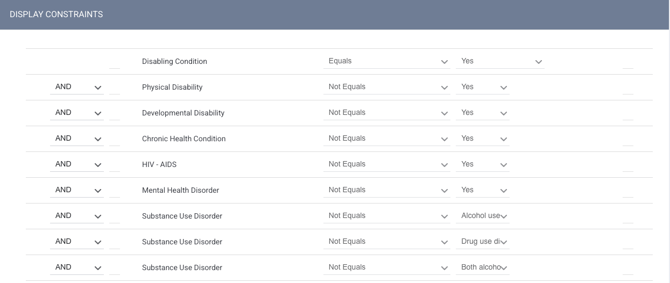
Disabling Conditions - Previous Warning (2)
These warnings have been removed and replaced with a single warning message with new conditional logic that covers all potential errors for Disabling Condition as defined by HUD’s HMIS Data Standards, which defines Disabling Condition as one or more of the following:
- A physical, mental, or emotional impairment, including an impairment caused by alcohol or drug abuse, post-traumatic stress disorder, or brain injury that:
-
-
-
- Is expected to be long-continuing or of indefinite duration;
- Substantially impedes the individual's ability to live independently; AND
- Could be improved by the provision of more suitable housing conditions.
-
-
- A developmental disability, as defined in section 102 of the Developmental Disabilities Assistance and Bill of Rights Act of 2000 (42 U.S.C. 15002); or
- The disease of acquired immunodeficiency syndrome (AIDS) or any condition arising from the etiologic agency for acquired immunodeficiency syndrome (HIV).
The new single warning reads:
“Disabling Condition is set to “Yes,” but no long-term disability type has been selected, which may lead to data quality errors. Please update Disabling Condition or select at least one disability type as long-term, if applicable.”
The Display Constraints for the new warning is:
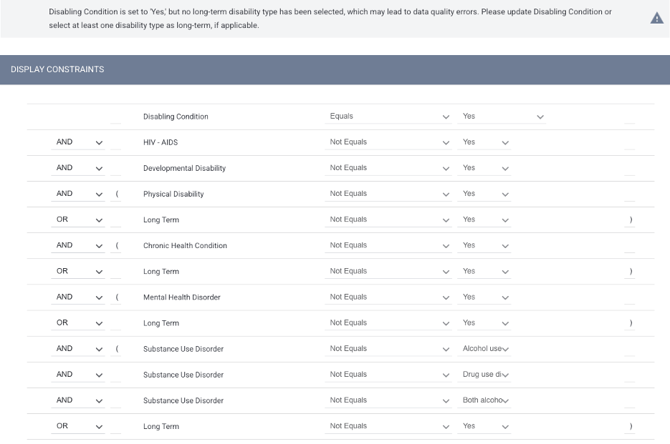
Disabling Condition - New Warning
Required Action: Communities using custom enrollment screens that collect this information will need to manually update their screens if they wish to implement this change.
Impacted System Screens:
- 2026 Clarity Project Enrollment
- 2026 HHS: RHY Project Enrollment
- 2026 HHS: PATH Project Enrollment
- 2026 HUD: YHDP Project Enrollment
- 2026 HUD: HOPWA Project Enrollment
- 2026 HUD: CoC Standard Project Enrollment
Important Update: Prioritization Logic
There will be an update to the Prioritization Status logic in an upcoming hotfix on February 11, 2026.
Previously when a program-connected assessment was used to refer a client to a community queue with Prioritization List = ON, the assessment audit log would reflect "Prioritization Status = 1." If that referral was removed from the community queue with Prioritization List = ON OR the community queue settings were updated to Prioritization List = OFF, the Prioritization Status for the assessment would change to “2” in the audit log.
With this update, when a program-connected assessment is used to refer a client to a community queue with Prioritization List = ON, Prioritization Status will remain “1” in the assessment audit log, even if the referral is removed from the community queue.
Additionally, a new warning has been implemented. If a System Administrator updates community queue settings for Prioritization List from “ON” to “OFF,” a warning will appear that reads:
“Disabling the Prioritization List setting will update Prioritization Status for assessments connected to this queue from ‘Yes’ to ‘No.’ Please confirm to proceed.”
Required Action: None.
Please note: Account Managers and Community Administration Teams will contact impacted communities to offer an optional script for updating historical data.
INVENTORY Updates
Update: Pending Occupancy Status Start Date (INVENTORY)
The current logic for determining unit/bed availability status includes status = 6 (Pending Occupancy), which means the unit/bed has an anticipated occupancy. For the user, this status is displayed as "Pending Occupancy" and the start date for this status is the occupancy start date.
With this update, the logic for determining unit/bed availability status where status = 6 (Pending Occupancy) has been changed so that the "Pending Occupancy" status' start date is the date/time when the status began, and the end date is the occupancy start date.
Required Action: None.
Update: Pending Occupancy End Date Usage (INVENTORY)
The logic for pending occupancy end dates for referrals has been updated. If a referral is connected to the client program, the unit_occupancy.pending_occupation_end_date is equal to the unit_occupancy.occupation_start_date.
- If the unit_occupancy.occupation_start_date is updated, the unit_occupancy.pending_occupation_end_date is also updated.
If a referral is denied or expired, the unit_occupancy.pending_occupation_end_date is equal to the referrals.end_date.
- If the referrals.end_date is updated, the unit_occupancy.pending_occupation_end_date is also updated.
When a referral is deleted, any occupancy data connected with the referral is also marked as deleted, including the pending occupancy.
The pending_occupation_end_date field is backfilled with past and current data.
Pending Occupancy Visibility
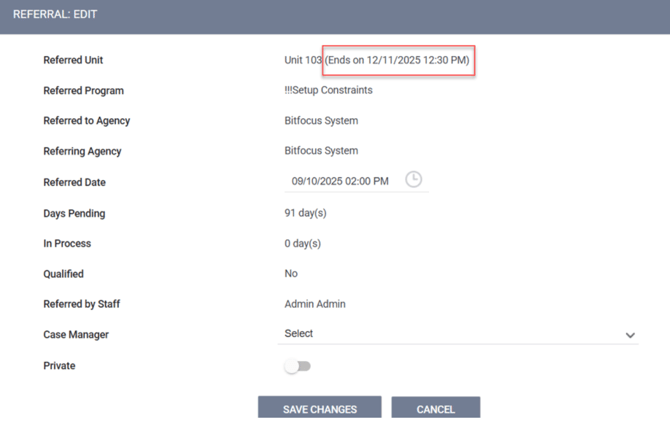
The pending occupancy end date is visible to users in the following places:
- Occupancy history page
- The referral record, next to the unit/bed name.
Required Action: None.
Data Analysis Update included: This feature includes a Data Analysis update in this article; please click here for more details.
Update: Unit/Bed Status Updates with Site/Building Status Updates (INVENTORY)
The logic for status updates in INVENTORY has been updated. When a site or building status is updated, the status inherits down and any associated unit, bed, or Unit Configuration Type (UCT) automatically updates.
Inactive Status Logic
When the user wants to change a Site or Building status to "Inactive," the system checks if any units or beds within the associated Site or Building are currently occupied or have future occupancy date or have current/future-dated referrals.
- If there are any current occupancies or current pending referrals with the units or beds within the site or building, the status field for the site and building to which the unit/bed relates is read-only.
- When the user hovers over the Status field, the system displays a tooltip that reads:
"There are one or more units or beds within this [site or building] that are currently occupied or have pending referrals. Please make any necessary adjustments to change the status of the [site or building]."
- When the user hovers over the Status field, the system displays a tooltip that reads:
- If there are no current occupancies or current pending referrals, and there are any future occupancies or future-dated referrals to units/beds set up within the site/building, then when the user changes the site or building status to "Inactive," the user sees a warning indicating that the future occupancy/referral will be deleted.
- The warning reads:
"There are one or more units or beds within this [site or building] that have future occupancies or referrals. Changing the status of this [site or building] to ‘Inactive’ will delete the future occupancies or referrals. Please confirm."
There is an "OK" button and a "Cancel" button available.- If the user clicks OK, the future occupancy(ies)/referral(s) are deleted and the site/building status is changed to "Inactive."
- If the user clicks Cancel, the future occupancy(ies)/referral(s) are not deleted and the site/building status is not changed to "Inactive."
- The warning reads:
- If there are no current occupancies, no future occupancies, no current pending referrals, and no future-dated referrals associated with the units or beds within the site or building, the "Inactive" status update applies to the site or building.
- If the "Inactive" status is applied to the site/building, the "Inactive" status applies to all entities set up under the site/building.
- The "Inactive" Start Date for the units, and beds is the date and time the "Inactive" status is applied to the site/building. The "Inactive" End Date in this case is empty until the user changes the site/building status back to active. Buildings and UCTs do not have a status Start or End Date, so the date doesn’t apply to UCTs or buildings.
- If there is a current inactive status for a unit/bed set up under the site/building and the user changes the site/building status to "Inactive," the system keeps the start date for the inactive unit/bed status as is and does not update unit/bed start date to the inactivity date for the site/building. The system clears the end date/time of current inactive status and fills it automatically when the site/building status is set back to active. The end date/time for the inactive status = date /time when the user sets the "Active" status for the site/building.
- If there is current offline status for a unit/bed set up under the site/building, and the user changes the site/building status to "Inactive," the system ends the offline status with the end date/time of the start of the inactive status. The system creates a new inactive status for this unit with a start date/time that matches the start date/time of the site/building’s inactive status.
- The "Inactive" status for the entities set up under the site/building cannot be modified or deleted while the site/building status remains "Inactive."
- The "Inactive" Start Date for the units, and beds is the date and time the "Inactive" status is applied to the site/building. The "Inactive" End Date in this case is empty until the user changes the site/building status back to active. Buildings and UCTs do not have a status Start or End Date, so the date doesn’t apply to UCTs or buildings.
- If there are any future inactive/offline statuses for units/beds within the building/site, when the user sets the site/building to "Inactive," they see a warning indicating that those future inactive/offline statuses will be deleted.
- The warning reads:
"There are one or more units or beds within this [site or building] that have future ‘Inactive’ and/or ‘Offline’ statuses. Changing the status of this [site or building] to ‘Inactive’ will delete the future ‘Inactive’ and 'Offline’ statuses. Please confirm."
There will be an "OK" button and a "Cancel" button available.- If the user clicks OK, the future "Inactive" and "Offline" statuses for the units/beds are deleted and the site/building status is changed to "Inactive."
- If the user clicks "Cancel, the future "Inactive" and "Offline" statuses are not deleted and the site/building status is not changed to "Inactive."
- The warning reads:
- If the "Inactive" status is applied to the site/building, the "Inactive" status applies to all entities set up under the site/building.
Active Status Logic
When the user changes the status of a site to "Active" from "Inactive," the "Active" status applies to the building, units, beds, and UCTs set up under the site.
- If the building, unit, bed, or UCT was inactive prior to the site being made inactive and then active again, the building, unit, bed, or UCT retains its inactive status.
- The "Active" Start Date for the units and beds is the date and time the "Inactive" status was changed to "Active." UCTs and Buildings do not have a status Start or End Date, so the date doesn’t apply to UCTs or Buildings.
When the user changes the status of a building to "Active" from "Inactive," the "Active" status applies to the units, beds, and UCTs set up under the building.
- The "Active" Start Date for the units and beds is the date and time the "Inactive" status was changed to "Active." UCTs do not have a status Start or End Date, so the date doesn’t apply to UCTs.
Existing Data Considerations
For existing data, any currently "Inactive" sites or buildings where there is a current occupancy, current pending referral, future occupancy, or future pending referral, are made "Active."
- If there is no current or future occupancy or pending referral to unit/bed or if there are any past occupancies, the site/building status remains "Inactive."
Audit Logs
When the user changes the status of a site/building to "Inactive," this is reflected in the audit log for the level where the changes were made and all lower levels.
The list of levels with an audit log is:
- Site
- Building
- Units
- Beds
- UCTs
Status Visibility
When the status of a site/building is changed, the status of the site/building/UCT/bed is visible on the following pages:
- Listing within the Housing Inventory Site page → Status column
- Modify Housing Inventory Site page → Status field
- Listing within the Buildings page → Status column
- Modify Building page → Status field
- Listing within the UCT page → Status column
- Modify Unit Configuration Type page → Status field
- Listing within the Units page → Availability column
- Modify Unit page → Status field
- Unit → Unit Status page → Status column
- Unit → Bed List → Availability column
- Unit → Bed List → Modify Bed → Bed Status section → Status column.
Required Action: None.
New Clarity Interface Updates
Update: Global Referrals Tab: Analysis Tab (New Clarity Interface)
We’re excited to announce that the new Clarity interface now includes the Coordinated Entry Analysis Tab.
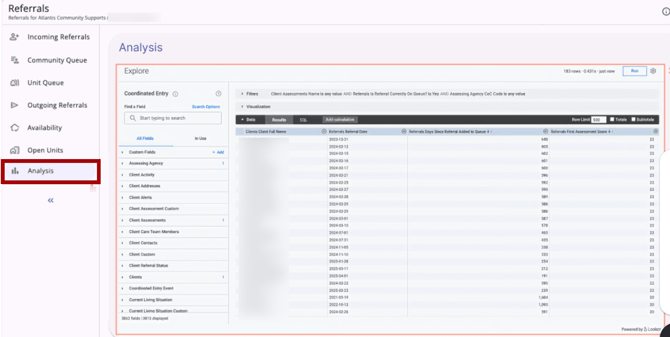
Users can click the Analysis tab to load the Looker dashboard interface to view and sort a list of current referrals to a community queue.
To review a new Help Center article with details on all functionality, please refer to the Global Referrals Tab: Analysis (New Clarity Interface) article.
Required Action: None.
Update: Care Team Tab (New Clarity Interface)
New Clarity interface users can now view and edit all care team members assigned to a client's care in one place. After navigating to a client’s profile, the Care Team tab is found in the client's navigation menu.
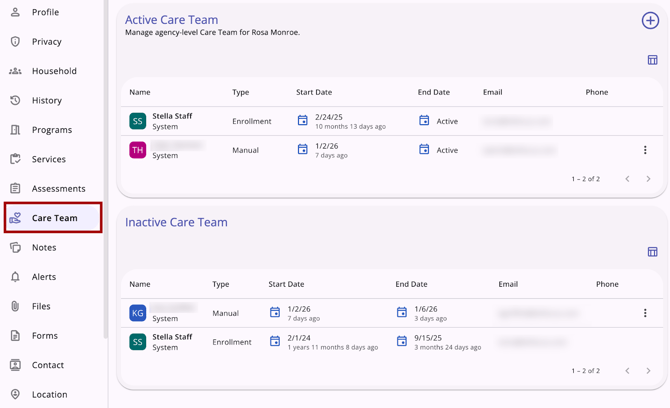
To review a new Help Center article with details on all functionality, please refer to the Care Team (New Clarity Interface) article.
Required Action: None.
Update: Navigator Widget (New Clarity Interface)
The new Clarity interface now has a new widget titled “Navigator,” on the Clients search page within a specific agency on the right-hand side.
This widget displays the number of referrals for whom the user has been assigned as the Navigator.
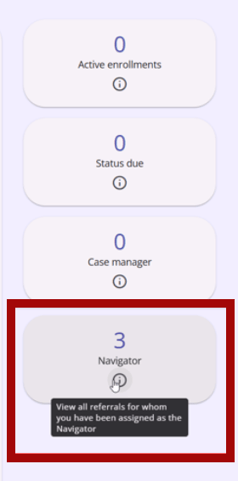
The "Navigator" widget is only visible for users who are currently assigned as the Navigator for at least one client.
When hovering over the information icon, the tooltip reads: “View all the referrals for whom you have been assigned as the Navigator”.
Users can click on the Navigator widget for more details. The following columns are displayed by default:
- Client: includes the client name and unique identifier
- Community Queue: the name of the community queue that the referral is on
- Referral Date: the date when the referral was made, which is the date the client was originally referred to the queue
- Days Pending: the number of days that the referral has been pending
- Tracked Characteristics: an icon indicator (not a column)
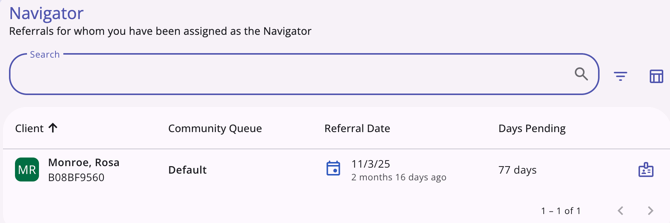
A search bar, filter options, and a column selector is available. The search bar allows the user to search the Navigator caseload by:
- First name
- Last name
- Unique identifier
The filter icon allows the user to filter the Navigator caseload by the available column filters:
- Community Queue
- Referral Date From
- Referral Date To

Clicking on the column headers sorts the Navigator caseload:
- The client list will have a default sort order by client name in alphabetical order.
- Clicking the "Client" or "Community Queue" headers sorts the list alphabetically.
- Clicking the "Referral Date" column header sorts the list by the client’s referral date.
- Clicking the "Days Pending" column header sorts the list by the number of days the referrals have been pending.
Clicking anywhere on a client row navigates the user to the Referral: Edit page. Clicking on the down arrow to the left of the client’s name expands to show more column data.
- The down arrow only appears when the screen is too small to show all of the available column data.
The left and right arrows at the bottom right are used for page navigation when there are multiple pages of clients on the list, with a number indicator to the left that displays the number of clients on the list and the number of pages.
Required Action: None.
Update: Location Photos (New Clarity Interface)
With this update, Clarity users and Customer Portal client users can upload photos to Location tabs in the current interface (Clarity users), the new Clarity interface (Clarity users), and the Customer Portal (client users). This will allow case managers to quickly and accurately locate their clients who may not have easy-to-find addresses/locations.
This is the update for the new Clarity interface functionality. For information about the current interface and Customer Portal updates that is available in this article, please click here.
New Clarity Interface User Experience
Users can view, add, and manage location photos in the new Clarity interface.
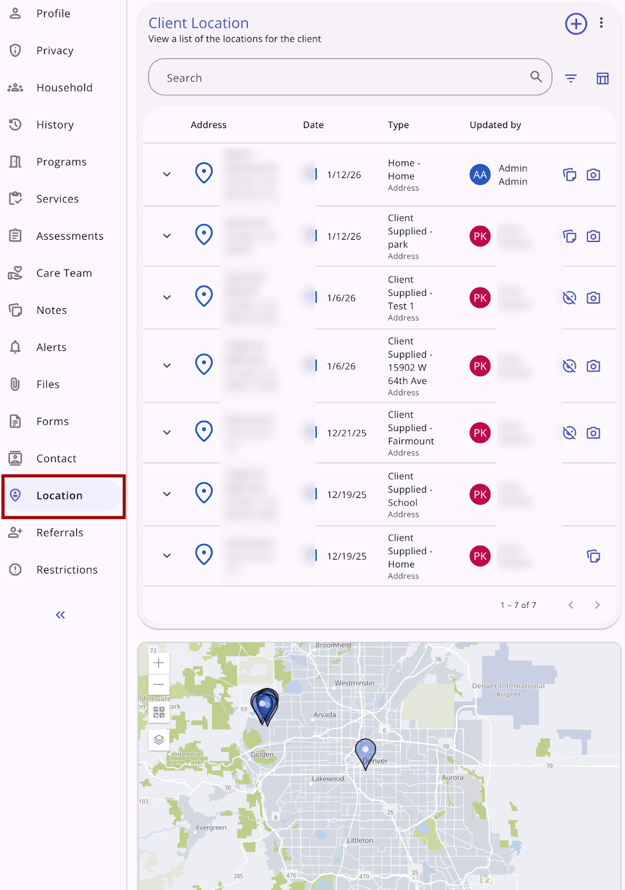
Viewing Location Photos
Existing photos for a location are indicated by a camera icon to the right on a location row.
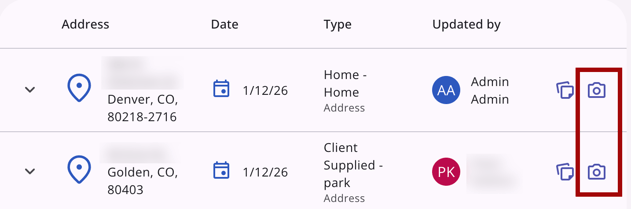
Users can click on the location to view more details, edit, or delete the location photo. Users can also add location photos from the edit page.
Adding a Location Photo
Users can click on an existing location to add location photos or add photos when adding a new location.

Additional details:
- A maximum of 3 photos can be uploaded per location.
- Once a user adds all 3 available photos, the "Add a Photo link" is no longer visible.
- The total file size for each photo must not exceed 25MB.
- Allowed file types are: PNG, GIF, JPG, JPEG, TIFF, HEIC
- An error message displays if the file exceeds the size limit.
Audit Log
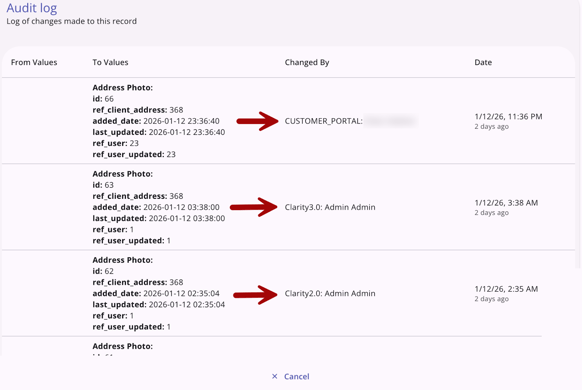
When a Clarity user or Customer Portal client user uploads or edits a photo to a location, there is an entry in both the main Location tab audit log and the individual location record audit log.
In addition to the location photo values, the audit log entry shows:
- Changed by:
- Name of Clarity user or Name of Customer Portal client user
- An indication if the photo was uploaded via the Customer Portal (client user), via Clarity 2.0 (the current interface user), or Clarity 3.0 (the new interface user).
- Date: the date, time, and elapsed time for the photo.
Required Action: None.
Update: Program Documentation Requirements (New Clarity Interface)
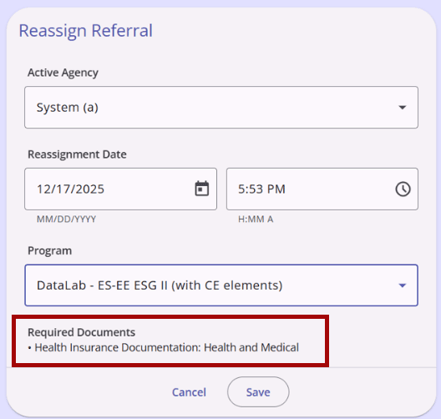
With this update, users can now view a program’s Documentation Requirements in the new Clarity interface. A Required Documents section can be viewed in the following places:
- When navigating to Client > Program > Add New Program Enrollment, the listed programs that have documentation requirements will include the Required Documents section and will list any required documents for that program.
- When navigating to Client > Referrals > Add New Referral, the listed available programs that have documentation requirements will include the Required Documents section and will list any required documents.
- When navigating to Referrals > Community Queue > Reassign Referral, the selected program from the dropdown will include the Required Documents section and will list any required documents for that program.
- When navigating to Client > Assessment > Eligibility and creating a new program referral, the selected program from the drop-down will include the Required Documents section and will list any required documents for that program.
Required Action: None.
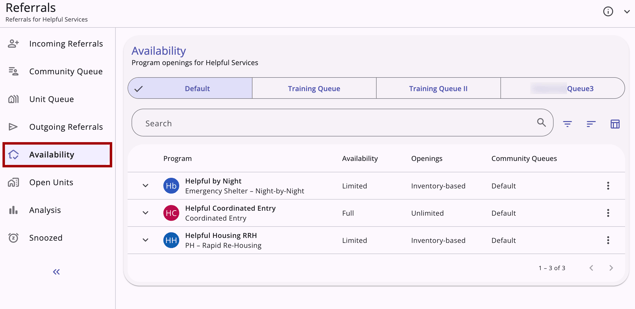
Update: Global Referrals Tab: Availability Tab (New Clarity Interface)
With this update, users can view availability and opening information for programs on community queues associated with their account in the new Clarity interface. The Program Availability Management setting must be enabled for at least one Community Queue associated with the user’s current agency.
To review a new Help Center article with details on all functionality, please refer to the Global Referrals Tab: Availability (New Clarity Interface) article.
Required Action: None.
Update: Direct Program Referrals from Eligibility Determination (New Clarity Interface)
Users can now send direct program referrals from the Program Eligibility Determination screen in the new Clarity interface. Users with the appropriate access to view eligibility will see the following for an assessment:
- Assessment Score Summary
- Community Queue Referrals
- Program Referrals
- The default order for the programs listed will be alphabetical by Program name.
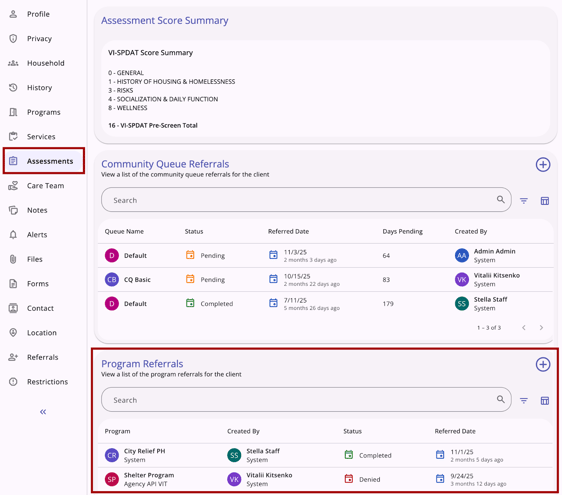
The plus sign icon in the top right corner next to the section title appears when there is at least one program that the client can be directly referred to.
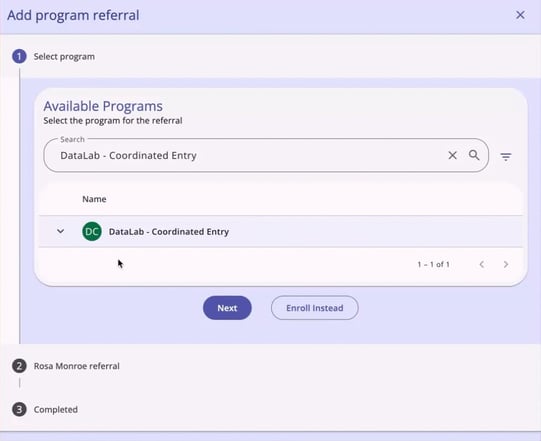
When the user clicks on the plus sign in the top right corner, the right sidebar opens and the user sees an Add program referral page.
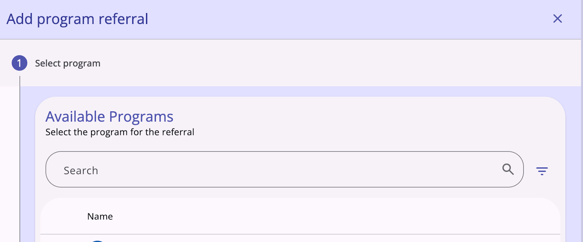
The following items are on the Add program referral page:
- A search bar
- A filter icon that, when clicked, shows filter options for the following:
- Agency
- Availability
- Eligible Programs Only
- Project Type
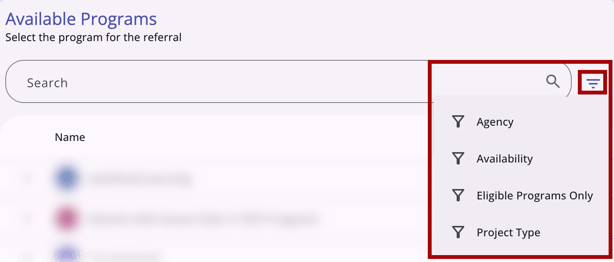
- A list of programs that the client can be referred to
- There is a drop-down arrow next to each listed program that, when clicked, expands so the user can see additional information about the program, including the following:
- Funding Source
- Active Clients
- Housing Availability
- Required Documents
- There is a drop-down arrow next to each listed program that, when clicked, expands so the user can see additional information about the program, including the following:
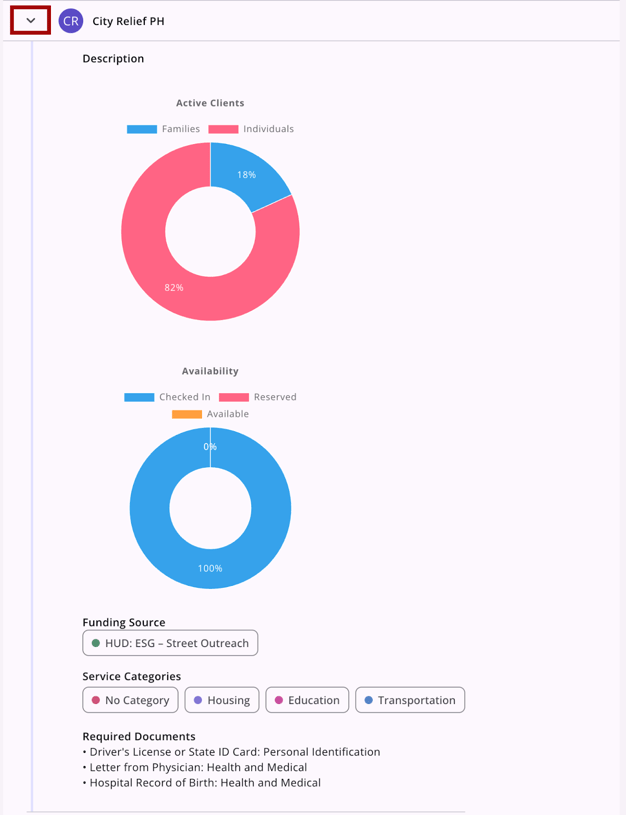
When the user finds the program they would like to refer their client to and clicks on the program, the program is highlighted and the “Next" button turns dark purple.
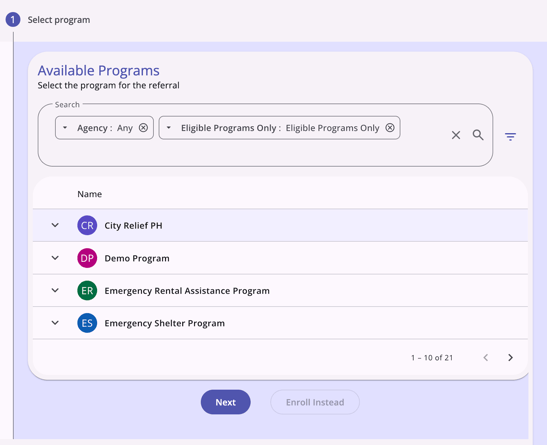
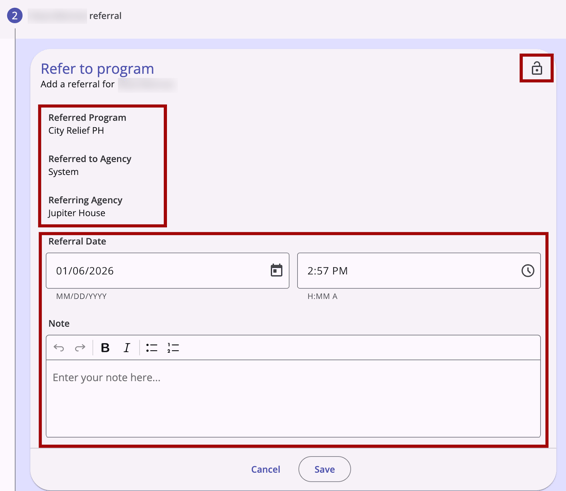
The user can click Next to see the Create a program referral to [program] section. This section contains:
- Referred Program name (read-only)
- Referred to Agency name (read-only)
- Referring Agency name (read-only)
- Referral Date (which is an editable date/time picker and is editable)
- Note textbox
- Privacy/lock icon (which, when clicked, marks the referral as private)
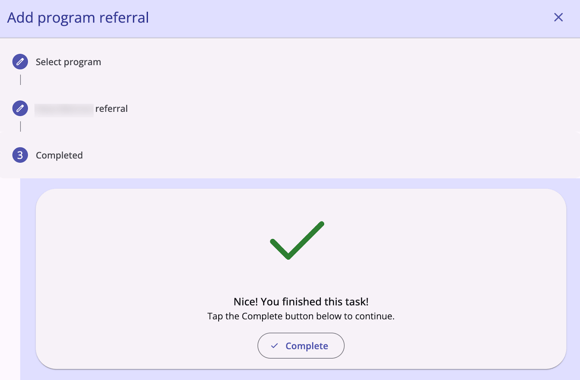
When the user clicks Save, they will see a large green checkmark and the text "Nice! You finished this task! Tap the Complete button below to continue." with a "Complete" button.
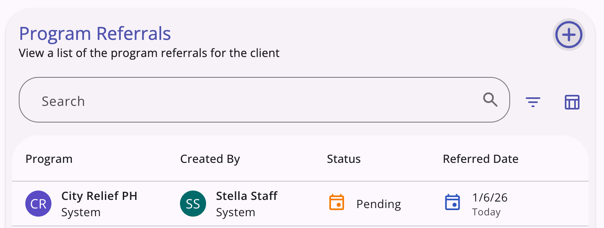
When the user clicks Complete, they return to the Referrals page where they can see the referral they just sent included in the list of Program Referrals.
Enroll Instead Option
At the first step of the workflow, the “Select program” step, users can click Enroll Instead. If the user clicks this option, the system redirects the user to the program’s enrollment screen to create an enrollment instead of a referral.
Required Action: None.
Update: Program Restrictions (New Clarity Interface)
Program Restrictions are now available in the new Clarity interface. Users can view, add, edit, or delete restrictions if their access rights and their agency’s Notes' Sharing Settings permit. The Restrictions tab is located in the client’s navigation menu.
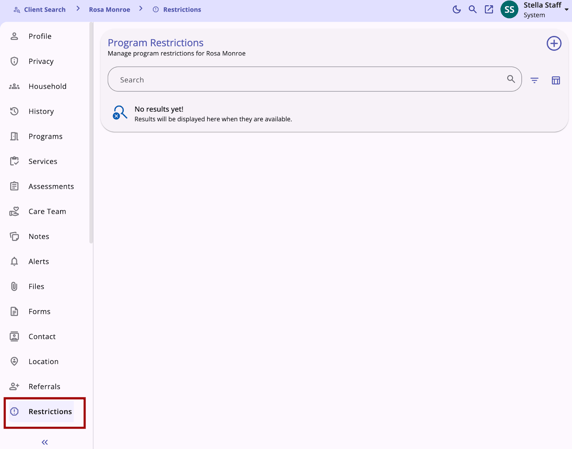
To review a new Help Center article with details on all functionality, please refer to the Program Restrictions (New Clarity Interface) article.
Required Action: None.
Update: Files Tab Search, Sort, and Filter Options (New Clarity Interface)
With this update, users will have dynamic options to customize their results and their view for client Files in the new Clarity interface. Both the client-level Files tab and the program-level Files tab will have:
- A Search bar
- Filter options
- Sorting options
- A Column Selector
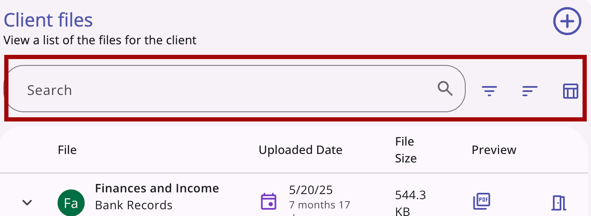
Search Bar
Users can enter text into the search bar to search the client files by:
- File Category
- Predefined Name
- File Name
Filter Options
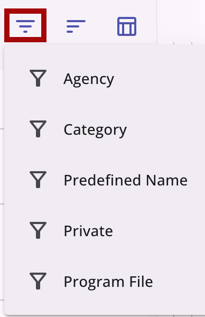
Users can click the "Filter" icon and choose one or more of the following to filter the list of files:
- Agency (that uploaded the file)
- Category (selected for file)
- Predefined Name (selected for file)
- Private (Privacy = Yes/No)
- Program File (Program Connection = Yes/No)
Sorting Options
Users can sort the files table by clicking on a column header or clicking on the sort icon. Each column descends by default, and the user can choose the sort order (ascending or descending).
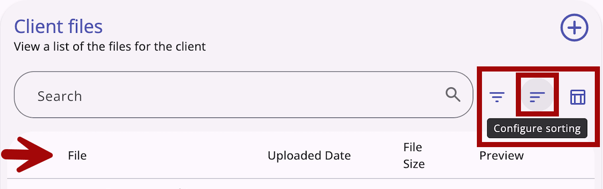
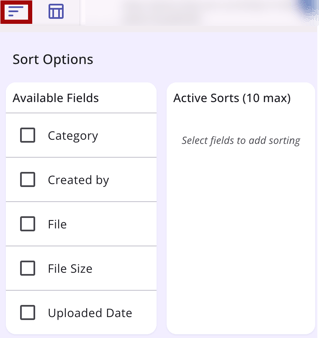
Users can select multiple fields to sort by and can click and drag fields to set the sort order. The following are available by default:
- File (File names are alphabetical)
- Uploaded Date (latest date at top)
- File Size (largest file at top)
Users can also sort by the following fields:
- Category
- Created by
- File
- File Size
- Uploaded Date
Column Selector
Users can use the Column Selector to customize their view. When the user clicks the "Column Selector" icon, they will see a search bar, the fields that are available by default (or currently selected) in the Visible Fields section, the fields available to select in the Available Fields section, and a section to add fields that will collapse on the screen in the Collapsed Fields section.
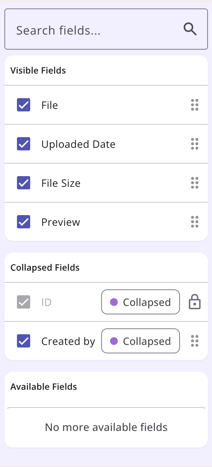
The following fields are available:
- File
- Uploaded Date
- File Size
- Preview
- Created by
- ID (locked)
Fields with a lock icon cannot be moved or removed. For more information on how to use column selectors, please refer to our Client Record Overview article.
Required Action: None.
Update: Add Client Profile Photo (New Clarity Interface)
Users now have the option to add a photo to a client’s profile in the new Clarity interface. When the user hovers over the client’s photo (or initials, if there is no current photo), they see a camera icon in the top right corner of the image/initials.
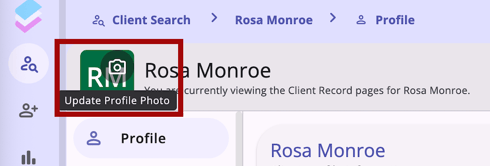
When the user clicks on the camera icon, the Add a Photo page opens and the user sees two options:
- Upload Photo
- Capture Photo
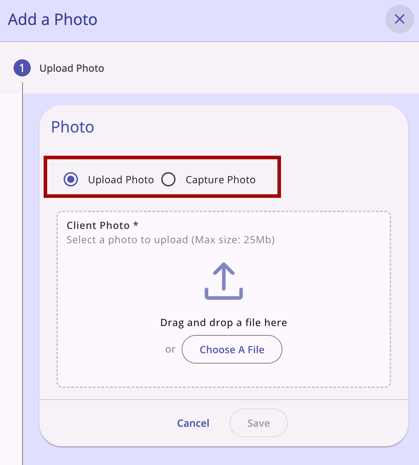
If the user selects Capture Photo, there are two options:
- Clicking Capture Photo takes a picture instantly
- Clicking Capture After 3s takes a picture after 3 seconds
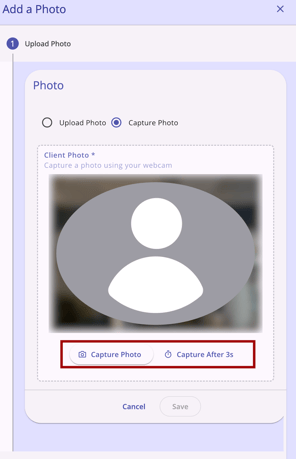
When the user clicks on Capture Photo, the webcam takes a picture immediately. When the user clicks on Capture After 3s, the webcam takes a picture after 3 seconds.
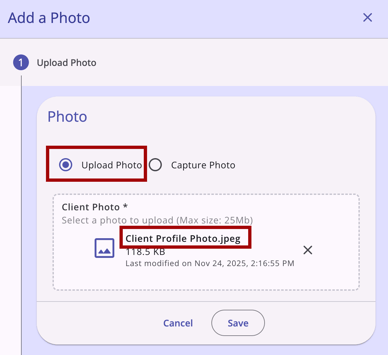
When the user drags and drops a file or clicks on Upload File and selects a file from their computer, the user sees the name of the uploaded file appear. The user can click Save if the correct file is selected.
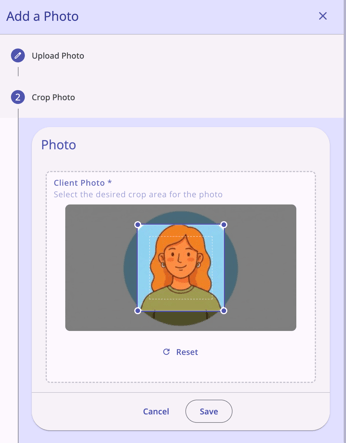
Next, the user can select the desired crop area of the photo to use on the profile. They can click Reset to redo what they selected or Save.
Once the user has a photo captured or uploaded, they can click Save and, on the next step, Complete.
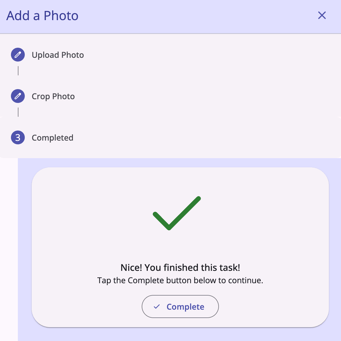
When the user returns to the client profile page, they will see that the photo has replaced the initials of the client.

Additional details:
- If the file is larger than the 25MB max file size, the user sees a red outline and red error text that says, "File size must be less than 25 MB."
- If the user clicks X to the right of the file name, the file is deleted and the user can drag and drop a different file or click Choose a File to select a different photo from their computer.
- If the user clicks Cancel at the bottom of the sidebar, the picture is not saved to the client’s profile and the right sidebar disappears; the user remains on the client profile page.
- If the user takes a photo using their computer’s webcam AND uploads a file from their computer before clicking Save, the action that was completed last will be used to determine which photo/file to use.
Audit Log
When a photo is added to the client’s profile, this action is reflected in the profile Audit Log.
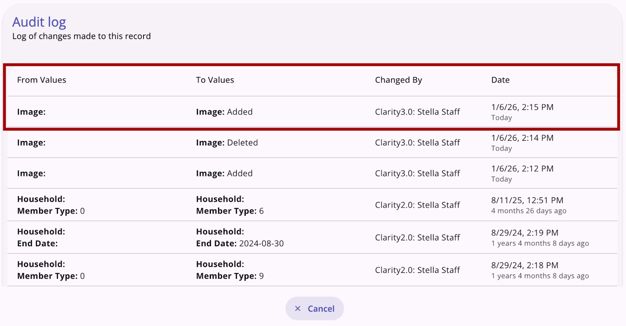
Required Action: None.
Update: Customer Portal Photo Uploads (New Clarity Interface)
Client users of the Customer Portal now have the ability to update their profile photo. If the user updates their photo, that photo will be visible in both the Customer Portal and on their profile in the new Clarity interface. If Customer Portal settings require approval of the client-supplied profile photo, messages will be sent to the Care Team and an alert will be seen on the client's record.
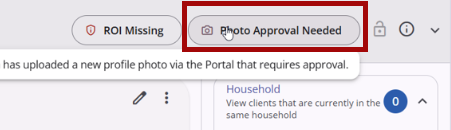
This feature includes updates to Customer Portal settings, Clarity user experience, client user experience, and Customer Portal audit logs. Updates to Customer Portal Settings and the client user experience are detailed here in this article.
To review a new Help Center article with details on all functionality for the new Clarity interface, please refer to the Customer Portal Profile Photos (New Clarity Interface) article.
Required Action: None.
Customer Portal Updates
Update: “New Account” Button Removed from Login (Customer Portal)
Prior to this update, when a client user viewed the login screen for the client Customer Portal, there was a “New Account” icon. When clicking this and not following proper instructions, the accounts were connected to Clarity Human Services.
With this update, the “New Account” icon is removed from the login screen to streamline new account creation.
To create a new account, clients will be sent an invitation and will follow the invitation link to successfully create an account that is fully linked to Clarity. This process has not changed and details are available in our Customer Portal: Account Management article.
Required Action: None.
Update: Multi-select Fields on Assessments (Customer Portal)
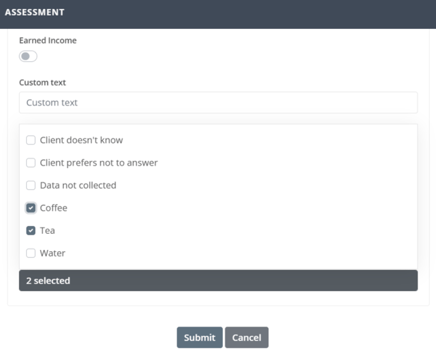
With this update, assessments with multi-select fields for client users of the Customer Portal now show checkboxes. Previously, clients would need to hold "cntrl/command" in order to select multiple fields when selecting more than one field.
Additionally, if a user selects Client doesn’t know, Client prefers not to answer, or Data not collected in the multi-select field, then any other response options are unselected.
Required Action: None.
Update: Location Photos (Customer Portal)
With this update, Clarity users and Customer Portal client users can upload photos to Location tabs in the current interface (Clarity users), the new Clarity interface (Clarity users), and the Customer Portal (client users). This will allow case managers to quickly and accurately locate their clients who may not have easy-to-find addresses/locations.
This is the update for the current interface functionality and the Customer Portal functionality.
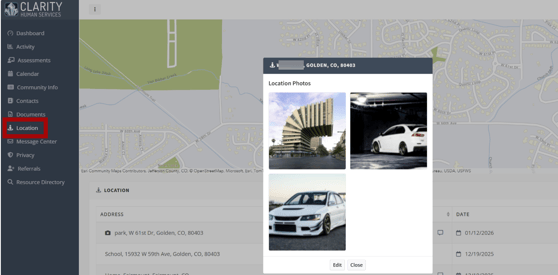
To review a new Help Center article with details on all functionality, please refer to the Customer Portal: Location Photos article.
For details on this feature for the new Clarity interface in this article, please click here.
Required Action: None.
Update: Client Contacts (Customer Portal)
The Customer Portal has been updated to allow Customer Portal client users to add their own contacts. A new Contacts tab has been added to the left sidebar.
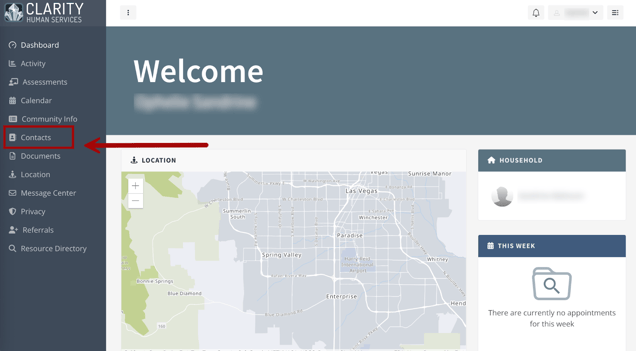
To review a new Help Center article with details on all functionality, please refer to the Customer Portal: Client Contacts article.
Required Action: None.
Update: Client-supplied Profile Photos (Customer Portal)
Client users of the Customer Portal now have the ability to update their profile photo. If the user updates their photo, that photo will be visible in both the Customer Portal and on their profile in Clarity.
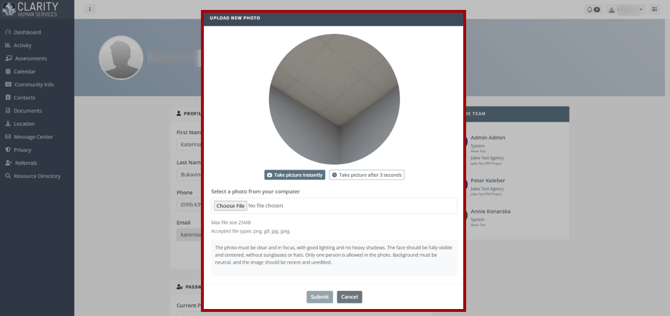
This feature includes updates to Customer Portal settings, Clarity user experience, client user experience, and Customer Portal audit logs.
To review a new Help Center article with details on all functionality, please refer to the Customer Portal: Profile Photos article.
Additional details about client-supplied Profile photo functionality for the new Clarity interface can be found here in this article.
Required Action: System Admin users should update the Customer Portal "Client Initiated Upload" settings as appropriate for the "Document upload," "Profile photo upload," and the customizable photo upload requirements.
Outreach Updates
Update: PIT Integration Survey Points (OUTREACH)
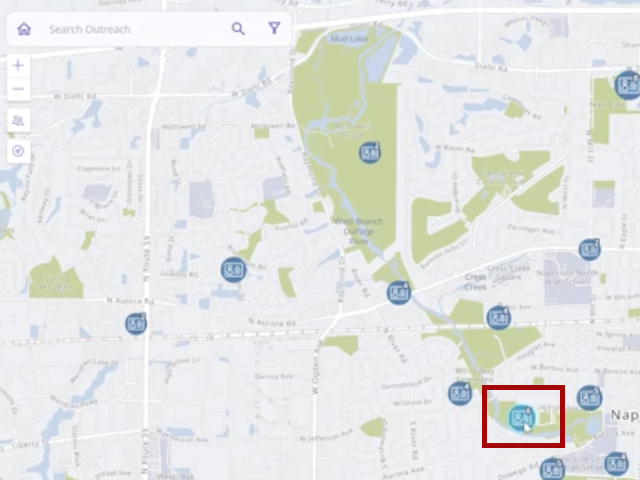
With this update, when a user hovers over a survey point on the Outreach model map, collected through the Unsheltered Point-in-Time (PIT) Integration, the survey point changes color.
Required Action: None.
Interoperability Updates
Update: Retirement of FY2024 Schemas
Bitfocus will officially end support for all FY2024 schemas on May 31, 2026. Please complete your migration to the FY2026 versions for the following before this deadline:
- Clarity FY2024 XML Imports
- HUD HMIS FY2024 CSV Schema
- [HUDX-111-AD] HUD CSV / XML Program Data Export [FY 2024]
Required Action: Please migrate to the FY2026 versions by May 31, 2026.
Update: Clarity Operational API and V1: Veteran's information
Clarity Operational API Early Access Program (EAP) participants can now add or update FY26 Program-Specific Data Element (PSDE) V1: Veteran's information as a Client Custom Element. Any Client Custom Element can also now be added or added or updated with the API, as well. The Clarity Operational API documentation available to EAP participants has been updated to reflect the new functionality.
Required Action: None.
Update: PersonalID has been updated to ClientID in Operational APIs
The Clarity Operational API user is now able to filter GraphQL operations and receive results by the alphanumeric Clarity Unique ID, denoted as clientId in the Operational API GraphQL Schema document. Users are no longer able to filter and receive results by the legacy numeric Clarity ClientID, previously denoted as personalId.
The personalId and clientId properties in the API now match the meanings in Clarity Human Services. In the past, personalId in the API was a legacy numeric client record identifier. Now, personalId meets the HMIS DE 5.08 definition for Personal ID, which defines a 32 character unduplicated/matching identifier for reporting purposes. clientID now matches the 9 character Client Unique ID found on the Clarity Human Services Client Profile, and in Clarity urls. clientID is now used for all client-related API input parameters, as it represents a specific client record, not a probabilistic matched set of client records like personalId. Nonetheless personalId is still present in the API’s Client type, but represents a 32 character deduplication identifier meeting the FY26 HMIS DE 5.08 definition.
Exact schema data element changes are detailed in the GraphQL Schema, available to Operational API Early Access Program (EAP) participants .
Required Action: None.
Update: New Start and End Date Filters for Listing Enrollments (Operational API)
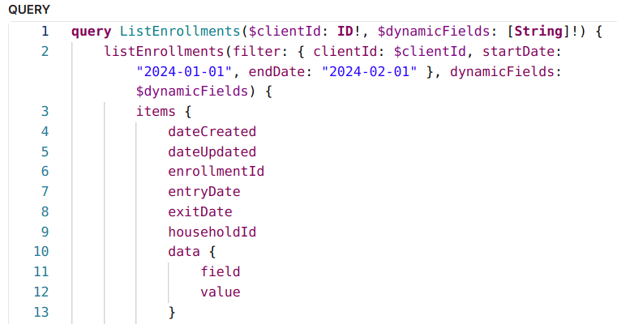
To reduce the number of returned enrollments with results, two new simple input filter parameters have been added to the listEnrollments GraphQL operation: startDate and endDate.
- startDate, when used alone, limits the enrollment results to all enrollments that begin on or after this date (whether exited or not).
- endDate, when used alone, limits the enrollment results to all enrollments that exited on or before this date.
- When used together, startDate and endDate limit the enrollment results to only enrollments that have entered and exited on or between these two parameter dates.
Note: These filters can not filter for a range of specific start dates or a range of specific end dates. Only one startDate and/or endDate can be specified.
Required Action: None.
Update: Support for CustomClientGender.csv and CustomEnrollmentSexualOrientation.csv Files (CSV Export)
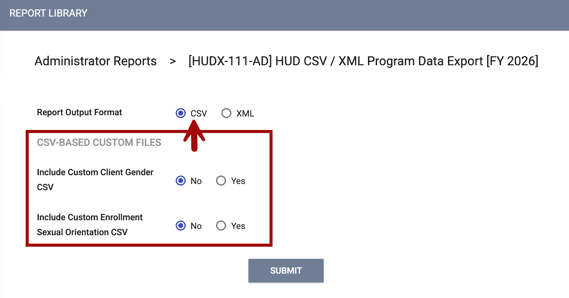
With this update, if the user selects Report Output Format = “CSV” [not “XML”] on the [HUDX-111] HUD CSV / XML Program Data Export, the user can optionally include one or both HMIS-vendor compatible Gender and Sexual Orientation CSV files in the FY26 HUDX-111 report export (table shells available by following the links).
Note: The cross-vendor format table shells for these two files are provided via the links above.
The [HUDX-111] HUD CSV / XML Program Data Export report incorporates two new selectable options allowing the report recipient to independently include the files CustomClientGender.csv and CustomEnrollmentSexualOrientation.csv within the HUDX-111 CSV zip archive.
Required Action: None.
Pentaho Reporting Update: This feature includes a Pentaho update; please click here for more details.
Update: Support for CustomClientGender.csv and CustomEnrollmentSexualOrientation.csv Files (DIT)
The cross-vendor CustomClientGender.csv and CustomEnrollmentSexualOrientation.csv formats will now import into the preexisting gender and sexual orientation Clarity Core fields, using the Data Import Tool (DIT).
The two new CSV files must be zipped together with the rest of the standard FY26 HUD HMIS CSV files in a single zipfile. The new files must have ExportIDs, EnrollmentIDs, and ClientIDs which match those found in the rest of the zipfile set.
Users with access to validation and import results will be able to view the following:
- Validation results prior to importing CustomClientGender.csv and CustomEnrollmentSexualOrientation.csv.
- Import results for CustomClientGender.csv and CustomEnrollmentSexualOrientation.csv.reflect data import issues encountered.
- Audit logs for any changes made to gender and sexual orientation values after successful import.
Required Action: None.
Update: CSV Enrollment Record Validation: DataCollectionStage Count Maximums (DIT)
CSV Enrollment Record Validation for the Data Import Tool (DIT) has been updated to catch and handle DataCollectionStage redundancies more effectively.
For example, a DIT user with an HMIS CSV zipfile with a complete set of files required for DIT validation, may include a Disabilities.csv file that contains the following 3 records:
- Two records, each with DataCollectionStage = 1 and DisabilityType = 5 and the same EnrollmentID for both records
- A third record within the same Disabilities.csv file with DataCollectionStage = 3 and DisabilityType = 5, and the same EnrollmentID as the first two records.
Validation will work like this:
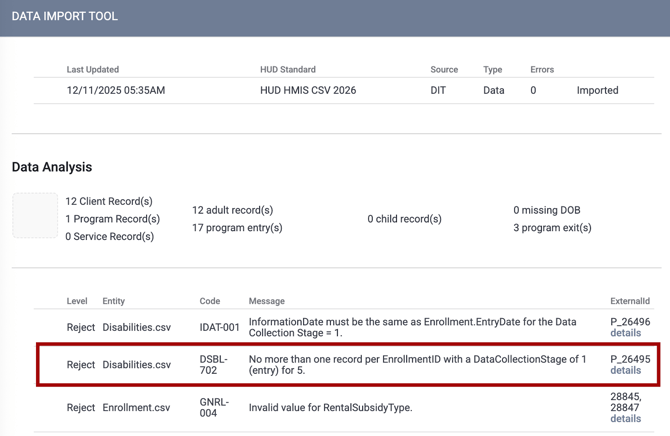
The first two records with DataCollectionStage = 1 and DisabilityType = 5 cause a validation log error (non-blocking, but rejecting both records) to be posted, for each of these two records. The second record with DataCollectionStage = 3 and DisabilityType = 5 does not err, as it has not exceeded its limit of 1 record with DataCollectionStage = 3 for a given EnrollmentID and DisabilityType.
The validation message will read:
“No more than one record per EnrollmentID with a DataCollectionStage of 1 (entry) for 5.”
Required Action: None.
Update: FY26 HMIS 4.21 Sex Data Element & DIT
The Data Import Tool (DIT) now imports the 4.21 Sex data element for all relevant enrollment records.
When files are uploaded using the DIT Clarity UI, DIT XML Import Tool, or DIT console, regardless of whether FY26 HMIS CSV or FY26 Clarity XML is used, FY26 HMIS Data Element 4.21 Sex data will be checked on import for the existence of any valid target enrollments.
Valid target enrollments must meet program component, program type, and date requirements (10/1/2025 or later) for data element 4.21. If target enrollments are found, the 4.21 data stores only in those enrollments' entry screens. The remainder of the Client record imports as usual.
When files are uploaded for the DIT Clarity UI, DIT XML Import Tool, or DIT console, regardless of whether FY26 HMIS CSV or FY26 Clarity XML is used, any generated FY26 HMIS DE 4.21 Sex related validation or import errors or warnings appears in the validation and import logs.
Required Action: For improved HMIS data quality, customers should update existing post-9/30/25 client records with available 4.21 data, but there is no required action.
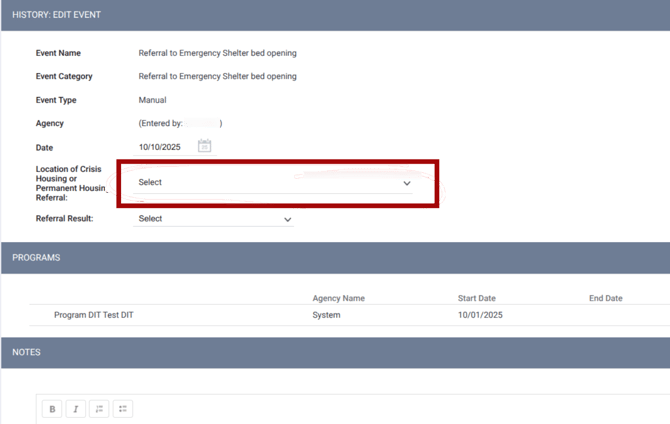
Update: Mapping for LocationCrisisOrPHHousing Values (DIT)
Data Import Tool (DIT) users can now successfully import HMIS Data Element 4.20.C “LocationCrisisOrPHHousing” values with CSV, XML, and DIT API. This feature allows DIT users to map from their source system "referred to" program name, to a program in the customer's Clarity instance. Previously, the imported values were set to the value of “other_99.” This resulted in gaps in the client record or audit logs of Clarity, as no events were imported.
With this update, users can upload HMIS Events containing HMIS Data Element 4.20.C “LocationCrisisOrPHHousing,” and can then map which existing Clarity Program that the imported 4.20.C “LocationCrisisOrPHHousing” string corresponds to.
In order to successfully import these values, the Project Receives CE Referrals setting must be set toYes in Program Setup to successfully show a mapped Program value in the “Location of Crisis Housing or Permanent Housing Referral” in Event History.

If Project Receives CE Referrals in Program Setup is set to No, the Program name will not appear in the Event history even when data is imported successfully. Instead the selection will show as blank or “Select.”
Required Action: None.
Data Analysis Update: This feature includes a Data Analysis update; please click here for more details.
Additional Clarity Updates
Update: New Field Type - Datetime (Current Clarity Interface & New Clarity Interface)
With this update, a new Field Type “Datetime” has been added for use with custom fields for data collection that warrants a connected date/time collection.
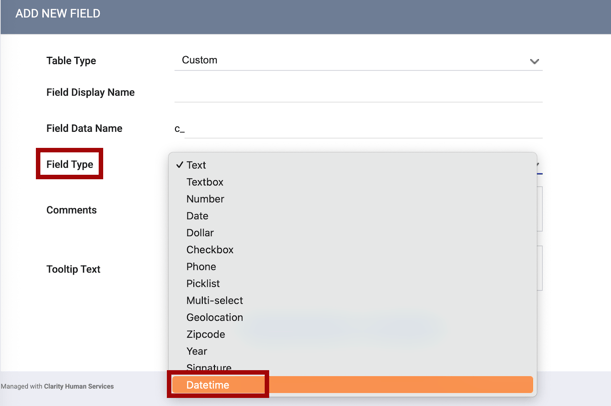
When a field using this Field Type is added to screens, it will be available:
- in the current interface

- and the new Clarity interface.

Required Action: None.
Pentaho Reporting Updates: This feature includes a Pentaho update; please click here for more details.
Update: Personal ID Logic - Data Quality
We have made an update to Personal ID logic. A scenario was identified where two duplicate clients were assigned the same Personal ID because they shared the following matching data points:
- Social Security Number (SSN)
- Quality of SSN
- Date of Birth
- Quality of DOB
- Quality of Name
These clients had different names, but shared the same Personal ID. If a user updated one client's “Quality of SSN” from ‘1’ to ‘99,’ the system did not assign a different Personal ID as expected.
We have refined the logic to better distinguish between these types of records. With this update, in cases where two clients share the data points listed above but have different Quality of SSN:
- Updating the “Quality of SSN” for one of the clients from ‘1’ to ‘99’ will now automatically assign the client a new, unique Personal ID.
Required Action: None.
Update: Personal ID Logic - Consent Refused
We have made an update to Personal ID logic. A scenario was identified where two duplicate clients were assigned the same Personal ID because they shared the following matching data points:
- Name
- Quality of Name
- Quality of SSN
- Date of Birth
- Quality of DOB
If a user updated one client's Privacy to Consent Refused = ON, the system did not assign a different Personal ID as expected.
We have refined the logic to better distinguish between these types of records. With this update, in cases where two clients share the data points listed above:
- Updating the Privacy to Consent Refused = ON for one of the clients will now automatically assign the client a new, unique Personal ID.
Required Action: None.
Pentaho Reporting Updates
Update: [Unit-101-AD] Unit Configuration Report
The [Unit-101-AD] Unit Configuration Report is updated to include quick review points to align with the new INVENTORY, Attendance, and Reservation functionality, linked in this article. When reviewing details for Buildings, Units, and Beds, the drill-down tables include data points to assess if Reservations are enabled and which Services are connected.
Required Action: None.
Update: Datetime Field Type Report Updates
The following reports have been updated to align with the new addition of the Datetime Field Type in Clarity:
- [HUDX-111(-AD)] HUD CSV / XML Program Data Export [FY 2026 & FY 2024]
- [GNRL-210(-AD)] Assessment Details Report
- [GNRL-212(-AD)] Profile Details Report
- [GNRL-220(-AD)] Program Details Report
- [DQXX-102] Program Data Review
Required Action: None.
Update: [HUDX-111(-AD)] CSV/XML Program Data Export
The following updates have been made to the [HUDX-111(-AD)] CSV/XML Program Data Export:
- The [HUDX-111(-AD)] CSV/XML Program Data Export produces CustomClientGender and CustomEnrollmentSexualOrientation files when enabled through the new CSV-Based Files prompts on the parameters page. When these files are selected for inclusion, the zipped csv export will include the custom file(s). To learn more about the custom file schema, please review FY 2026 HMIS CSV Extension for Custom Gender and Sexual Orientation schema documentation linked in this article.
- The Client ID Selection prompt has been improved to streamline parameter selection. Previously, the “Clarity Unique Identifier” would be selected to return the Client ID in the Personal ID column in the export. This label has been updated to “Clarity Client ID.” Please note, the only update here is to the label – the functionality of this parameter and related output has not changed.
Required Action: None.
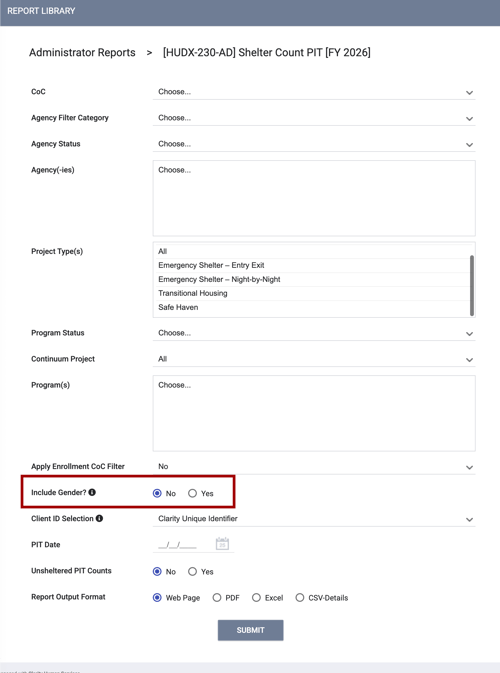
Update: [HUDX-230(-AD)] Sheltered PIT Report
The [HUDX-230(-AD)] Sheltered PIT Report introduces a new parameter to include dynamic gender data in the main PIT report, supporting broader community initiatives and custom analysis.
Required Action: None.
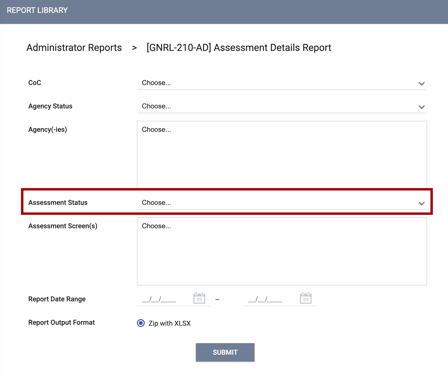
Update: [GNRL-210(-AD)] Assessment Details Report
[GNRL-210(-AD)] Assessment Details Report includes a new Assessment Status parameter. This enhancement will make it easier for users to filter and analyze assessment details for their reporting needs.
Required Action: None.
Data Analysis Updates
Update: Inventory Model: INVENTORY-related Reservation Options & Attendance Services (Looker)
New fields have been added to/updated for the Inventory Model to enable reporting for new INVENTORY-related Reservation options and Attendance services. The following updates have been made:
- Inventory Model: View Updates - “Inventory Buildings”
- Inventory Model: View Updates - “Inventory - Building Units”
- Inventory Model: View Updates - “Sites”
- Inventory Model: New View - “Reservations”
Inventory Model: View Updates - “Inventory - Buildings”
The following fields have been added to the Inventory Model to enable reporting on new Reservation Options settings.
|
View |
Group Name |
Label |
Description |
LookML Field Name |
|
Inventory - Buildings |
Reservation Options |
Allow Referred Reservation |
"Is 'Allow Referred Reservation' toggled on?" |
buildings.allow_referred_reservation |
|
Inventory - Buildings |
Reservation Options |
Default Reservation Term |
"Default duration of reservations (days)" |
buildings.default_reservation_term |
|
Inventory - Buildings |
Reservation Options |
Enable Reservations |
"Is 'Enable Reservations' toggled on?" |
buildings.enable_reservations |
|
Inventory - Buildings |
Reservation Options |
Program Enrollment Warning |
"Is 'Program Enrollment Warning' toggled on?" |
buildings.program_enrollment_warning |
Inventory Model: View Updates - “Inventory - Building Units”
The following fields have been added to the Inventory Model to enable reporting on new Reservation Options settings and Attendance Services settings.
|
View |
Group Name |
Label |
Description |
LookML Field Name |
Dimension Group Exposed |
|
Inventory - Building Units |
Reservation Options |
Allow Referred Reservation |
"Is 'Allow Referred Reservation' toggled on?" |
units.allow_referred_reservation |
n/a |
|
Inventory - Building Units |
Reservation Options |
Default Reservation Term |
"Default duration of reservations (days)" |
units.default_reservation_term |
n/a |
|
Inventory - Building Units |
Reservation Options |
Enable Reservations |
"Is 'Enable Reservations' toggled on?" |
units.enable_reservations |
n/a |
|
Inventory - Building Units |
Reservation Options |
Program Enrollment Warning |
"Is 'Program Enrollment Warning' toggled on?" |
units.program_enrollment_warning |
n/a |
|
Inventory - Building Units |
Attendance Services |
Connection Start Date |
"The date the Unit became connected to the Inventory." |
attendance_services_inventory_service_item_connections.start_date |
Date, Month, Quarter, Time, Week, and Year |
|
Inventory - Building Units |
Attendance Services |
Connection End Date |
"The date the Unit stopped being connected to the Inventory." |
attendance_services_inventory_service_item_connections.end_date |
Date, Month, Quarter, Time, Week, and Year |
|
Inventory - Building Units |
Attendance Services |
Service ID |
"Unique identifier for the service configuration record." |
attendance_services_services.id |
n/a |
|
Inventory - Building Units |
Attendance Services |
Service Name |
"Program defined Service Name" |
attendance_services_services.name |
n/a |
|
Inventory - Building Units |
Attendance Services |
Service Item ID |
"Clarity HS Service Item ID" |
attendance_services_service_items.id |
n/a |
|
Inventory - Building Units |
Attendance Services |
Service Item Name |
"The name of the service item." |
attendance_services_service_items.name |
n/a |
Inventory Model: View Updates - “Sites”
The following fields have been added to the Inventory Model to enable reporting on new Reservation Options settings.
|
View |
Group Name |
Label |
Description |
LookML Field Name |
|
Sites |
Reservation Options |
Allow Referred Reservation |
"Is 'Allow Referred Reservation' toggled on?" |
sites.allow_referred_reservation |
|
Sites |
Reservation Options |
Default Reservation Term |
"Default duration of reservations (days)" |
sites.default_reservation_term |
|
Sites |
Reservation Options |
Enable Reservations |
"Is 'Enable Reservations' toggled on?" |
sites.enable_reservations |
|
Sites |
Reservation Options |
Program Enrollment Warning |
"Is 'Program Enrollment Warning' toggled on?" |
sites.program_enrollment_warning |
|
Sites |
Reservation Options |
Enable Daily Arrival Time |
"Is 'Enable Daily Arrival Time' toggled on?" |
sites.enable_arrival_time |
|
Sites |
Reservation Options |
Default Latest Arrival Time |
"The time which 'Default Latest Daily Arrival Time' is set to." |
sites.default_arrival_time |
|
Inventory - Buildings |
Reservation Options |
Enable Daily Arrival Time |
"Is 'Enable Daily Arrival Time' toggled on?" |
buildings.enable_arrival_time |
|
Inventory - Buildings |
Reservation Options |
Default Latest Arrival Time |
"The time which 'Default Latest Daily Arrival Time' is set to." |
buildings.default_arrival_time |
|
Inventory - Building Units |
Reservation Options |
Enable Daily Arrival Time |
"Is 'Enable Daily Arrival Time' toggled on?" |
units.enable_arrival_time |
|
Inventory - Building Units |
Reservation Options |
Default Latest Arrival Time |
"The time which 'Default Latest Daily Arrival Time' is set to." |
units.default_arrival_time |
Inventory Model: New View - “Reservations”
A new "Reservations" view has been added to the Inventory Model with the following items:
- Filter-Only Fields
|
View |
Label |
Description |
LookML Field Name |
|
Reservations |
Reservation Date Contextual Filter |
"Contextual date filter for use with measure 'Is Latest Reservation by Service Type'." |
latest_reservation_by_service_item.date_filter |
- Dimensions
|
View |
Label |
Description |
LookML Field Name |
Dimension Group Exposed |
|
Reservations |
Is Latest Reservation by Service Item? (Yes/No) |
"Informs about if the current Reservation ID is the latest Unit/Bed reservation for the respective service item." |
latest_reservation_by_service_item.is_latest_reservation_by_service_item |
n/a |
|
Reservations |
Last Updated Date |
"Last time this record was updated." |
reservation.last_updated |
Date, Month, Quarter, Time, Week, and Year |
|
Reservations |
Reservation Date |
"The expected date that the reservation is occupied." |
reservation.reservation |
Date, Month, Quarter, Week, and Year |
|
Reservations |
Status |
"Reserved/Present/No Show are the potential status." |
reservation.status |
n/a |
|
Reservations |
User Home Agency |
"Name of the home agency of the user creating the reservation." |
reservation.user_home_agency |
n/a |
|
Reservations |
User Home Agency ID |
"ID of the home agency of the user creating the reservation." |
reservation.ref_user_home_agency |
n/a |
-
New/Updated Fields and Measures
|
View |
Label |
Description |
LookML Field Name |
|
Reservations |
Count |
"Number of reservations." |
reservation.count |
|
Reservations |
Status (Styled) |
"Styled version of the reservation status for use with pivoting data." |
reservation.status_styled |
|
Reservations |
Added: Latest Daily Arrival Time |
"When the 'Latest Daily Arrival Time' is reached, any pending reservations should automatically be marked ‘No Show’ and the associated beds/units/slots will become available for a new reservation for that night." |
reservation.latest_arrival_time |
|
Reservations |
Updated - A new time frame has been added to expose the time of the day that the reservation starts: Reservation Date |
"The expected date that the reservation is occupied." |
reservation.reservation |
- New Date Dimension Groups - New date dimension groups have been added to the Inventory Model under the “Reservations” view. These show the consecutive reservation intervals of one or several Units/Beds that an enrolled client has that belongs to their enrollment, and for each Service Item connected to the respective enrollment.
|
View |
Label |
Description |
Datatype |
LookML Field Name |
|
Reservations |
Reservation Start Date |
"The expected date that the Unit/Bed reservation period starts for the Enrollment connected to the Housing Service." |
Date Group |
unit_bed_reservation_frame.start_date |
|
Reservations |
Reservation End Date |
"The expected date that the Unit/Bed reservation period ends for the Enrollment connected to the Housing Service." |
Date Group |
unit_bed_reservation_frame.end_date |
Required Action: None.
Update: Project Descriptor Model - INVENTORY-related Reservations Options & Attendance Services (Looker)
New fields have been added to/updated for the Project Descriptor Model to enable reporting for new INVENTORY-related Reservation options and Attendance services. The following updates have been made:
- Project Descriptor Model: View Updates - “Program Sites”
- Project Descriptor Model: View Updates - “Agency Sites”
- Project Descriptor Model: View Updates - “Inventory - Buildings”
- Project Descriptor Model: View Updates - “Inventory - Building Units”
Project Descriptor Model: View Updates - “Program Sites”
The following fields have been added to the Project Descriptor Model to enable reporting on new Reservation Options settings.
|
View |
Group Name |
Label |
Description |
LookML Field Name |
|
Program Sites |
Reservation Options |
Allow Referred Reservation |
"Is 'Allow Referred Reservation' toggled on?" |
sites.allow_referred_reservation |
|
Program Sites |
Reservation Options |
Default Reservation Term |
"Default duration of reservations (days)" |
sites.default_reservation_term |
|
Program Sites |
Reservation Options |
Enable Reservations |
"Is 'Enable Reservations' toggled on?" |
sites.enable_reservations |
|
Program Sites |
Reservation Options |
Program Enrollment Warning |
"Is 'Program Enrollment Warning' toggled on?" |
sites.program_enrollment_warning |
Project Descriptor Model: View Updates - “Agency Sites”
The following fields have been added to the Project Descriptor Model to enable reporting on new Reservation Options settings.
|
View |
Group Name |
Label |
Description |
LookML Field Name |
|
Agency Sites |
Reservation Options |
Allow Referred Reservation |
"Is 'Allow Referred Reservation' toggled on?" |
agency_sites.allow_referred_reservation |
|
Agency Sites |
Reservation Options |
Default Reservation Term |
"Default duration of reservations (days)" |
agency_sites.default_reservation_term |
|
Agency Sites |
Reservation Options |
Enable Reservations |
"Is 'Enable Reservations' toggled on?" |
agency_sites.enable_reservations |
|
Agency Sites |
Reservation Options |
Program Enrollment Warning |
"Is 'Program Enrollment Warning' toggled on?" |
agency_sites.program_enrollment_warning |
Project Descriptor Model: View Updates - “Inventory - Buildings”
The following fields have been added to the Project Descriptor Model to enable reporting on new Reservation Options settings.
|
View |
Group Name |
Label |
Description |
LookML Field Name |
|
Inventory - Buildings |
Reservation Options |
Allow Referred Reservation |
"Is 'Allow Referred Reservation' toggled on?" |
buildings.allow_referred_reservation |
|
Inventory - Buildings |
Reservation Options |
Default Reservation Term |
"Default duration of reservations (days)" |
buildings.default_reservation_term |
|
Inventory - Buildings |
Reservation Options |
Enable Reservations |
"Is 'Enable Reservations' toggled on?" |
buildings.enable_reservations |
|
Inventory - Buildings |
Reservation Options |
Program Enrollment Warning |
"Is 'Program Enrollment Warning' toggled on?" |
buildings.program_enrollment_warning |
Project Descriptor Model: View Updates - “Inventory - Building Units”
The following fields have been added to the Project Descriptor Model to enable reporting on new Reservation Options settings and Attendance Services settings.
|
View |
Group Name |
Label |
Description |
LookML Field Name |
Dimension Group Exposed |
|
Inventory - Building Units |
Reservation Options |
Allow Referred Reservation |
"Is 'Allow Referred Reservation' toggled on?" |
units.allow_referred_reservation |
n/a |
|
Inventory - Building Units |
Reservation Options |
Default Reservation Term |
"Default duration of reservations (days)" |
units.default_reservation_term |
n/a |
|
Inventory - Building Units |
Reservation Options |
Enable Reservations |
"Is 'Enable Reservations' toggled on?" |
units.enable_reservations |
n/a |
|
Inventory - Building Units |
Reservation Options |
Program Enrollment Warning |
"Is 'Program Enrollment Warning' toggled on?" |
units.program_enrollment_warning |
n/a |
|
Inventory - Building Units |
Attendance Services |
Attendance Service Start Date |
"The date the Unit became connected to the Inventory." |
attendance_services_inventory_service_item_connections.start_date |
Date, Month, Quarter, Time, Week, and Year |
|
Inventory - Building Units |
Attendance Services |
Attendance Service End Date |
"The date the Unit stopped being connected to the Inventory." |
attendance_services_inventory_service_item_connections.end_date |
Date, Month, Quarter, Time, Week, and Year |
|
Inventory - Building Units |
Attendance Services |
Service ID |
"Unique identifier for the service configuration record." |
attendance_services_services.id |
n/a |
|
Inventory - Building Units |
Attendance Services |
Service Name |
"The name of the service item." |
attendance_services_services.name |
n/a |
|
Inventory - Building Units |
Attendance Services |
Service Item ID |
"Program defined Service Name" |
attendance_services_service_items.id |
n/a |
|
Inventory - Building Units |
Attendance Services |
Service Item Name |
"Clarity HS Service Item ID" |
attendance_services_service_items.name |
n/a |
|
Sites |
Reservation Options |
Enable Daily Arrival Time |
"Is 'Enable Daily Arrival Time' toggled on?" |
sites.enable_arrival_time |
n/a |
|
Sites |
Reservation Options |
Default Latest Arrival Time |
"The time which 'Default Latest Daily Arrival Time' is set to." |
sites.default_arrival_time |
n/a |
|
Inventory - Buildings |
Reservation Options |
Enable Daily Arrival Time |
"Is 'Enable Daily Arrival Time' toggled on?" |
buildings.enable_arrival_time |
n/a |
|
Inventory - Buildings |
Reservation Options |
Default Latest Arrival Time |
"The time which 'Default Latest Daily Arrival Time' is set to." |
buildings.default_arrival_time |
n/a |
|
Inventory - Building Units |
Reservation Options |
Enable Daily Arrival Time |
"Is 'Enable Daily Arrival Time' toggled on?" |
units.enable_arrival_time |
n/a |
|
Inventory - Building Units |
Reservation Options |
Default Latest Arrival Time |
"The time which 'Default Latest Daily Arrival Time' is set to." |
units.default_arrival_time |
n/a |
Required Action: None.
Update: HMIS Performance and Client Models - INVENTORY-related Dimension Group (Looker)
New date dimension groups have been added to the HMIS Performance Model and the Client Model under the "Reservations" section. These show the consecutive reservation intervals of one or several Units/Beds that an enrolled client has that belongs to their enrollment, and for each Service Item connected to the respective enrollment.
|
View |
Label |
Description |
Datatype |
LookML Field Name |
Dimension Group Exposed |
|
Reservations |
Reservation Start Date |
“The first reserved date of a client's multiple-night reservation linked to a program. In the client model, only available if the "Service Placement" Filter is set to "Services Linked To Enrollments" |
Date Group Additional Timeframes are also available for this dimension (Year, Quarter, Month, Week, Date, Time). |
client_service_reservations.reservation_start_date |
Year, Quarter, Month, Week, Date, Time |
|
Reservations |
Reservation End Date |
"The last reserved date of a client's multiple-night reservation linked to a program. In the client model, only available if the "Service Placement" Filter is set to "Services Linked To Enrollments" " |
Date Group Additional Timeframes are also available for this dimension (Year, Quarter, Month, Week, Date, Time). |
client_service_reservations.reservation_end_date |
Year, Quarter, Month, Week, Date, Time |
Required Action: None.
Update: Data Import Analysis Model - Import Location PH Housing Map View (Looker)
The “Import Location PH Housing Map” view has been added to the Data Import Analysis Model with the following fields.
|
View |
Label |
Description |
Datatype |
LookML Field Name |
|
Import Location PH Housing Map |
External ID |
“External ID” |
Number |
import_location_ph_housing_map.external_id |
|
Import Location PH Housing Map |
File ID |
“File ID” |
Number |
import_location_ph_housing_map.ref_file |
|
Import Location PH Housing Map |
ID |
“ID” |
Number |
import_location_ph_housing_map.id |
|
Import Location PH Housing Map |
Import Source ID |
“Import Source ID” |
Number |
import_location_ph_housing_map.ref_source |
|
Import Location PH Housing Map |
Import ID |
“Import ID” |
Number |
import_location_ph_housing_map.import_id |
|
Import Location PH Housing Map |
Program ID |
“Program ID” |
Number |
import_location_ph_housing_map.ref_program |
Required Action: None.
Update: Inventory Model - Pending Occupancy End Date Usage (Looker)
Two new fields were added to the Inventory Model to support reporting on Pending Occupancy end date usage.
|
View |
Label |
Description |
LookML Field Name |
|
Bed Occupancy |
Pending Occupation End Reason |
“Denotes how the pending occupation ended - 'Referral Completed', 'Referral Denied', 'Referral Expired'" |
bed_occupancy.pending_occupation_end_reason |
|
Unit Occupancy |
Pending Occupation End Reason |
“Denotes how the pending occupation ended - 'Referral Completed', 'Referral Denied', 'Referral Expired'" |
unit_occupancy.pending_occupation_end_reason |
Required Action: None.
We Welcome Your Ideas
We encourage you to suggest improvements and new features for our products. You can create feature suggestions or vote, watch, and comment on existing suggestions at ideas.bitfocus.com. Refer to our Feature Suggestions article for additional details.
New and Updated Help Center Resources
We will either update or create the following articles in response to this Clarity Human Services update by EOD, Tuesday, February 10, 2026.
Notes:
-
Feature updates will be available in all training sites on Tuesday, January 27, 2026, and in all production sites on Tuesday, February 10, 2026.
-
Links will be added below when articles are published with feature updates information. However, the information detailed on updated or new content may not be "live" in Clarity. If an article is updated or created prior to Clarity "go live" dates noted above, a note will be added to the top of the article.
Updated: 02/10/2026