
Table of Contents
Overview
Client data sharing in Clarity Human Services can range from sharing all client data across all agencies to keeping data private within a program. System Administrators need to understand these settings and their implications to ensure compliance with data sharing and security policies.
Note:
- While Access Roles don’t impact how the client data itself is shared, they affect how staff members access that data. In other words, whether a staff member can view, edit, or delete data depends on both the sharing settings and the staff member’s access role. We strongly recommend reading the articles in the Access Roles section of the Help Center before entering client data to ensure staff members have the proper access level.
- Users viewing client data in a System Administrator role can see all data, regardless of sharing settings.
Sharing Defined
All client data is entered by a staff member (this also applies to imported data, which is typically associated with a test user). All data is entered on behalf of a single agency (either the agency where the staff member is assigned or a different agency to which the staff member has Additional Agency Access).
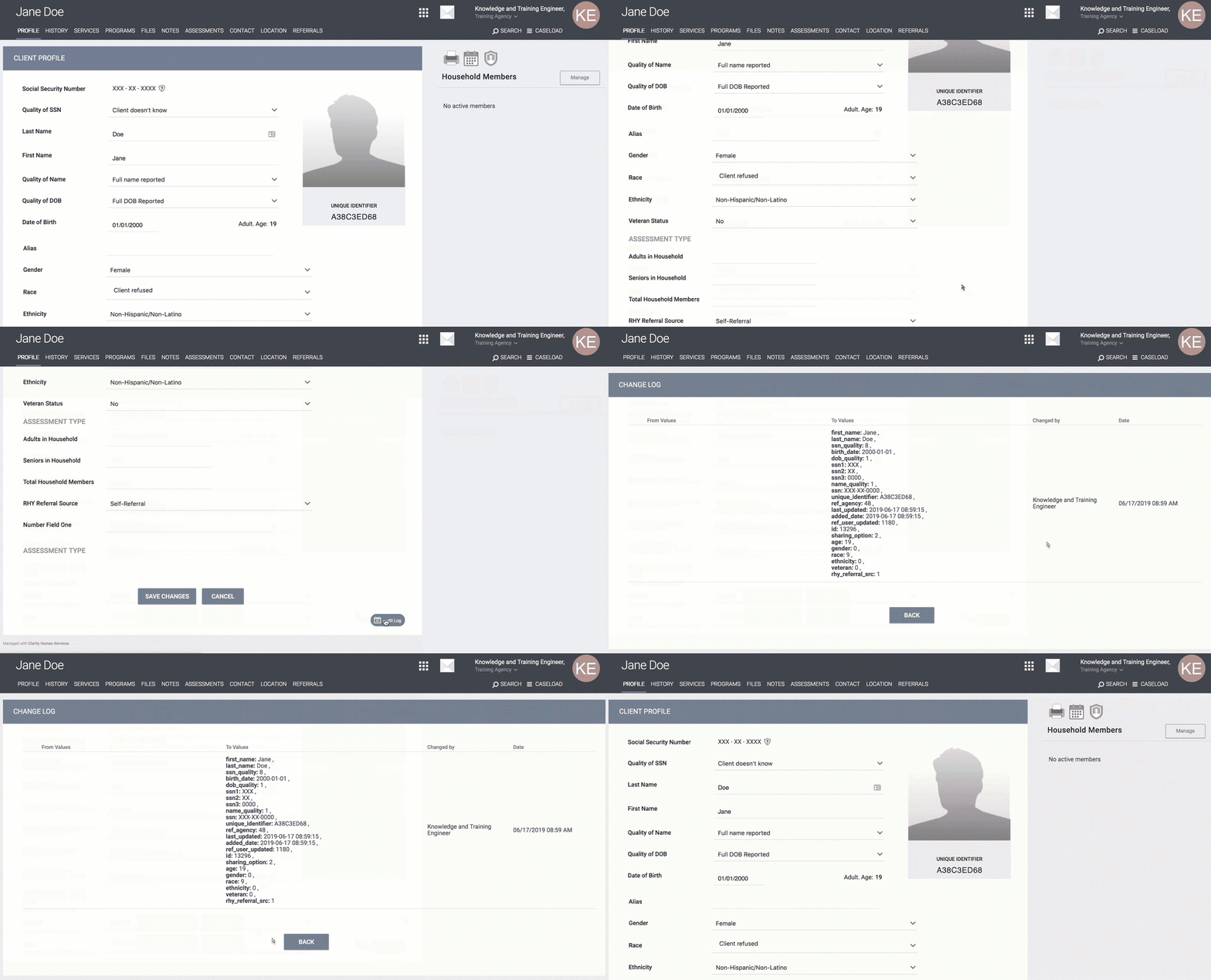
Using the audit log feature (located in the lower-right-hand corner of each record component where data has been recorded), System Administrators can view the history of entered data, including who entered it and when.
Three factors affect other users' ability to view, edit, and report on that data: access roles, client record privacy, and sharing settings. This article addresses the impact of sharing settings.
Sharing Client Data within the Record: Section by Section
Throughout the sharing settings, there are six main sections of sharing configuration:
-
Clients Created
-
Service/Programs/Assessments/Events Placed
-
Notes
-
Files
-
Location
-
Unit/Bed Occupancy
The sharing of data created by an agency within each section of the client record is governed by that agency’s sharing settings for those components. The table below defines the client record components impacted by each setting.
Note: Unit/Bed Occupancy record ownership is based on the enrolling agency, for both referral-based occupancies and drop-in occupancies recorded without an enrollment.
|
Sharing Setting |
Record Component |
|
Clients Created |
|
|
Service/Programs/Assessments/Events Placed |
History, services, Service Notes, program enrollments, assessments, Coordinated Entry Events, referrals, ROI, Assigned Staff |
|
Notes |
Notes (entered from the NOTES tab, or as Program Notes within an enrollment); Program Restrictions are also shared based on the Notes sharing setting - more information can be found here in this article. |
|
Files |
Files (entered from the Files tab or from the Files tab within a program enrollment) Forms (entered from the Files tab or from the Forms tab within a program enrollment) |
|
Location |
Contact, Location |
|
Unit/Bed Occupancy |
All occupancy records, including the program-level Units/Beds tab, the client-level Units/Beds tab, and the Unit Card on the Inventory Dashboard |
Managing Sharing Settings
Sharing settings are managed at the agency level and are accessible only to system administrators. To access an agency’s sharing settings, first ensure that you’re accessing the correct agency’s settings. Switch into the correct agency if necessary.
Navigate to MANAGE > SHARING.
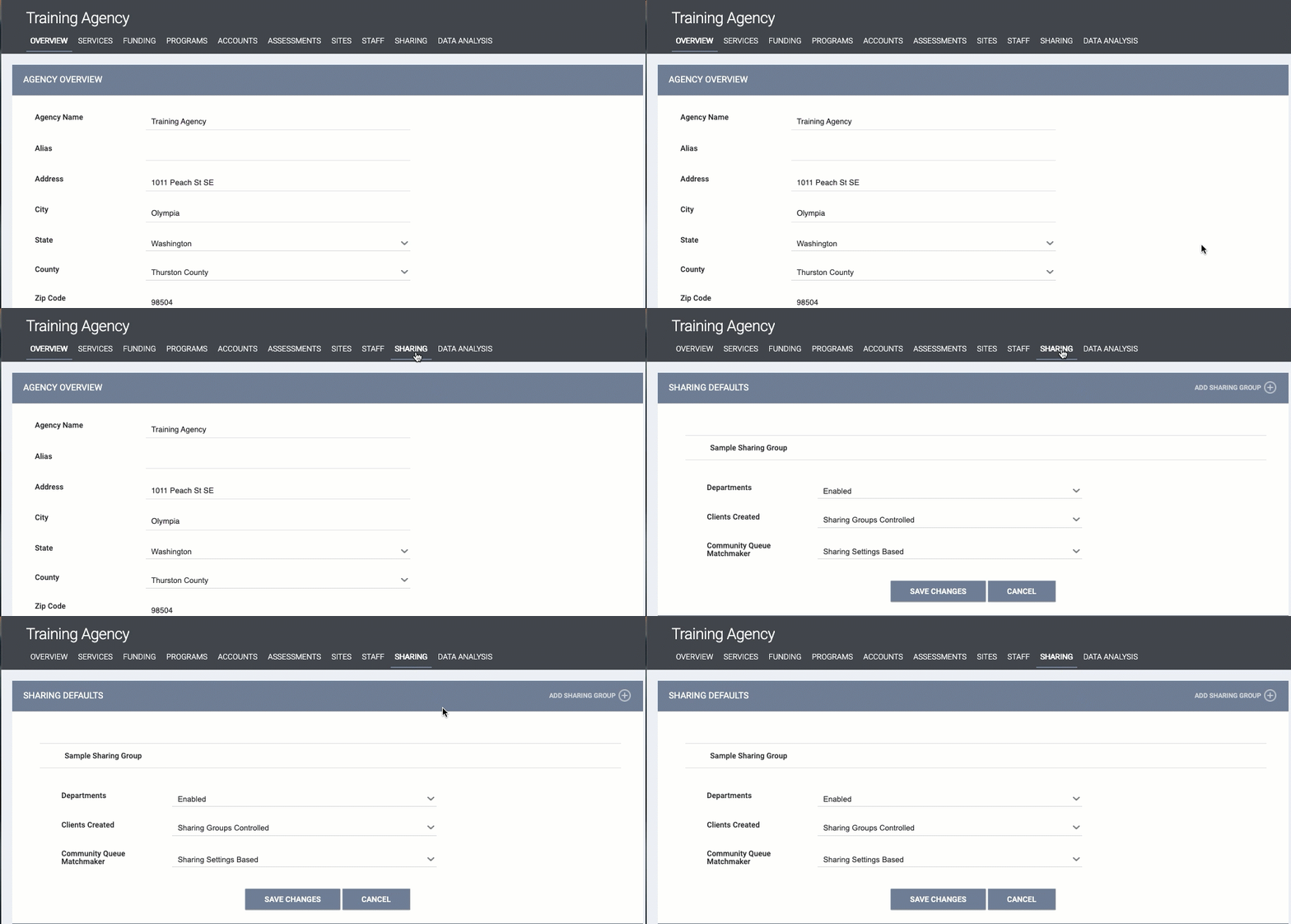
Refer to the articles listed below for details on the settings and sections you'll see on this page:
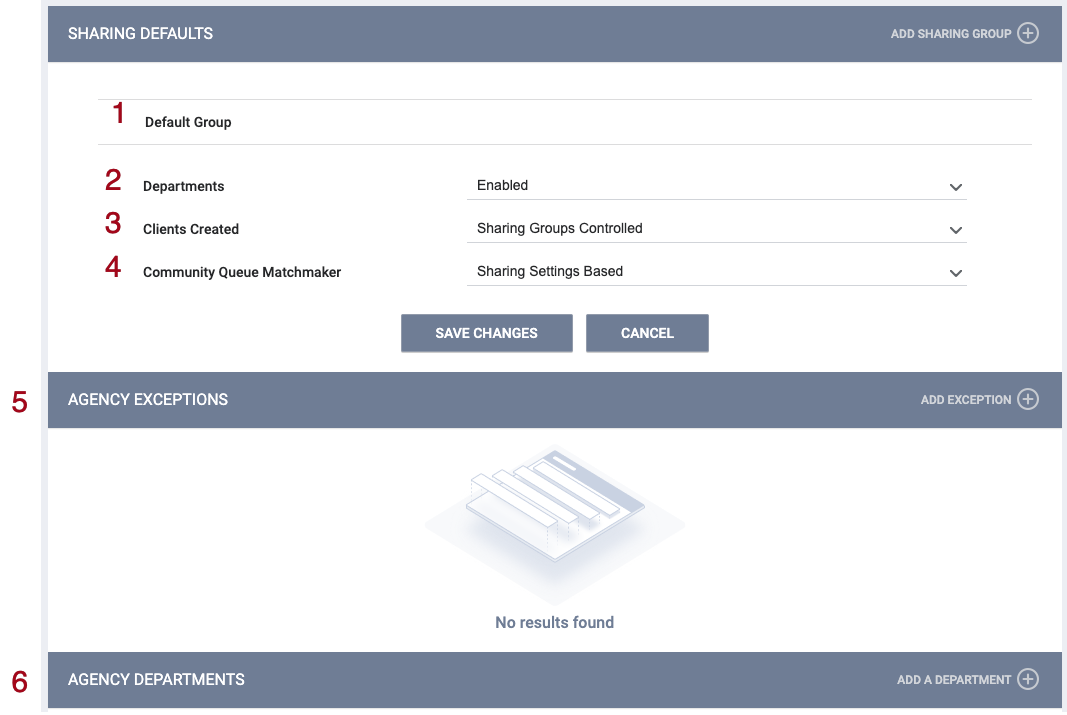
- Default Group (1); refer to Working with Sharing Groups.
- Departments (2): refer to Sharing Departments.
- Clients Created (3): refer to Sharing the Client Record.
- Community Queue Matchmaker (4): described below.
- AGENCY EXCEPTIONS (5): refer to Agency Exceptions.
- AGENCY DEPARTMENTS (6): refer to Sharing Departments.
Community Queue Matchmaker
To indicate whether Matchmakers (users with the Referral Match Maker Access Right) can access all Community Queue referrals without having to switch between agencies, set the Community Queue Matchmaker setting to Sharing Settings Based or Full Shared:
- Full Shared: This option allows a user from another agency with the Referral Match Maker Access Right to view, open, and edit a referral from the agency with Full Shared, regardless of the agency’s Programs/Assessments/Services Placed Sharing Setting. The Full Shared option takes precedence over the Sharing Group settings and Exceptions.
- Sharing Settings Based: This setting follows the Programs/Assessments/Services Placed Sharing Setting.
Be sure also to select the appropriate Matching Process setting under SETUP > SETTINGS > Referral Settings > Community Queue.
The Standard Sharing Settings
In Sharing Groups, as well as Departments and Agency Exceptions, the sharing settings for record components have three standard options: Not Shared, Basic Shared, and Full Shared.
-
Not Shared: data entered by that agency for that record component is not shared.
-
Basic Shared: allows staff to see that data has been entered, but, for the most part, they’re unable to edit or view additional details of the data.
- Full Shared: data is fully shared.
The chart below describes how the system records and saves client data. Users’ ability to view, edit, and delete that data depends on sharing settings and access rights.
|
Record Component |
Not Shared |
Basic Shared |
Full Shared |
|
Clients Created |
Client records created by staff members at my agency do not appear in the search results for staff members at other agencies. |
Client records created by my agency will be visible in client search results for staff members at other agencies, but they will not be able to click on them to access the full record. |
Client records created by staff members at my agency are accessible to staff members at other agencies, including data entered in the Client Profile. |
|
Service/Programs/ |
Service, Service Notes, enrollment, assessment, Coordinated Entry Event, referral, and ROI data entered in client records by staff members at my agency are not accessible to staff members at other agencies. |
Service, Service Notes, enrollment, assessment, Coordinated Entry Event, referral, and ROI data - but not full details - entered in client records by staff members at my agency are accessible to staff members at other agencies, but cannot be edited, regardless of access role. |
Service, Service Notes, enrollment, assessment, Coordinated Entry Event, referral, and ROI data - including full details - entered in client records by staff members at my agency are accessible to staff members at other agencies. |
|
Notes *Program Restrictions are also shared based on the Notes sharing setting - more information can be found here in this article. |
Notes entered in client records either from the NOTES tab or as Program Notes (entered from the Notes tab within a program enrollment) by staff members at my agency are not accessible to staff members at other agencies. |
Notes - but not their full details - entered in client records either from the NOTES tab or as Program Notes (entered from the Notes tab within a program enrollment) by staff members at my agency are accessible to staff members at other agencies. |
Notes - including full details - entered in client records either from the NOTES tab or as Program Notes (entered from the Notes tab within an enrollment) by staff members at my agency are accessible to staff members at other agencies. |
|
Files *Forms are also shared based on the Files sharing setting. |
Files and Forms entered in client records, either from the Files tab or the Forms tab (or the Files tab or the Forms tab of a program enrollment), by staff members at my agency are not accessible to staff members at other agencies. |
Files and Forms entered in client records, either from the Files tab or Forms tab (or the Files tab or Forms tab of a program enrollment) by staff members at my agency, are accessible to staff members at other agencies, but cannot be edited or deleted, regardless of the staff member’s access role. |
Files and Forms entered in client records, either from the Files tab or the Forms tab (or the Files tab or the Forms tab of a program enrollment), by staff members at my agency are accessible to staff members at other agencies and can be edited and deleted if the staff member’s access role permits. |
|
Location/Contact |
Location and contact data entered in client records by staff members at my agency are not accessible to staff members at other agencies. |
Location and contact data - but not full data - entered in client records by staff members at my agency are accessible to staff members at other agencies but cannot be edited or deleted, regardless of the staff member’s access role. |
Location and contact data entered in client records by staff members at my agency are accessible to staff members at other agencies and can be edited and deleted if the staff member’s access role permits. |
|
Unit/Bed Occupancy *Certain access rights create exceptions to these sharing settings and are detailed in the Unit/Bed Occupancy section in this article. |
All occupancy data entered in client records by staff members at my agency are not accessible to staff members at other agencies. |
All occupancy data - but not full data - entered in client records by staff members at my agency are accessible to staff members at other agencies, but cannot be edited or deleted, regardless of the staff member’s access role. |
All occupancy data entered in client records by staff members at my agency are accessible to staff members at other agencies and can be edited and deleted if the staff member’s access role permits. |
Note:
- Public Alerts are, by default, shared across the system unless the specific alert is marked as private, in which case the alert would then be private to the agency.
- If a client record has a program referral to an agency that is not sharing Services/Programs/Assessments/Events Placed with another agency, anywhere the system displays the Referred To Agency, Referred To Program, Referral Notes, or the name of a staff member associated with that agency in a referral, users from the other agency will see Undisclosed Program and Undisclosed Agency.
Notes on Program Restrictions
The PROGRAM RESTRICTIONS feature allows end users to document when a client has been denied future services at one or more programs. Program restrictions are, by default, shared based on Notes sharing settings, unless the specific restriction is marked as private, in which case the restriction and related alert banner would then be private to the agency. The sharing basics for program restrictions are:
- If Notes = Full shared - the user will see the Program Restriction alert and a Preview Notes button.
- If Notes = Basic Shared - the user will only see the Program Restriction alert (without the Preview Notes button).
- If Notes = Not Shared - the user from another agency will not see the Program Restriction alert or the Preview Notes button.
Notes on Unit/Bed Occupancy
Administrators can set sharing rules for all Occupancy records to appropriately limit access to a client's occupancy information.
Note: Unit/Bed Occupancy record ownership is based on the enrolling agency, for both referral-based occupancies and drop-in occupancies recorded without an enrollment.
By default, Unit/Bed Occupancy is set to Not Shared for the Default Group and any custom Sharing Groups.
If the Full System Sharing Access access right permission is enabled for the user, the user has full sharing access to occupancy records.
Unit/Bed Occupancy settings and sharing impacts specific to the client-level Units/Beds tab in the new Clarity interface.
- If the user access role has Full System Sharing Access = On, but Edit Overnight Drop-in Unit Records = Off, this user sees the View link to the left of the Overnight Drop-in records on the client-level Units/Beds tab in the new Clarity interface.
Unit/Bed Occupancy settings and sharing impacts specific to the Unit Card on the Inventory Dashboard:
- If Unit/Bed Occupancy is set to Full Shared or Basic Shared, the user continues to see this information.
- If Unit/Bed Occupancy is set to Not Shared, the system hides the occupancy details from the user.
The Unit/Bed Occupancy sharing option is also added to Agency Sharing Exceptions.
Refer to the Overnight Unit/Bed Drop-Ins article for more information.
Up Next: Sharing the Client Record
Updated: 08/26/2026