
Table of Contents
Overview
The way an agency shares client data with other agencies in Clarity Human Services is defined by that agency's Default and Sharing Group settings. As discussed in Sharing Groups, an agency can share uniformly with all other agencies, or share with groups of agencies in different ways by adding Sharing Groups.
Sometimes an agency will share data with a group of agencies in a Sharing Group, but will share data differently with one or more agencies in that Sharing Group. System Administrators can use Agency Exceptions to accommodate this.
Creating an Agency Exception
Before adding an Agency Exception, make sure you are switched into the agency to which the exception will be added.
Click ADD EXCEPTION in the AGENCY EXCEPTIONS section under MANAGE > SHARING.
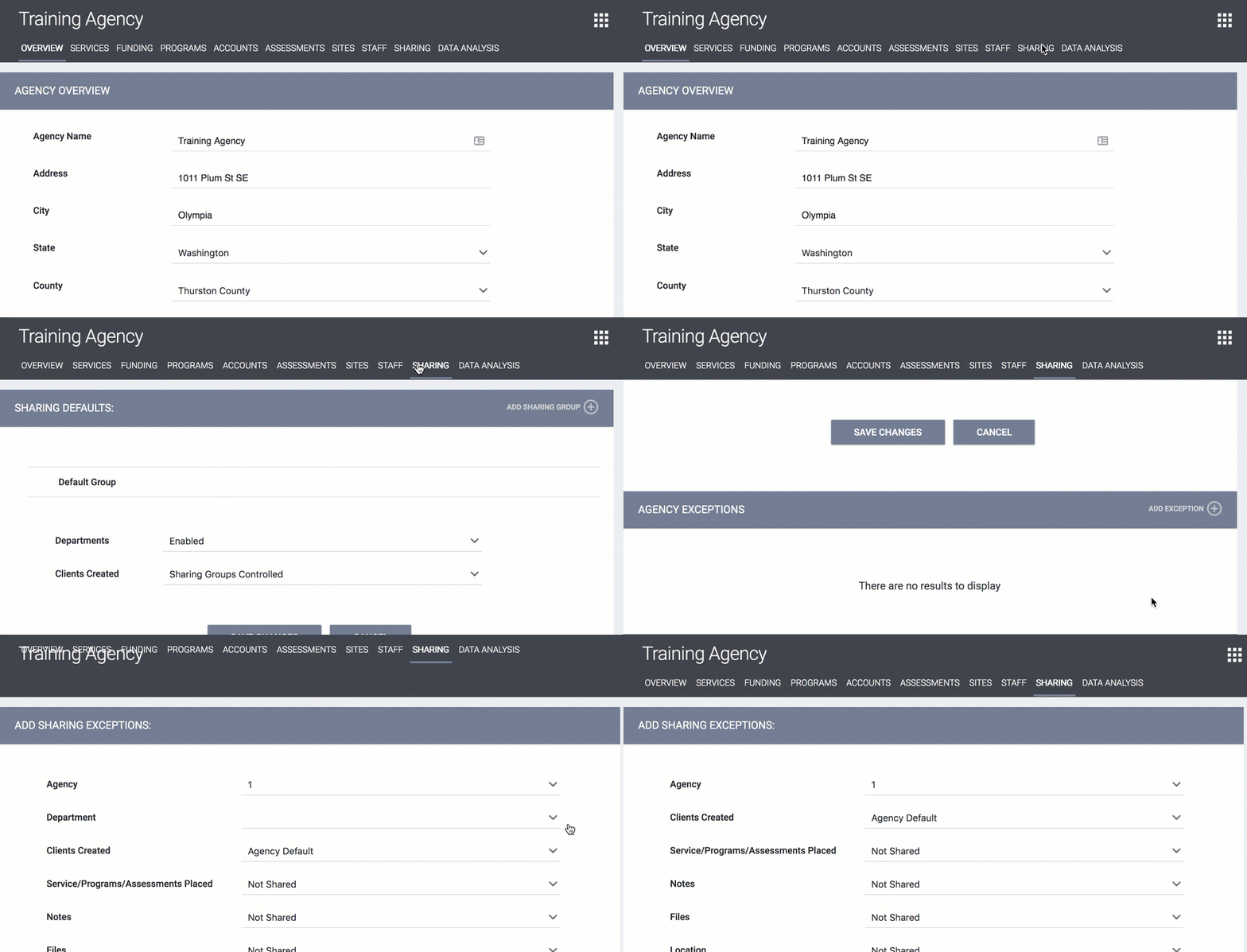
From the Agency drop-down menu, select the agency with which data will be shared differently than the way it is shared within Sharing Groups. Staff Members at the agency selected in the Agency drop-down menu will view data entered by Staff Members at the agency being configured based on the selections made for each of the following record components.
Select the desired sharing settings for the record components and click ADD RECORD.
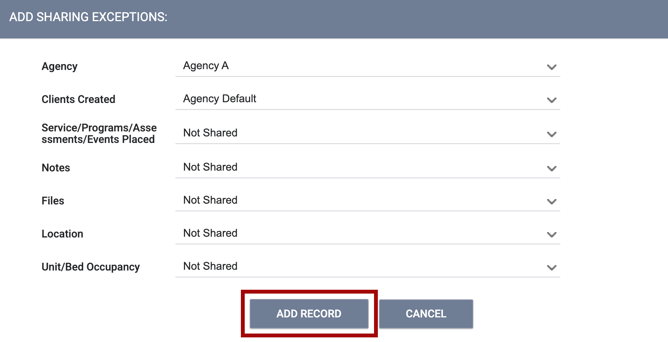
Once the exception is added, the sharing settings configured in the Agency Exception will override the sharing settings established in Sharing Groups.
Note: Agency Exceptions cannot be used to override the Clients Created sharing settings.
Modifying an Agency Exception
Users with the appropriate permissions can hover over an existing Agency Exception to display the Delete (trash can) and Edit (pencil) icons.

Editing an Agency Exception
Click the Edit (pencil) icon. The MODIFY SHARING EXCEPTION page appears. Edit as needed, then click SAVE CHANGES.
Note: If you click SAVE CHANGES on the MODIFY AGENCY EXCEPTION page without making any changes, the system will not display the green Changes successfully saved banner and will not update last_updated and ref_user_updated.
Deleting an Agency Exception
Click the Delete (trash can) icon to delete the Agency Exception. A deleted Agency Exception will no longer apply, even if it was in place when the data was initially recorded.
Updated: 08/10/2026