
Table of Contents
Overview
You can configure buildings with eligibility criteria, funding sources, custom fields, and photos.
Managing Buildings
To manage an agency's buildings, ensure that you're in the correct agency, navigate to SITES → Housing Inventory, then click on the Edit icon next to the appropriate Site. Under Site Resources, select Buildings & Units.
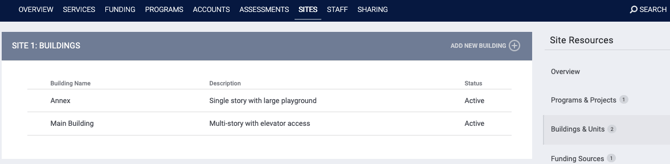
Buildings are listed alphabetically by Building Name, but you can sort by Description and Status if desired by clicking those column headers.
To add a new building, click ADD NEW BUILDING. Complete the fields in the ADD A NEW BUILDING screen.
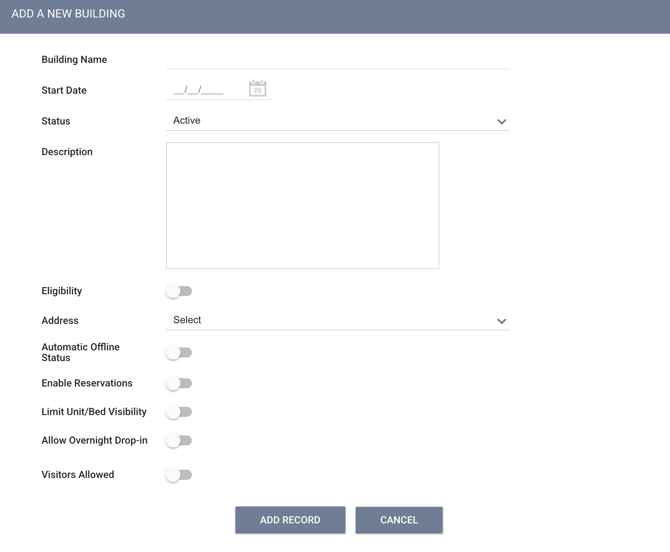
- In the Start Date field, you may enter a past, current, or future date. The system will display a pop-up warning in the following situations:
- If you attempt to enter a Start Date that is earlier than the Start Date for the associated Site.
- If you attempt to change the Start Date for an existing Building to a date that is later than the Start Date for any of the Building's Units or Unit Configuration Types.
- You can associate eligibility criteria with a Building by turning on the Eligibility toggle. When this setting is enabled, the Eligibility section appears in the Building Resources sidebar.
Note: If Eligibility has been enabled at the Site level or inherited from a program or funding source, the Eligibility toggle will automatically be enabled and read-only.
- The Address drop-down allows you to select a "Default Site Address" or "New Address." This field is required. If you select "Default Site Address," the system will apply the address collected at the Site level to the Building. If you choose "New Address," you can record a unique address for the Building (this can later be changed back to the Default Site Address, if applicable).
- Enabling Automatic Offline Status means that the system automatically creates an Offline status for a Unit/Bed when a client exits. Refer to Automatic Offline Status for details.
- Toggle on Enable Reservations to utilize the units/beds configured in INVENTORY for Attendance and Reservation services. If Enable Reservations is toggled ON at the Site level, the setting is ON, read-only, and cannot be disabled at the Building or Unit level. Refer to the INVENTORY, Attendance, and Reservation Management article for more details.
- Toggle on Limit Unit/Bed Visibility to allow referrals from other agencies. Refer to the Program Setup: Program Visibility article for more details.
- Toggle on the Allow Overnight Drop-in setting so that staff can quickly add an overnight drop-in for a unit/bed without a full intake workflow. Toggling on Allow Overnight Drop-in enables additional settings.
- Refer to the Allow Overnight Drop-ins Setting section in this article for more information.
- Custom Fields: System Administrators can add Housing Inventory Custom fields as appropriate, such as the Visitors Allowed field shown in the example above. If desired, a Housing Inventory Custom field can be designated as a Field Marker to enable data to cascade to the level below it (from a Site screen to a Building screen, for example).
Building Resources Sidebar
Selecting Buildings & Units from the Site Resources sidebar displays the BUILDINGS page with a list of Buildings that have been created for that site. (If the site is a Standalone Unit, this section won't appear.) Clicking the Edit icon next to a building will display the Overview for that building, along with the Building Resources sidebar, where you can make additional configurations.
Overview
Clicking Overview in the sidebar displays the MODIFY BUILDING screen. This screen contains the fields completed for the building at creation, which you can modify at any time.
Programs & Projects
The Programs & Projects section of the sidebar displays programs assigned to a building via the building setup.
To assign a program to a building, click ADD NEW PROGRAM. The ADD PROGRAM pop-up appears.
- Users with the Agency Inventory - Add Any Agency Program access right enabled will see both an Agency drop-down and a Program drop-down on the ADD PROGRAM pop-up when adding a program to the building.
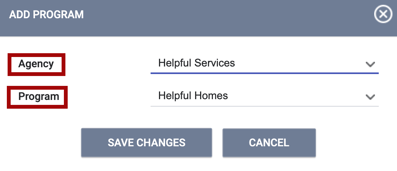
- Users with the Agency Inventory - Add Agency Program access right enabled, but not the Agency Inventory - Add Any Agency Program access right, will not see the Agency drop-down because they will only have access to associate a program from their own agency.
You will not be able to delete any programs that are listed as either a Current or Upcoming Unit Configuration Type of a Unit setup.
Note: If you assign a program at the Building level, the Unit Configuration Type (UTC) will inherit that program, and the ability to add a program to the UTC will become unavailable. If more than one program operates within the building, do not set up the program at the Building level; instead, set it up at the Unit Configuration Type (UCT) level. You can only assign one program at a time to a UCT.
Funding Sources
Note: All reports (including federal reports) related to INVENTORY will pull Funding Source information from the Program level. Therefore, Funding Sources must be attached at the program level to be included in those reports. Funding Sources attached at the Building level will not be pulled into reports.
To view or add funding sources for a building, click the Funding Sources section of the sidebar. In the SITE FUNDING section, you will see any funding sources inherited from the Site level. In the PROGRAM FUNDING section, you will see any active funding sources inherited from a program assignment.

To associate a funding source with the building, click ADD FUNDING SOURCE. The ADD FUNDING SOURCE window will display funding sources created from the Funding tab. Toggle on the desired funding sources, then click ADD.
Note: Funding is inherited from the building to the lower levels. If funding differs from unit to unit, don't add funding at the Building level. Instead, add funding as needed within Unit Configuration Type (UCT) or Unit Management.
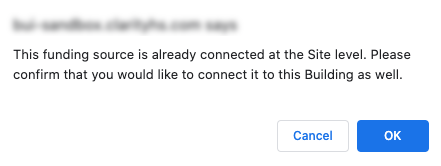
You will receive a warning if you add a funding source at the Building level that has already been assigned at the parent level.
Unit Configuration Type
Unit Configuration Type allows for the collection of bed and unit inventory aligning with the HMIS Data Dictionary 2.07 Bed and Unit Information.
Units
The Units section allows you to add, view, and manage Units. Within this section, you can also assign Unit Configuration Types (UCTs) to the unit. When creating a new unit, you also have the option of creating a new Unit Configuration Type (UCT).
Eligibility
To associate Eligibility criteria with a building, click Eligibility in the sidebar, then click ADD REQUIREMENT. Refer to our INVENTORY Overview article for additional information on configuring eligibility criteria.
The system will display the following pop-up warning whenever an eligibility criterion is added or edited:
"Please note that modifying eligibility may impact clients already associated with this [site/building/funding source/program/etc] eligibility setting. Please confirm."
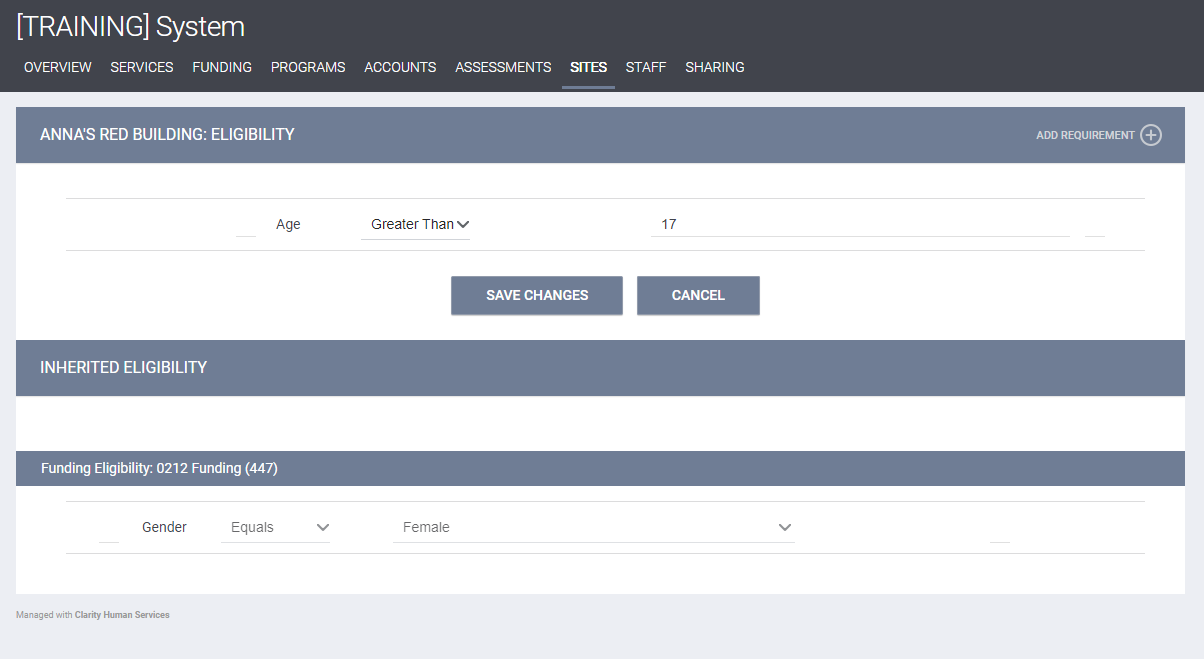
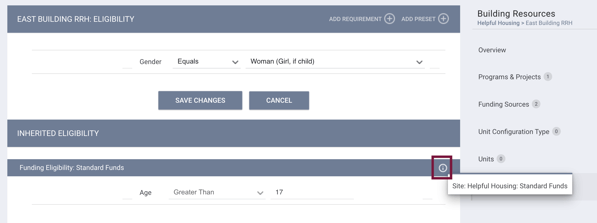
The INHERITED ELIGIBILITY section displays any eligibility criteria inherited from the Site setup or from programs or funding sources.
You can hover the mouse over the Information icon on an inherited funding source to display a tooltip showing the source(s) of inherited eligibility criteria. The listing will also include any eligibility inherited from assigned sub-grants.
Note: If you click SAVE CHANGES on the MODIFY BUILDING or ELIGIBILITY pages without making any changes, the system will not display the green Changes successfully saved banner, update last_updated and ref_user_updated, or track the action in the Audit Log.
Allow Overnight Drop-in Setting
System Administrators can configure Overnight Drop-in settings on Sites, Buildings, and Units screens. Settings cascade from the Site Screen → Building screen → Unit screen.
- The cascading applies when the setting is enabled.
- When these fields are filled on the higher level, the user is unable to modify them on the lower level.
- If the fields are filled on the lower level, the same fields can be filled on the higher level and override the value from the lower level.
- Changes are reflected in the Audit log of both higher-level and lower-level screens.
The Allow Overnight Drop-in setting is Off by default. When toggled On, the Add Overnight Drop-in option is available on the Inventory dashboard, in the unit row-level action menu. Additional settings appear when the setting is toggled On.
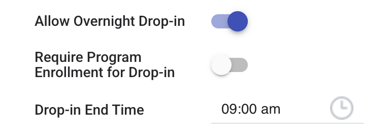
- Require Program Enrollment for Drop-in toggle:
- This toggle only shows when the Allow Overnight Drop-in setting is On.
- If On: User must create a new enrollment for the drop-in client.
- If an enrollment already exists for the drop-in date, the system connects the drop-in to the existing enrollment automatically.
- If multiple enrollments exist, the system connects the drop-in to the latest enrollment.
- If Off: User can attach a client profile to the unit/bed stay without a full program enrollment.
- Drop-in End Time time field:
- Only shows when the Allow Overnight Drop-in setting is On.
- Defaults to 9:00 AM.
- This is the time the occupancy automatically ends for clients with an overnight drop-in.
For more information about overnight drop-ins, please see the Overnight Unit/Bed Drop-Ins article.
Navigation Path
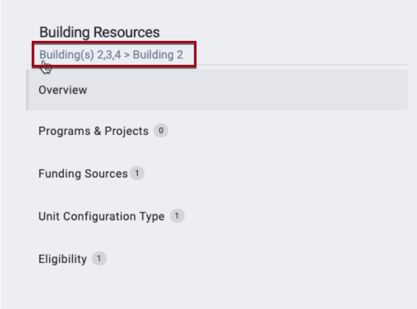
You may click the link near the top of the Building Resources sidebar to return to the Site level.
Active/Inactive Status Logic
When a site or building status is updated, the status is inherited down, and any associated unit, bed, or Unit Configuration Type (UCT) automatically updates.
Inactive Status Logic
When the user wants to change a Site or Building status to "Inactive," the system checks if any units or beds within the associated Site or Building are currently occupied or have future occupancy date or have current/future-dated referrals.
- If there are any current occupancies or current pending referrals with the units or beds within the site or building, the status field for the site and building to which the unit/bed relates is read-only.
- When the user hovers over the Status field, the system displays a tooltip that reads:
"There are one or more units or beds within this [site or building] that are currently occupied or have pending referrals. Please make any necessary adjustments to change the status of the [site or building]."
- When the user hovers over the Status field, the system displays a tooltip that reads:
- If there are no current occupancies or current pending referrals, and there are any future occupancies or future-dated referrals to units/beds set up within the site/building, then when the user changes the site or building status to "Inactive," the user sees a warning indicating that the future occupancy/referral will be deleted.
- The warning reads:
"There are one or more units or beds within this [site or building] that have future occupancies or referrals. Changing the status of this [site or building] to ‘Inactive’ will delete the future occupancies or referrals. Please confirm."
There is an "OK" button and a "Cancel" button available.- If the user clicks OK, the future occupancy(ies)/referral(s) are deleted and the site/building status is changed to "Inactive."
- If the user clicks Cancel, the future occupancy(ies)/referral(s) are not deleted and the site/building status is not changed to "Inactive."
- The warning reads:
- If there are no current occupancies, no future occupancies, no current pending referrals, and no future-dated referrals associated with the units or beds within the site or building, the "Inactive" status update applies to the site or building.
- If the "Inactive" status is applied to the site/building, the "Inactive" status applies to all entities set up under the site/building.
- The "Inactive" Start Date for the units, and beds is the date and time the "Inactive" status is applied to the site/building. The "Inactive" End Date in this case is empty until the user changes the site/building status back to active. Buildings and UCTs do not have a status Start or End Date, so the date doesn’t apply to UCTs or buildings.
- If there is a current inactive status for a unit/bed set up under the site/building and the user changes the site/building status to "Inactive," the system keeps the start date for the inactive unit/bed status as is and does not update unit/bed start date to the inactivity date for the site/building. The system clears the end date/time of current inactive status and fills it automatically when the site/building status is set back to active. The end date/time for the inactive status = date /time when the user sets the "Active" status for the site/building.
- If there is current offline status for a unit/bed set up under the site/building, and the user changes the site/building status to "Inactive," the system ends the offline status with the end date/time of the start of the inactive status. The system creates a new inactive status for this unit with a start date/time that matches the start date/time of the site/building’s inactive status.
- The "Inactive" status for the entities set up under the site/building cannot be modified or deleted while the site/building status remains "Inactive."
- The "Inactive" Start Date for the units, and beds is the date and time the "Inactive" status is applied to the site/building. The "Inactive" End Date in this case is empty until the user changes the site/building status back to active. Buildings and UCTs do not have a status Start or End Date, so the date doesn’t apply to UCTs or buildings.
- If there are any future inactive/offline statuses for units/beds within the building/site, when the user sets the site/building to "Inactive," they see a warning indicating that those future inactive/offline statuses will be deleted.
- The warning reads:
"There are one or more units or beds within this [site or building] that have future ‘Inactive’ and/or ‘Offline’ statuses. Changing the status of this [site or building] to ‘Inactive’ will delete the future ‘Inactive’ and 'Offline’ statuses. Please confirm."
There will be an "OK" button and a "Cancel" button available.- If the user clicks OK, the future "Inactive" and "Offline" statuses for the units/beds are deleted and the site/building status is changed to "Inactive."
- If the user clicks "Cancel, the future "Inactive" and "Offline" statuses are not deleted and the site/building status is not changed to "Inactive."
- The warning reads:
- If the "Inactive" status is applied to the site/building, the "Inactive" status applies to all entities set up under the site/building.
Active Status Logic
When the user changes the status of a site to "Active" from "Inactive," the "Active" status applies to the building, units, beds, and UCTs set up under the site.
- If the building, unit, bed, or UCT was inactive prior to the site being made inactive and then active again, the building, unit, bed, or UCT retains its inactive status.
- The "Active" Start Date for the units and beds is the date and time the "Inactive" status was changed to "Active." UCTs and Buildings do not have a status Start or End Date, so the date doesn’t apply to UCTs or Buildings.
When the user changes the status of a building to "Active" from "Inactive," the "Active" status applies to the units, beds, and UCTs set up under the building.
- The "Active" Start Date for the units and beds is the date and time the "Inactive" status was changed to "Active." UCTs do not have a status Start or End Date, so the date doesn’t apply to UCTs.
Existing Data Considerations
For existing data, any currently "Inactive" sites or buildings where there is a current occupancy, current pending referral, future occupancy, or future pending referral, are made "Active."
- If there is no current or future occupancy or pending referral to unit/bed or if there are any past occupancies, the site/building status remains "Inactive."
Status in Audit Logs
When the user changes the status of a site/building to Inactive, this is reflected in the audit log for the level where the changes were made and all lower levels.
The list of levels with an audit log is:
- Site
- Building
- Units
- Beds
- UCTs
Status Visibility
When the status of a site/building is changed, the status of the site/building/UCT/bed is visible on the following pages:
- Listing within the Housing Inventory Site page → Status column
- Modify Housing Inventory Site page → Status field
- Listing within the Buildings page → Status column
- Modify Building page → Status field
- Listing within the UCT page → Status column
- Modify Unit Configuration Type page → Status field
- Listing within the Units page → Availability column
- Modify Unit page → Status field
- Unit → Unit Status page → Status column
- Unit → Bed List → Availability column
- Unit → Bed List → Modify Bed → Bed Status section → Status column.
Deleting Buildings
To delete a building, click the Delete (trash can) icon next to the Building name on the BUILDINGS page.

Note: You cannot delete a building if any units have been created for the building, or if the building is connected to any client data.
Audit Logs
Admin users with the Audit Log access right enabled for their access role can click the Audit Log button to view changes made to the Building.

Updated: 08/10/2026