
This article is for the new Clarity interface. Screenshots and descriptions will be updated as features are released. For the current interface article, see Direct Referrals from the Client Referrals Tab.
Table of Contents
- Overview
- Getting Started
- Add a Program Referral
- Direct Referrals to Units/Beds
- Manage Referrals
- Audit Logs
- Icons & Tooltips
- Additional Resources
Overview
Clarity Human Services offers two ways to refer a client directly to a program (i.e., without using the Community Queue or Unit Queue):
- From the Assessments workspaces, where clients can be referred directly to programs based on eligibility criteria. Refer to our Assessments Tab: Direct Referrals article for details.
- From the client record Referrals workspace, where clients can be referred directly to specific programs. This method is the focus of this article.
Note: Certain configurations must be in place for a program to be listed as a referral option. See Introduction to Making Referrals for more information.
Getting Started
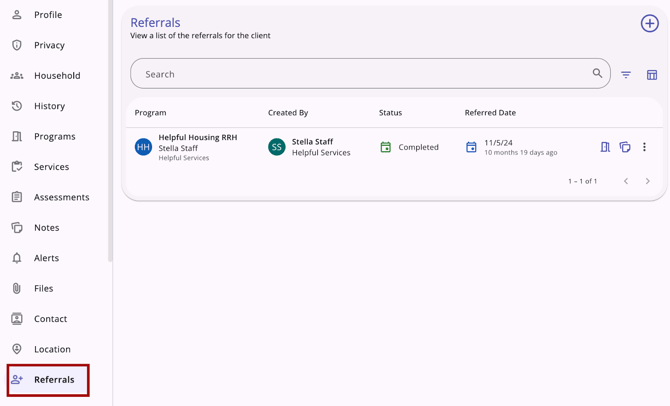
To create a direct referral from the client Referrals workspace, navigate to the client record and click on the client-level Referrals menu item on the client navigation menu. When the user clicks on the client’s Referrals menu item, they land on the client's Referrals workspace.
The Referrals workspace includes:
- An Add icon at the top right of the page
- A Search bar
- A Filter icon that can be used to filter search results. Search results can be filtered by:
- Referral Status
- Program Name
- Referred To Agency Name
- Referred By Agency Name
- A column selector to customize referral details
- A list of referrals for the client:
- The list is sorted by default with the newest referral date at the top.
- The list includes past and future scheduled referrals.
- If no referrals have been provided yet, the user sees a No results yet message.
Add a Program Referral
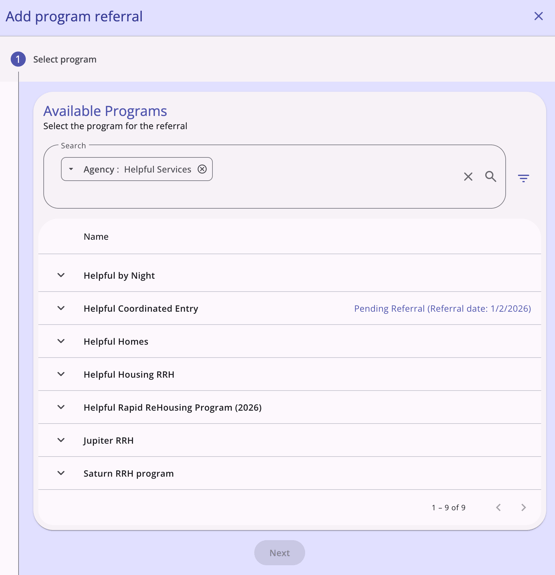
When the user clicks on the Add icon in the top right corner of the Referrals workspace, a modal opens on the right sidebar, and the user sees an Add program referral workflow step with the following:
- Available Programs section title
- A Search bar (where the user can search for a program)
- A Filter icon that, when clicked, shows filter options for the following (which the user can select to filter the list of programs that the client can be referred to):
- Agency
- Project Type
- Eligible Programs Only
- A list of programs that the client can be referred to
- The list of programs includes all Agency and Community programs available for referrals.
- The list is sorted by default in alphabetical order.
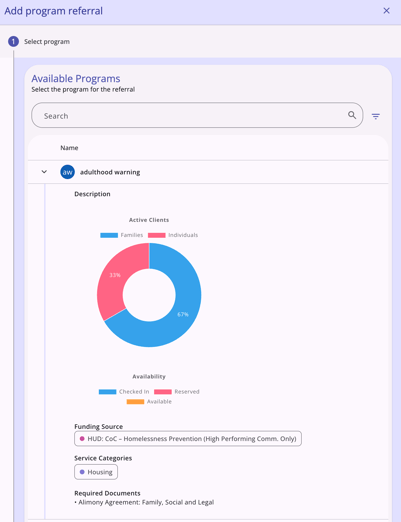
-
- Active Clients
- Availability
- Funding Source
- Service Categories (if any)
- Required Documents (if enabled/if any).
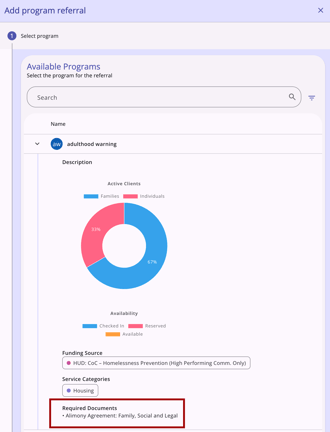
Note: Programs with documentation requirements will include a Required Documents section listing the required documents.
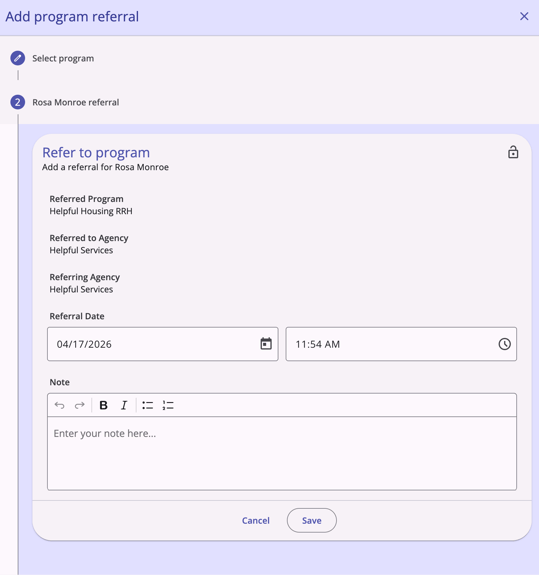
When the user clicks on a program in the list and clicks Next, the user sees a Refer to program workflow step that contains:
- Referred Program name, not editable
- Referred to Agency name, not editable
- Referring Agency name, not editable
- Referral Date (an editable date/time picker)
- Note textbox
- Lock icon (used to update privacy).
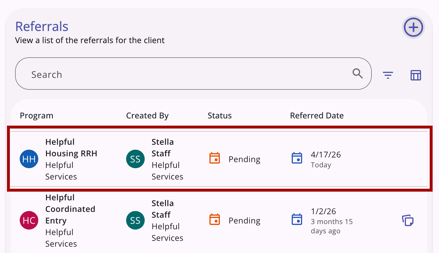
When the user clicks Save, they see a Created successfully! message, and they can click Complete to return to the Referrals page. Users can see the referral they just sent in the Referrals list.
Direct Referrals to Units/Beds
Users can refer a client and their household members directly to specific unit(s)/bed(s) without leaving the client record.
Unit/Bed Openings Visibility
Unit/Bed openings appear for the user if the Direct Unit/Bed Referrals setting on the Program Setup page is set to Optional or Required.
- Optional: the Available Units / Beds picklist field on the form is optional for the user, and the referral can go directly to the program instead of a specific unit/bed.
- Required: the user must select a specific unit or bed to complete the referral.
Notes:
- Programs with no active units or beds will not appear in the initial program selection list for the user.
- If the Direct Unit/Bed Referrals setting on the Program Setup page is set to Disabled, the Unit/Bed Opening field will not appear on the direct referral.
Adding Direct Referrals to Units/Beds
To add a direct referral to a unit/bed for a client or household, follow the steps listed above in the Add a Program Referral section.
When you complete the Refer to program step by adding the Referral Date and Time and a Note, click Save. You will see the Unit/Bed Opening form and see Referral details, an Eligibility Override toggle, an Available Units/Beds field, and an Include Household Members section.
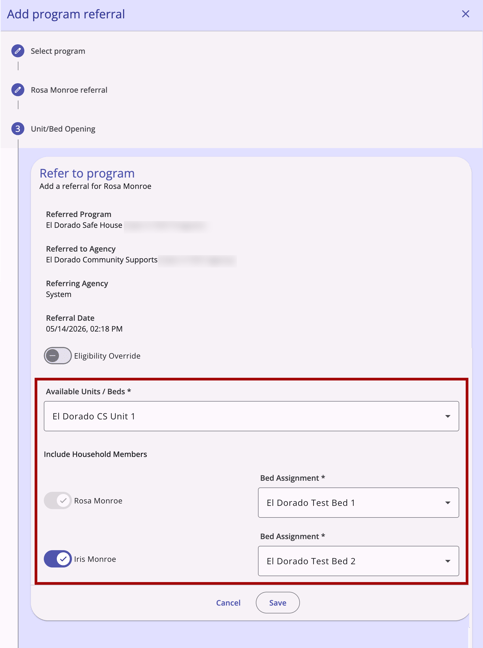
Once an appropriate unit/bed has been selected and any Household Members selected, the user can click Cancel or Save.
- Cancel: Dismisses the modal without saving any information.
- Save: Advances to the final completion page to send the referral.
When you click Save, you will see a large green checkmark and the message:
"Nice! You finished this task! Tap the Complete button below to continue."
When you click Complete, you return to the Referrals page, where you can see the referral you just sent included in the list of Program Referrals.
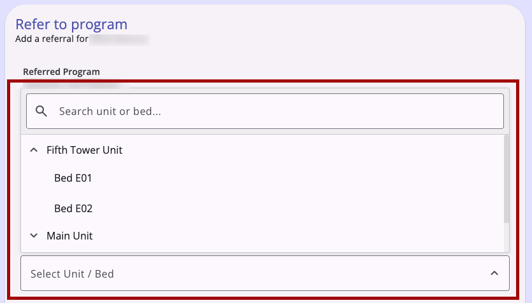
Note: Hierarchy-select fields are available in the Available Unit / Bed and Bed Assignment fields. These fields let users choose from a structured tree of options organized into nested levels that can be expanded and collapsed within the field, making it easier to navigate long lists of related items. A built-in search and filter feature allows users to type ahead and quickly narrow the tree to matching options.
Eligibility Override
By default, the system hides units/beds that do not meet the standard eligibility criteria. However, age and program restrictions are checked upon saving.
Once the user selects the appropriate unit/bed and clicks Save, the system can calculate eligibility based on Age or Program Restriction. If there is a restriction, the system will show a message with an Ok button that reads:
- “This client has an active program restriction and cannot be referred.”
OR - “This client will not meet the age requirements of this placement on <date>, and cannot be referred.”
Eligibility Override Toggle
An Eligibility Override toggle is available on the Unit/Bed Opening form during the referral process. If the system-wide or site-specific Prohibit Eligibility Override setting in Referral Settings is ON:
- The Eligibility Override toggle is still visible.
- The ineligible units where the system-wide or site-specific Prohibit Eligibility Override setting in Referral Settings is enabled would not be listed in the Available Units/Beds dropdown.
- Ineligible units/beds from restricted sites will not appear in the dropdown, even if the Eligibility Override toggle is toggled ON by the user.
- If the unit/bed would otherwise be eligible, it remains listed.
Managing Household Placements
Below the unit selection field, you can manage how other household members are included in the referral.
Include Household Members
- For each household member toggled on, a bed-selection dropdown will appear.
- This section only appears if there are other members in the client's household.
- If the client is an individual, the Include Group Members toggle does not appear, and you will only see a bed selection for the current client.
Set Remaining [x] Beds Offline
After all units/beds are selected for the group, the Set Remaining [x] Beds Offline toggle allows you to mark any unused beds in a unit unavailable to others. When toggled on, all other beds in the unit will be updated with an Offline status.
- Visibility: This toggle appears under the Include Household Members section.
- It will not show if the unit already has occupied units/beds or a pending occupancy by a different household.
- Dynamic Display: The number displayed (x) updates automatically as you assign beds to household members.
- Household Member Changes:
- If Set Remaining [x] Beds “Offline” was enabled: If a household member leaves the household or a household member’s pending unit/bed assignment is deleted, their unit’s/bed’s status becomes Offline.
- If Set Remaining [x] Beds “Offline” was disabled: If a household member leaves the household or a pending assignment is deleted, their unit/bed becomes Available.
Manage Referrals
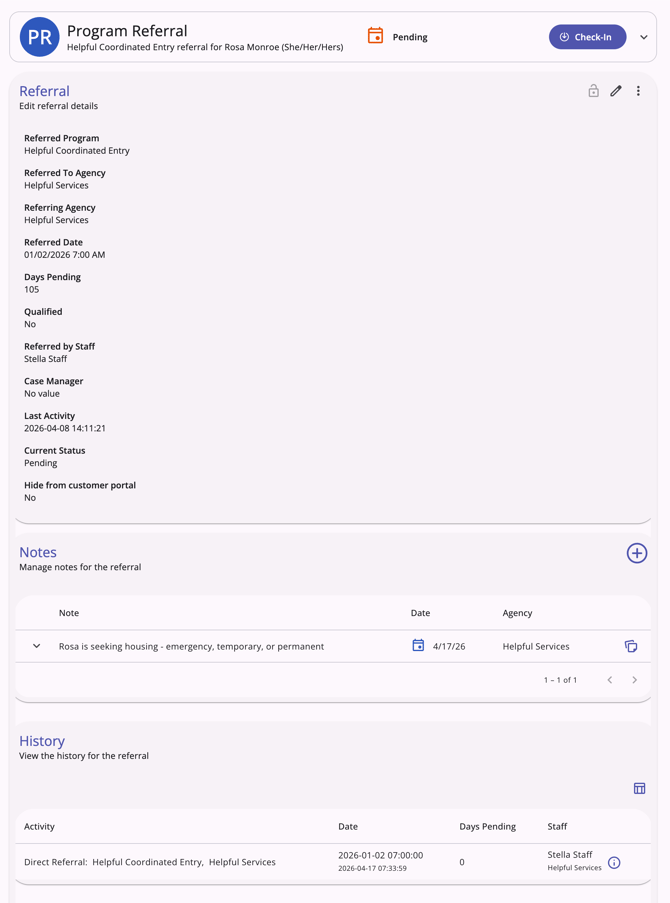
When a user clicks an existing referral, the modal opens on the right side of the screen, showing the referral details. There are options to edit or delete a referral (dependent on sharing and access rights).
Editing Referrals
Users with the appropriate access can edit or view a referral record from the client’s History tab, the client’s Referrals tab, or from the global Referrals tab.
When the user clicks a client referral record in the client's Referrals tab, it opens the referral's associated screen, whether it is active in the Community Queue, a pending referral to a program, or a completed/expired/denied/snoozed referral. The information displayed and/or editable is based on sharing and access role permissions, as well as the referral status.
Click the Edit icon to update the client's Referral.
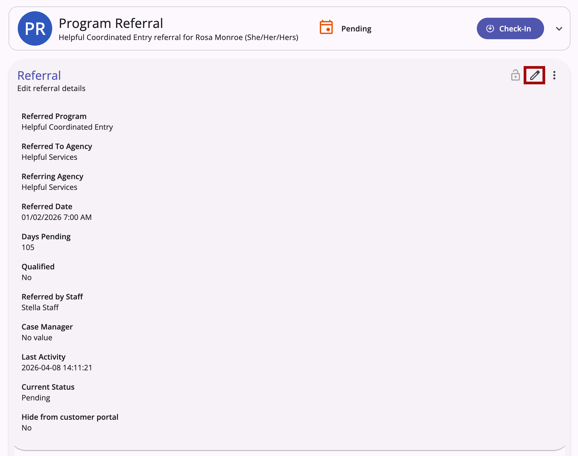
At the top of the referral screen, the referral type, status, and any additional details are displayed in an information box. A drop-down icon is available to expand the information for more details. Click the drop-down icon again to collapse the information box.
For referrals where the Check-in button applies, it will be located in the information box.

When a user clicks the check-in button, the Last Activity Date will be updated to the check-in date.
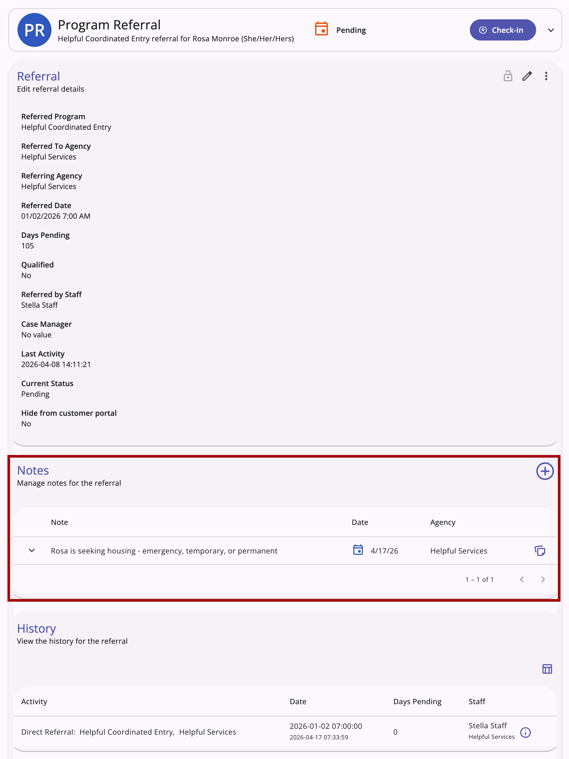
Referral Notes
The Notes section of any referral includes a list of notes and the ability to add notes.
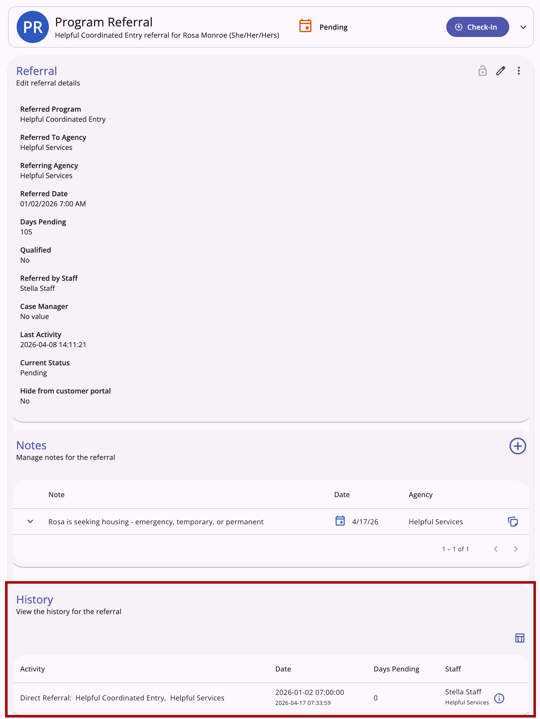
Referral History
The History section of any referral includes a complete history of all actions taken for the referral.
Audit Logs
The View Audit Log option can be clicked by a system administrator with audit log access rights.
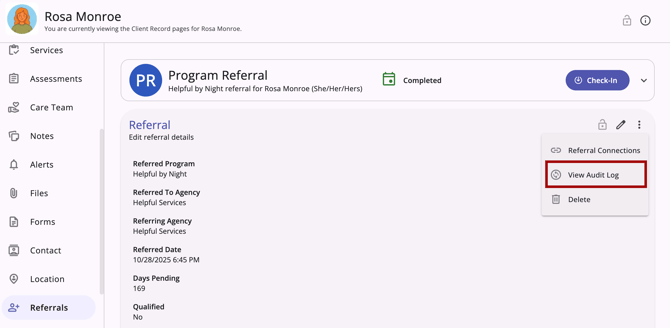
The audit log is available for each referral, except for future referrals, which do not have one.
Audit logs show:
- From Values
- To Values
- Changed by - interface (Clarity2.0 [current interface] or Clarity3.0 [new interface]): User Name
- Date.
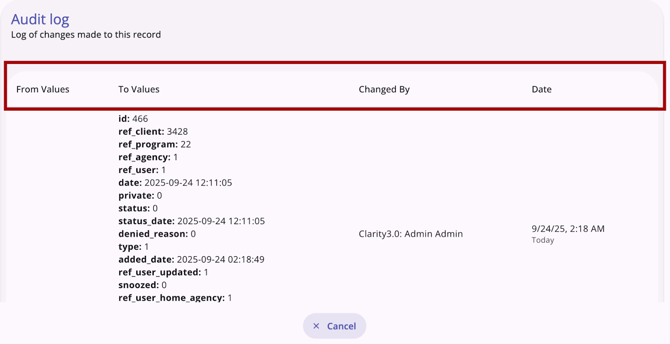
System Administrators can click Cancel or click outside the Audit Log box to close the audit log.
Icons & Tooltips
| Icon | Icon/Rich Tooltip Name | Rich Tooltip | Icon Location |

|
Action Menu | "Show more actions" | Top right corner of the Client profile information screen. NOTE: If no actions are available to the end user, this icon will not show. |

|
Add | "Add" | Anywhere the Add icon appears |

|
Check-In | (no tooltip) | Referral record: Information box |

|
Column Selector |
"Show/hide fields" |
All Screens: typically paired with a search bar |
 |
Completed Status |
(no tooltip) |
Referral record: Information box |

|
Date | (no tooltip) | Anywhere a date appears |

|
Delete | "Delete" | Anywhere the Delete icon appears |
 |
Denied Status |
(no tooltip) |
Referral record: Information box |

|
Edit | "Edit" | Anywhere the Edit icon appears |
|
Expired Status |
(no tooltip) |
Referral record: Information box |

|
Information |
Note: this icon information changes based on the location found. |
Anywhere the Information icon appears |

|
Note | “Note [formatted note text]” | Contact tab, History tab, Location tab, Notes tab |
 |
Pending Referral | (no tooltip) | Referral record: Information box |
 |
Pending - In Process Status | (no tooltip) | Referral record: Information box |

|
Privacy - Private | "Private, client data is not shared" | Top right corner of the information bar on the client record |

|
Privacy - Public | "Public, client data is not shared" | Top right corner of the information bar on the client record |

|
Program Connection | "Program Connection(s): [Name of Program]" | Referrals tab |

|
Referral Connection | (no tooltip) | Action Menu option on Edit referral details page |

|
Referrals Tab |
"Referrals" |
Client Navigation Menu: Referrals Tab |

|
View Audit Log |
(no tooltip) |
Any screen where audit log functionality is available; visibility is dependent on access rights |
Additional Resources
For more information about client-level referrals, see the following articles:
- Client Referrals Overview (New Clarity Interface) - includes details on the client Referrals workspace, a central location where users can view or manage a client's referrals.
-
Creating and Managing Program Enrollments (New Clarity Interface) - includes details on making referrals within the program-level Assessments workspace (with or without a referral).
- Assessments: Community Queue Referrals (New Clarity Interface) - includes specific details on making referrals to the Community Queue from the program-level Assessments workspace.
- Assessments: Direct Referrals (New Clarity Interface) - includes details on making direct referrals in the client-level Assessments workspace. This article also includes additional information on direct referrals from the program-level Assessments workspace.
Refer to the following articles for general referral details:
- Introduction to Making Referrals (New Clarity Interface)
- Referral Connections (New Clarity Interface)
- Referral Details Glossary (New Clarity Interface)
- Referral History (New Clarity Interface)
- Referral Status Updates (New Clarity Interface)
Refer to the following article for an overview of the global Referrals module and check out the additional resources linked!
Updated: 10/01/2026