
This article is for the new Clarity interface. Screenshots and descriptions will be updated as features are released. For the current interface article, see Updating the Status of a Referral.
Table of Contents
Overview
A referral’s status indicates whether a program accepted the referral, whether the client is in the enrollment process, or whether the referral has expired.
Note: You cannot update a Community Queue referral’s status until it is reassigned to a program. A Community Queue referral’s status can, however, automatically change to Expired if it meets the Inactive Referral Expiration Threshold.
Five referral statuses are available: Pending, Pending - In Process, Denied, Expired, and Completed.
Updating a Referral's Status
Note: Editing a referral's status field from the global Referrals workspace does not automatically update enrollments or an enrollment's referral connection. If a referral needs to be linked to an enrollment after its status is updated, refer to the following articles:
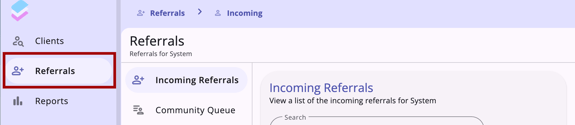
To update a referral’s status, click on Referrals in the primary navigation menu.
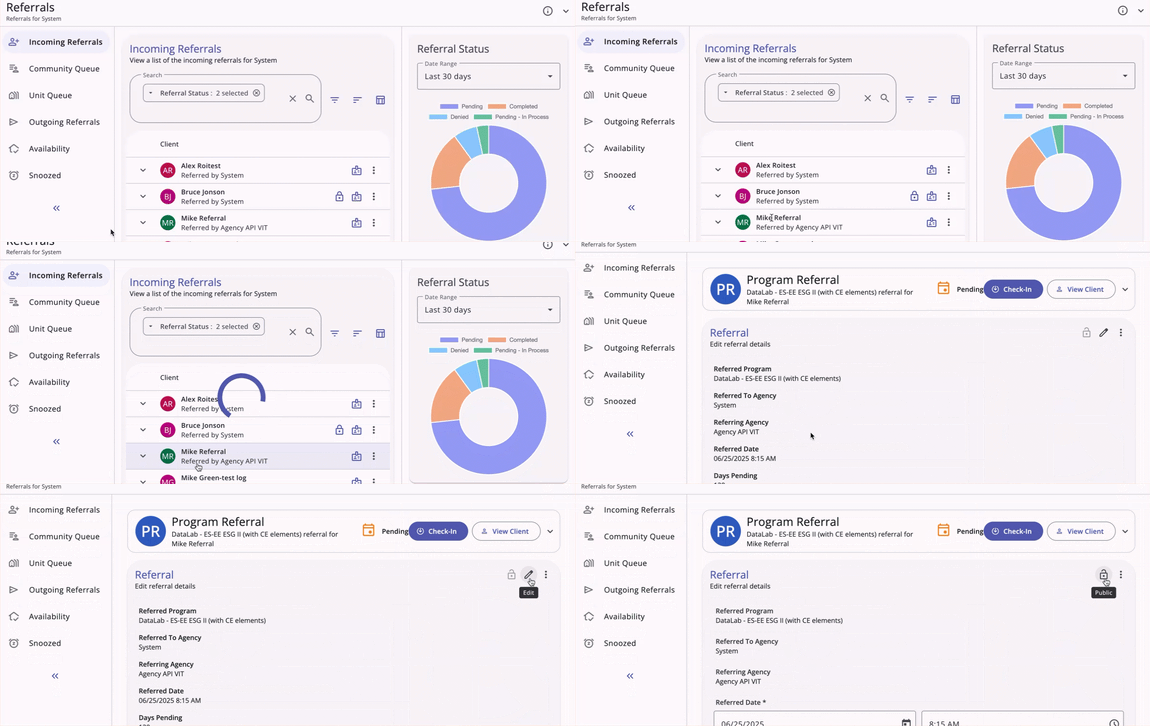
Locate the referral you would like to update, then click the referral to open the record and click the Edit icon.
Note: When the user clicks on a client referral record, it opens the associated workspace for the referral, whether it is active in the Community Queue, pending a program, or completed/expired/denied/snoozed. The information that is displayed and/or editable depends on sharing and access role permissions, as well as the referral status.
The Referral: Edit referral details workspace appears.
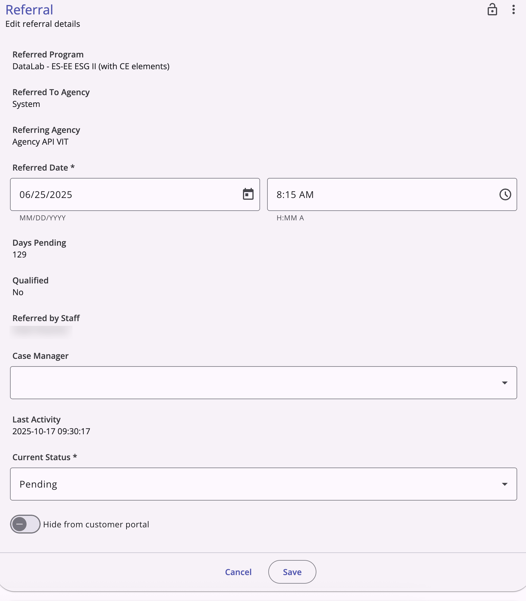
Note: When there is a Unit referral, a Referred Unit field is included on the Referral: Edit referral details workspace to display the name of the Unit.
Scroll down to the Current Status field. Click the dropdown arrow to see the list of selections.
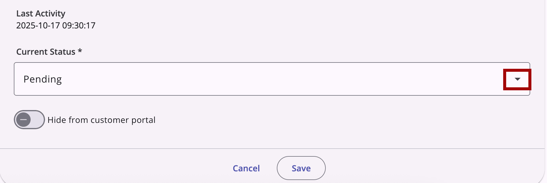
The list of selections will show, and the current status will have a checkmark next to it.
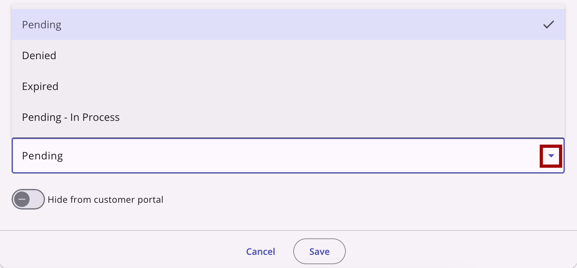
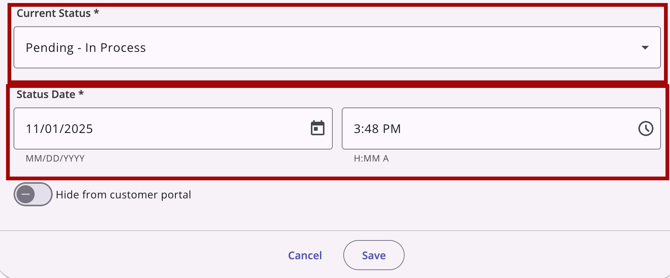
Select a new status, then set a Status Date as the start date for the selected status.
-
The date can be in the past, but it must be on or after the date when the referral was created.
- If you enter a Status Date in the future, the status change is scheduled and appears in the Future Status card on the referral. See the Future Status section below.
-
The system will fill the Denied Date field with the selected Status Date.
-
In the Referral History, the system will use the selected Status Date as the Date of the new “Denied: Reassigned to Community Queue” record that is created.
If you select Denied or Expired for the Current Status, the system displays additional fields.
Send to Community Queue: You may see this option to create a new referral to a Community Queue, depending on the Display Option to “Send to Queue” at Denial or Expiration setting.
| If this is your selection for Send to Community Queue: |
This is what happens: | |
| Yes | If the original referral was made to a Community Queue: | The system creates a new referral to the Community Queue that the original referral came from. |
| If the original referral was made directly to a program: | You will need to select a Community Queue from the Select Community Queue drop-down to send the new referral to (if the system has Multiple Community Queues, there will be more than one option to choose from). | |
| No | The system does not create a new referral to a Community Queue. | |
Regardless of your selection, the original referral will appear with a status of Denied.
Notes:
-
The new referral the system sends to a Community Queue has the same information as the original referral but a different referral ID.
-
For referrals created from a denied referral, the Referral Date of the second referral cannot start before the Denied Date of the first referral.
-
It’s possible to update an expired referral previously saved with Send to Community Queue answered “No” to generate a new referral to a Community Queue as long as the Display Option to “Send to Queue” at Denial or Expiration setting is enabled. The Send to Community Queue field can be updated from the Outgoing Referrals workspace.
-
Referrals that were manually expired or denied cannot be sent back to a Community Queue that has been switched to “Inactive” Status.
Denied by Type: This allows you to indicate if a program denied the referral (“Provider”) or if the client declined services (“Client”). If the referral status is Expired, this field defaults to Provider; however, you can choose another selection if applicable.
Denied Reason: the reason the program denied the referral. This field is required. If the referral status is Expired, this field defaults to Referral time expired; however, you can choose another selection if applicable.
Denial Information: a text box to record a note about the reason the program denied the referral. This field is required.
Updating the Referred Unit
Housing providers can now change the Unit on a referral in Pending status, without denying and recreating the referral, to move a client to a better-fitting unit.
Note: Updating a referred unit in Pending status requires the Referrals - Change Unit access right. See the Rights Glossary for Access Roles article for details on access rights.
When a referral includes a Unit, the Referred Unit field appears below the Referred Program field on the Referral: Edit referral details page (the same page described in the Updating a Referral's Status section).
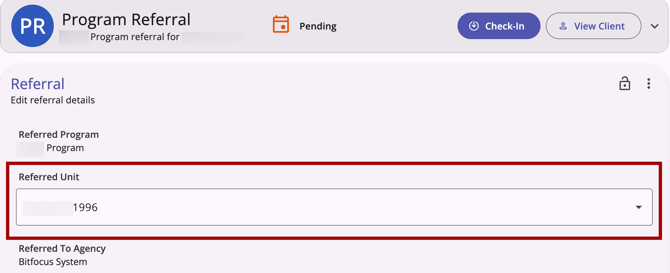
The field is editable when all of the following are true:
- The referral is in the Pending status for a program.
-
The referral is to a Unit (referrals to Beds cannot be edited from this page).
-
The same program has at least one other available Unit (with Beds disabled) that is in Active status as of the Referred Date, with no occupancy, pending occupancy, or reservation for that date. The Referred Date is the Referral Date for direct referrals and the Reassignment Date for Community Queue referrals.
The Referred Unit field remains editable after a change is saved, so a referral can be reassigned to a different Unit more than once.
To change the Unit, click the Referred Unit field to display a drop-down list of available Units (by Unit Name) for the program, as of the Referred Date. Select the new Unit.
If the newly selected Unit has a future pending occupancy, supporting text displays below the field:
“[Unit Name] is pending occupancy starting on [Pending Occupancy Start Date].”
This is informational only and does not prevent saving. If a Unit has multiple future pending occupancies, the one with the soonest start date displays.
If the current Unit Configuration Type has Beds disabled but an upcoming Unit Configuration Type has Beds enabled, a warning displays:
“Pending referrals to the unit will become pending to the program only on the '<As Of Date of Upcoming UCT>.'”
Select Cancel to choose a different Unit, or OK to proceed and save.
Once a Unit change is saved:
- The original Unit returns to available status.
-
The original Unit no longer displays as having a pending referral on the Inventory Dashboard's Unit Occupancy tab.
-
The change is reflected in the referral's Audit Log, in Referral History, and in Occupancy History at Manage > Sites > Buildings & Units > Occupancy History.
Viewing Unit Change History
Each unit change adds a new row to a Referral’s history with the activity type "Unit Swap: [new unit details]." The date column reflects when the swap was saved, showing both the rounded and the exact date/time of the change.
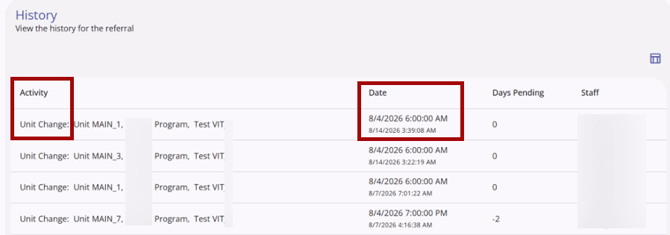
All unit changes are reflected in the audit log for the referral.
Unit changes also display in Manage > Sites > Buildings & Units > Occupancy History.
-
The original referral's Status column displays "Referral: Unit Change" (agency and program remain the same), and its End Date updates to a date and time immediately prior to the change.
-
The new referral's Status column displays the referral's current status (e.g., "Pending"), its Start Date reflects when the swap was saved, and its End Date displays "Active."
Future Status
When a referral has a status change scheduled with a future Status Date, a new Future Status card appears on the Referral: Edit referral details workspace, between the Referral card and Notes.
The card doesn't appear for referrals without a scheduled change.
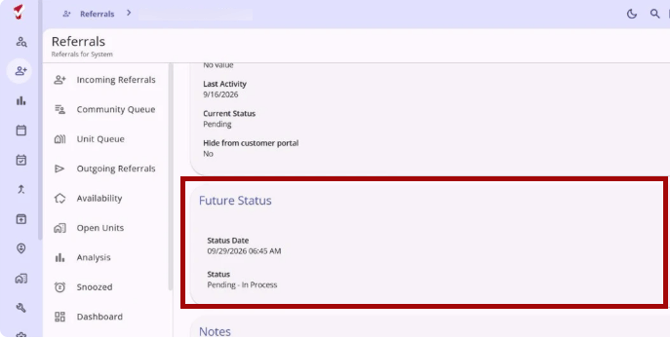
The Future Status card displays:
- Status Date
- Status
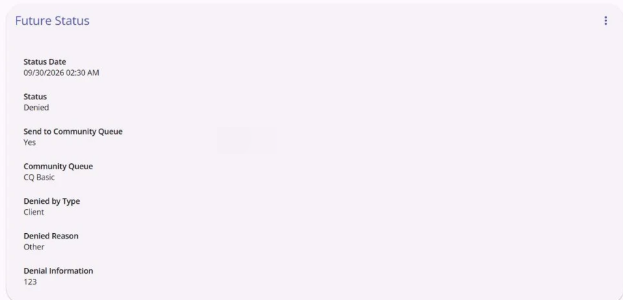
- If the scheduled status is "Denied," the card also displays Send to Community Queue, Community Queue (only when the client is sent back to a queue), Denied by Type, Denied Reason, and Denial Information.
Canceling a Future Status
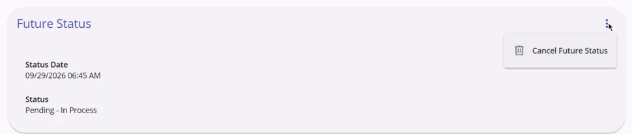
To cancel a scheduled status change:
- On the Referral Details page, locate the Future Status card.
- Click the Action Menu (kebab) icon and select Cancel Future Status.
- In the confirmation message, confirm the cancellation. To leave the scheduled change in place, select Keep Future Status.
After you confirm, the Future Status card is removed. The referral keeps its current status; only the scheduled change is canceled, not the referral.
Notes:
- Canceling a future status cannot be undone.
- Users without the Edit Agency Referral/Edit Any Agency Referral access right can see the card, but the Action Menu isn't available to them.
- Canceling a future status is recorded in the audit log. It doesn't appear in the referral's History.
Automatic Status Updates
Two REFERRAL SETTINGS cause the system to automatically update a referral’s status:
- Inactive Referral Expiration Threshold: When a system administrator enables this setting, the system automatically changes the Status of a Community Queue referral to Expired and the Denied by Type field to Provider once the defined time period passes.
- Community Referral Threshold: When a system administrator enables this setting, the system automatically changes the status of a pending referral to Expired once the defined time period passes.
Updated: 10/01/2026