
This article is for the new Clarity interface. Screenshots and descriptions will be updated as features are released. For the current interface article, see How Do I Create a Program Restriction?
Table of Contents
Video Resources
Click through for a hands-on experience:
Overview
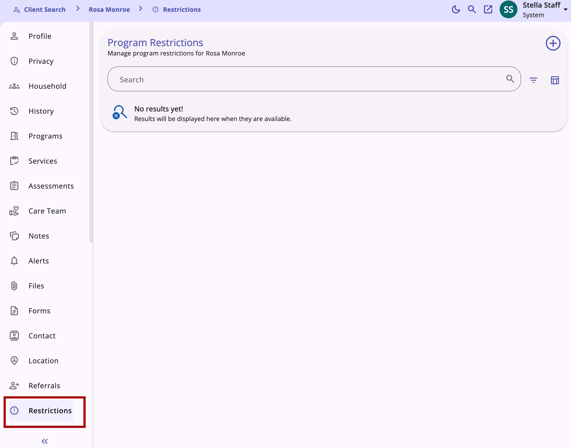
Users can view, add, edit, or delete restrictions if their Access Rights and their agency’s Notes Sharing Settings permit. The Restrictions tab is located in the client’s navigation menu.
Notes:
- System administrators determine the Reason For Program Restriction options by editing the “restriction_reason” field in the Field Editor. Please contact your system administrator if you need assistance determining which Reason For Program Restriction option to select.
-
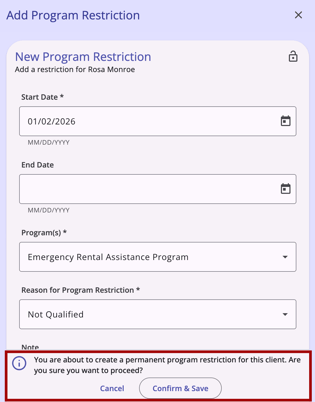
If you leave the End Date blank, the program restriction is considered indefinite and will remain effective until an end user edits the program restriction and adds an End Date. When an end user creates a program restriction without adding an end date and clicks Save, a pop-up warning appears.
-
Program Restrictions do not prevent a client from being enrolled in a program with a documented Program Restriction.
Existing Program Restriction Management
Users can sort, filter, and search all restrictions for a client in the Program Restrictions tab.
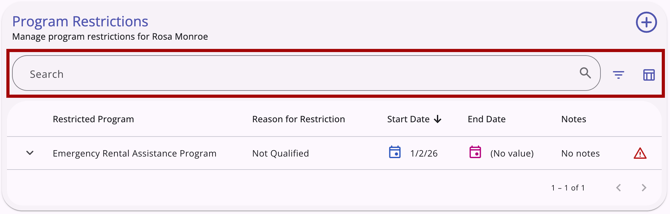
By default, the program restriction table is sorted with the most recent program restriction Start Date at the top. Users can search by:
- Program Name
- Reason for Program Restrictions
Users can filter by:
- Program Name
- Reason for Program Restriction
- Active/Inactive
Sort options include:
- Program Name
- Reason for Program Restriction
- Start Date
- End Date
Users can customize which columns are shown with a column selector. The following columns are displayed by default:
- Program Name(s) - display all programs
- Reason for Program Restriction
- Start Date
- End Date
Additional column options include:
- Agency Created
- User Created
- User Updated
- Notes
For more information about column selectors, refer to the Client Record Overview article.
Editing a Program Restriction
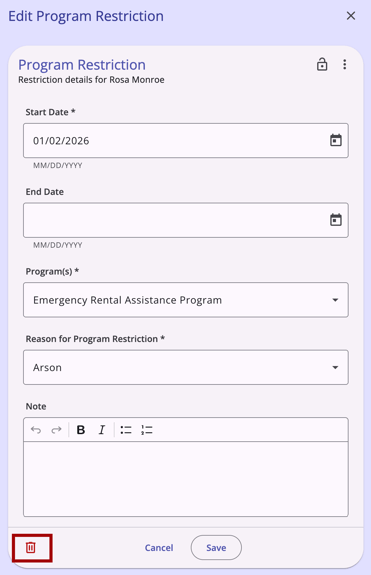
Users with the appropriate access can edit existing restrictions by selecting a record on the Program Restrictions page, then clicking the Edit icon.
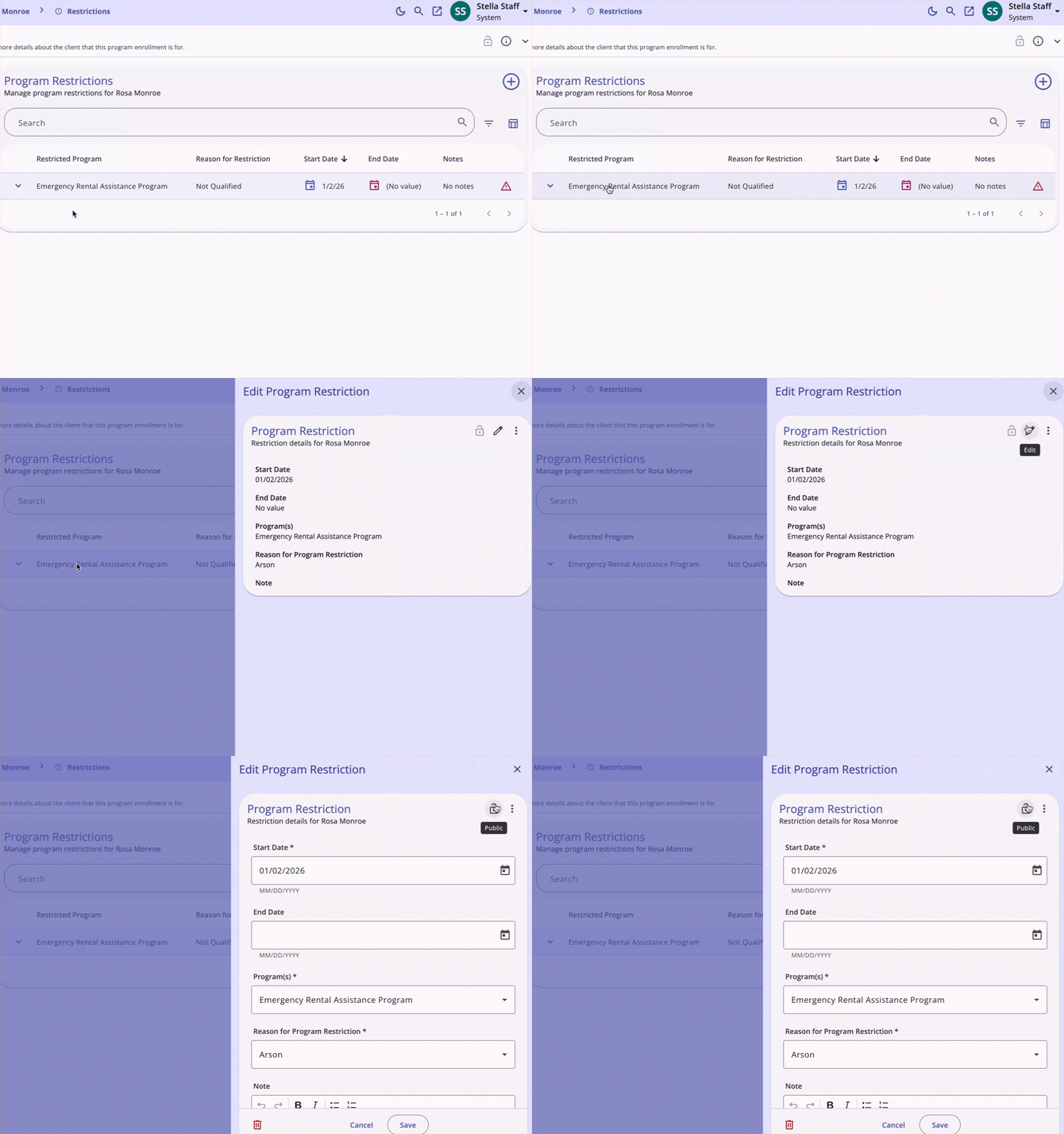
When editing a restriction, a lock icon in the top-right corner lets users mark it as Private. For more information about making a client record private, refer to the Making Client Data Private article.
Users can edit any field or delete the restriction here, depending on their access rights.
Adding New Program Restrictions
Users with the appropriate access can add new Program Restrictions from the Restrictions tab or from a program exit screen.
Adding from the Restrictions Tab
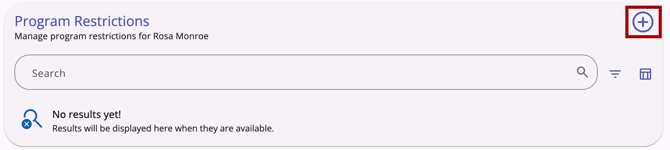
From the Program Restrictions page, users can add a new Program Restriction by clicking the Add icon.
Enter a Start Date (required) and an End Date (not required), select one or more Program(s) (required), select a Reason For Program Restriction (required), and type the desired text in the Note field (not required).
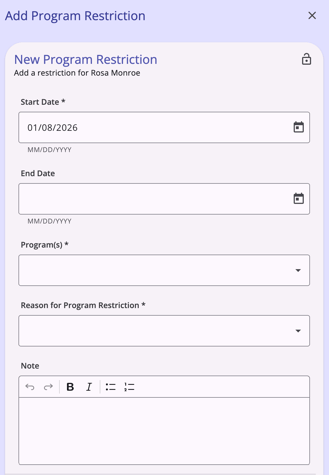
Program restrictions are, by default, shared based on the agency’s Notes Sharing Settings. You may also turn on the Private toggle, which means the program restriction will only be visible to staff members at your agency, regardless of the agency’s sharing settings. For more information about marking items “Private,” refer to the Making Client Data Private article.
Program selection is limited to programs available within the user’s agency.
If you leave the End Date blank, the program restriction is considered indefinite and will remain effective until an end user edits it and adds an End Date.
When an end user creates a program restriction without adding an end date and clicks Save, a warning appears that reads:
"You are about to create a permanent program restriction for this client. Are you sure you want to proceed?"
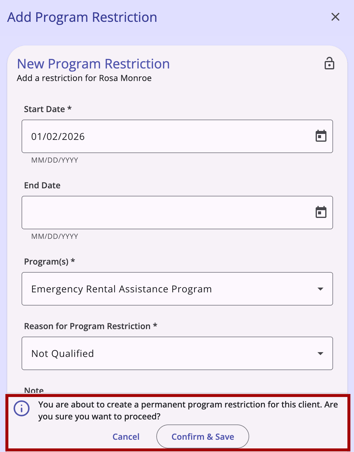
The user can click Cancel and update the End Date or click Confirm & Save.
If the user does not create an indefinite restriction, they can click Cancel to return to the Program Restrictions page or Save to save the restriction.
Program Restrictions Client Alert
When a client has a program restriction, a "Restrictions" alert is visible in the program enrollment's information box.
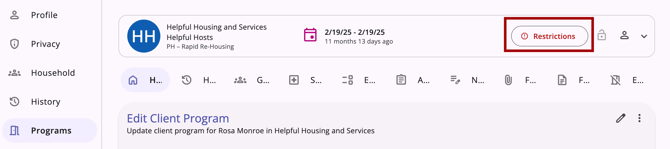
- The notification is visible when there is one or more prior, future, or current restrictions for the current program.
- When a user hovers over the chip, a tooltip displays the prior/future/current restrictions in a table format.
- The table displays columns for the Program(s), Start date, and End date.
- The table is sorted with the latest restriction start date at the top.
- The user can expand each row to see the Reason and Notes.
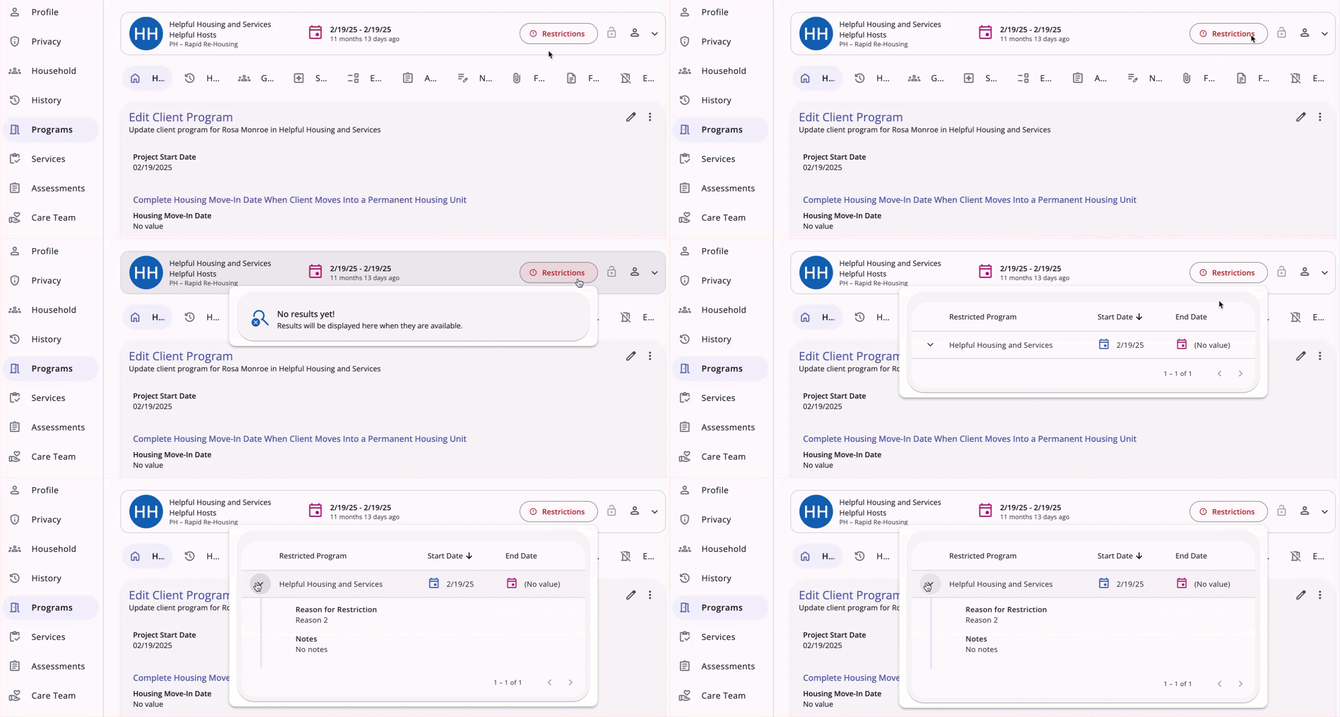
- When a user clicks on the Restrictions notification, the system takes the user to the Restrictions tab.
Audit Log
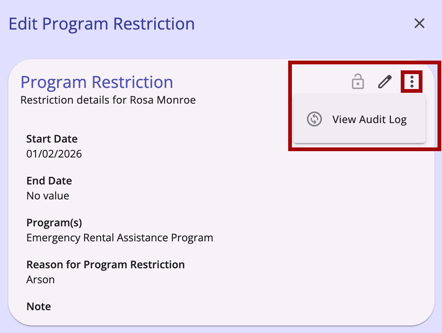
System Administrators with audit log access rights can access the audit log by editing the restriction, clicking the action menu icon, and selecting View Audit Log.
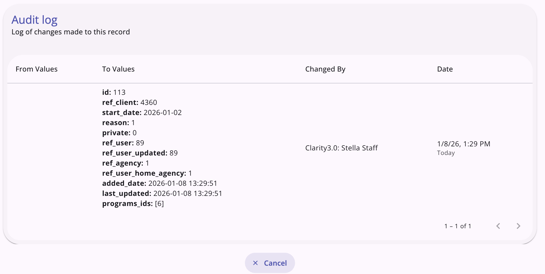
The audit log shows date/time, user, and action (created, edited, deleted).
Icons & Tooltips
|
Icon |
Icon/Tooltip Name |
Tooltip |
Icon Location |
|
|
Action menu, also known as:
|
"Show more actions" |
All Screens: typically on the far right of a screen or section |
|
|
Add |
“Add” |
All Screens: anywhere the “Add” option occurs |
|
|
Column Selector |
"Show/hide fields" |
All Screens: typically paired with a search bar |
|
|
Delete |
“Delete” |
All Screens: anywhere the “Delete” option occurs |
|
|
Edit |
“Edit” |
All Screens: anywhere the “Edit” option occurs |
|
|
Filter |
"Add a filter" |
All Screens: typically paired with a search bar |
|
|
Information |
Note: this icon information changes based on the location found. |
All Screens |

|
Permanent Restriction | "This is a permanent restriction (no end date)" | Visible on a Restriction record that does not have an end date |

|
Privacy - Private |
Varies depending on screen; example from client profile: “Private Client data is not shared.” |
All Screens: within the client record |
|
|
Privacy - Public |
Varies depending on screen; example from client profile: “Public Client data is shared.” |
All Screens: within the client record |
|
|
Restrictions |
"Restrictions" |
Located on a client's client record navigation menu |
|
|
Search |
"Search" |
All Screens:
|


Updated: 04/27/2026