
This article is for the new Clarity interface. Screenshots and descriptions will be updated as features are released. For the current interface article, see Referrals: the Availability Tab.
Table of Contents
Video Resources
Click play for a brief overview:
Click through for a hands-on experience:
Overview
The Availability tab allows users to record information about program availability at their agency that is then displayed during the referral process to users sending referrals to those programs.
Notes:
- A user’s access to the Availability tab is configured in Access Roles. See Rights Glossary for Access Roles for more information about access settings.
- The Availability tab isn’t visible if the Program Availability Management setting is turned off for the Queue.
Viewing Availability
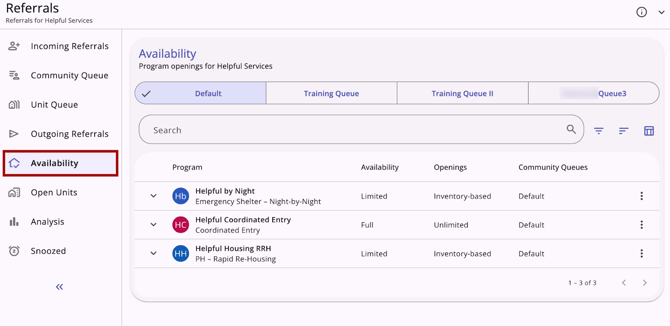
Navigate to the Global Referrals Tab, then click Availability.
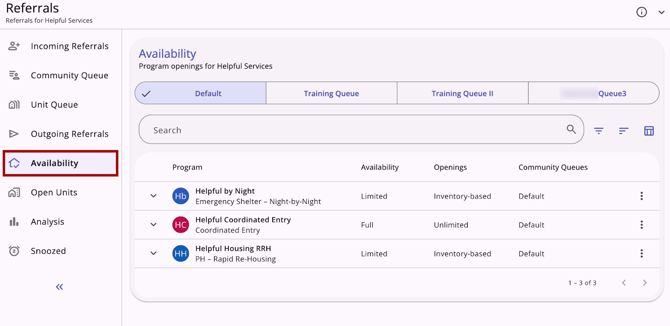
The Availability tab displays all community queues assigned to a program. Users can click a community queue to view the availability of programs connected to that community queue.
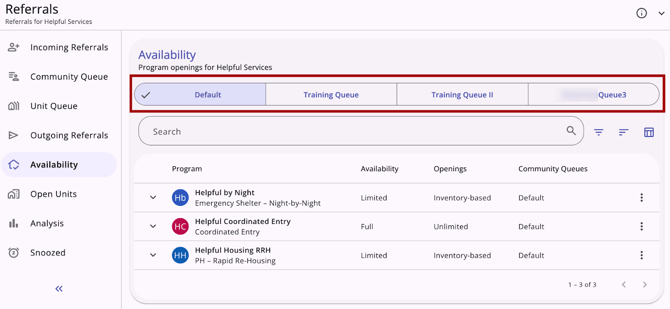
A checkmark and highlighting will indicate the selected community queue.
Note: Only programs connected to a community queue at the program setup level will appear within the Availability tab.
There are multiple ways to search for programs and customize your view:
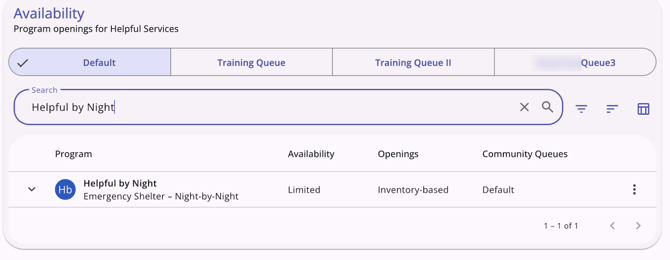
- There is a search bar where users can search the list by Program name
- The Availability screen includes filter options for:
- Availability
- Community Queues
- Project Type
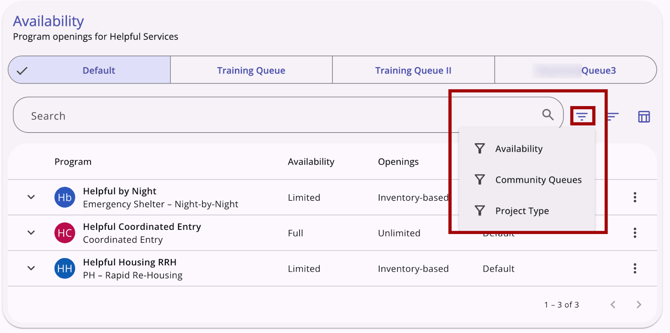
For more information about using filter options, refer to the New Clarity Interface Overview article.
- The Availability tab includes sorting options that include:
- Availability
- Community Queues
- Openings
- Program
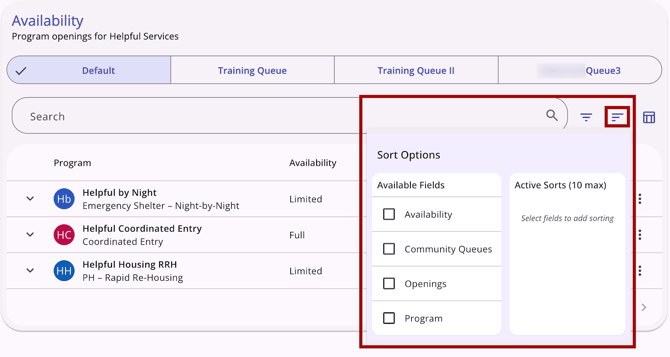
For more information on sorting options, refer to the New Clarity Interface Overview article.
- The Availability tab includes a column selector.
- Columns showing by default include:
- Program
- Availability
- Openings
- Community Queues
- Columns showing by default include:
-
- Additional fields are:
- ID (locked)
- Additional fields are:
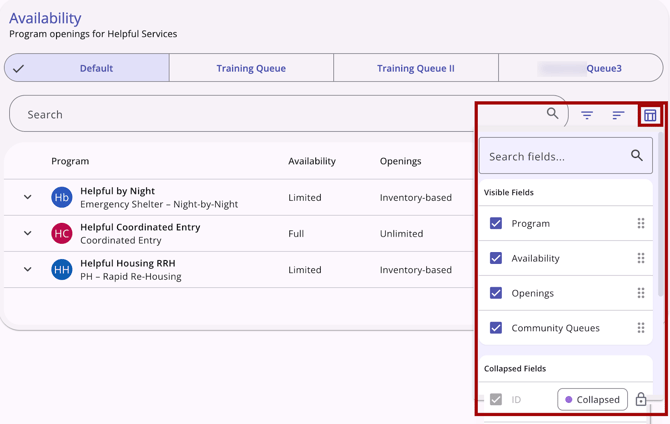
For more information about using column selectors, refer to the Client Record Overview article.
Updating Availability
On the Availability tab, users can click a program’s row to edit the program’s availability.
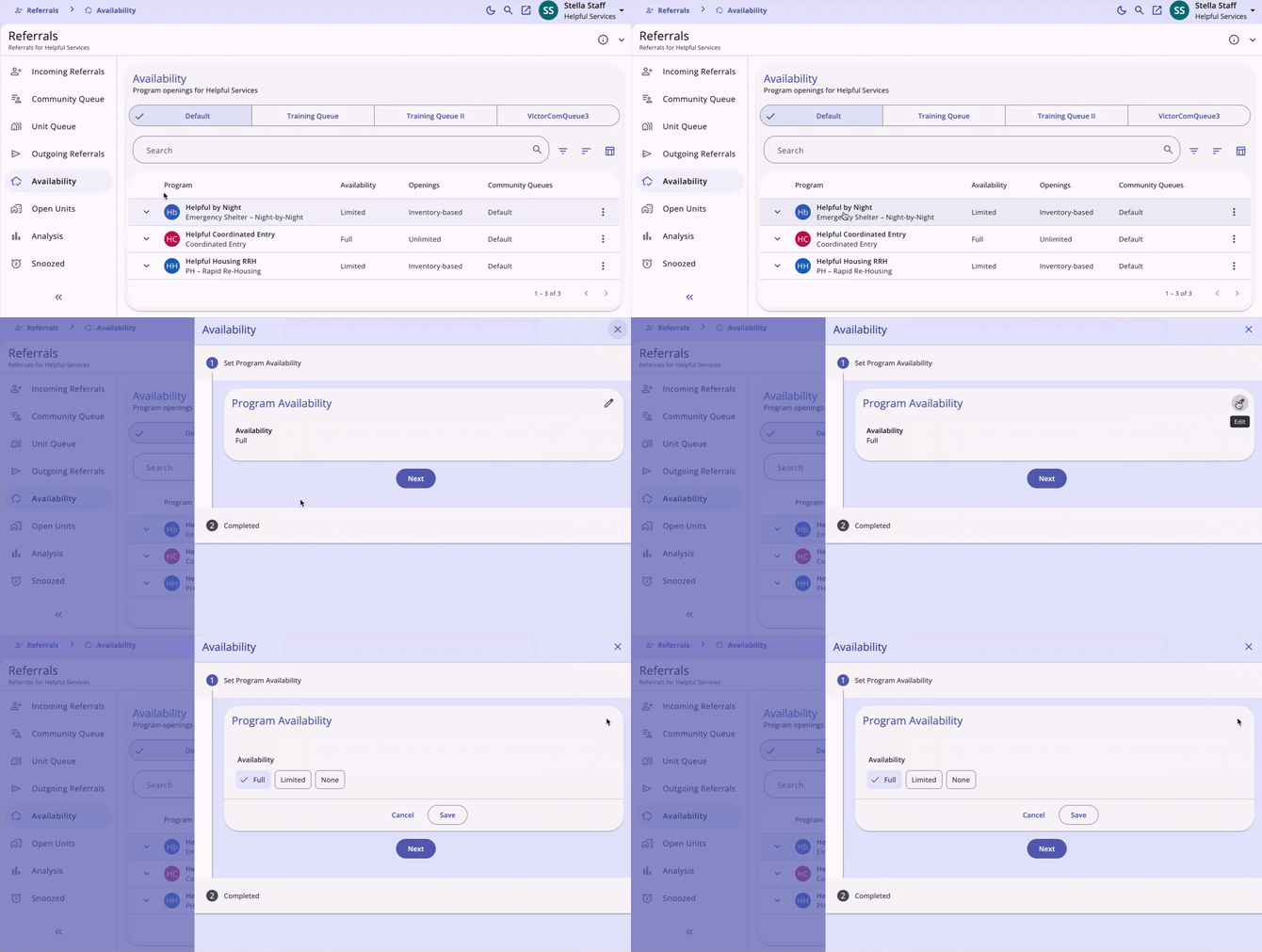
Availability options for each program are:
- Full: indicates that the program has multiple openings and does not require a reservation.
- If “Full” is selected, the number of openings will display as “Unlimited.”
- Limited: indicates the number of openings for the program and any reserved openings.
- If “Limited” is selected, the user is prompted to add one or more openings.
- Availability will display as “Limited,” and Openings will display “Inventory-based.”
- None: indicates that the program has no openings.
- Please note that users will not be able to refer from a community queue to programs with no openings. Users will still have the option to make a direct referral.
Notes:
- Users cannot reassign referrals from a Community Queue to a program set to "None."
- A program set to "Limited" with no associated openings will not be included in the Programs list of a referral's Reassign section.
- If INVENTORY's Bed & Unit Management functionality is enabled for a program, the ability to post Openings for that program in the Availability tab will be disabled.
- However, to enable the ability to refer clients to a specific Unit/Bed from the Unit Queue and the Community Queue, users will still need to click the LIMITED AVAILABILITY option for the program on the Availability tab.
- Refer to the Program Availability Logic section of the Unit Queue article for additional details.
- However, to enable the ability to refer clients to a specific Unit/Bed from the Unit Queue and the Community Queue, users will still need to click the LIMITED AVAILABILITY option for the program on the Availability tab.
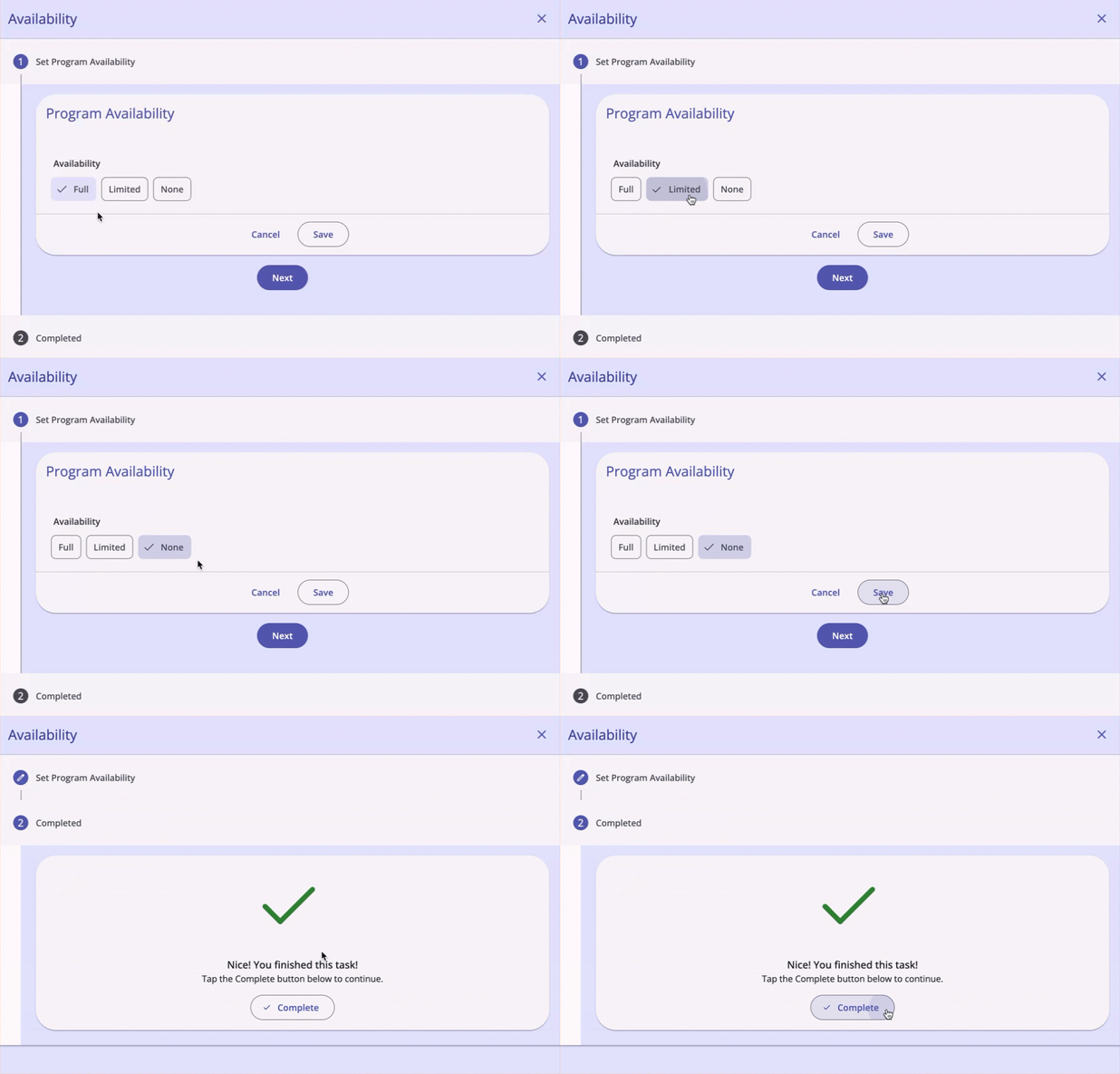
To set a program's availability, click the preferred setting, then click Save. Click Complete to return to the Availability page.
Managing Limited Availability
When a user sets a program to “Limited” availability and clicks Save, the system adds a workflow step to “Add Program Openings.” This step includes:
- Number of Openings - defaults to 1, but editable to any integer
- Date
- Notes
- Any program availability custom fields
- Custom fields are only applicable when Use Custom Fields on Program Availability is enabled, and there are custom fields configured.
When a user completes the form and clicks Save, openings are created based on the provided details.
- The “Number of Openings” value defines the number of openings to create.
- When multiple openings are created, the other selected details match but remain editable after creation.
Openings
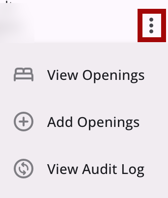
On the Availability Tab, a vertical 3-dot or “kebab” action menu appears for each program with ‘Limited’ availability, with the following options:
- View Openings
- Add Openings
- View Audit Log
View Openings
When the user clicks View Openings for a program, they will see all openings for that program. Openings are listed by "Opening Date" and have an arrow on the left to view additional details.
- The status of the opening will be listed as:
- "Available" - the opening is available
- "Reserved" - the opening has a pending referral connected.
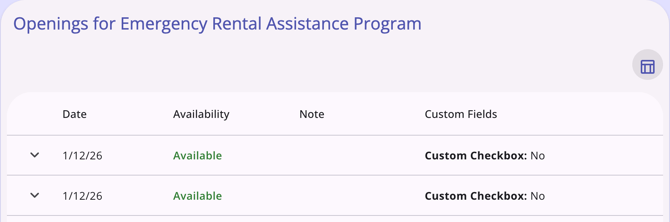
Users can click on an opening to edit. Openings can be deleted by any user with an access role that has Delete Unit Availability Reservation access rights toggled on.
If the unit is reserved, there is a "Reserved" label, the "Referred Client Name," and the "Referred Date."
When viewing/editing openings, please consider the following:
- When an opening is deleted, the system displays a warning that the opening will be deleted for all connected community queues.
- If a referral is made to an opening, all instances of the opening will be removed from Availability.
If any Program Availability Custom Fields are displayed, they will be the custom fields associated with the community queue currently being viewed.
Add Openings
The Add Openings option lets users quickly add openings to a program.
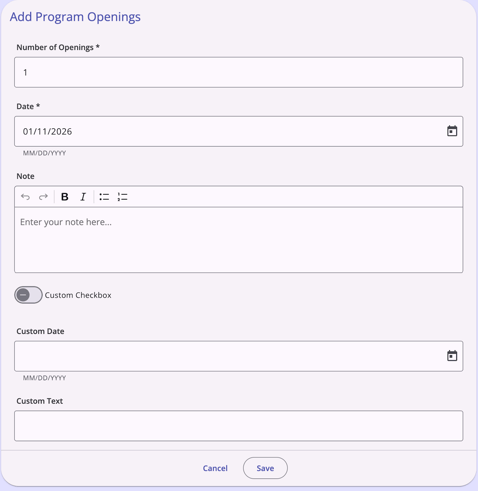
Enter information for one or more openings and click Save.
Note: When adding an opening, remember that all community queues added at the program level will share openings at the Program Availability level.
Audit Log
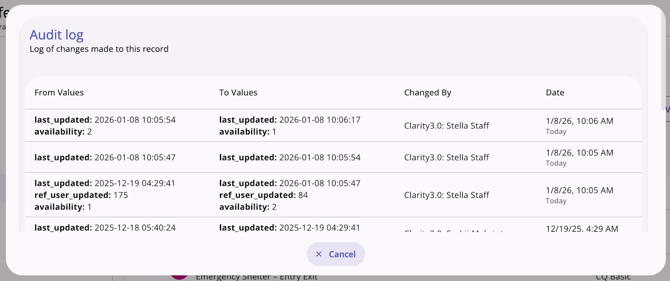
The "View Audit Log" option can be clicked by a system administrator with audit log access rights. A log of all changes to the program’s availability is displayed.
Program Opening Notifications
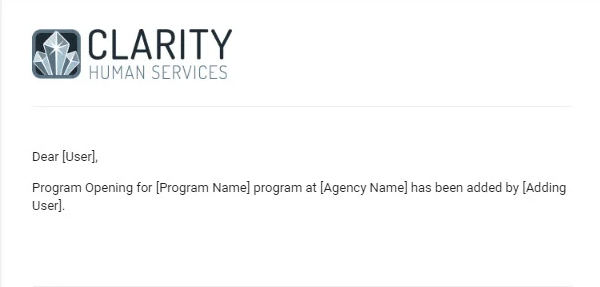
When a Staff Member posts a new program opening in the Referrals > Availability section, the system sends a notification to applicable Staff Members in the CoC (or Staff Members with Sharing access to the CoC). These staff members include:
- Staff with Referral Matchmaker access rights.
- Staff set as the program-level contact for a Program with the type "Coordinated Entry."
Staff Members will receive the following notification to their Clarity Inbox and the email address on file.
Icons & Tooltips
| Icon | Icon/Tooltip Name | Tooltip | Icon Location |
|
|
Action menu, also known as:
|
"Show more actions" |
All Screens: typically on the far right of a screen or section |

|
Availability | "Availability" | Global Referrals Tab: Availability tab |
|
|
Column Selector |
"Show/hide fields" |
All Screens: typically paired with a search bar |
|
|
Drop-down arrow |
none |
All Screens; indicates that more information is available |

|
Edit | "Edit" | Anywhere the Edit icon appears |
|
|
Filter |
"Add a filter" |
All Screens: typically paired with a search bar |
|
|
Information |
Note: this icon information changes based on the location found. |
All Screens |
|
|
Left Arrows |
None |
Global Referrals Tab, Primary Navigation Tab, Client Details Widgets - indicates that more information is available |
|
|
Right Arrows |
None |
Global Referrals Tab, Primary Navigation Tab, Client Details Widgets - indicates that more information is available |
|
|
Search |
"Search" |
All Screens:
|
|
|
Sort |
"Configure sorting" |
All Screens: typically paired with a search bar |


Updated: 04/27/2026