
Table of Contents
Overview
The new Clarity Human Services interface was designed to be easy to use and pave the way for future enhancements. The new Clarity interface includes tools to collect and manage data for reporting, case management, and coordinated care.
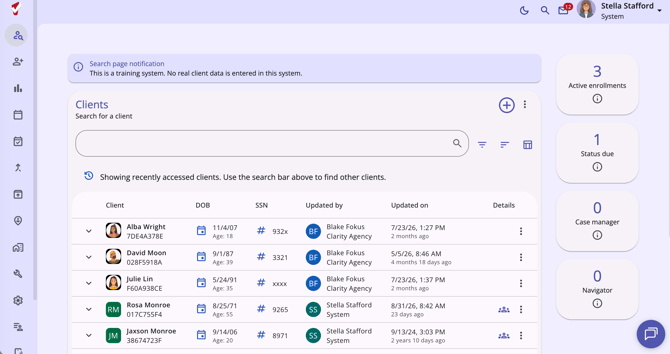
Note: The navigation menus and workspaces available to each user are determined by the community's system administrator. Not all sections shown in the screenshot above may be available to all end users. If you think you are missing a section necessary for your workflow, please reach out to your system administrator or agency contact.
Navigation
The new Clarity interface is loaded with navigation tools, providing users with one-click access to their next task.
Information Bar
The Information Bar is always visible in the new Clarity interface and contains icons for Dark Mode, a Global Search, the Staff Inbox, and the current Staff Member. The Information Bar also shows Breadcrumbs (if any), the User’s Name, the Agency they are currently switched to, and a drop-down arrow to access any additional agencies.

Dark Mode
Users can switch to dark mode in the new Clarity interface by clicking the Moon icon. More details about dark mode are included in the Customization section of this article.
Global Search
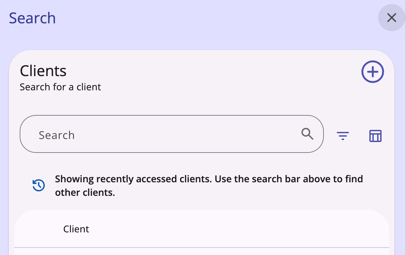
An additional client search option is available by clicking on the Search icon in the Information Bar.

This client search option is available throughout the new Clarity interface. When you click the Search icon, a panel opens that functions like the Client Search workspace, with recently accessed clients, Filter options, a Column Selector, and an Add (+) icon (to add a new client).
Staff Inbox
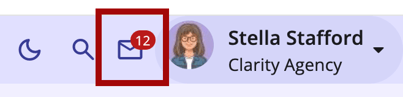
The Staff Inbox is accessed by clicking the Staff Inbox (envelope) icon located in the Information Bar. A number next to the envelope icon indicates that you have unread messages.
For more details about the Staff Inbox, see The Staff Inbox and Secure Messaging article.
Current Staff Member
The Information Bar displays an icon with the current user’s initials or custom image. To the right of this icon is the current user’s name, the agency they are currently switched into, and a drop-down arrow.
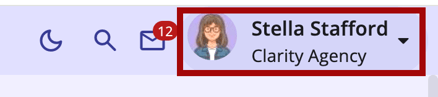
Clicking any of these items or anywhere in this area opens a page where the user can either Switch Agencies or update their Staff Member Account Settings.
For more information about switching agencies, refer to the Switching Agencies article. For more information about updating account settings, refer to the Staff Member Account Settings article.
Breadcrumbs
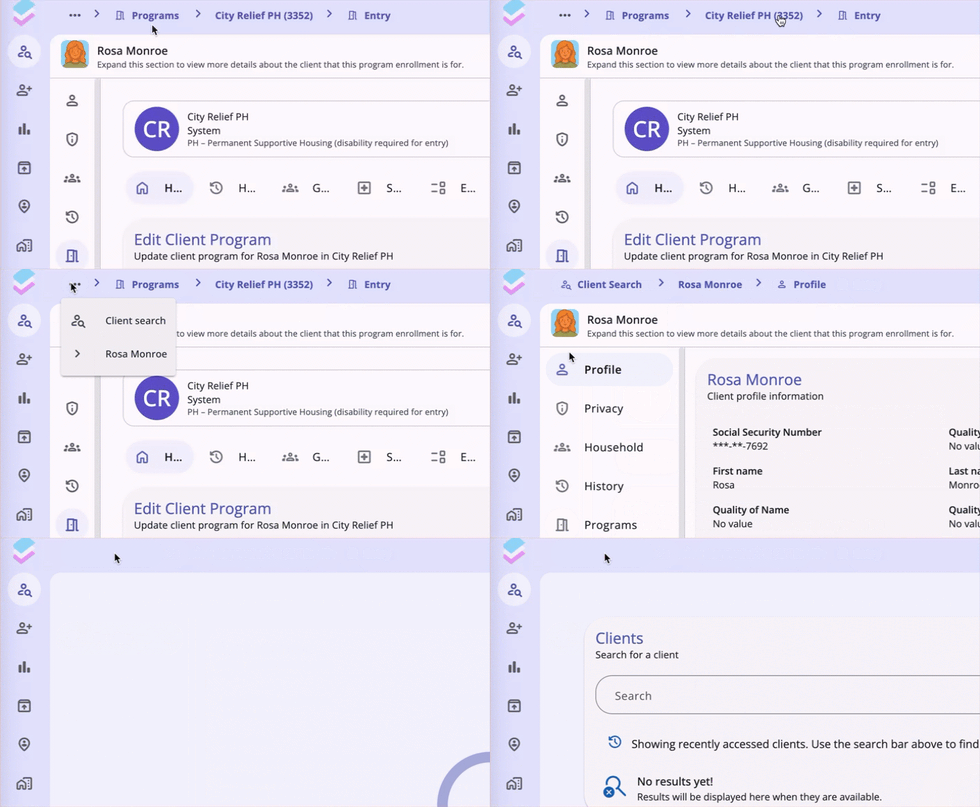
Users can easily see their location by reviewing their breadcrumbs in the Information Bar at the top left of their screen.

As the user navigates the new Clarity interface, the system leaves a breadcrumb trail showing their location. Users can click a breadcrumb to move to that location, or click the Action Menu icon to access more breadcrumbs.
Primary Navigation Menu
The primary navigation menu on the left side of the screen is always visible, so you can easily move between workspaces. You can collapse the navigation menu using the double-arrow icon at the bottom of the menu items, but continue to switch between workspaces by clicking the icons.
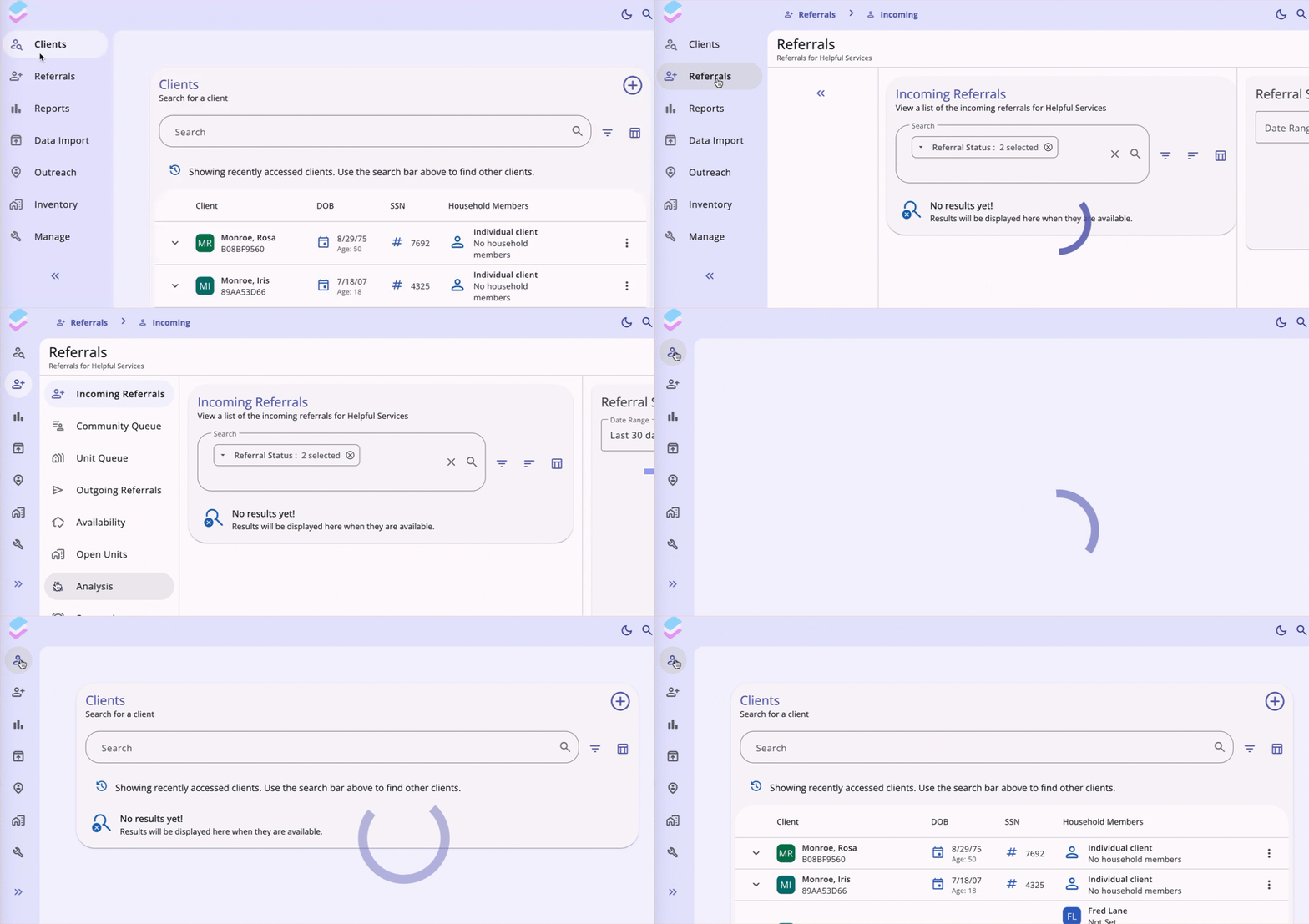
The information displayed in the central workspace (the center of the client record) depends on which item you select in the primary navigation menu.
Note: The primary navigation menu and related workspaces available to each user are determined by the community's system administrator. Not all sections shown are available to all end users. If you think you are missing a section necessary for your workflow, please reach out to your system administrator or agency contact.
The most used workspaces are highlighted below: Clients and Referrals.
Clients
To access the Clients workspace from anywhere in the system, click the Clients menu item in the primary navigation menu.
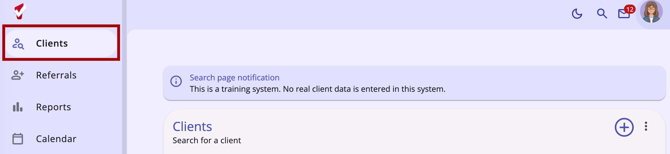
Staff members search for and create new client records from the Clients workspace. This workspace can be set as the default home screen in an agency's settings. If the agency uses a different default home screen, individual staff members can select the Client Search option for the Home Screen Override field in their Account Settings.
Records you recently viewed will appear below the search bar. The system retains this list after you log out and will display it when you log back in and view the Clients workspace. You can click a client name in the recently accessed section to view the associated client record.
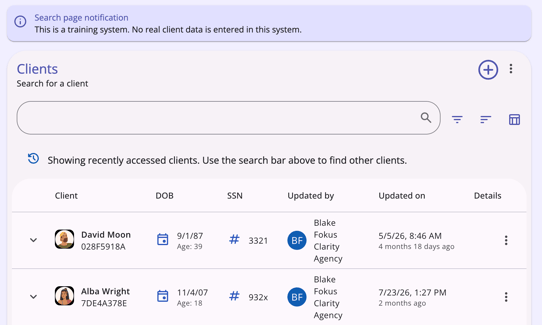
For more information on searching for clients, refer to the How Do I Search for a Client? article.
Client Navigation Menu
When you open a client record, the client navigation menu appears on the left side of the screen and is available on all client screens, so you can move between the client's workspaces with one click. You can collapse the menu with the double-arrow icon at the bottom of the menu items and still use the icons to switch workspaces.
For a description of each menu item, refer to the Client Record Overview article.
Referrals
To access the Referrals workspace from anywhere in the system, click the Referrals menu item in the primary navigation menu.
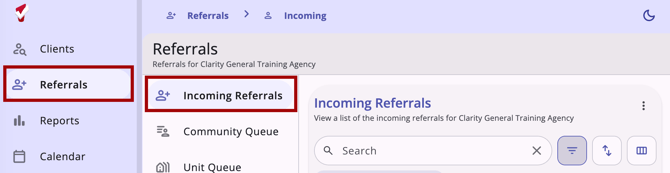
Clicking Referrals on the navigation menu defaults to the Incoming Referrals workspace.
For more information on the Referrals options, refer to The Global Referrals Overview article.
Navigation to Preferred Home Screen
Users can click the Bitfocus icon in the top-left header to return to their preferred Home Screen from any page in the system. For example, if a user has a Dashboard enabled as their Home Screen, they can tap the Bitfocus icon to easily return to that dashboard.
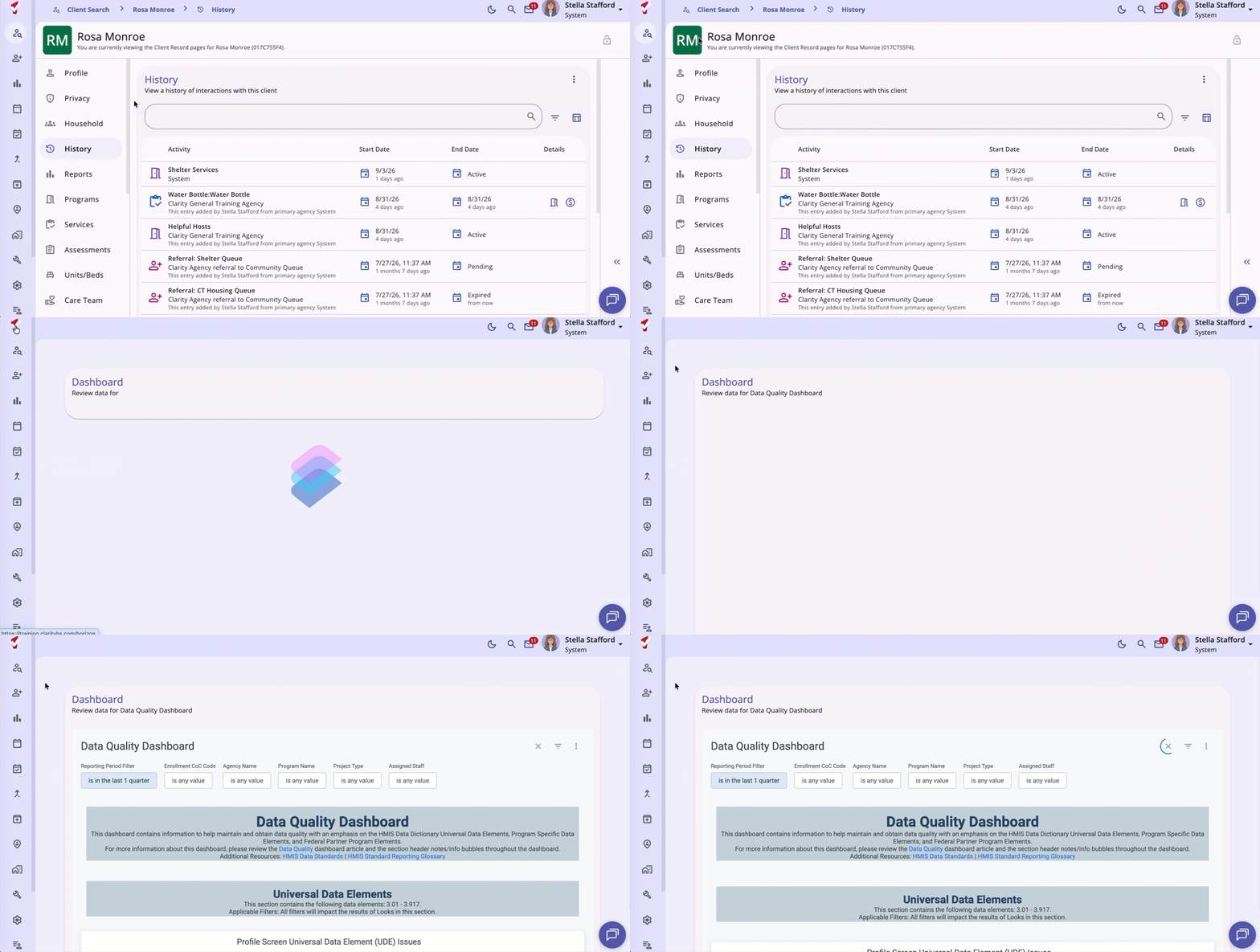
A Default User Home Screen can be set up by an Admin in the Agency settings or by the user in their Account Settings.
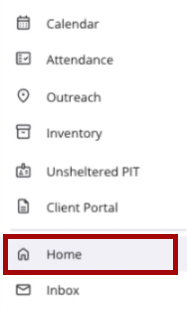
On mobile and tablet, a Home option has been added above the Inbox option in the primary navigation menu.
Icons & Tooltips
Icons and tooltips are used throughout the new Clarity interface. End users can hover over interface icons to display tooltips that provide clear, concise information. Common icons and tooltips include:
|
Icon |
Icon/Tooltip Name |
Tooltip |
Icon Location |

|
Add | "Add" | Anywhere the Add (plus) icon appears |

|
Delete | "Delete" | Anywhere the Delete (trash can) icon appears |

|
Edit | "Edit" | Anywhere the Edit (pencil) icon appears |

|
Note | “Note [formatted note text]” | Contact, History, Location, Notes |

|
Privacy - Private | "Public" | All screens within the client record |

|
Privacy - Public | "Private" | All screens within the client record |
New icons and tooltips will be added to the Icon & Tooltip Glossary article and relevant Help Center articles as they become available.
Customization Tools
The new Clarity interface includes tools to customize your view.
Dark Mode
Users can switch to dark mode in the new Clarity interface by clicking the Moon icon.
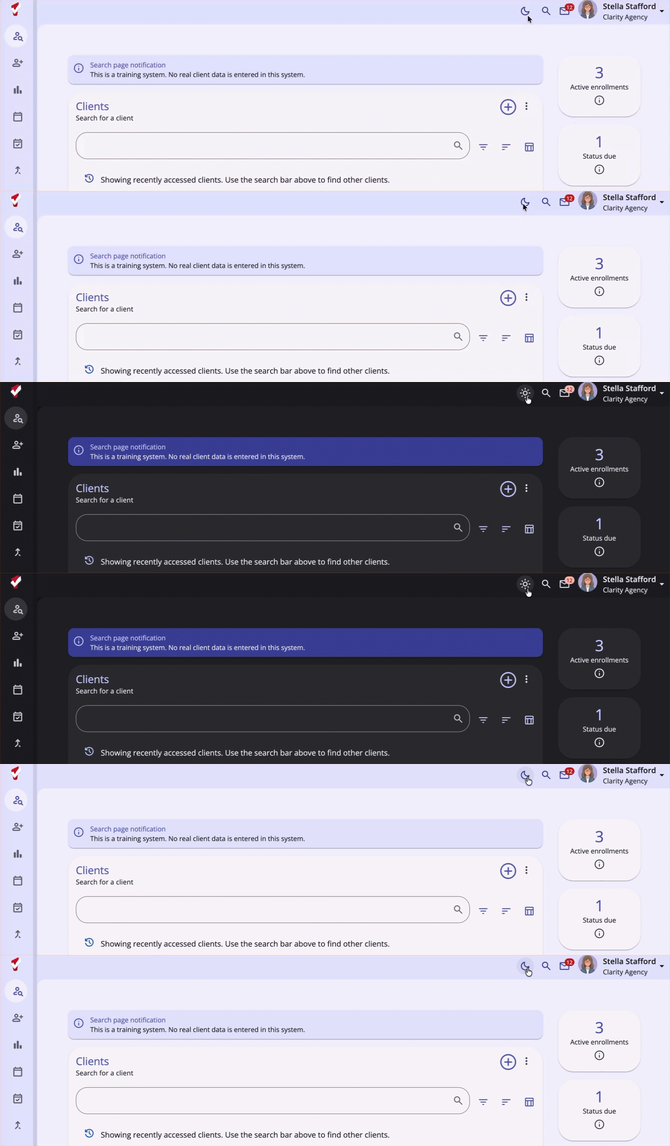
Users can click the Sun icon to return to light mode.
Column Selectors
Column Selectors are available throughout the new Clarity interface to support a customized view. This icon indicates a column selector:

When a user sees a Column Selector icon, they can click it to view the fields available for customizing their view. The user will see a Search bar, the default (or currently selected) fields in the Visible Fields section, the available fields in the Available Fields section, and a section to add fields that will collapse on the screen in the Collapsed Fields section.
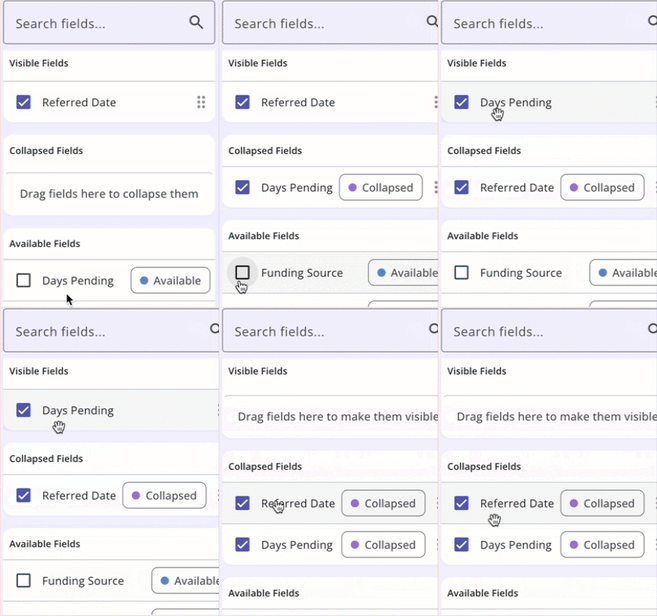
The fields in a column selector will be different depending on where you are in Clarity. Fields in the Visible Fields section with a Lock icon cannot be moved or removed. Changes in the column selector take effect immediately, and your selections are saved in your browser, so they determine what you see the next time you view that screen. If you use a different browser to access Clarity, you will see the default view.
For more information about column selectors, please refer to the Client Record Overview article.
Filters
Filters are available throughout the new Clarity interface to help you customize search results. This icon indicates a filter:

To search for a record using filter options, choose one of the available filters, enter the relevant information or select options from a multi-select filter, and click your keyboard’s Enter / Return button or click the Arrow icon on the screen.
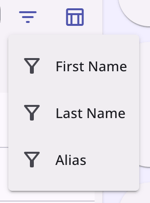
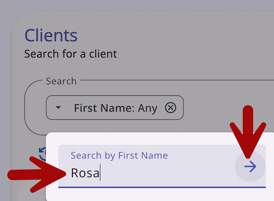
The available filters will vary depending on where you are in the system.
Multi-select Filters
Multi-select filters allow users to select one or more values for a single filter in a single step.
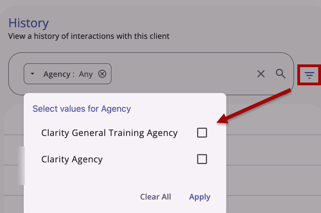
When you select a filter that has multiple options, a filter menu pop-up appears with all available values for the field. Click Apply when you have made your selections.
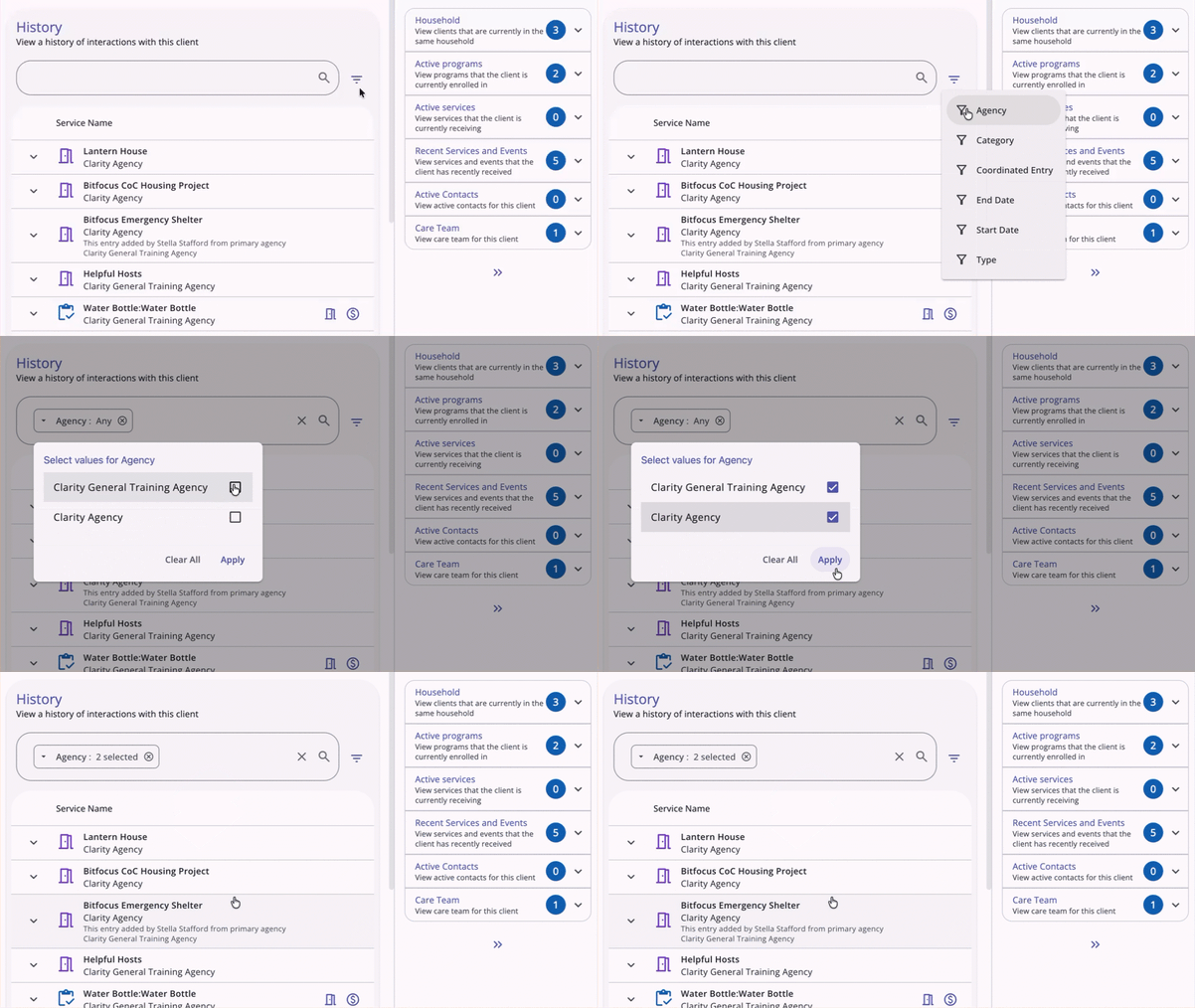
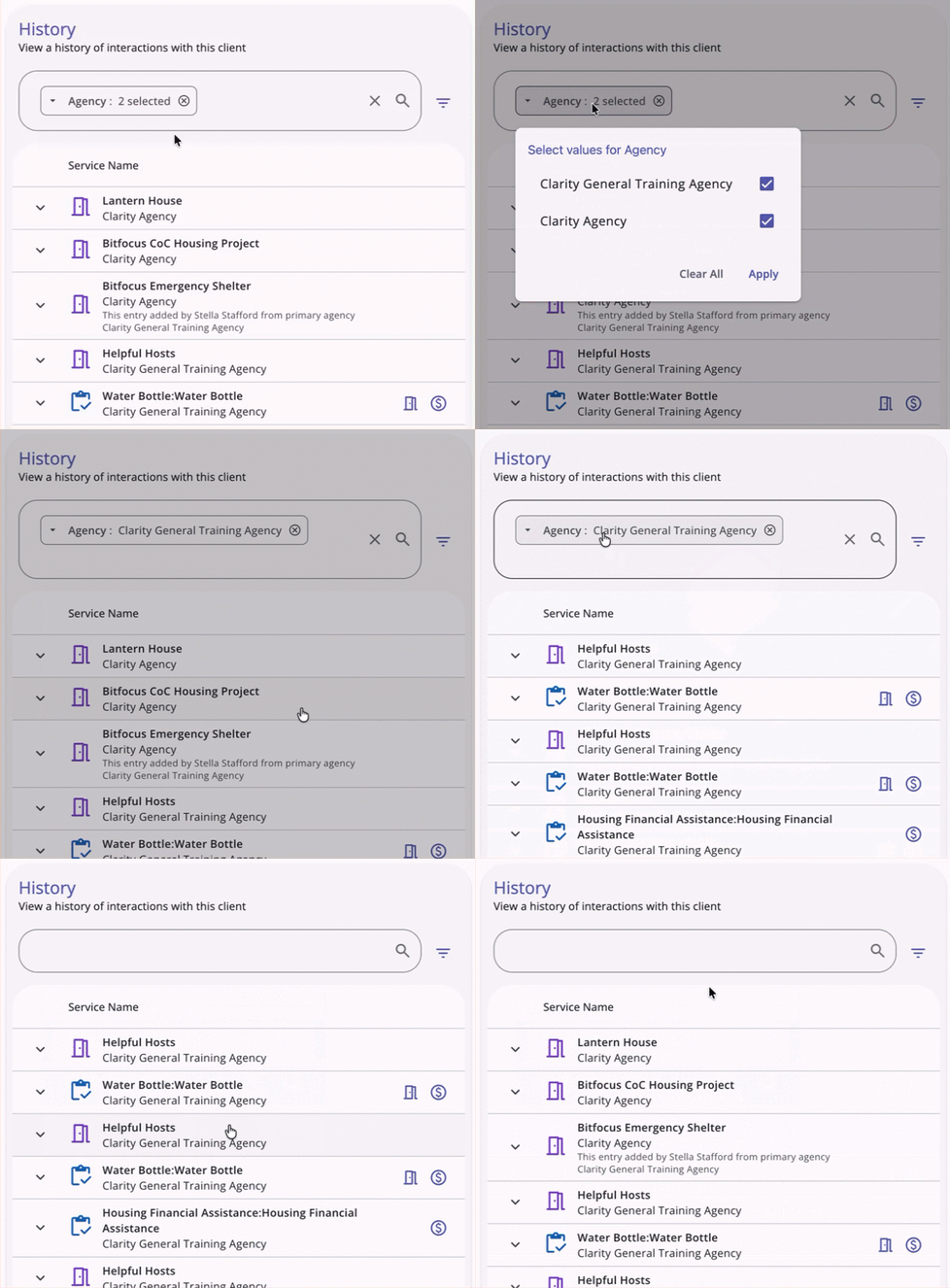
Users can review, edit, or clear previous selections by clicking on the filter within the Search bar.
- Review: Users can click outside the filter menu box (or click Apply) after a review without changes to leave selections as they are.
- Edit: Users can make changes to their original selections in the filter menu and click Apply to make updates to the filter.
- Clear: Users can click Clear All to remove selections, and refresh the table.
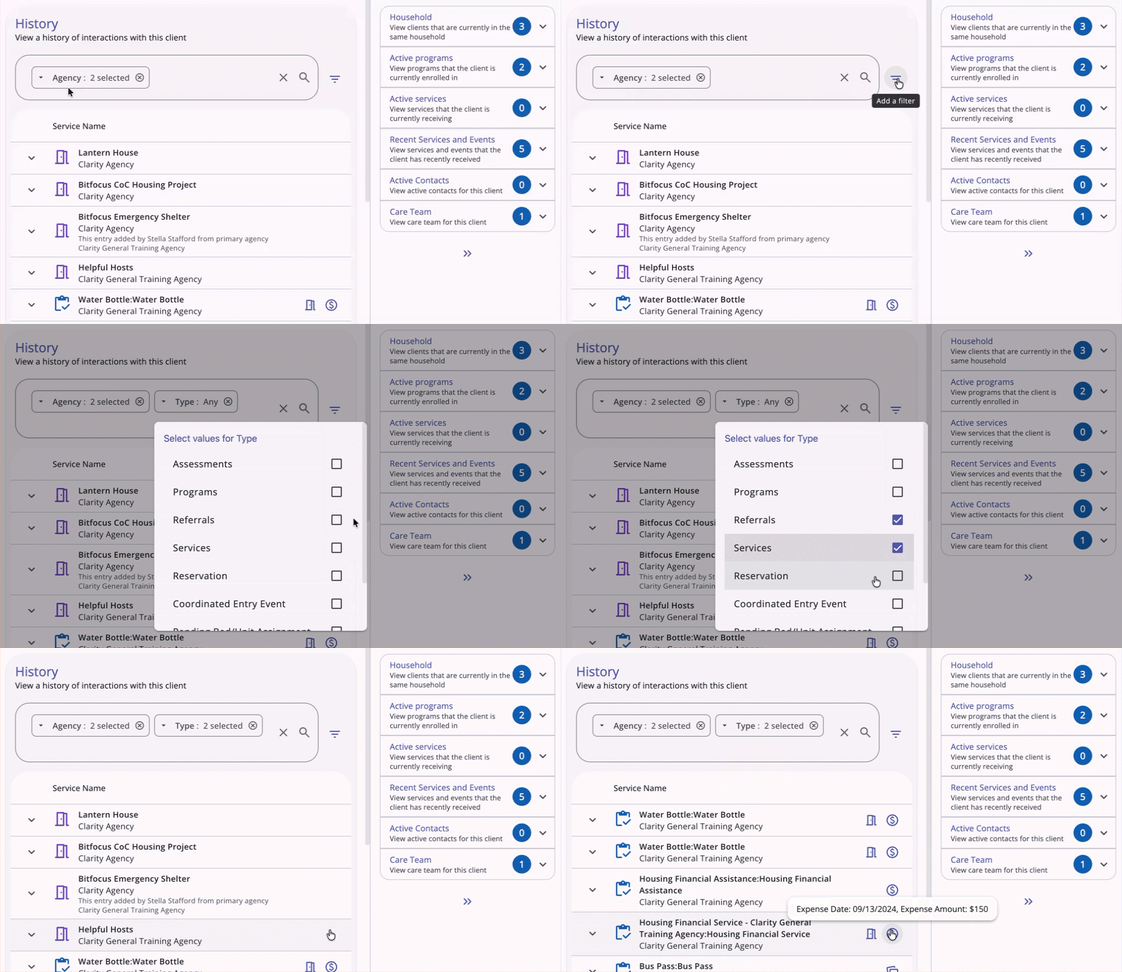
Once you have selected one filter, you can add more if needed.
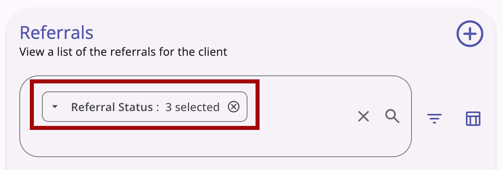
When more than one value is selected within the same filter, the chip shows "[Filter title]: #Selected." For example, you will see "Referral Status: 3 selected" if you select 3 of the referral status values for the multi-select Referral Status filter on the client’s Referrals workspace.
When multiple values are selected in the same field filter, the system uses OR logic to filter results that contain any of those values.
- OR logic only applies to multiple values selected within the same field filter.
- Per current functionality, the system will use AND logic across multiple field filters.
This feature is found on the following pages:
- Referrals > Incoming Referrals
- Referrals > Community Queue
- Referrals > Outgoing Referrals
- Referrals > Availability
- Referrals > Snoozed
- Clients > History
- Clients > Files
- Clients > Forms
- Clients > Location
- Clients > Referrals
- Clients > Restrictions
- Clients > Programs > Files
- Clients > Programs > Forms
Sorting
Sorting options are available throughout the new Clarity interface to help you customize search results. This icon indicates sorting options:

Users can select multiple fields to sort by and can click and drag fields to set the sort order.
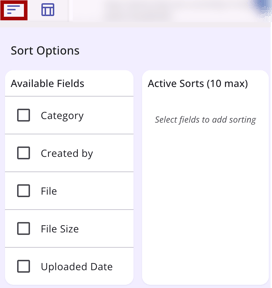
The available sorting options will vary depending on where you are in the system.
Details Cards
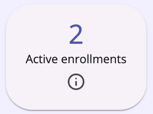
Cards appear throughout Clarity and provide information at a glance, with more details when clicked. Each card typically displays the name indicating the record type and a number indicating the number of records.
Caseload Cards
A user’s caseload information is always visible in the cards on the Clients workspace, within a specific agency, on the right-hand side of the page.
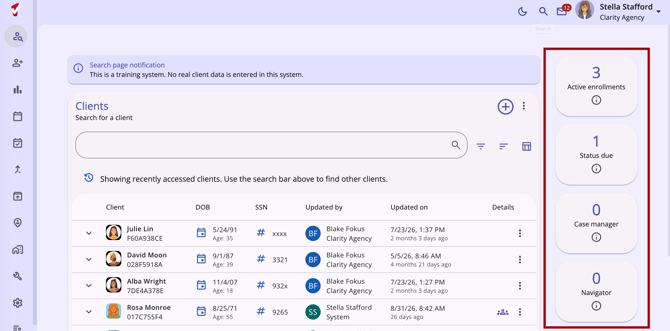
Four caseload cards are available: Active enrollments, Status due, Case manager, and Navigator.
Each card displays a number, the card's name, and an info icon. For more information on caseload cards, refer to the Caseload Management article.
Client Details Cards
On the right side of the client record are the Client Details cards, which contain additional or summary information about your client. Each card contains a circle with a number indicating how many items can be viewed when the end user clicks the drop-down arrow.
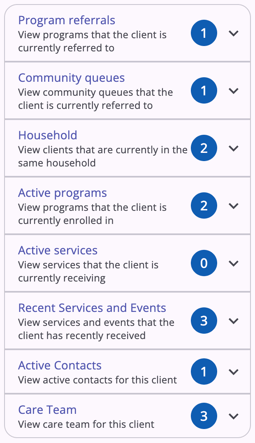
Learn more about each card in the Client Details Cards section of the Client Record Overview article.
404 Error Pages
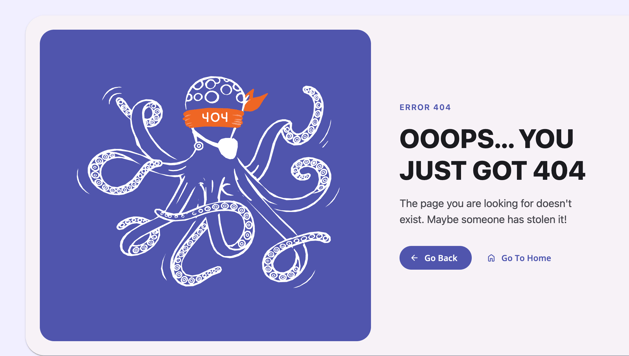
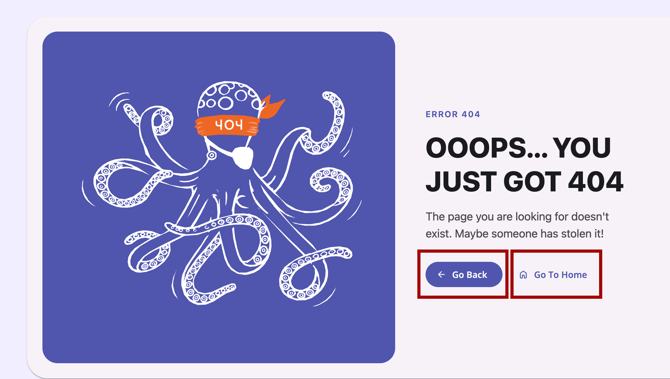
Users will see a dedicated 404 error page instead of a blank screen when a requested record can't be found, or a URL doesn't match an existing route.
Two navigation options are available from the error page: Go Back, which returns the user to the previous page, and Go To Home, which routes the user to their default Home Screen.
Screens Not Yet Available in the New Clarity Interface
A limited number of screens do not yet have a new Clarity interface equivalent. When you open one of these screens, Clarity displays it in the current interface.
Updated: 10/01/2026