
Release Schedule:
- All Training Sites: Monday, March 23, 2026
- All Production Sites: Monday, April 6, 2026
Feature Focus Recording
Click here for a recording of the April 2, 2026, Feature Focus!
Clarity Human Services Updates
Client Record Updates:
-
Important Update: Disabling Condition Warning Message
-
Initial Occupancy Information (Adding Occupancy Dates to Enrollments)
- Improving Client Form and File Data Reporting
INVENTORY Updates:
New Clarity Interface Updates:
-
Important Update: Referral Reassign Logic
- Inventory: Connecting Households to Beds
- Initial Occupancy Information (Adding Occupancy Dates to Enrollments)
- Automatically Referred Assessments
- Global Referrals Tab: Open Units
- Linking Assessments to Program Enrollments
- Client Forms
- File Name Updates
- Consent Refused
Customer Portal Updates:
Pentaho Reporting Updates
Report Updates:
- Connecting Household Members to Beds
- Additional Pentaho updates can be found here:
Data Analysis Updates
Looker Updates:
- Connecting Household Members to Beds
- Improving Client Form and File Data Reporting
- The 2026 Data Services Change Log and Known Issues article and the Data Analysis Upgrade Note articles are released separately.
New and Updated Help Center Resources
We update existing Help Center articles and create new ones based on the included feature updates.
Notes:
-
The updates described in this article will be deployed in the early morning hours on scheduled release days. During release, the Clarity Human Services application and Data Analysis Tool may experience performance delays. We recommend clearing your cache at your initial login if you are experiencing difficulty.
-
Data Analysis updates follow the same feature release schedule dates. There may be a slight delay when accessing Looker after the release while system updates are applied.
Clarity Human Services Updates
Client Record Updates
Important Update: Disabling Condition Warning Message on System Screens
The conditional logic for an enrollment screen warning related to Disabling Condition has been updated to remove ambiguity.

Disabling Condition Warning text: Disabling Condition is set 'Yes,' but no long-term disability type has been selected, which may lead to data quality errors. Please update Disabling Condition or select at least one disability type as long term, if applicable.
New logic:
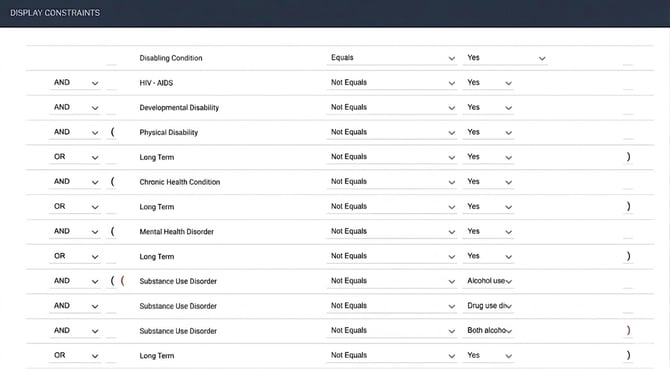
Disabling Condition EQUALS Yes
AND HIV-AIDS NOT EQUALS Yes
AND Developmental Disability NOT EQUALS Yes
AND ( Physical Disability NOT EQUALS Yes
OR Long Term NOT EQUALS Yes )
AND ( Chronic Health Condition NOT EQUALS Yes
OR Long Term NOT EQUALS Yes )
AND ( Mental Health Disorder NOT EQUALS Yes
OR Long Term NOT EQUALS Yes )
AND ( ( Substance Use Disorder NOT EQUALS Alcohol use disorder
AND Substance Use Disorder NOT EQUALS Drug use disorder
AND Substance Use Disorder NOT EQUALS Both Alcohol and Drug use disorders)
OR Long Term NOT EQUALS Yes )
While this change does not alter the current functionality of the warning message, the added parentheses provide a clearer definition of the logic's processing order.
This update will automatically be applied to the following system enrollment screens:
- 2026 Clarity Project Enrollment
- 2026 HHS: RHY Project Enrollment
- 2026 HHS: PATH Project Enrollment
- 2026 HUD: YHDP Project Enrollment
- 2026 HUD: HOPWA Project Enrollment
- 2026 HUD: CoC Standard Project Enrollment
Required Action: Communities using custom enrollment screens that contain this warning message will need to update the logic on those screens manually.
Update: Initial Occupancy Information (Adding Occupancy Dates to Enrollments)
With this update, users can enroll a client in an INVENTORY-enabled housing program and set an Initial Occupancy Start Date for an INVENTORY-based unit/bed.
Overview
When a client is enrolled in a housing program as a result of a referral with a connected unit/bed and an applicable Project Type that is using INVENTORY, the Initial Occupancy Start Date shows as a separate field on the enrollment screen within a new section titled INITIAL OCCUPANCY INFORMATION.
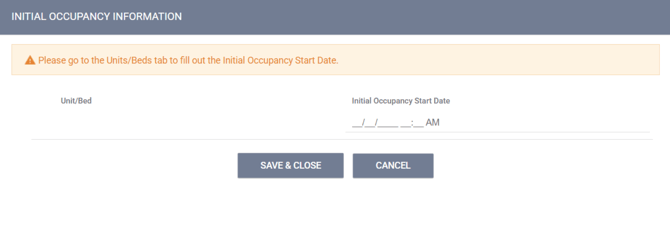
The applicable Project Types are:
- Temporary Housing project types:
- Emergency Shelter – Night-by-Night
- Emergency Shelter – Entry Exit
- Transitional Housing
- Safe Haven
- Permanent Housing project types:
- PH - Permanent Supportive Housing (disability required for entry)
- PH - Housing Only
- PH - Housing with Services (no disability required for entry)
- PH - Rapid Re-Housing where “Identify RRH subtype” = RRH: Housing with or without services
The INITIAL OCCUPANCY INFORMATION section will show on the enrollment screen for a program if one of the following conditions is true:
- For new enrollments:
- The Manage Units/Beds setting is enabled in the program's settings
OR - The program placement (enrollment) is the result of a referral, and that referral has a connected unit/bed (even if the project type is not included in the list of applicable program types)
- The Manage Units/Beds setting is enabled in the program's settings
- For enrollment edits:
- Manage Units/Beds is enabled in the program's settings.
If the program does not meet the conditions above, the INITIAL OCCUPANCY INFORMATION section will not appear on the enrollment screen.
Update: The Bed & Unit Management setting in Program Settings and Referral Settings no longer affects the visibility of the Initial Occupancy Information section. This is an update from the original release and was made in the first week of May 2026.
To review a new Help Center article with details on all functionality, refer to the Initial Occupancy Information article.
Required Action: None.
Update: Improving Client Form and File Data Reporting
Prior to this update, there was data related to client Forms that existed in the client_files table. With this update, any data related to client Forms in the client_files table has been permanently deleted from the database to allow for increased data accuracy. More information about this is detailed in the Data Analysis updates section.
Required Action: Please see the required action in the Data Analysis/Looker updates section.
INVENTORY Updates
Update: Connecting Household Members to Beds
This update enhances Inventory and Referrals functionality by allowing all household members to be connected to beds without having to be referred to a Community Queue.
The update applies to the following Clarity features:
- Community Queue: Reassign
- Referrals and Client History
- Unit Queue
- Client Enrollments
- Eligibility Determination: Assessments/Program Assessments/Referrals
- Programs: Unit/Beds Tab
Community Queue: Reassign
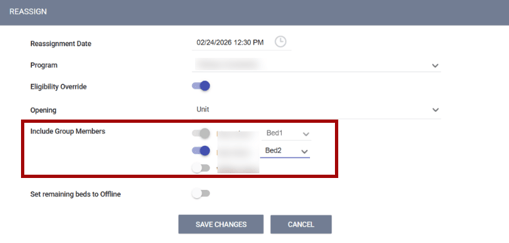
When reassigning a client on the Community Queue to beds in a unit, users now see a list of household members from the global household. Users can assign each household member to a bed.
This functionality applies:
- To programs where Bed & Unit Management is toggled ON and where Units have Beds enabled.
- To Coordinated Entry (CE) and non-CE assessments.
- To both standalone/global-level and program-level assessments.
- To referrals made from any program type.
There is a new label in the REASSIGN section called “Include Group Members,” along with a series of toggles for each household member, including the Head of Household/referred client. The toggle for the household member (typically the Head of Household) who is referred to the queue is enabled by default and read-only.
Program-based Assessments
If the referral was made from an assessment completed in a program, there is an “Enrollment” icon next to each household member in the program's enrollment household.
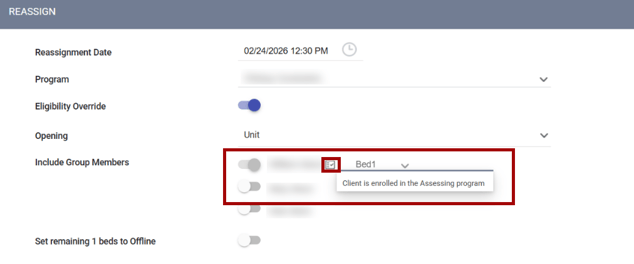
The icon will appear for household members:
- If the enrollment is an individual enrollment, only the one person enrolled shows with an Enrollment icon (and is enabled and read-only).
- If non-HOH household members have separate enrollments in the same program, those enrollments do populate the Enrollment icon.
- Only those household members enrolled in the specific program enrollment where the assessment was completed/initiated, the referral will be indicated with an Enrollment icon.
- When the user hovers over the Enrollment icon, a tooltip reads: “Client is enrolled in the Assessing program.”
- If the completed assessment is a standalone assessment, the Enrollment icon will not show for household members.
Bed Openings
As the user enables toggles for household members, only openings with the same number of beds or greater than the number of household members enabled show. Units that have occupied beds are shown, but only if the count of available beds is sufficient for the number of household members.
- If there are no openings with enough beds, a message appears and reads: “There are no units with the required number of beds.”
- If the user attempts to toggle on more household members than there are available beds, a warning appears and reads: "The Unit has [x] beds available for household members."
- Any beds that are not active or are offline will not show in the list. Any beds the member is not eligible for will not appear on their list.
- The user can assign each household member to a bed. Once a bed is assigned to a household member, it does not show in the list for the other household members.
- If there are more beds available than the number of household members, a toggle appears with a label “Set remaining [x] beds to Offline” where x = number of remaining beds.
- If the user does not turn on any of the household member toggles, the single client is referred to the chosen bed, and the current logic and workflow remain unchanged. The exception is that the “Set remaining [x] beds to Offline” toggle will show, and the user can choose to set any remaining beds in the unit to “Offline.”
- If the unit already has some beds occupied or some beds with pending occupancy by another household, but some beds are empty, the “Set remaining [x] beds Offline” toggle will not show, and the remaining beds would need to be set offline manually.
Field Management: Offline Reason
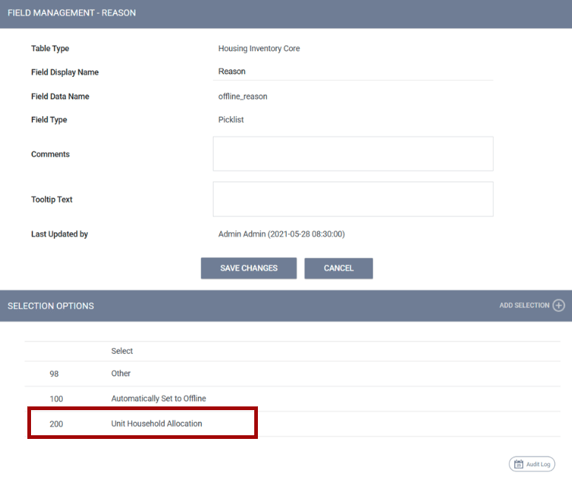
To account for setting beds to Offline during the Reassign process, the Housing Inventory core field offline_reason includes a new SELECTION OPTION that users cannot remove. The value is 200, and the reason is “Unit Household Allocation.”
Saving a Reassignment
When the reassignment is saved, all reassigned beds change status to “Pending Occupancy.”
- If all the beds in the unit are assigned, the unit changes status to “Pending Occupancy.”
- If the user enables the “Set remaining [x] beds to Offline” toggle, any remaining beds in the unit will change status to “Offline.”
- The offline status start date = pending occupancy start date, and offline status end date = occupancy end date or date of denial/expiration, if the referral is denied or expired.
- If the occupancy end date is added, then the offline end date is also added as the same date as the occupancy end date.
- If the Head of Household has an occupancy end date and the other Household members are still active, the offline end date is set to the end date of the last Household member.
- If a bed is offline, the user can manually end the offline status to open the bed, in case someone joins the household and program, and needs to be assigned to a bed.
- If the referral is denied or expired, and the pending occupancy is removed, then the offline beds will become active again.
- “Offline” status for beds is added to the Unit’s Audit Log.
- If the “Set remaining [x] beds to Offline” toggle is left disabled, the beds remain active, and the unit remains “Available.”
Referrals and Client History
After a referral has been reassigned to the Head of Household and any household members, and assigned a bed, all beds and their assigned household members appear on client history records.
Client History
A new client history item, “Pending Unit/Bed Assignment,” has been added to the client history record of each household member assigned to a bed, except the household member who received the referral.
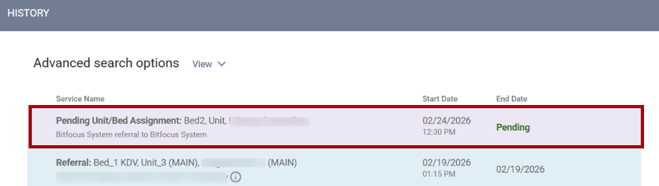
- The start date = reassignment date, the end date = start date of the occupancy, or the denial/expiration date if the referral is denied or expired.
- If the start date is in the future, the Pending Bed/Unit Assignment will still show in the client record, and a delete icon will be available to those with delete rights.
- If the user deletes the Pending Bed/Unit assignment from the client record, the client is removed from the pending occupancy of the bed. The bed status updates to active.
- If the user deletes the referral, the Pending Bed/Unit assignment is removed from the client record.
If a client has a pending Unit/Bed assignment through a referral for another Household member, they can also receive a referral to the same program for themselves.
- When one of the referrals is completed, a warning appears to let the user know that the other referral is still pending.
If a user tries to add a household member to the Household, or remove a household member from the Household while the Unit/Bed assignment is pending, a pop-up appears that reads:
“This household has a referral with a Unit/Bed assignment. Please make adjustments through the referral and enrollment as needed.”
Referral and Inferred Event Logic
No changes have been made to referral logic or inferred event logic. Referrals and inferred events are still only given to the Head of Household.
Unit Queue
Users can see a list of available beds for a Unit, then click on a bed intended for the Head of Household. Next, the user can click Eligibility > Community Queue > and choose the correct Assessment to see a list of household members who are eligible for a bed. A refer button will be available for eligible household members.
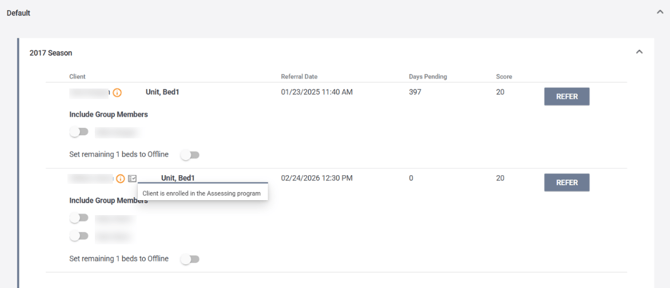
- Next to the Head of Household’s name, the system shows a refer button and the unit and bed name the client is referred to.
- The referred client is assigned to the chosen bed.
- There is a list of beds from the same unit for each household member when the toggles are turned on, so they can be assigned to a bed within the unit.
- Users can only toggle on as many household members as there are available beds. There is a message when there are more household members than beds that reads: “The Unit has [ x ] beds available for household members.”
- If the user does not turn on any of the household member toggles, only the referred client is assigned to the chosen bed, and the referral can be completed when the refer button is clicked.
- Any beds that are not active or are offline will not show in the list. Any beds that the member is not eligible for will not show in the list.
- Once a bed is assigned to a household member, it no longer shows in the list for the other household members.
- If there are more beds available than the number of family members there is a toggle with the label “Set remaining [x] beds to Offline?” where x = number of remaining beds.
- If the unit already has some beds occupied or pending occupancy by another household and there are some beds left empty, the “Set remaining [x] beds offline?” toggle will not show, and the remaining beds would need to be set offline manually.
When the “Refer” button is pressed, the assigned beds change status to “Pending Occupancy.” If all the beds in the unit are assigned, the unit status changes to “Pending Occupancy.”
- If the “Set remaining [x] beds to Offline?” toggle is enabled, the remaining beds change status to “Offline” with the offline reason “Unit Household Allocation,” and the Unit changes Status to “Pending Occupancy.”
- Any beds that are “Pending Occupancy” no longer show as available on the Unit Queue.
- If the “Set remaining[x] beds to offline?” toggle is left disabled, the remaining beds remain active, and the unit remains “Available.”
- All changes in bed status, as well as which household member the beds are assigned to in a unit, are incorporated into the following pages:
- The Units page for Pending Occupancy and Occupied status
- Occupancy History page
- Bed List
Client Enrollments
Now, when a user accepts a referral during client enrollment, all household members and their assigned beds appear on the screen. The included household member toggles are automatically enabled for the household members assigned to beds.
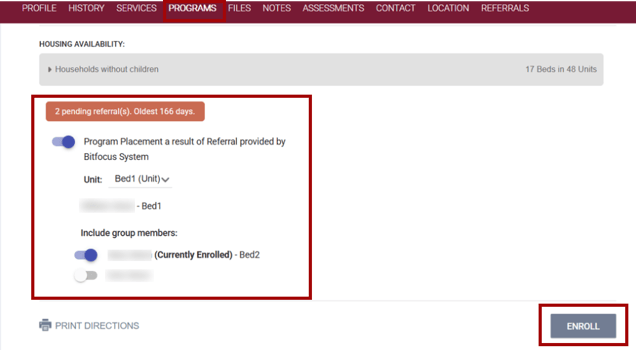
“Pending Unit/Bed Assignment” Records at Enrollment
If a household member no longer needs to be enrolled, the user can disable the automatically enabled toggle.
- Once “Save” is clicked for the enrollment, the bed assignment is removed.
- The “Pending” status Unit/Bed assignment record is removed from the client record.
- The bed status updates.
- If the “Set remaining [x] beds to Offline?” button was enabled at referral, the bed status updates to “Offline.” Otherwise, the bed becomes available.
If a disabled toggle is enabled, so that an unassigned household member can be enrolled in the program, the list of any available beds in the unit can be displayed, and the household member can be assigned to a bed.
- If there are no beds available in the unit, a pop-up appears immediately after the user tries to enable the toggle for an unassigned household member that reads:
“No beds available in assigned unit. Please deny the referral and reassign to a different unit.”
Once all household members have the appropriate Unit/Bed assignment, click “Enroll” and complete the enrollment process.
Managing “Pending Unit/Bed Assignment” Records
When only the referred client is connected to their bed, the user sees a message that reads:
“Program Placement the result of Referral to bed.”
When all household members are assigned to their beds with “Pending Unit/Bed Assignment” records, the user sees a message that reads:
“Program Placement the result of Referral to unit.”
If there is more than one referral to a specific program that relates to Units/Beds, a dropdown is available, and the user can select the referral to connect to the client program.
- If the user selects a Unit/Bed where only the Head of Household’s referral is connected, the user sees household members with all toggles disabled by default.
- If the user selects Unit/Bed where the referral is connected to the Head of Household, and there is a “Pending Unit/Bed Assignment“ record related to this referral, the system automatically enables toggles for household members that also have a “Pending Unit/Bed Assignment” record.
If the user cancels an enrollment for one of the household members during enrollment, only those household members where the enrollment screen has been saved is enrolled with the bed assignments completed.
- The household member that was cancelled, and any household members following, are not enrolled in the program.
- Their “Pending Unit/Bed Assignment” records are deleted.
- If the “Set remaining [x] beds to Offline?” button was enabled, the beds that were not filled update to “Offline” status. Otherwise, the beds become available.
Unit/Bed Occupancy Status after Enrollment
Once the enrollment is completed, the occupancy status for all assigned beds updates to “Occupied.” If all the beds in the unit are assigned and/or the remaining beds have been updated to “Offline,” the Unit status also updates to “Occupied.”
- The “Pending Unit/Bed Assignment” record for each assigned client closes with the end date of the program enrollment’s start date.
- Each Household member’s Unit/Bed assignment automatically shows in their program enrollment record.
If a household member with a “Pending Unit/Bed Assignment” from a referral was not enrolled with the rest of the household members, and a user enrolls the client at a later date, a message appears that reads:
“Program Placement a result of Pending Unit/Bed Assignment to Bed: <Bed> provided by <Agency name>.”
- The user will see the toggles for all other included household members in the original referral that was not enrolled, and can enroll those household members.
To ensure that users know which clients are referred clients, a popup appears that reads:
“Client <Referred Client Name> has a referral to Bed: <Bed>. Please enroll the client and connect the referral to ensure all connections to beds are completed.”
An “OK” button must be clicked to confirm.
If a client has a referred “Pending Unit/Bed Assignment,” but a user enrolls the client into a program without connecting the referred Unit/Bed, the referral doesn’t change. The pending referral stays “Pending,” and any related “Pending Unit/Bed Assignments” for household members also remain “Pending.”
- If the enrollment is completed separately without connecting the referral, and a user tries to “Add Connection” later, the user sees only those client enrollments that don’t have an existing or future occupation. In this case, bed assignments cannot be completed for the household members at one time.
- A pop-up appears that reads:
“Referral includes bed assignments - only the referred client bed assignment will be completed. Please go to individual enrollments to complete bed assignments for household members.”
There are “OK” and “Cancel” buttons. If the user clicks OK, the connection is made for the referred client, and the pending referral is completed.
- The household members keep their “Pending Unit/Bed Assignment” records until the user goes to their individual enrollment and assigns the bed in the Unit/Bed tab.
Audit Log
If a user deletes a “Pending Unit/Bed Assignment” record, removes a household member from the referral, or otherwise updates “Pending Unit/Bed Assignment” records, it is logged in the referral’s audit log.
Eligibility Determination: Assessments/Program Assessments/Referrals
With this update, available Unit/Beds for program referrals and potential household members to include appear during eligibility determination. The process is the same for:
- Global Assessments
- Program Assessments
- Referrals
When a user chooses a program for referral during eligibility determination, the Available Units appear in a drop-down listing all available beds for that unit.
For each client, users see a list of household members from their global household under an “Include Group Members” label, with a series of toggles.
- If the user enables the toggles, only openings with the same number of beds or greater as the number of toggles enabled show.
- If there are no openings with enough beds, a message appears and reads:
“There are no units with the required number of beds.” - If the user attempts to toggle on more members than there are available beds, a warning appears that reads:
- If there are no openings with enough beds, a message appears and reads:
“The Unit has [x] beds available for household members."
The user will be unable to toggle on any additional Household members.
- For each household member toggled on, a list of beds shows. Any beds that are not active or are in “offline” status will not appear in the list. Any beds where the household member is not eligible will not show in their list.
- Users can assign each household member to a bed. Once a bed is assigned to a Household member, it will no longer appear in the list of beds for the other Household members.
- If there are more beds available than the number of household members, a toggle appears with a label “Set remaining [x] beds to Offline?” where “x” = number of beds.
- If the user does not turn on any of the household member toggles, the individual client is referred to the chosen bed, and the current logic and workflow remain unchanged.
When the “Make Referral” button is pressed, the assigned beds change status to “Pending Occupancy.” If all beds in the unit are assigned, the unit changes status to “Pending Occupancy.”
- If the “Set remaining [x] beds to Offline?” toggle is enabled, the remaining beds change status to “Offline,” and the Unit changes Status to “Pending Occupancy.”
- If the “Set remaining [x] beds to Offline?” toggle is left disabled, the remaining beds remain active, and the unit remains “Available.”
- If the unit already has some beds occupied, or are “Pending Occupancy" by another household, and there are some beds left empty, the “Set remaining [x] beds offline?” toggle will not show, and the remaining beds would need to be set to “Offline” manually in the INVENTORY module.
All changes in bed status, as well as which household member beds are assigned to in a unit, are incorporated into the following pages:
- The Units page for Pending Occupancy and Occupied status
- Occupancy History page
- Bed List
After referrals to Units/Beds are made during eligibility determination, the referral page shows all assigned beds and their assigned household members.
- There is no change to referral and inferred event logic. Referrals and inferred events are still only given to the Head of Household. The history page for the household members will not show a referral record.
- There is a new client history item, “Pending Unit/Bed Assignment,” added to the client history record for each household member assigned to a bed or unit. This record shows the Unit/Bed information. The start date is the referral date, the end date is the start date of the occupancy.
If the referral is denied, the Unit and Bed statuses all revert to Available.
- Changes in bed status, as well as which household member beds are assigned to in a unit, are incorporated into the following pages:
- The Units page for Pending Occupancy and Occupied status
- Occupancy History page
- Bed List page.
Programs: Unit/Beds Tab
A new toggle labeled Include Group Members now appears within the ADD UNIT/BED pop-up on the Units/Beds tab for a program.
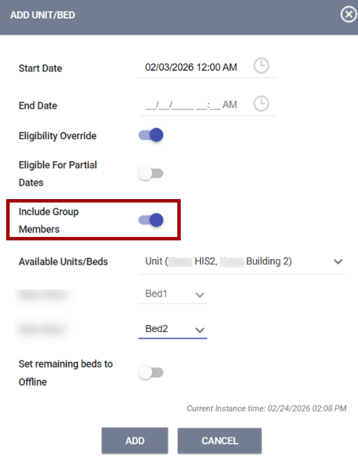
- If the “Include Group Members" toggle is OFF, the user can select a unit/bed only for the enrollment Head of Household (or the current client).
- If the “Include Group Members” toggle is ON, the user sees a list of all members who are enrolled in the current client program, including the current client.
- As soon as the “Include Group Members” toggle is enabled, within the Available Units/Beds field, the user will only see those units where beds are enabled.
- Only openings with the same number of beds or greater than the number of household members show.
- If there are no openings with enough beds a message appears that reads:
“There are no openings with the required number of beds”.
- If there are no openings with enough beds a message appears that reads:
- For each household member, a list of beds in the chosen unit shows.
- Any beds that are not active or with an “Offline” status will not show in the list. Any beds the member is not eligible for will not appear on their list.
- The user can assign each household member to a bed.
- Once a bed is assigned to a household member, it will not show in the list for the other household members.
- If there are more beds available in the unit than the number of household members, a toggle appears with a label “Set remaining [x] beds to Offline?” where “x” = number of beds.
When the “Add” button is pressed, the assigned beds change status to “Occupied.” If all the beds in the unit are assigned, the unit changes status to “Occupied.”
- If the “Set remaining [x] beds to Offline?” toggle is enabled, the remaining beds change status to “Offline” with the reason “Unit Household Allocation,” and the Unit changes Status to “Occupied.”
- If the “Set remaining beds to Offline” toggle is left disabled the remaining beds remain active, and the unit remains “Available”.
- Each household member receives a record of their enrollment on the Units/Beds tab to show the unit and bed name for the individual group member.
- The start date and end date for the individual household member’s occupancy record reflect the same dates/times as the Head of Household record.
- If the end date was left empty, it remains empty.
- All changes in bed status, as well as which household member beds are assigned to in a unit, are incorporated into the following pages:
- The Units page for Pending Occupancy and Occupied status
- Occupancy History page
- Bed List page.
- If the unit already has some beds with the status Occupied or Pending Occupancy by another household, and there are some beds left empty, the Set remaining [x] beds Offline? toggle will not show, and the remaining beds need to be set to “Offline” manually in the Inventory module.
Audit Log
Changes to the household member’s unit occupancy are added to the enrollment audit log.
Required action: None.
New Clarity Interface Update: Click here for the related new Clarity interface update.
Pentaho Reporting Update: Click here for the related Pentaho Reporting update.
Data Analysis Update: Click here for the related Data Analysis update.
Update: Editing in Inventory: Filter and Field Display Adjustments
Inventory logic for modifying units has been updated. This update impacts Inventory’s Screen Field Editor settings and the user experience.
Inventory Settings
There is a one-to-one mapping between Housing Inventory Core screen field editor settings and Inventory behavior for users.
For all Core fields on the Unit screen, the Display on Inventory Card field was set to ON in the database, and the Display on Inventory Card toggle was hidden from the Modify Screen Field Editor page.
The user will only see the Edit in Inventory fields, but they will be grayed out, so they cannot be enabled.
These include:
- Status
- Status Start Date
- Status End Date
- Offline Reason
- Offline Description
- Eligibility
- Unit Configuration
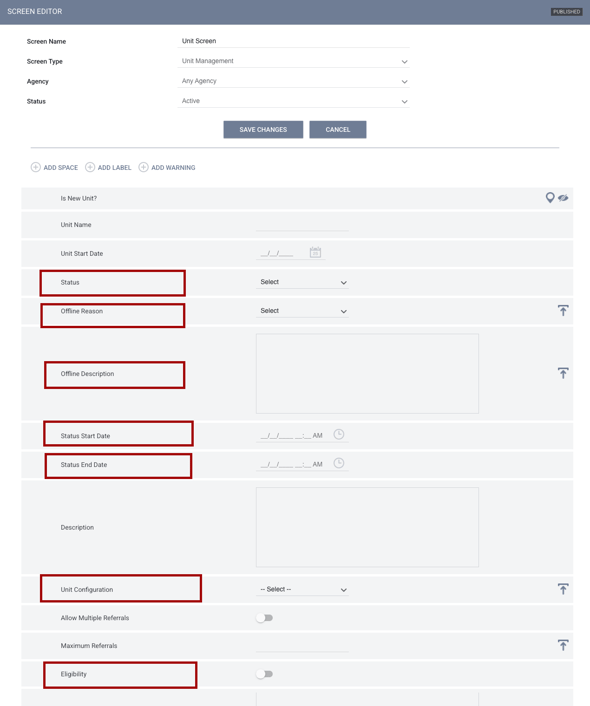
The screen editor only allows changes that will take effect in the user interface:
- Core fields cannot be re-ordered on the screen.
- The merge (join) option is not available for core housing inventory fields on the unit screen.
- Automatic Offline Duration and Automatic Offline Interval fields are no longer on a merged row. They are now separated, and each is on their own row.
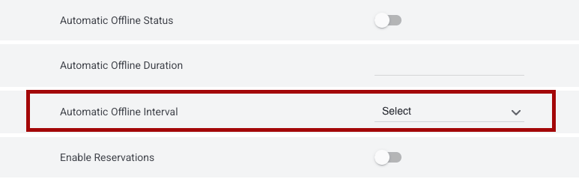
- The Delimiter field has been removed.
The setting Edit in Inventory - General Users was updated to Edit in Inventory - Field Editors.
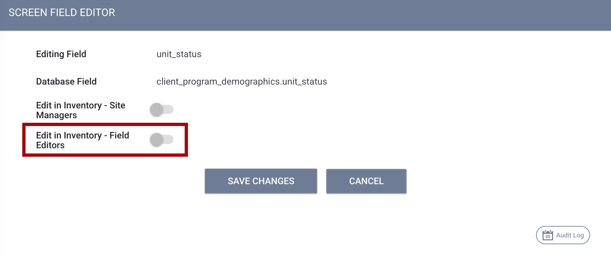
User Experience
The user experience aligns with the edit-in-inventory settings. We added logic to retain the field values when a user checks and then unchecks a field on the Modify Selected Units form.
If a field is checked and the value is modified, then is unchecked, the field reverts to its original value. The field can be checked again to modify its value.
Filter drop-downs were updated to allow (No value) as an option when a custom housing inventory field:
- Has the Include As Inventory Filter setting enabled on the screen field editor.
-
Is a picklist field
AND
- Select is a picklist value.
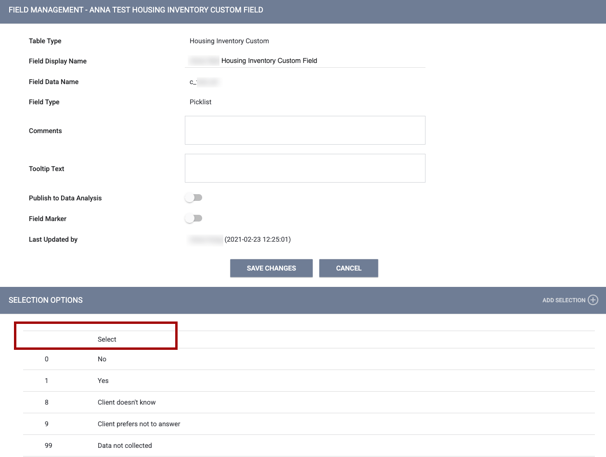
'(No value)' will appear at the bottom of the picklist for a custom field. Users can select '(No value)' and other picklist options as filters.
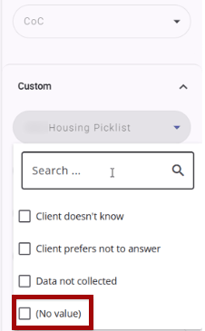
If the ‘(No value)’ option is selected, the system only checks Unit Screens for the field’s value.
The ‘(No value)’ filter hierarchy is not checked in the same way other picklist values are, and returns only units where the relevant field is set to “Select” on the Unit Screen.

Calculation logic was applied to the unit listing in Inventory. Users see a calculated field as read-only. Users can see the result of the calculation but are not able to make changes to the field. The system will not show a checkbox for this field on the modify unit details screen.
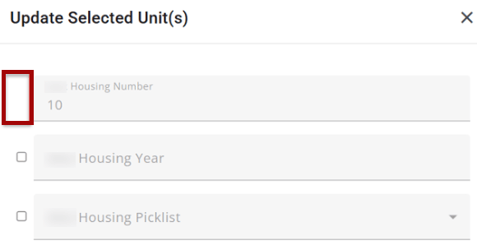
Required Action: None.
Update: Inventory Link to Client Record
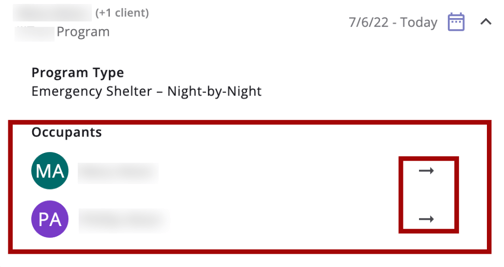
With this update, when a user navigates to the Occupancy tab on the Unit Card in the INVENTORY Dashboard, a Go to this client record button is available. Unit Cards are available by clicking on a record in the Inventory list.
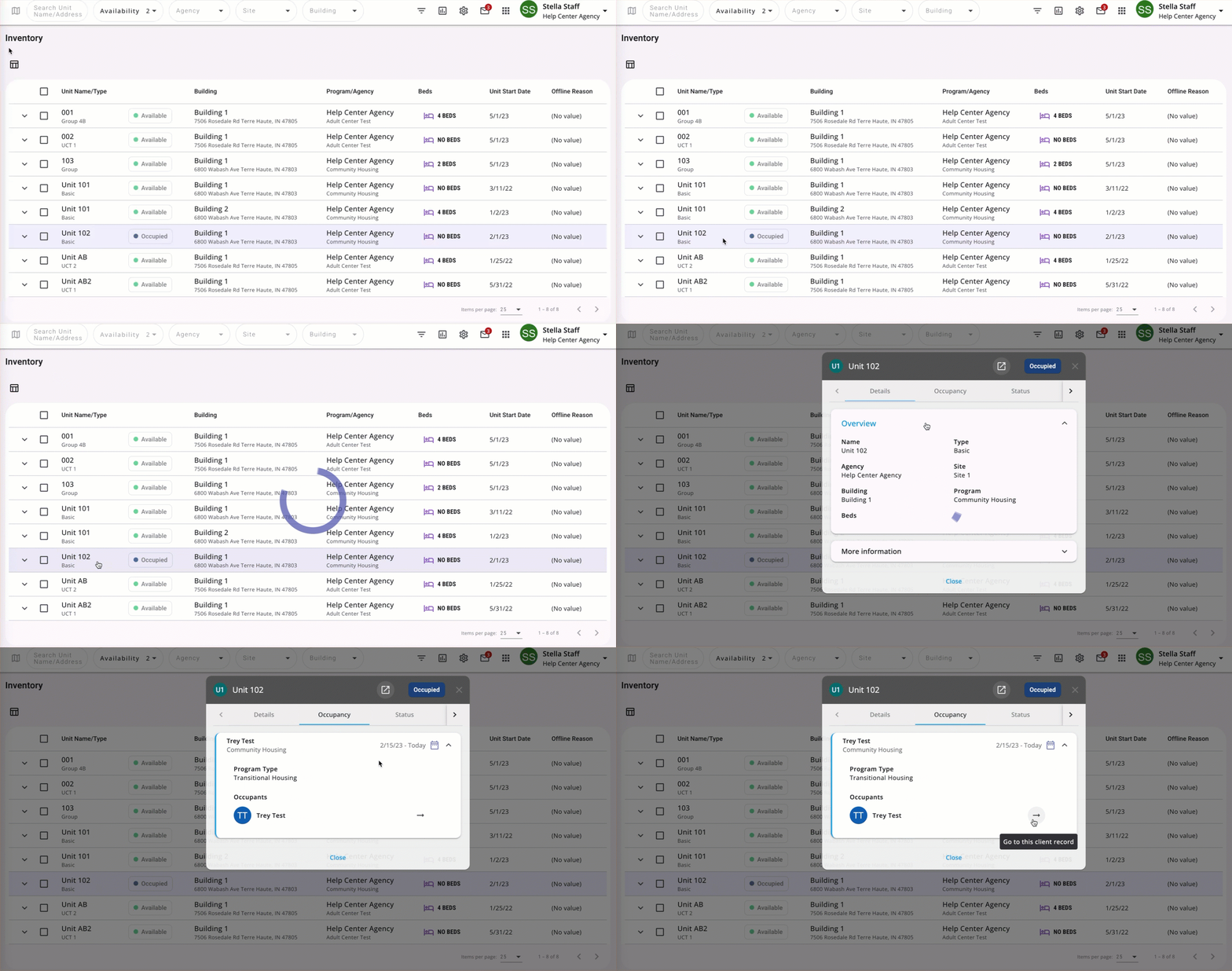
If Sharing Settings allow users to see the client profile (Clients Created = Full Shared), the user sees the button regardless of access role/access rights. If Clients Created = Basic Shared or Not Shared, the button will not appear.
If the client is marked Private and the user cannot see the client’s profile, the button will not appear on the Unit Card for the client.
When Sharing and Privacy settings allow it, the button is available for each occupant. Clicking the button opens the client profile screen in a new browser tab.
Required Action: None.
New Clarity Interface Updates
Important Update: Referral Reassign Logic (New Clarity Interface)
An update was made on April 8, 2026, to the logic for reassigning referrals from a Community Queue (CQ) in the new Clarity Human Services interface. This update relates to the Connecting Household Members to Beds feature below.
Previously, when a user selected a client on a CQ, they could select Reassign from the Action Menu, choose an Active Agency option on the Referral Reassign modal, and then Program options would populate. If no program options were available, the user would see a warning message stating that none were available.
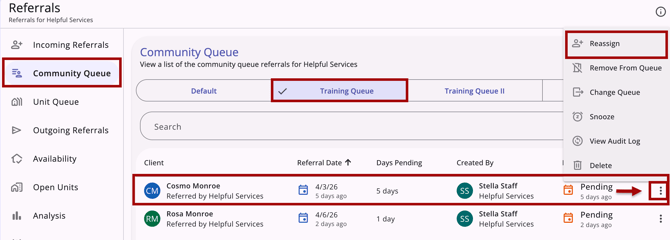
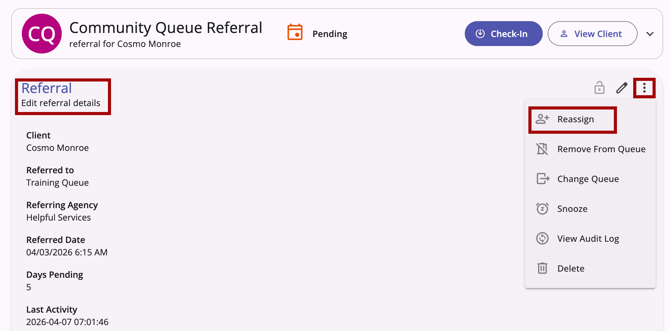
With this update, the Reassign option on the Action Menu will appear only if there is at least one Active Agency with at least one Program (and, when applicable, Unit/Bed Opening) available for reassignment.
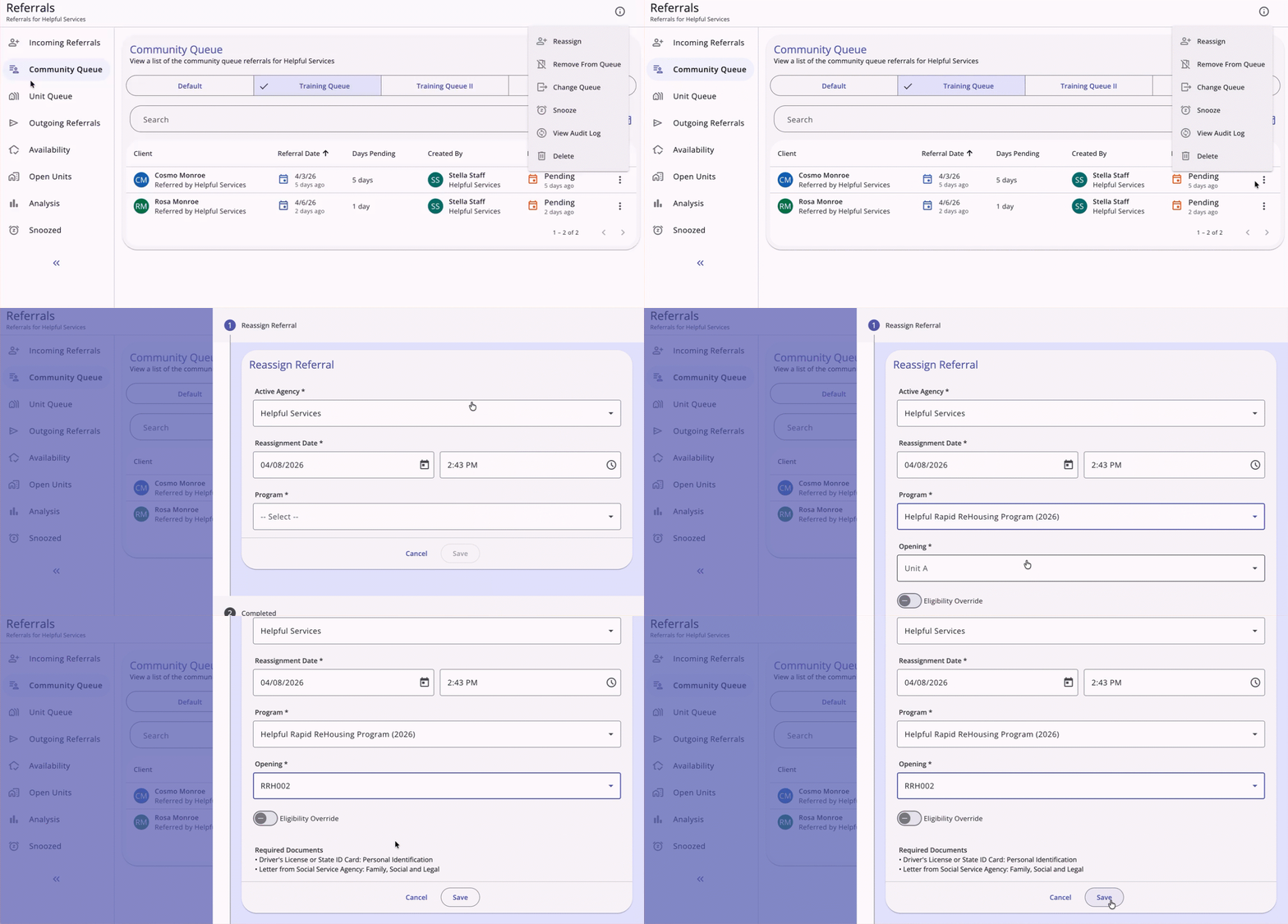
If there are no programs available at any Active Agency, then the Reassign option will not appear in the Action Menu.
This logic update applies to:
- the row-level quick Action Menu on the Community Queue tab
- the client's Edit referral details Action Menu on the Community Queue Referral page.
Required Action: None.
Update: Inventory: Connecting Household Members to Beds (New Clarity Interface)
This update enhances Inventory and Referrals functionality by allowing all household members to be connected to beds without all household members being referred to a Community Queue.
The update applies to the following new Clarity interface features:
- Community Queue: Reassign
- Referrals and Client History
- Eligibility Determination: Assessments/Program Assessments/Referrals
Please note that there will be additional refinements in the new Clarity interface for connecting household members to units within program enrollments and the Unit Queue.
Community Queue: Reassign
When reassigning a client on the Community Queue to beds in a unit, users now see a list of household members from the global household. Users can assign each household member to a bed.
This functionality applies:
- To programs where Bed and Unit Management is toggled ON and where Units have Beds enabled.
- To Coordinated Entry (CE) and non-CE assessments.
- To both standalone/global-level and program-level assessments.
- To referrals made from any program type.
There is a new section called “Reassign Household Members” and a series of toggles showing each household member associated with the originally referred household member.
- The toggle for the household member (typically the Head of Household) who is referred to the queue is enabled by default and read-only.
Program-based Assessments
If the referral was made from an assessment completed in a program, there is an “Enrollment” icon next to each household member in the enrollment household for that program. A tooltip for the icon reads:
“Client is enrolled in the Assessing program.”
The Enrollment icon shows for household members:
- If the enrollment is an individual enrollment only the one person enrolled shows with an Enrollment icon (and is enabled and read-only).
- If non-HOH Household members have separate enrollments in the same program, those enrollments do populate the Enrollment icon.
- Only those household members enrolled in the specific program enrollment where the assessment was completed/initiated the referral will be indicated with an Enrollment icon.
- If the completed assessment is a standalone assessment, the Enrollment icon will not show for household members.
Bed Openings
As the user enables toggles for household members, only openings with the same number of beds or greater than the number of household members enabled show. Units that have occupied beds are shown, but the count of available beds is sufficient for the number of household members.
- If there are no openings with enough beds a message appears and reads:
“There are no units with the required number of beds.” - If the user attempts to toggle on more household members than there are available beds, a warning appears and reads:
"The Unit has [x] beds available for household members." - Any beds that are not active or are offline will not show in the list. Any beds the member is not eligible for will not appear on their list.
- The user can assign each household member to a bed. Once a bed is assigned to a household member, it does not show in the list for the other household members.
- If there are more beds available than the number of household members, a toggle appears with a label “Set remaining [x] beds to Offline” where x = number of remaining beds.
- If the user does not turn on any of the household member toggles, the single client is referred to the chosen bed and the current logic and workflow remain unchanged. The exception is that the “Set remaining [x] beds to Offline” toggle will show, and the user can choose to set any remaining beds in the unit to “Offline.”
- If the unit already has some beds occupied or some beds with pending occupancy by another household, but some beds are empty, the “Set remaining [x] beds Offline” toggle will not show, and the remaining beds would need to be set offline manually.
Saving a Reassignment
When the reassignment is saved, all reassigned beds change status to “Pending Occupancy.”
- If all the beds in the unit are assigned, the unit changes status to “Pending Occupancy.”
- If the user enables the “Set remaining [x] beds to Offline” toggle, any remaining beds in the unit will change status to “Offline.”
- The offline status start date = pending occupancy start date, and offline status end date = occupancy end date or date of denial/expiration, if the referral is denied or expired.
- If the occupancy end date is added, then the offline end date is also added as the same date as the occupancy end date.
- If the Head of Household has an occupancy end date and the other household members are still active, the offline end date is set to the end date of the last household member.
- If a bed is offline, the user can manually end the offline status to open the bed, in case someone joins the household and program, and needs to be assigned to a bed.
- If the referral is denied or expired, and the pending occupancy is removed, then the offline beds will become active again.
- “Offline” status for beds is added to the Unit’s Audit Log.
- If the “Set remaining [x] beds to Offline” toggle is left disabled, the beds remain active, and the unit remains “Available.”
Referrals and Client History
After a referral has been reassigned to the Head of Household and any household members, and assigned a bed, all beds and their assigned household members appear on the client history records.
Client History
A new client history item, “Pending Unit/Bed Assignment,” has been added to the client history record of each household member assigned to a bed, except the household member who received the referral.
- The start date = reassignment date, the end date = start date of the occupancy, or the denial/expiration date if the referral is denied or expired.
- If the start date is in the future, the Pending Bed/Unit Assignment will still show in the client record, and a delete icon will be available to those with delete rights.
- If the user deletes the Pending Bed/Unit assignment from the client record, the client is removed from the pending occupancy of the bed. The bed status updates to active.
- If the user deletes the referral, the Pending Bed/Unit assignment is removed from the client record.
If a client has a pending Unit/Bed assignment through a referral for another household member, they can also receive a referral to the same program for themselves.
- When one of the referrals is completed, a warning is displayed to the user that the other referral is still pending.
If a user tries to add a household member to the household, or remove a household member from the household while the Unit/Bed assignment is pending, a pop-up appears that reads:
“This household has a referral with a Unit/Bed assignment. Please make adjustments through the referral and enrollment as needed.”
Competing Referrals
If a client has a "Pending Unit/Bed Assignment" and then receives a new, separate referral, and a user tries to enroll them from that new referral, the system shows a warning that reads:
“[Client Name] has a referral to [Program X Unit Y]. Please adjust referral as needed."
If a user tries to add or remove a member from a household that has a pending bed assignment, the system shows a warning that reads:
"This household has a referral with a bed and unit assignment. Please make adjustments through the referral and enrollment as needed."
Referral and Inferred Event Logic
No changes have been made to referral logic or inferred event logic. Referrals and inferred events are still only given to the Head of Household.
Eligibility Determination: Assessments/Program Assessments/Referrals
With this update, available Unit/Beds for program referrals and potential household members to include appear during eligibility determination. The process is the same for:
- Global Assessments
- Program Assessments
- Referrals
When a user chooses a program for referral during eligibility determination, the Available Units appear in a drop-down listing all available beds for that unit.
For each client, users see a list of household members from their global household under an “Include Group Members” label, with a series of toggles.
- If the user enables the toggles, only openings with the same number of beds or greater than the number of toggles enabled show.
- If there are no openings with enough beds, a message appears and reads:
“There are no units with the required number of beds.” - If the user attempts to toggle on more members than there are available beds, a warning appears that reads:
- If there are no openings with enough beds, a message appears and reads:
“The Unit has [x] beds available for household members."
The user will be unable to toggle on any additional household members.
- For each household member toggled on, a list of beds shows. Any beds that are not active or are in “offline” status will not appear in the list. Any beds where the Household member is not eligible will not show in their list.
- Users can assign each household member to a bed. Once a bed is assigned to a household member, it will no longer appear in the list of beds for the other household members.
- If there are more beds available than the number of household members, a toggle appears with a label “Set remaining [x] beds to Offline?” where “x” = number of beds.
- If the user does not turn on any of the household member toggles, the individual client is referred to the chosen bed and the current logic and workflow remain unchanged.
When the Make Referral button is pressed, the assigned beds change status to “Pending Occupancy.” If all beds in the unit are assigned, the unit changes status to “Pending Occupancy.”
- If the “Set remaining [x] beds to Offline?” toggle is enabled, the remaining beds change status to “Offline,” and the Unit changes Status to “Pending Occupancy.”
- If the “Set remaining[x] beds to Offline?” toggle is left disabled, the remaining beds remain active, and the unit remains “Available.”
- If the unit already has some beds occupied, or is “Pending Occupancy" by another household, and there are some beds left empty, the “Set remaining [x] beds offline?” toggle will not show, and the remaining beds would need to be set to “Offline” manually in the INVENTORY module.
All changes in bed status, as well as which group member beds are assigned to in a unit, are incorporated into the following pages:
- The Units page for Pending Occupancy and Occupied status
- Occupancy History page
- Bed List page.
After referrals to Units/Beds are made during eligibility determination, the referral page shows all assigned beds and their assigned household members.
- There is no change to referral and inferred event logic. Referrals and inferred events are still only given to the Head of Household. The history page for the household members will not show a referral record.
- There is a new client history item, “Pending Unit/Bed Assignment,” added to the client history record for each household member assigned to a bed or unit. This record shows the Unit/Bed information. The start date is the referral date, and the end date is the start date of the occupancy.
If the referral is Denied, the unit and bed statuses all revert to Available.
- Changes in bed status, as well as which group member beds are assigned to in a unit, are incorporated into the following pages:
- The Units page for Pending Occupancy and Occupied status
- Occupancy History page
- Bed List page.
Required action: None.
Update: Initial Occupancy Information (New Clarity Interface)
With this update, users can enroll a client in an INVENTORY-enabled housing program and set an Initial Occupancy Start Date for an INVENTORY-based unit/bed.
Overview
When a client is enrolled in a housing program with an applicable project type that uses INVENTORY, the Initial Occupancy Start Date appears as a separate field on the enrollment screen, within a new section titled Initial Occupancy Information.
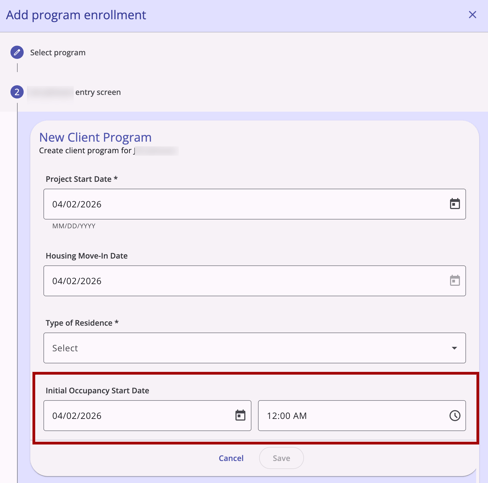
The applicable Project Types are:
- Temporary Housing project types:
- Emergency Shelter – Night-by-Night
- Emergency Shelter – Entry Exit
- Transitional Housing
- Safe Haven
- Permanent Housing project types:
- PH - Permanent Supportive Housing (disability required for entry)
- PH - Housing Only
- PH - Housing with Services (no disability required for entry)
- PH - Rapid Re-Housing where “Identify RRH subtype” = RRH: Housing with or without services
The Initial Occupancy Information section will show on the enrollment screen for a program if one of the following conditions is true:
-
For new enrollments:
-
The Manage Units/Beds setting is enabled in the program's settings
OR
-
The program placement (enrollment) is the result of a referral, and that referral has a connected unit/bed (even if the project type is not included in the list of applicable program types)
-
-
For enrollment edits:
-
The Manage Units/Beds setting is enabled in the program's settings.
-
If the program does not meet the conditions above, the Initial Occupancy Information section will not appear on the enrollment screen.
To review a new Help Center article with details on all functionality, refer to the Initial Occupancy Information (New Clarity Interface) article.
Required Action: None.
Update: Automatically Referred Assessments (New Clarity Interface)
Automatic Referrals to a community queue (or multiple queues, if applicable) are now available in the new Clarity interface.
Process for Users With the Appropriate Access Rights
When a user with the Refer Directly to Community Queue access right enabled completes an eligible assessment with Automatic Referrals enabled, the system automatically refers the client to the configured Community Queue(s), bypassing the manual selection process.
Instead, the user moves directly to the referral confirmation page.
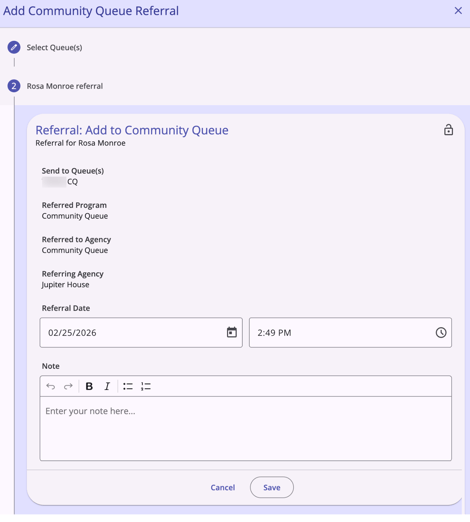
If the client already has a Community Queue referral in one or more configured Community Queues, the user doesn't see the queue(s) on the referral confirmation page.
- If the client already has a Community Queue referral in all of the configured Community Queues, the system redirects the user to the Eligibility page.
On the referral confirmation page, the user can edit the referral date and time and add a note.
- If the user adds a note at this step, that note gets applied to all relevant referrals.
If the user clicks Save:
- The referral is sent
- The next step/screen appears stating:
“Nice! You finished this task! Tap the Complete button below to continue.”
If the user clicks ‘Cancel’:
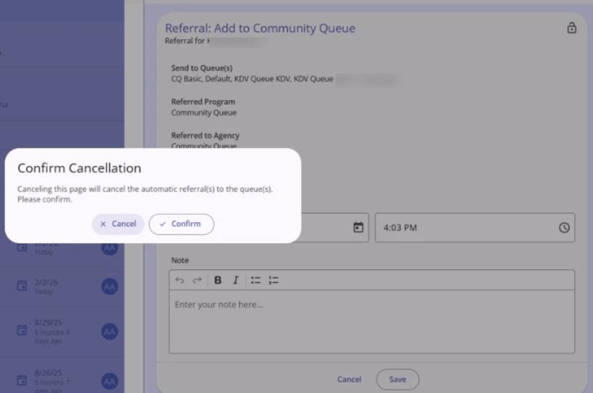
- A pop-up message displays that reads:
“Canceling this page will cancel the automatic referral(s) to the queue(s). Please confirm.”
- There is a Cancel button available:
When this is clicked, the pop-up message disappears, and the user returns to the referral confirmation page
- There is a Confirm button available:
When this is clicked, the pop-up message disappears, and the automatic referral(s) are not sent to the queue(s). The user is returned to the Client Assessment listing page.
- There is a Cancel button available:
If the user clicks Cancel and the referral wasn't automatically sent to the community queue, a user with the Refer Directly to Community Queue permission can open the Eligibility page and manually create a referral to the community queue. Refer to the Assessments Tab: Community Queue Referrals (New Clarity Interface) article for more details.
Maximum Referrals
The client can be referred to up to 5 queues at the same time, but if the limit is reached and the user attempts to complete an assessment, the system will display a pop-up alert that reads:
“This client has reached the maximum limit for active Community Queue referrals. To proceed, please remove an existing referral from a Community Queue before adding this one.”
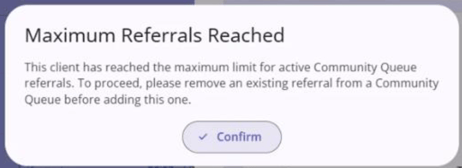
If the user clicks the Confirm button:
- They are redirected back to the Assessment workflow to the Complete page that reads:
"Nice! You finished this task! Tap the Complete button below to continue." - The assessment is completed.
- The automatic referral is not made.
- The user is redirected to the Eligibility page.
Process for Users Without the Appropriate Access Rights
If a user without the Refer Directly to Community Queue permission completes an assessment with Automatic Referrals enabled, the system displays a warning banner, and no referrals will be made. The warning message reads:
“Based on your assigned access role permissions, this assessment has not been automatically referred to a queue.”
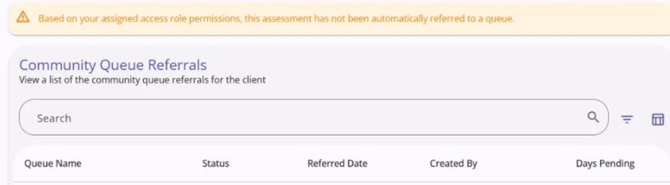
If the referral wasn’t sent to a queue automatically (the user doesn’t have the needed access right or the user clicked Cancel on the Referral Creating page), a user with Refer Directly to Community Queue permission can open the Eligibility page and create a referral to a Community Queue manually. Refer to the Assessments Tab: Community Queue Referrals (New Clarity Interface) article for more details.
Required Action: None.
Update: Global Referrals Tab: Open Units (New Clarity Interface)
We’re pleased to announce that the Coordinated Entry Open Units tab is now available on the new Clarity interface.
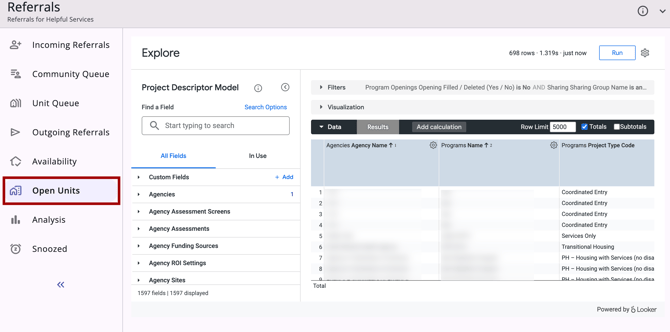
The Open Units tab allows users with Looker access to view all of the open units in their programs in one place.
To review a new Help Center article with details on all functionality, refer to the new Global Referrals Tab: Open Units (New Clarity Interface) article.
Required Action: None.
Update: Linking Assessments to Program Enrollments (New Clarity Interface)
With this update, users can link an existing agency-level assessment to an active program enrollment in the new Clarity interface.
From the client’s program enrollment Assessments tab, there is a new action menu option titled “Link from Assessment.” The user can link the assessment:
- If they have an access role that allows them to modify the client program.
- If there is an assessment available to link.
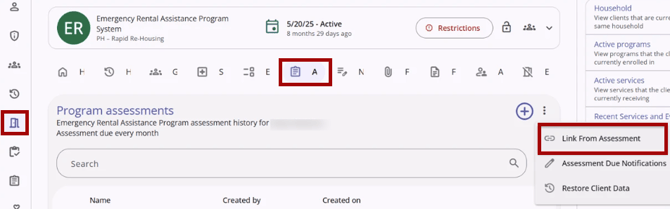
If the user does not have the appropriate access or there is no assessment to link, the user will not see the action menu icon with the option to Link from Assessment.
To review a new Help Center article with details on all functionality, refer to the new Linking Assessments to Program Enrollments (New Clarity Interface) article.
Required Action: None.
Update: Client Forms (New Clarity Interface)
We’re excited to announce that with this update, users can access client-related forms in the new Clarity interface.
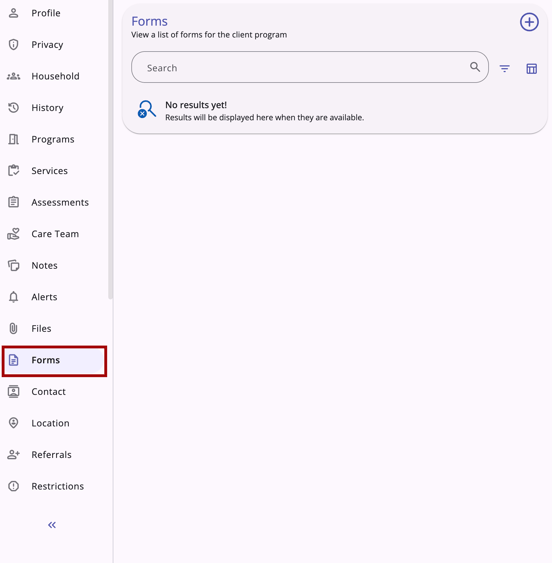
The user can add, view, and manage forms from the Forms tab in the client’s navigation menu. Forms added at the global-level and the program-level can be found here.
To review a new Help Center article with details on all functionality, refer to the Working with Forms in the Client Record (New Clarity Interface) article.
Required Action: None.
Update: File Name Updates (New Clarity Interface)
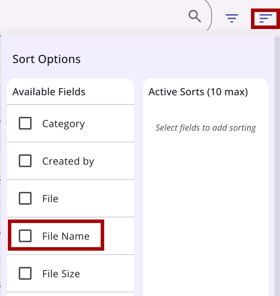
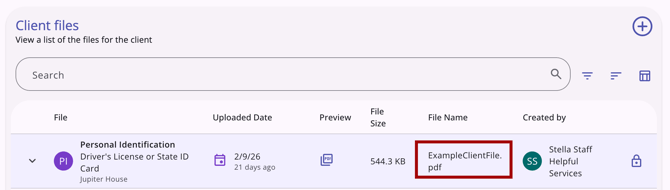
With this update, users have more options for viewing and managing file names in the Files tab and a program enrollment Files tab.
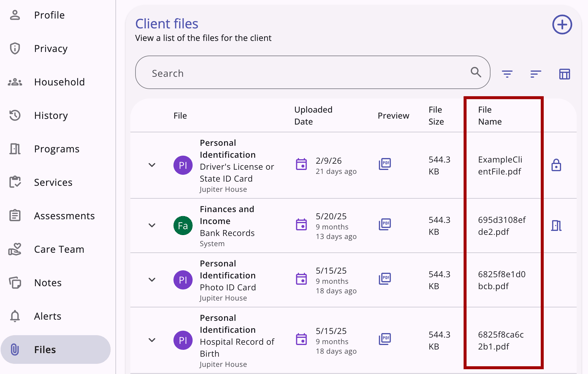
Users can search for and sort by File Name.
The File Name defaults to the original file’s name, as uploaded.
Required Action: None.
Update: Consent Refused (New Clarity Interface)
We’re excited to announce that with this update, the new Clarity interface will include Consent Refused functionality.
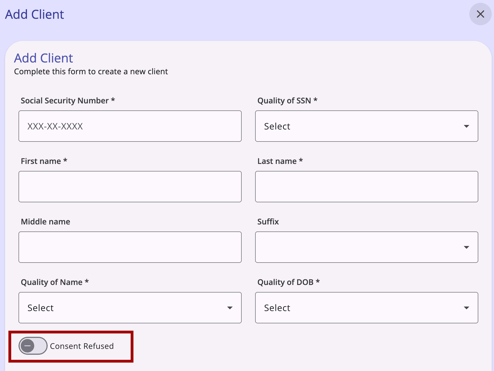
Consent Refused functionality allows users to anonymize a client profile when the client refuses to have their information stored in the system.
To review a new Help Center article with details on all functionality, refer to the Consent Refused (New Clarity Interface) article.
Required Action: None.
Customer Portal Updates
Update: Login Page and Account Creation Page Updates (Customer Portal)
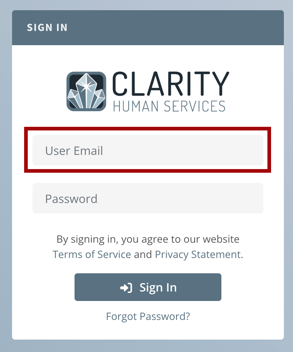
With this update, two small updates have been made to reduce client user confusion. The Customer Portal login page for client users will read “User Email” instead of “Username.”
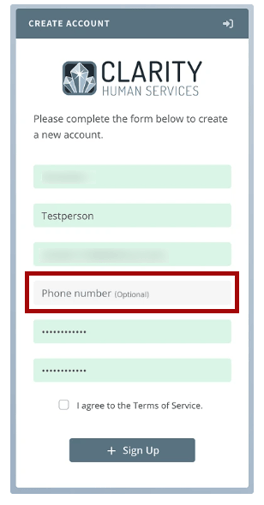
When client users are creating a new portal account, the phone number field will include (Optional) in the Phone Number field.
Required Action: None.
Pentaho Reporting Updates
Update: Connecting Household Members to Beds (Pentaho Reports)
The following reports have been updated to align with the new functionality for connecting all household members to beds without having to refer all household members to the Community Queue:
- [UNIT-102(-AD)] Unit Client Detail - Referral
- [UNIT-103(-AD)] Unit Client Detail - Enrollment
- [RFRL-103(-AD)] Referral Statistics - Inbound
- [RFRL-102(-AD)] Referral Outcomes Statistics
- [RFRL-104(-AD)] Referral Statistics - Outbound
- [CLNT-125] Client Summary
- [STFF-104] Staff Client Data Activity
Required Action: None.
Data Analysis Updates
Update: Connecting Household Members to Beds (Looker)
A new Pending Bed Unit Assignment view has been added to the Inventory Model to support the new functionality for connecting all household members to beds. The following fields have been added to the Pending Bed Unit Assignment view:
|
View |
Label |
Description |
LookML Field Name |
|
Pending Bed Unit Assignment |
Added Date |
“The date the record was added" |
|
|
Pending Bed Unit Assignment |
Client Full Name |
HMIS Data Element 3.01.1 |
|
|
Pending Bed Unit Assignment |
Client ID |
Unique ID of the Client |
|
|
Pending Bed Unit Assignment |
End Date |
“The date the bed/unit reassignment ended by the start date of the occupancy, or the denial or expiration date of the referral." |
|
|
Pending Bed Unit Assignment |
Last Updated Date |
“The date the record was last updated" |
|
|
Pending Bed Unit Assignment |
Start Date |
"The date the bed/unit reassignment started." |
|
The following fields have been added to the Inventory Model, under the 'Bed Occupancy' view, to support the new Pending Bed Unit Assignment feature attributes.
|
View |
Label |
Description |
LookML Field |
|
Bed Occupancy |
Pending Bed/Unit Assignment ID |
“The unique ID number for the record." |
|
|
Bed Occupancy |
Set Remaining Beds To Offline |
“Is the 'Set Remaining [X] Beds To Offline' toggle enabled?" |
|
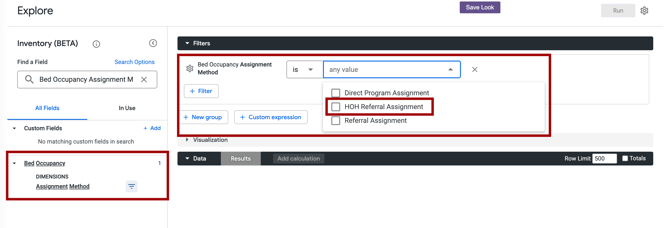
In addition, the Assignment Method dimension underneath the Bed Occupancy view has been updated to include HOH Referral Assignment as an option to identify the new referral assignment method.
Important Update (Monday, March 23, 2026):
bed_unit_pending_assignment.client_full_name_text)bed_unit_pending_assignment.ref_client), the new field names noted above, was updated on April 13, 2026. Prior to that time, they remained as detailed above.On April 13, 2026:
- Client Full Name was updated to Pending Household Member Name.
- Client ID was updated to Pending Household Member ID.
Required Action: None.
Updated: Improving Client Form and File Data Reporting (Looker)
The following changes have been made in the Client, Coordinated Entry, and HMIS Performance models to support enhanced Client Form and File data reporting.
The Client Files sub-group has been moved from the Clients view to its own Client Files view.
Form records will no longer be included in client file records.
The following fields have been removed from the Client Files view:
- Form Templates Name (
client_form_templates.name) - Form Templates Status (
client_form_templates.status) - File Type (
client_files.type)
The fields Form Template Name and Form Template Status have been aliased in corresponding fields in the Client Forms view: Template Name and Template Status. This will not break existing content.
The field File Type has been completely removed.
The following fields have been added to the Client Files and Client Forms views:
|
View |
Label |
Description |
LookML Field |
|
Client Files |
ID |
The ID of the client file record. |
|
|
Client Forms |
Form Link |
Direct link to Form in Clarity. |
|
|
Client Forms |
Program Linked Form? |
Program linked to Client Form. |
|
|
Client Forms |
Template Status |
The status of the template applied to the client form record. |
|
|
Client Forms |
User Home Agency ID |
The ID of the user's Home Agency who modified the record. This information is collected at the time of the event and may not be the same as the user's current Home Agency. |
|
|
Client Forms |
User Home Agency |
The name of the user's Home Agency who modified the record. This information is collected at the time of the event and may not be the same as the user's current Home Agency. |
|
|
Client Forms |
File Size (KB) |
File Size in Kilobytes. |
|
|
Client Forms |
Raw File Name |
Name of the file uploaded with extension. |
|
Required Action: If you use the field File Type, updates to existing content where this field is used should be made. A list of content using the following fields can be provided upon request:
- Form Templates Name (
client_form_templates.name) - Form Templates Status (
client_form_templates.status) - File Type (
client_files.type)
Current Living Situation: Last Updated Field (Looker)
The field Last Updated has been included on the Current Living Situation view as a dimension group, containing values for Time, Date, Week, Month, Quarter, and Year. This new dimension group shows up for the Client, Coordinated Entry, Data Quality, HMIS Performance, and Outreach models.
|
View |
Label |
Description |
LookML Field Name |
Dimension Group Exposed |
|
Current Living Situation |
Last Updated |
Date the assessment was last updated |
current_living_situation.last_updated |
Date, Month, Quarter, Time, Week, and Year |
Required Action: None.
We Welcome Your Ideas
We encourage you to suggest improvements and new features for our products. You can create feature suggestions or vote, watch, and comment on existing suggestions at ideas.bitfocus.com. Refer to our Feature Suggestions article for additional details.
New and Updated Help Center Resources
We will either update or create the following articles in response to this Clarity Human Services update by EOD, Monday, April 6, 2026.
Notes:
-
Feature updates will be available in all training sites on Monday, March 23, 2026, and in all production sites on Monday, April 6, 2026.
-
Links will be added below when articles are published with feature updates information. However, the information detailed on updated or new content may not be "live" in Clarity. If an article is updated or created before the Clarity "go live" dates noted above, a note will be added to the top of the article.
Updated: 05/07/2026