
This article is for the new Clarity interface. Screenshots and descriptions will be updated as features are released. For the current interface article, see Working with Forms in the Client Record.
Table of Contents
Overview
Users can add, view, and manage forms from the Forms tab in the client navigation menu and from the Forms tab within a client's program enrollment.
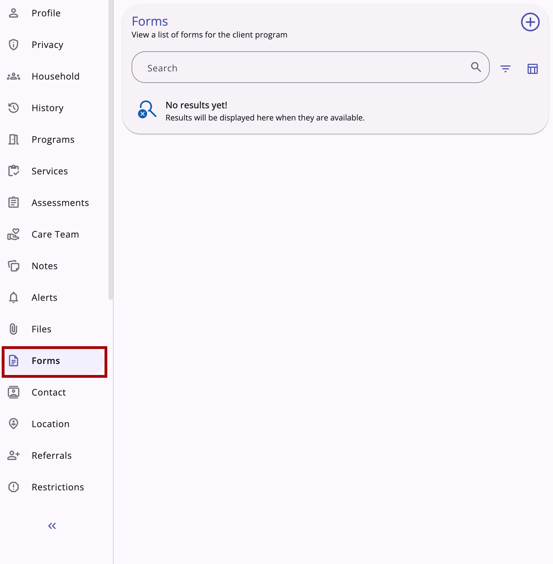
Adding a Form
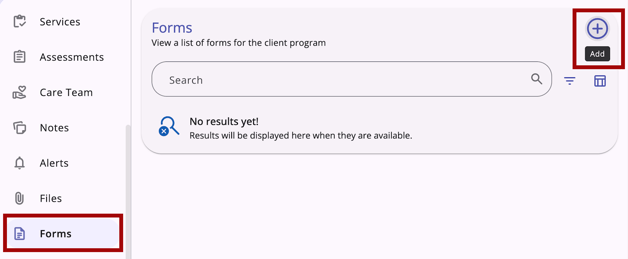
To upload a form, click the Add icon.
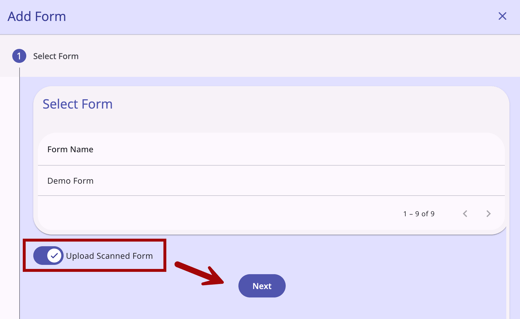
The Add Form modal will appear, listing the form options for your particular agency. You can also toggle on Upload Scanned Form here. You can select or toggle on the option you require, then click Next.
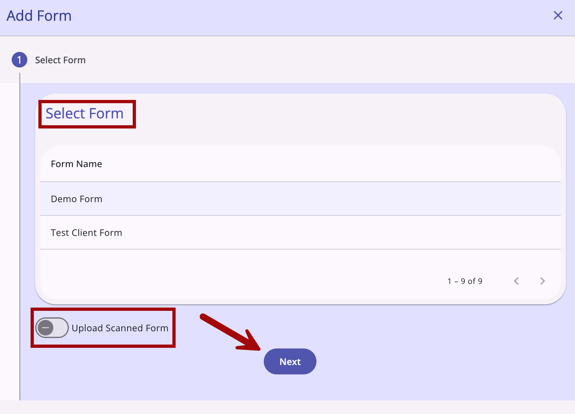
Select Form
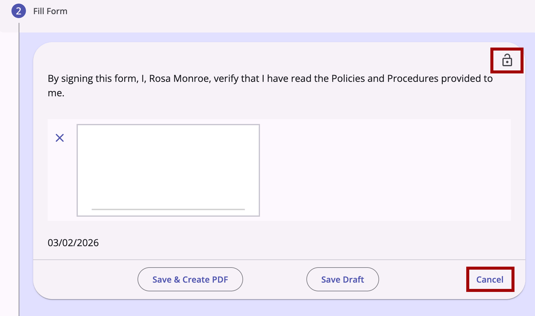
If you choose to select a form from the list of options, click the required form to highlight it, and then click Next. Complete the fields in the form and then click Save & Create PDF or Save Draft.
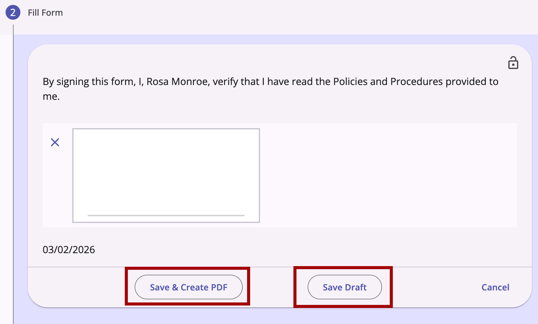
You can also set privacy for the form here, or click Cancel to return to the Forms tab.
Creating an Electronic Signature
Some forms require a client signature. An electronic signature can be created with a computer mouse or finger pad. In the field, the client can use their finger to create their signature on the mobile device. Click the green check mark icon to apply the signature.
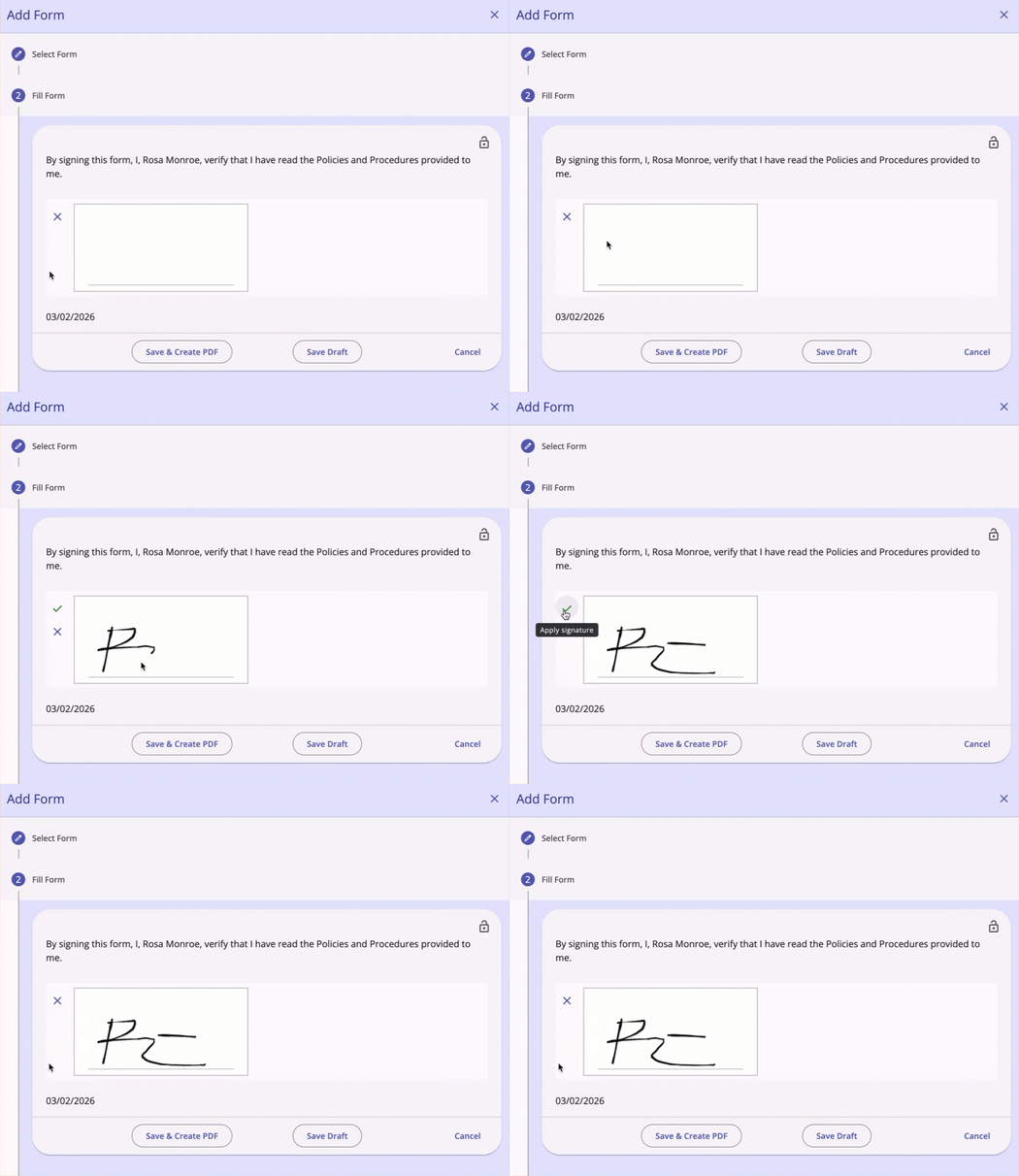
If needed, you can click the "x" icon to reset and redo the signature. You will not be able to save the form until a signature is applied to the electronic signature field.
Upload Scanned Form
If you choose to upload a scanned form, toggle on Upload Scanned Form and then click Next. You may select a form to indicate that you will upload a specific form, or you can move forward without selecting one.
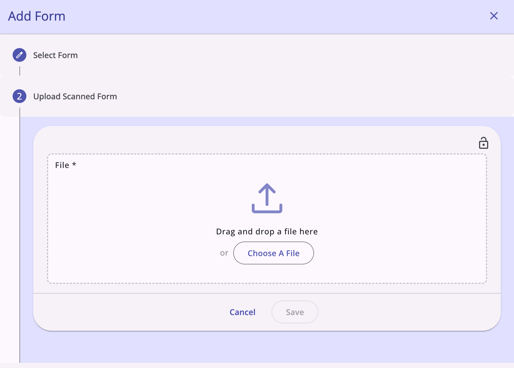
You can drag and drop a file here or select one from your computer. Then click Save.
Adding a Form in an Enrollment
Client forms can be viewed, added, or modified from within a program enrollment.
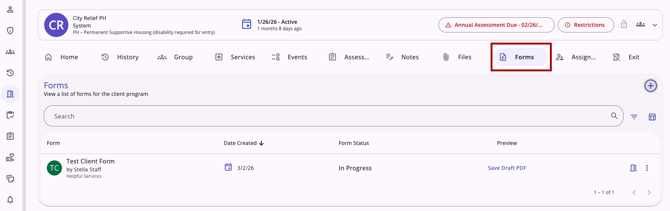
A Program Connection icon indicates a form added within a program enrollment.
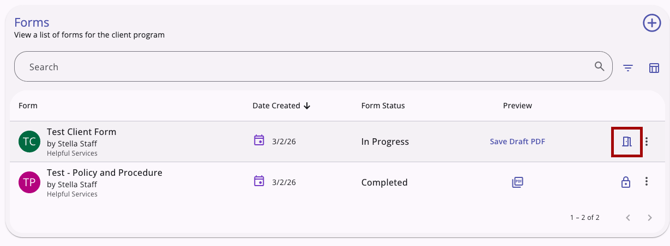
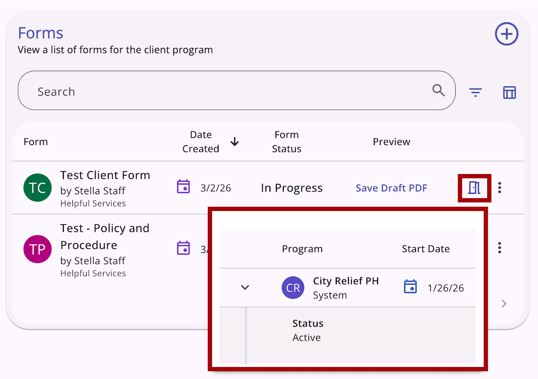
A tooltip displays program connection details when a user hovers over the program connection icon.
Saving a Form
Users with access to forms have the option to:
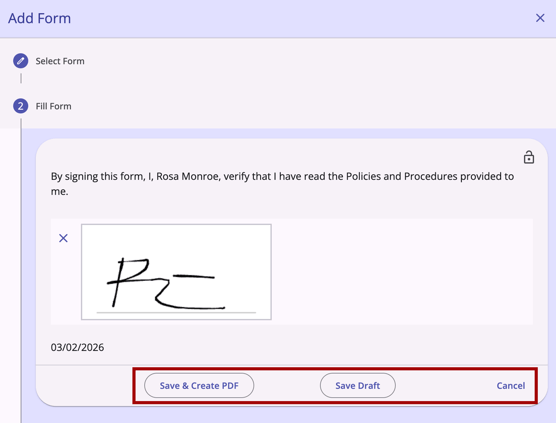
Save & Create PDF
When Save & Create PDF is selected, the form saves with no option to edit it later.
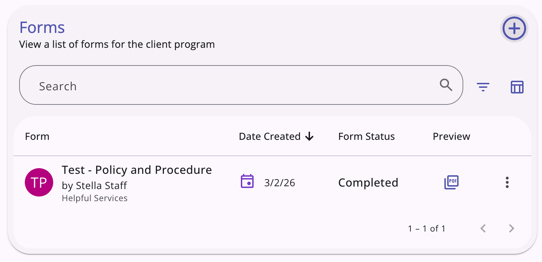
This option creates a final PDF file that can be viewed when clicking the PDF icon in the Preview column. Users with the appropriate access can delete the form or change its privacy settings.
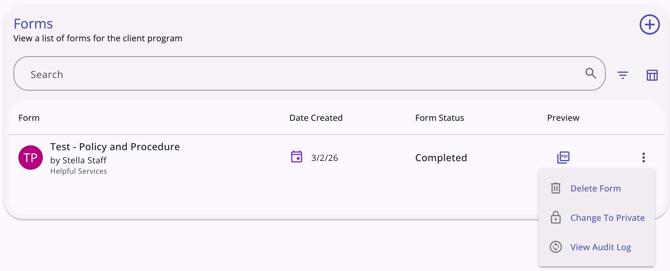
Save Draft
When Save Draft is selected, the form is saved, allowing it to be opened and modified later. Once the draft is saved, the form is marked In Progress until it is completed.
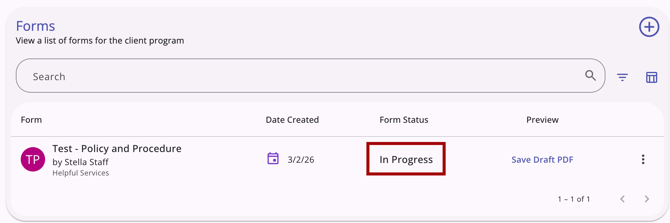
The draft form can be deleted by those users with the appropriate access. Signature fields are not required when a user saves a draft, but signatures can be saved on a draft form.
The In Progress form can be modified or deleted by those users with the appropriate access by clicking on the action menu icon for the record.
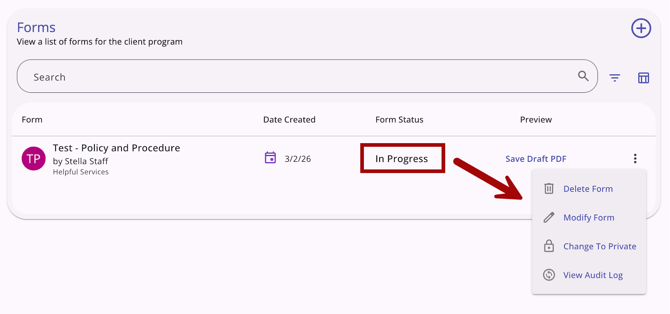
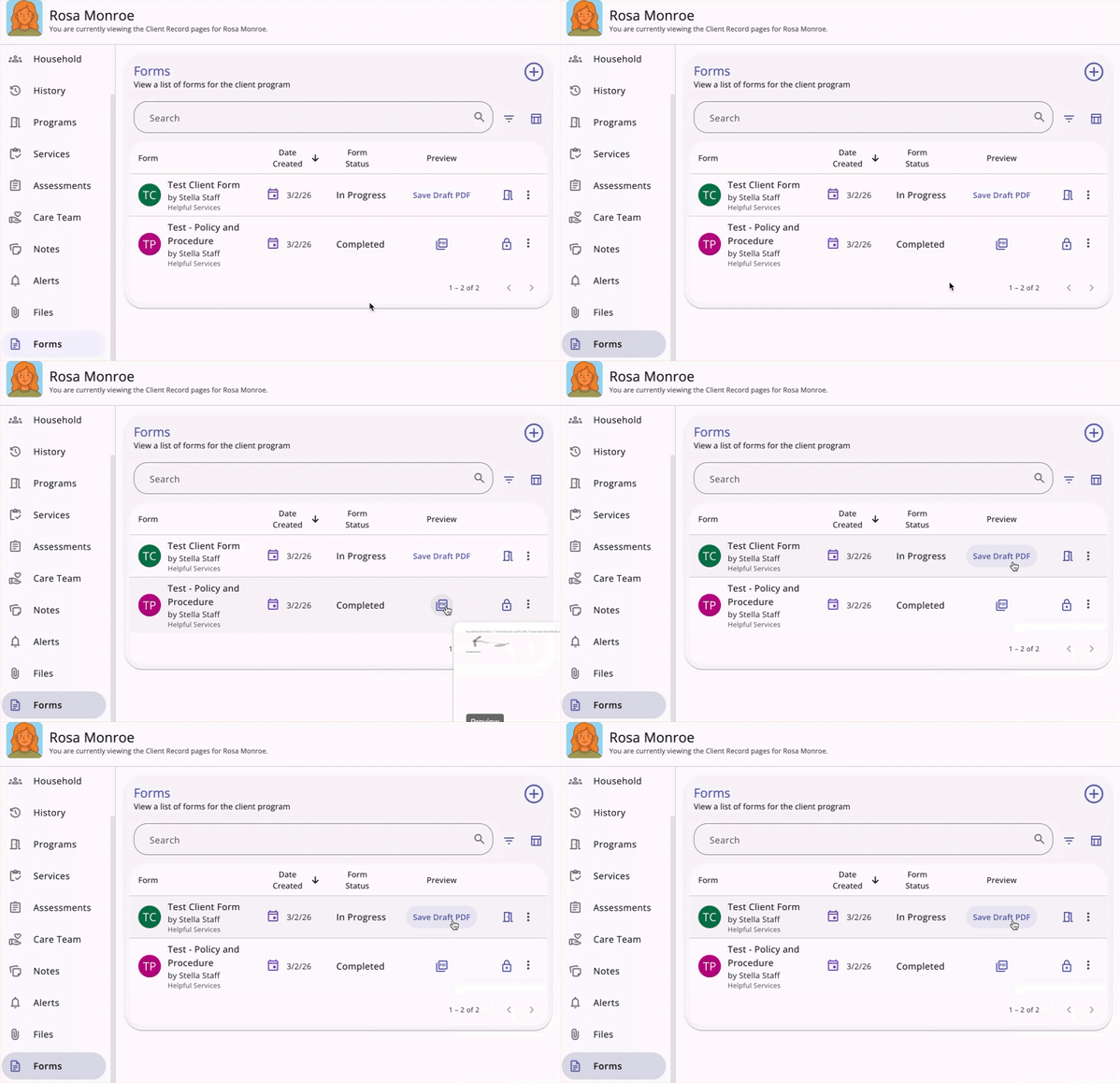
Users can save the draft form as a PDF while the Form Status is In Progress. A Save Draft PDF button in the Preview column can be used to open a PDF file in a new tab. Users with the appropriate access to view the form based on sharing settings can see the button.
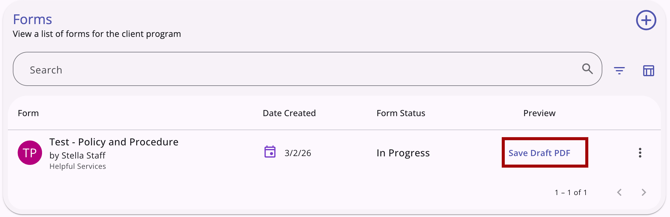
Once an In Progress form has been completed and Save & Create PDF has been selected, Form Status updates to Completed, Preview updates to a PDF icon, and the "Modify Form" option no longer appears in the list of action menu options.
Cancel Form Creation
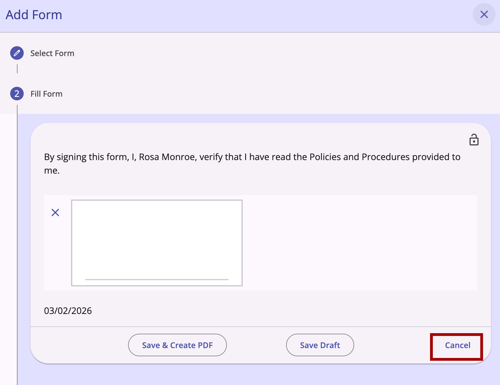
Users can click Cancel to leave the Add Form page and return to the Forms tab.
Privacy
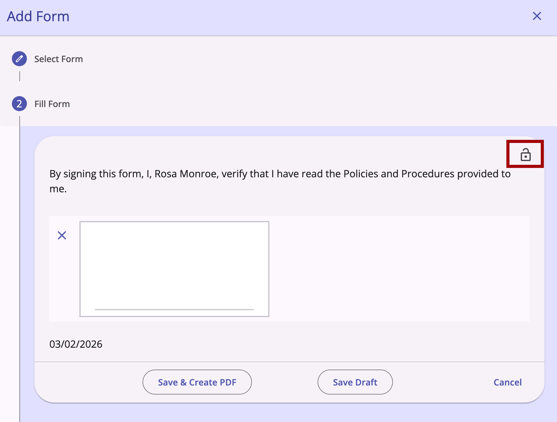
A Private icon is available when a user is completing a form and after it is saved.
On the Add Form page:
Users can also update the privacy for a Completed or In Process form on the Forms tab.
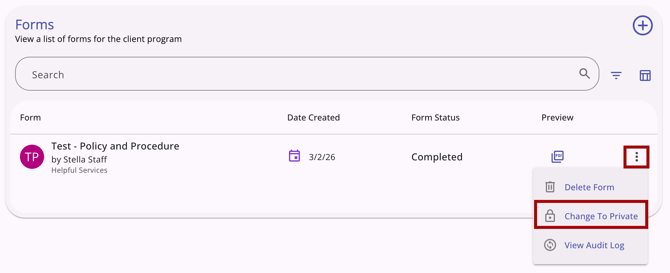
Clicking Change to Private will automatically update the record. Users can click Change to Public to automatically convert the private record back to public.
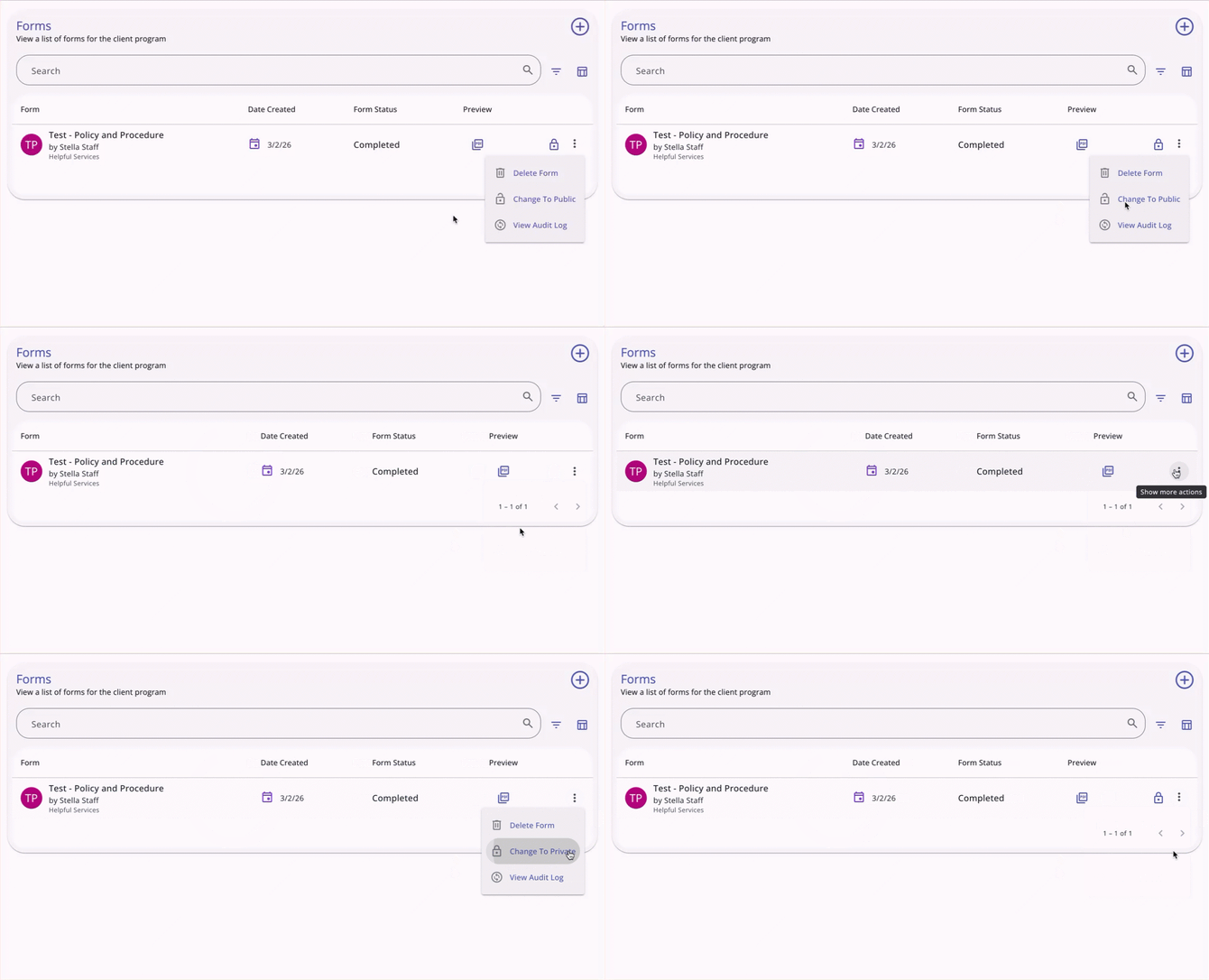
Refer to the Making Client Data Private (New Clarity Interface) article for more details on client privacy.
Viewing Client Forms
Users can search, filter, or sort the list of client forms in the Forms tab or in the program enrollment Forms tab.
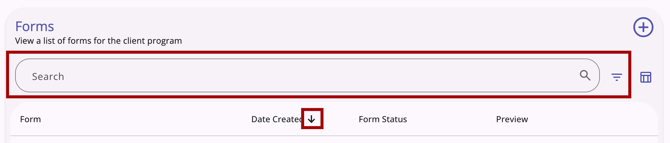
Refer to the Client Record Overview (New Clarity Interface) for more information on search, filtering, and sorting.
Users can customize their view using a column selector in the Forms tab or in the program enrollment Forms tab.
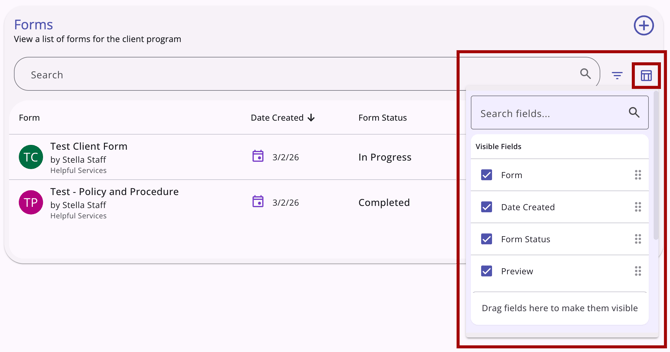
Refer to the Client Record Overview (New Clarity Interface) article for more information on column selector functionality.
Users can preview forms in a tooltip by hovering over the PDF icon for a Completed form record or clicking Save Draft PDF for an In Progress form record.
Audit Log
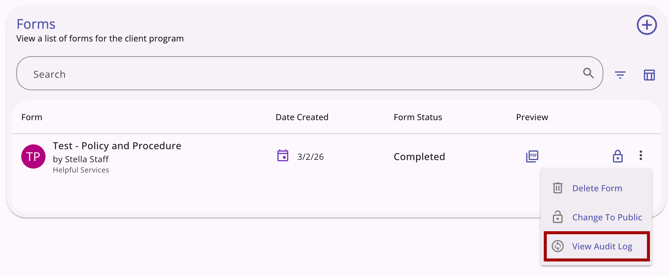
The "View Audit Log" option can be clicked by a system administrator with audit log access rights on the form record. A log of all changes to the client form is displayed.
Icons & Tooltips
|
Icon |
Icon/Tooltip Name |
Tooltip |
Icon Location |
|
|
Action menu, also known as:
|
"Show more actions" |
All Screens: typically on the far right of a screen or section |
|
|
Add |
“Add” |
All Screens: anywhere the “Add” option occurs |
|
|
Column Selector |
"Show/hide fields" |
All Screens: typically paired with a search bar |
|
|
Date |
(no tooltip) |
Anywhere a Date appears |
|
|
Delete |
“Delete” |
All Screens: anywhere the “Delete” option occurs |
|
|
Edit |
“Edit” |
All Screens: anywhere the “Edit” option occurs |
|
|
Filter |
"Add a filter" |
All Screens: typically paired with a search bar |
|
|
Forms Tab | "Forms" | Client Navigation Menu: Forms Tab |
|
|
"Preview [shows preview of form]" | Forms tab, program's Forms tab | |
|
|
Privacy - Private |
Varies depending on screen; example from client profile: “Private Client data is not shared.” |
All Screens within the client record |
|
|
Privacy - Public |
Varies depending on screen; example from client profile: “Public Client data is shared.” |
All Screens within the client record |
|
|
Program Connection | “[Program Name], [Agency Name], [Enrollment Start Date], [ Enrollment Status]” | Client record Forms tab, program's Forms tab |
|
|
Search |
"Search" |
All Screens:
|
|
|
Upload | (no tooltip) | Upload Scanned Form page |
|
|
View Audit Log |
(no tooltip) |
Any screen where audit log functionality is available; visibility is dependent on access rights |


Updated: 04/24/2026