
This article is for the new Clarity interface. Screenshots and descriptions will be updated as features are released. For the current interface article, see Community Queue for End Users.
Table of Contents
Overview
This article describes how to refer a client to a community queue by adding a Coordinated Entry-enabled assessment from the Assessments workspace within a program enrollment.
Notes:
-
Certain configurations must be in place for a community queue to be listed as a referral option. Refer to the System Administration series of articles on Referrals and the Community Queue for details on system configuration options and requirements for making referrals.
- For additional information on the workflows for the different roles involved in managing the Coordinated Entry referral process, refer to the Coordinated Entry Roles article.
Getting Started
To refer a client to a Community Queue, a Coordinated Entry-enabled assessment must be completed. From the Assessments workspace within a program enrollment, click the Add icon.
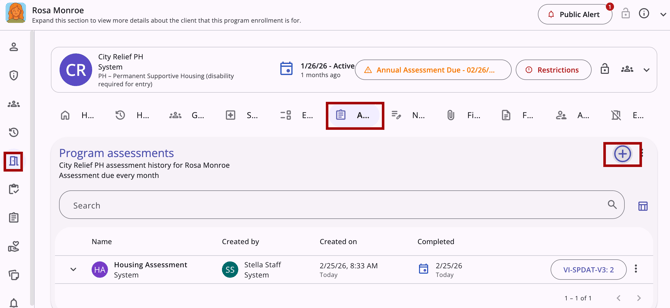
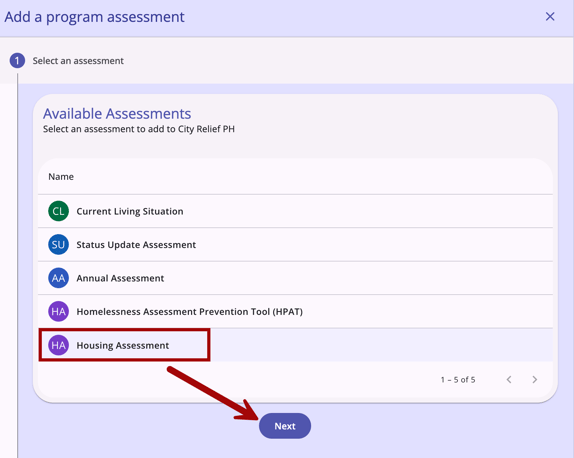
Select the appropriate Coordinated Entry-enabled assessment, then click Next. Check with your local system administrator if you need help deciding which assessment to use.
Complete the fields in the assessment screen.
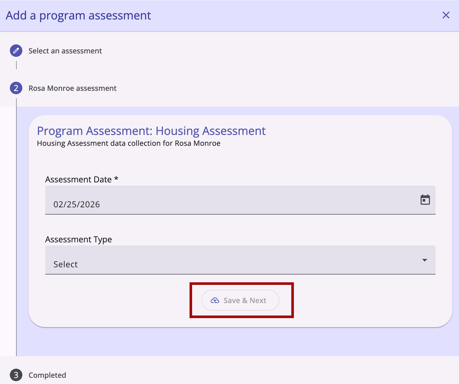
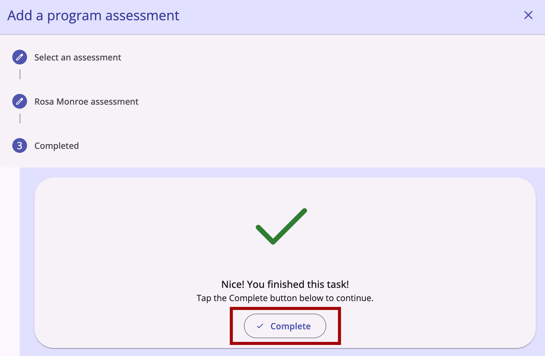
Click Save & Next, then click Complete.
*Note: If the user's Access Role does not permit the user to add or edit the assessments, these steps will not be available.
Eligibility Determination
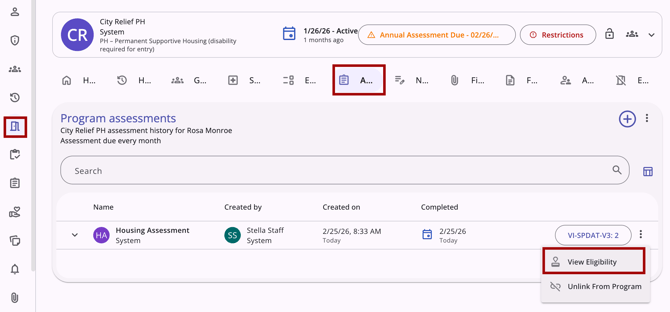
To refer a client to a Community Queue, click the action menu icon on a Coordinated Entry-enabled assessment from the Assessments workspace within a program enrollment, and click View Eligibility.
There will be up to 3 sections on the Eligibility Determination screen:
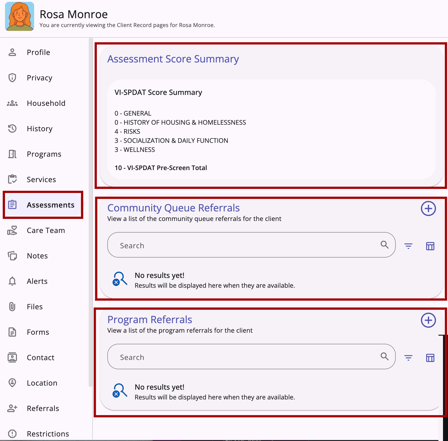
Assessment Score Summary/Information Section
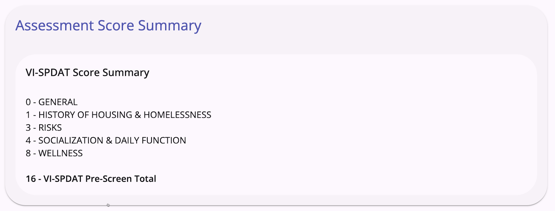
If Display Score is enabled on the assessment screen setup page, an Assessment Score Summary section will appear.
If Display Score is disabled on the assessment screen setup page, and there is text in the Alternate Text field on the assessment screen setup page, an Assessment Score Summary section will appear and include the text entered for the field.
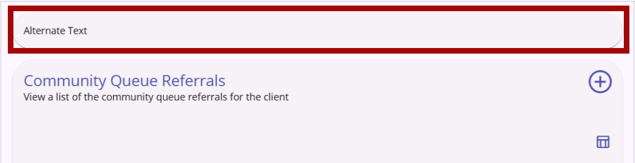
If Display Score is disabled on the assessment screen setup page and there is NO text in the Alternate Text field, the Assessment Score Summary section will not appear.
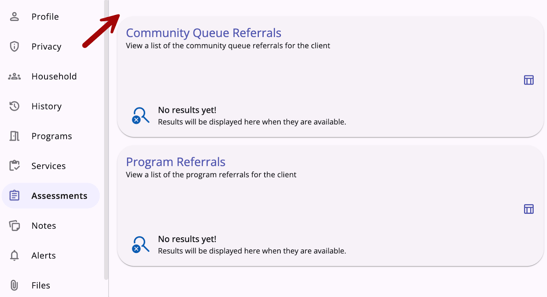
Community Queue Referrals Section
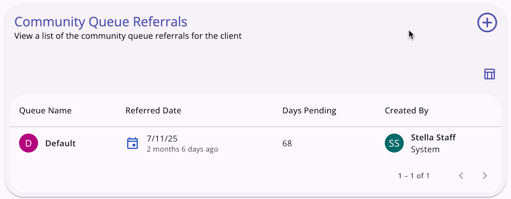
The Community Queue Referrals section will display current and historical Community Queue referrals for the client. There is also an Add icon for adding referrals to a community queue, as well as a column selector that lets users customize their view of this section.
The column selector includes a Search Bar to search for fields and a list of Visible Fields, Collapsed Fields, and Available Fields. End users can drag and drop the fields to customize their view of the Community Queue Referrals.
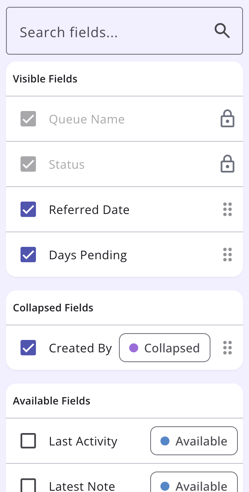
Refer to the Client Record Overview (New Clarity Interface) article for more details on column selectors.
Program Referrals Section
The Program Referrals section will display any direct referrals sent to the client, along with their history of direct referrals. If at least one direct referral is listed, a column selector allows users to customize their view. The default view has Program, Created By, Status, and Referred Date.
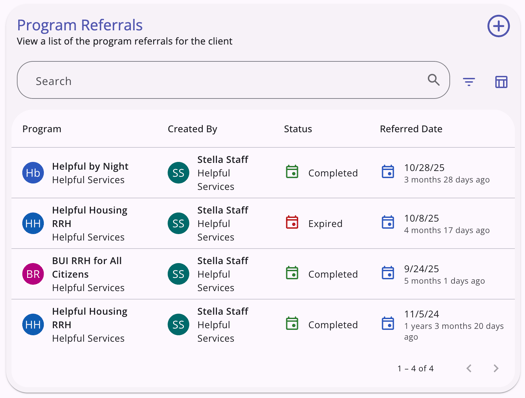
Refer to the Assessments Tab: Direct Referrals (New Clarity Interface) article for more details.
Referrals to Community Queue from Eligibility Determination
After completing the assessment, users with the appropriate access can see the Community Queue Referrals section on the Eligibility Determination Screen if community queues are enabled.
The Community Queue Referrals section displays when there is at least one active Community Queue with:
- Allow Referral to Community Queue enabled; AND
- The current Assessment is added for use when referring to the community queue.
The Community Queue Referrals section will not display if there are no active Community Queues that allow referrals from the assessment.
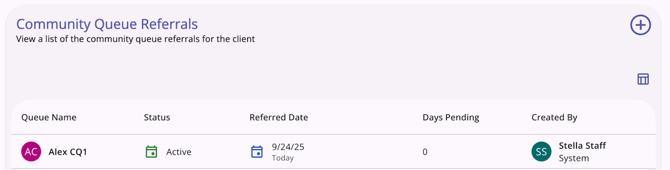
The Community Queue Referrals section lists community queue referrals for the client. The fields that display by default are:
- Queue Name
- Status
- Referred Date
- Days Pending
- Created By (Referred by)/Agency Name
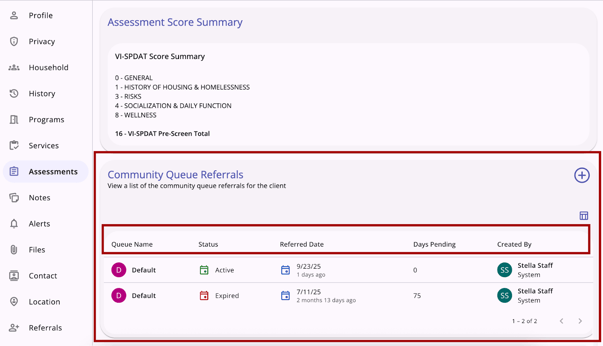
Users can customize their view by using the column selector.
If a client has had no referrals to a community queue, the standard “no results yet” icon displays.
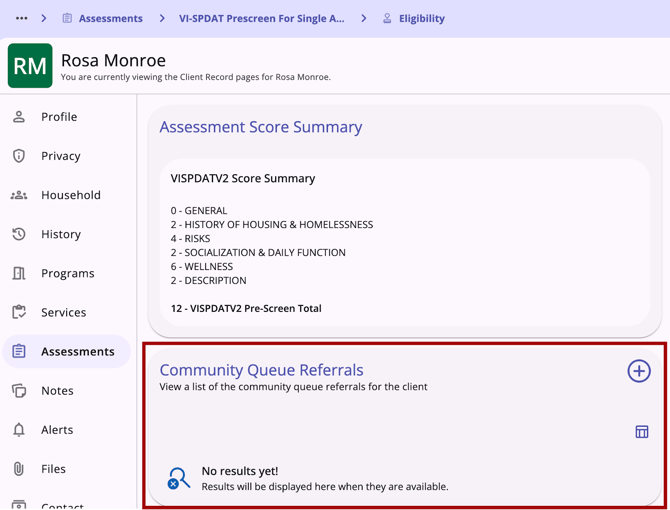
Users with the appropriate access rights can refer clients to one or more community queues so that they can be matched to future housing resources in this section. The Add icon is available only when the following is true:
- The following access rights are enabled for the user:
- Create Referral
AND - Refer Directly to Community Queue
- Create Referral
- One or more community queues are available to be referred to from the current assessment.
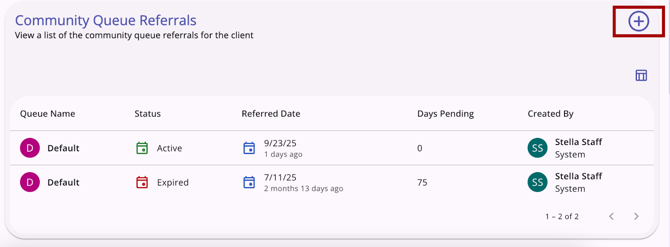
Note: The Add icon will not display if the user has the appropriate access, but there are no available queues to refer to.
When the user clicks on the Add icon, the Add Community Queue Referral workflow opens. If multiple community queues are enabled, the first step will be to select the queue(s).
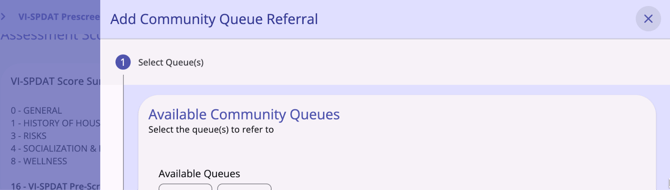
If only one community queue is enabled, the Add Community Queue Referral workflow starts with entering referral details.
The Add Community Queue Referral workflow has the following steps:
- Select queue(s) - if multiple community queues are enabled (if not, end users will start with “Enter referral information”)
- Enter referral information
- Confirmation of completion.
Select Queue(s)
If multiple community queues are enabled, Select Queue(s) will be the first step of the workflow. Users can select any of the listed queues.
- Users must select at least one queue. If they do not select a queue, they cannot advance to the next step.
- Users may select multiple queues, up to the number of queues available in the list.
If the client is currently pending on a community queue, the community queue button is disabled and displays the following text: “Referral pending.” There will also be a footer warning that reads: “The client has a pending referral associated with the following queue(s): [CQ_name]. They cannot be referred again while the referral is pending.”
If the client has a "Pending" or "Pending-in process" referral (from the same assessment to the same queue), there is a footer warning that reads: “Please note the following queue(s) with a pending program referral: [CQ_name].”
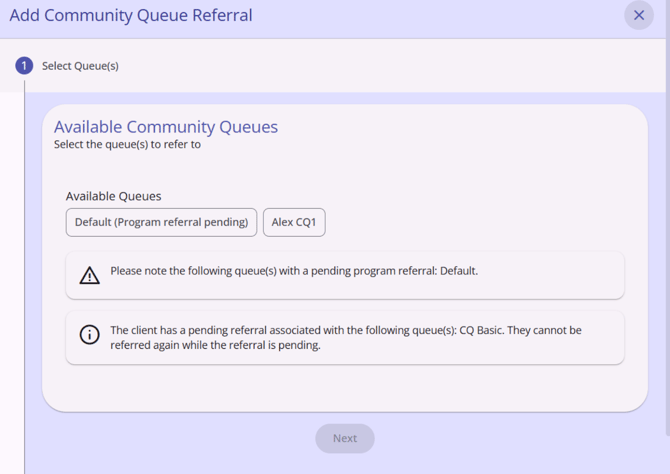
Once a user selects at least one queue, they must click the “Next” button to proceed.
Enter Referral Information
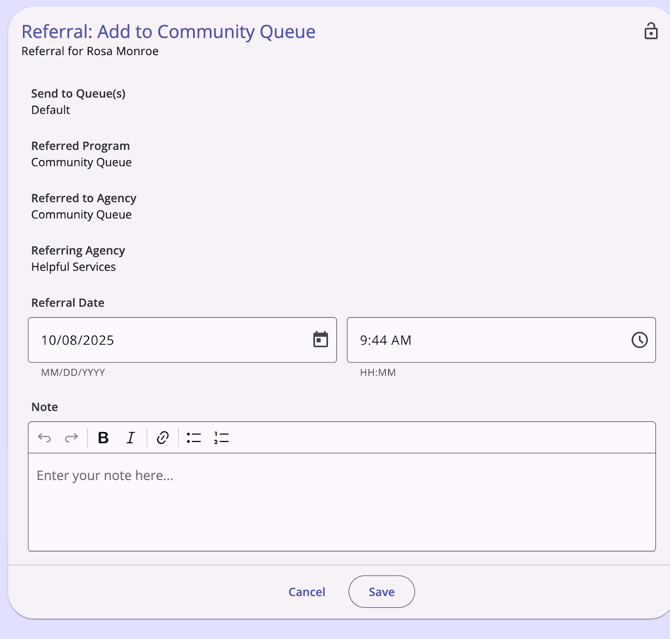
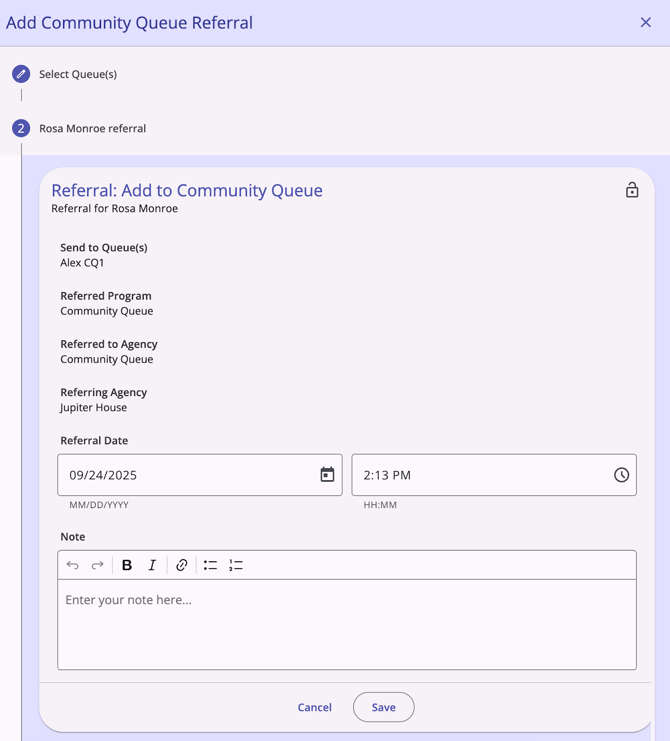
Users will enter referral information on the Referral: Add to Community Queue screen.
- Send to Queue(s) displays the queue names selected in the previous step (or the only queue available, if multiple community queues are not enabled)
- Referred Program and Referred to Agency reflect “Community Queue”
- Referring Agency is the agency under which the user making the referral is currently switched into
- Referral Date/Time defaults to the current date, but is editable
- Note: add any desired notes (not required)
Confirmation of Completion
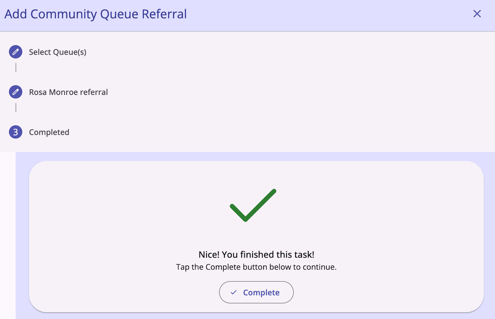
After clicking Save, the Completed step opens. Click Complete to finalize the referral.
Once the referral is saved, it will appear in the Community Queue Referrals list.
Additional Referral Details
The default date and time for the Referral Date field are the current date and time, rounded to the nearest 15 minutes, but they can be edited.
- You will not be able to save a Referral Date that is not logical or is after the date of any item in the referral's history.
- If a referral expires on a specific date due to the Inactive Referral Expiration Threshold, the system will not allow the Referral Date to be changed to a date that is after that expiration date.
- If you enter a past date, the system will create an event record on the current date with “client_events.date” equal to that past date.
- Creation of referrals with a past or future date, as well as modification of referral dates, will be captured in the Audit Log.
Referrals to Programs from Eligibility Determination
Users with the appropriate access can send direct program referrals from the Eligibility Determination screen.
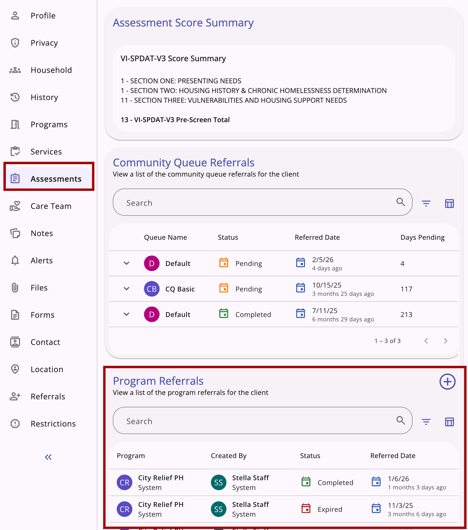
Refer to the Assessments Tab: Direct Referrals (New Clarity Interface) article for more details.
Manage Referrals
When a user clicks an existing referral, it opens, displaying the referral details. There are options to edit or delete a referral (dependent on sharing and access rights).
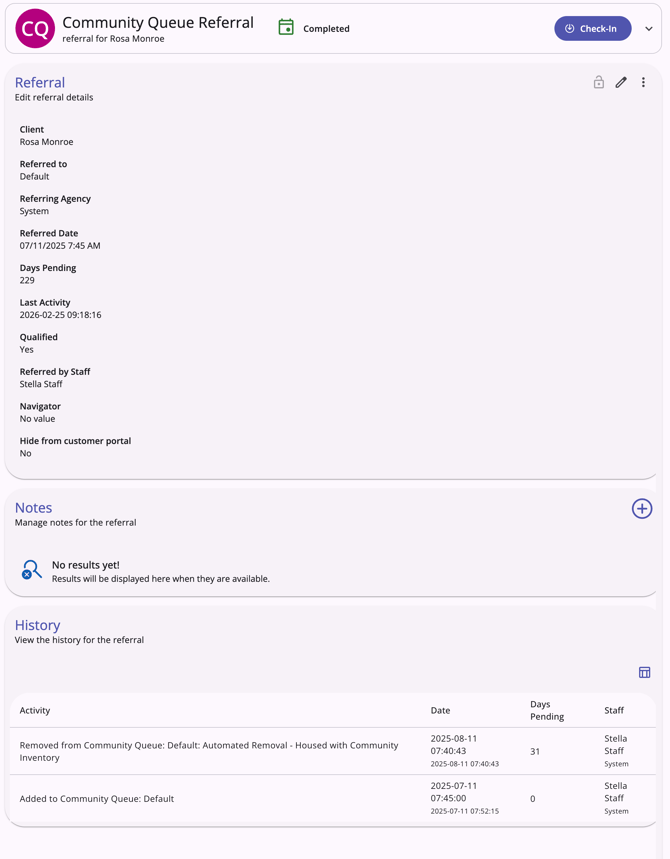
Editing Referrals
Users with the appropriate access can edit or view a referral record from the client’s History tab, the client’s Referrals tab, or from the global Referrals tab.
When the user clicks a client referral record, it opens the referral's associated screen, whether it is active in the Community Queue, a pending referral to a program, or a completed/expired/denied/snoozed referral. The information displayed and/or editable is based on sharing and access role permissions, as well as the referral status.
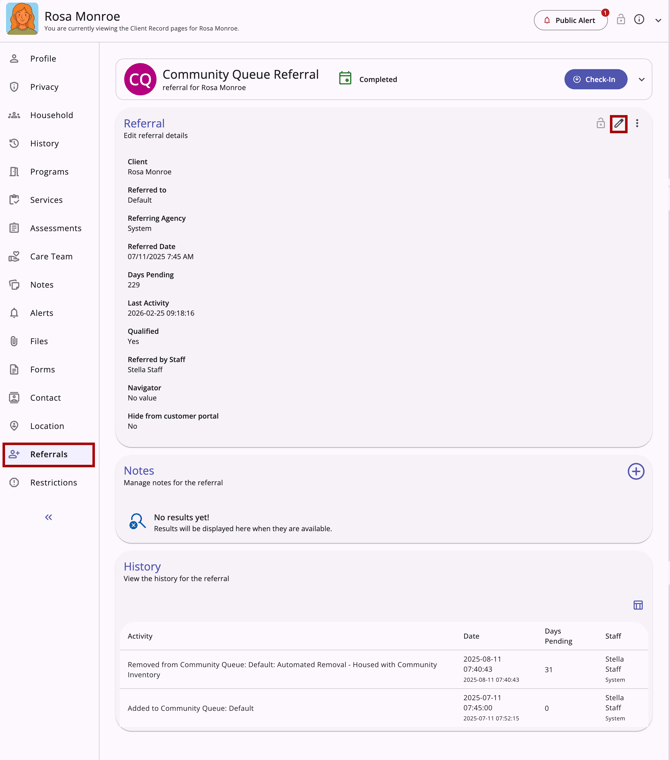
At the top of the referral screen, the referral type, status, and any additional details are displayed in an information box. For referrals where the “Check-in” button applies, it will be located in the information box. When a referral is opened from the global Referrals tab, a "View Client" button is also available to navigate to the client record.

When a user clicks the check-in button, the Last Activity Date will be updated to the check-in date.
Automatically Referred Assessments
When an assessment with the Automatic Referrals setting enabled in Referral Settings is completed, the system will automatically make a referral to any community queue selected in the AUTOMATICALLY REFERRED ASSESSMENTS section of the Referral settings.
Process for Users With the Appropriate Access Rights
When a user with the Refer Directly to Community Queue access right enabled completes an eligible assessment with the Automatic Referrals setting enabled, the system automatically refers the client to the configured Community Queue(s), bypassing the manual selection process.
Instead, the user moves directly to the referral confirmation page.
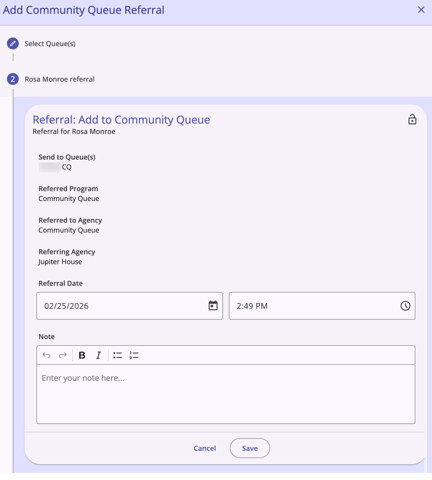
If the client already has a Community Queue referral in one or more configured Community Queues, the user doesn't see the queue(s) on the referral confirmation page.
- If the client already has a Community Queue referral in all of the configured Community Queues, the system redirects the user to the Eligibility page.
On the referral confirmation page, the user can edit the referral date and time and add a note.
- If the user adds a note at this step, that note gets applied to all relevant referrals.
If the user clicks ‘Save':
- The referral is sent
- The next step/screen appears stating:
- “Nice! You finished this task! Tap the Complete button below to continue.”
If the user clicks ‘Cancel’:
- A pop-up message displays that reads:
“Canceling this page will cancel the automatic referral(s) to the queue(s). Please confirm.”
- There is a “Cancel” button available:
When this is clicked, the pop-up message disappears, and the user returns to the referral confirmation page
- There is a “Confirm” button available:
When this is clicked, the pop-up message disappears, and the automatic referral(s) are not sent to the queue(s). The user is returned to the Client Assessment listing page.
- There is a “Cancel” button available:
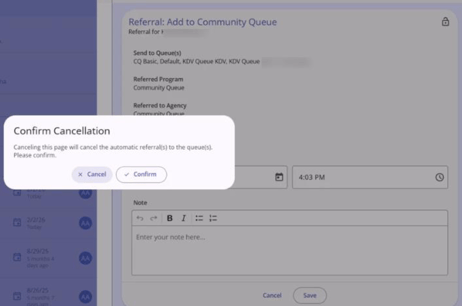
If the user clicks Cancel and the referral wasn't automatically sent to the community queue, a user with the Refer Directly to Community Queue permission can open the Eligibility page and manually create a referral to the community queue.
Maximum Referrals
The client can be referred to up to 5 queues at the same time, but if the limit is reached and the user attempts to complete an assessment, the system will display a pop-up alert that says:
“This client has reached the maximum limit for active Community Queue referrals. To proceed, please remove an existing referral from a Community Queue before adding this one.”
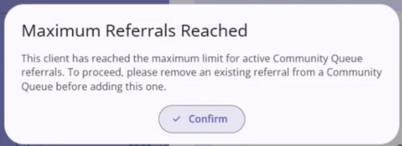
If the user clicks the “Confirm,"
-
They are redirected back to the Assessment workflow to the Complete page that reads:
“Nice! You finished this task! Tap the Complete button below to continue."
-
The assessment is completed
-
The automatic referral is not made
-
The user is redirected to the Eligibility page.
Process for Users Without the Appropriate Access Rights
If a user without the Refer Directly to Community Queue permission completes an assessment with Automatic Referrals enabled, the system displays a warning banner, and no referrals will be made. The warning message reads:
“Based on your assigned access role permissions, this assessment has not been automatically referred to a queue.”
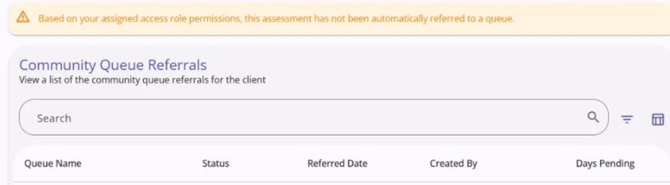
If the referral wasn’t sent to a queue automatically (the user doesn’t have the needed access right or the user clicked Cancel on the Referral Creating page), a user with Refer Directly to Community Queue permission can open the eligibility page and create a referral to a Community Queue manually.
Audit Logs
System Administrator users can access referral audit logs in the new Clarity interface.
The Audit log is accessible from the action menu for each referral, except for future referrals, which do not have one.
Audit logs show:
- From Values
- To Values
- Changed by - interface (Clarity2.0 [current interface] or Clarity3.0 [new interface]): User Name
- Date.
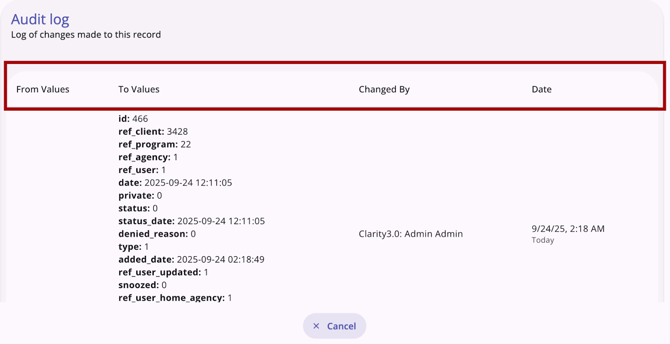
System Administrators can click Cancel or click outside the Audit log box to close the audit log.
Icons & Tooltips
|
Icon |
Icon/Tooltip Name |
Tooltip |
Icon Location |

|
Action menu, also known as:
|
"Show more actions" |
All Screens: typically on the far right of a screen or section |

|
Add |
“Add” |
All Screens: anywhere the “Add” option occurs |

|
Single Arrows: Dropdown / Move left or right | (no tooltip) | All Screens: Anywhere you see this icon, you can click to collapse or expand the section |

|
Double Left Arrows | (no tooltip) | All Screens: Anywhere you see this icon, you can click to collapse the section |

|
Double Right Arrows | (no tooltip) | All Screens: Anywhere you see this icon, you can click to expand the section |

|
Assessments Tab |
"Assessments" |
Client Navigation Menu: Assessments tab |
|
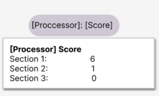
Assessment Score |
“[Processor Name]: [score]” repeat: “[Processor Section Name]: [score]” for each section. |
Client record Assessments tab, program's Assessments tab |
|
|
Assessment Scores (multiple) |
“[Processor Name]: [score]" repeats for each processor/score |
Client record Assessments tab, program's Assessments tab |
|
|
Column Selector |
"Show/hide fields" |
All Screens: typically paired with a search bar |
|
|
Completed Status |
(no tooltip) |
Referral Status column |
|
|
Date |
(no tooltip) |
All screens; anywhere a Date appears |

|
Delete | "Delete" | Anywhere the Delete icon appears |
|
|
Denied Status |
(no tooltip) |
Referral Status column |

|
Edit | "Edit" | Anywhere the Edit icon appears |
|
|
Expired Status |
(no tooltip) |
Referral Status column |
|
|
Filter |
"Add a filter" |
All screens: typically paired with a search bar |

|
Measures | "Measures" | Assessment screens |

|
Pending Referral | (no tooltip) | Community Queue Referral record: Information box |

|
Pending - In Process Status | (no tooltip) | Referral Status column; Incoming Referral record: Information box |

|
Privacy - Public | "This assessment is currently public" | Client record Assessments tab |

|
Privacy - Private | "This assessment is currently private" | Client record Assessments tab |

|
Program Connection | “[Program Name], [Agency Name], [Enrollment Date], [Active or Expired enrollment status]” | Client record Assessments tab, program's Assessments tab |

|
Time | (no tooltip) | Anywhere Date/Time is found |

|
View Audit Log | (no tooltip) | Client record Assessments tab, program's Assessments tab: assessment action menu |

|
View Eligibility | (no tooltip) | Client record Assessments tab, program's Assessments tab: assessment action menu |


Additional Resources
For more information about client-level referrals, see the following articles:
- Client Referrals Overview (New Clarity Interface) - includes details on the client Referrals workspace, a central location where users can view or manage a client's referrals.
-
Creating and Managing Program Enrollments (New Clarity Interface) - includes details on making referrals within the program-level Assessments workspace (with or without a referral).
- Client Referrals: Direct Referrals (New Clarity Interface) - includes details on making direct referrals in the client-level Referrals workspace.
- Assessments: Direct Referrals (New Clarity Interface) - includes details on making direct referrals in the client-level Assessments workspace. This article also includes additional information on direct referrals from the program-level Assessments workspace.
Refer to the following articles for general referral details:
- Introduction to Making Referrals (New Clarity Interface)
- Referral Connections (New Clarity Interface)
- Referral Details Glossary (New Clarity Interface)
- Referral History (New Clarity Interface)
- Referral Status Updates (New Clarity Interface)
Refer to the following article for an overview of the global Referrals module and check out the additional resources linked!
Updated: 10/01/2026