
This article is for the new Clarity interface. For the legacy interface article, see Audit Trails.
Table of Contents
Overview
System administrators with Audit Log access rights can access and view audit logs. Refer to the Rights Glossary for Access Roles article for full details on access rights.
This article covers only those areas in the new Clarity interface that have audit logs. For the audit log information in the legacy interface, refer to Audit Trails.
All audit log records are accessible on the relevant workspace via the item's Action Menu in the general user interface. In the legacy interface, an Audit Log button will appear near the bottom of the relevant workspace.
Audit data is available in two ways:
- Audit Logs: View changes to data on the relevant workspace.
- Database: Query the audit data or write reports.
Audit Logs
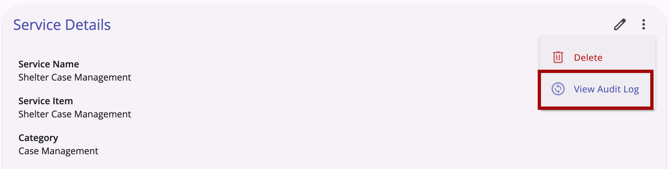
System Administrators will see an Action Menu (kebab) icon to the right of the Edit (pencil) icon on the relevant workspace. Hover over the action menu to see a tooltip that reads Show more actions.

Note: Only those users with access to view audit logs will be able to see the audit log link. If no other actions are in the action menu, the action menu icon will not be visible.
Click the Action Menu icon and select View Audit Log. The Audit Log will load.
Audit logs display updates to data on the associated item. Items such as the previous and updated values of a field, the date/time of the update, and the end user who made the update are all presented in a concise historical format.

System Administrators can click Cancel or click outside the Audit Log to close it.
Audit Log Labels
The Changed by column shows the interface where the change was made, followed by the user name:
- Clarity 2.0: A change made in the legacy interface, such as reopening a program.
- Clarity 3.0: A change made in the current interface, such as enrolling a client in a program.
- OUTREACH: A change made in Outreach, such as enrolling a client in an Encampment program.
Note: The numbers at the bottom right of the audit log indicate the number of records; they do not indicate a number of pages.
In the screenshot below, the audit log contains 15 records. This is indicated by "1 - 10 of 15."

The first 10 audit log records are viewable by scrolling up and down. The remaining 5 audit log records are viewable by clicking the arrow to the right of the numbers shown.
The arrow(s) only become clickable when there are more than 10 records.
Database
Clarity also provides audit log data through the relational database. System administrators can use a query tool to access the data or write reports to manage updates.
Each audit log entry also records the interface the user was in when they made the change. The value is clarity2.0 for the legacy interface and clarity3.0 for the current interface.
Security Auditing Data
Clarity also collects the following data for security auditing:
- The login date of every user who logs in to the system.
- The length of time a user has been logged in for each session.
- The history of all failed login attempts.
- The history of IP addresses from which a user logged in or attempted to log in.
- The reports a user ran or accessed.
- SSN Views: A log of when a user clicks to reveal a Social Security Number (available in Clarity audit logs).
- Record Transactions: A log of when a user creates, edits, or updates a client record (available in Clarity audit logs).
- Client Searches: A log of which users searched for specific clients (available by special request).
Audit Reports
Use these resources to review audit activity:
- [STFF-101] Staff Activity Report: Review login dates and the length of time each user spends logged in.
- [STFF-104] Staff Client Data Activity Report: Review the clients a user created, accessed, or updated.
- Data Analysis: Create custom reports and dashboards that match your local policies and procedures.
List of Audit Logs
- Client Assessments
- Client Contacts
- Client Files
- Client Forms
- Client Location
- Client Notes
- Client Profile
- Client Program Assessments
- Client Program Enrollments
- Client Program Exits
- Client Program Notes
- Client Program Referrals
- Client Referrals
- Client Program Services
- Client Services
- Community Queue Referrals
- Coordinated Entry Events
- Program Availability
- Program Restrictions
- Public Alerts
- Referrals
- Release of Information
- Reservations
Updated: 11/16/2026