
This article is for the new Clarity interface. Screenshots and descriptions will be updated as features are released. For the current interface article, see Making and Managing Reservations.
Table of Contents
Overview
A Reservation Service is a specialized type of Housing Service that is attached to a unit/bed or a slot. Users can reserve a specific bed when creating a direct Referral or a client-level or program-level service record in the new Clarity interface.
Users with the appropriate access rights have three ways to record Reservation Services:
- From the agency-level Services tab or the program-level Services tab in the client record
- When creating a direct referral to a program
- Through the Attendance Module* (see Notes below)
Notes:
- You can record a Reservation Service either before or after a client is enrolled in a Program (or without an enrollment, if enabled), and link the service to the Program enrollment at any time.
- While you can make Reservation Services from either the client record or the Attendance Module, you can only mark clients as present or no show for the service from the Attendance Module.
- *At this time, the Attendance Module is only available in the current interface.
- Sharing settings apply to Reservation records.
Creating a Reservation from a Direct Referral
Users can reserve a specific bed when creating a direct Referral.
Accessing the Make a Reservation Step
To access the Make a Reservation step in the Add Program Referral modal, users must have both the ability to create direct Referrals to the destination program and the Create Service Placements access right enabled for their access role.
The reservation step is only available when one of the following conditions is met:
- The service item does not have a unit connection, and the Allow Referred Reservation toggle is enabled in Manage > Services > Service Item setup page within the Reservation Option section.
OR
- The service item has a unit connection, and the Allow Referred Reservation toggle is enabled within the Site/Building/Unit setup. This toggle only appears when the Enable Reservation toggle is ON.
- Additionally, the program must have at least one unit/bed configured as INVENTORY.
Workflow
Step 1: Select Program: Click on a program to highlight it, then click Next.
Step 2: Refer to Program: The user enters a referral date and time, plus a Note, if needed. The Would you like to make a Reservation as well? toggle appears.
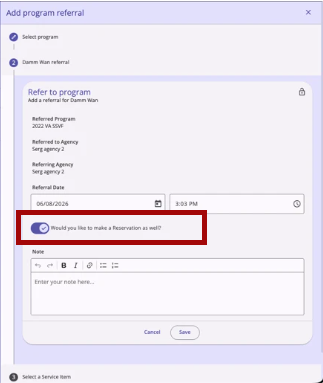
- The toggle is OFF by default.
- If toggled ON, a new Make a Reservation step becomes available after clicking Save.
- Clicking Save advances the user to Step 3: Select a Service Item.
- The Cancel button navigates the user back to the previous step.
- If the toggle is left OFF when Save is clicked, the Select a Service Item and Make a Reservation steps do not appear, and the user is taken directly to the final Completed step.
Notes:
The Direct Unit/Bed Referrals program setting affects the Would you like to make a reservation? toggle visibility.
When the settings are:
- Required: The Would you like to make a reservation? toggle never displays on the Refer to Program step for this program.
- Optional:
- For a client without household members: The Eligibility Override toggle and Available Units/Beds field display at the bottom of Step 2 by default, with the reservation toggle OFF. If the user toggles the reservation option ON, the Eligibility Override toggle and the Available Units/Beds field are hidden.
- For a client with household members: The reservation toggle displays as OFF by default. If left OFF, the next step is the Assign Household Members step. If toggled ON, the next step is Step 3: Select a Service Item.
Step 3: Select a Service Item: (only appears if the reservation toggle was turned ON in Step 2)
All available Service Items configured for the selected Service category in Step 2 are displayed as "<Service Name>: <Service Item Name>." Clarity only displays services that meet one of the following requirements:
- There is no unit connection, and Reservation Option is enabled, and Allow Referred Reservation is enabled, and there are sections and slots, and the Referred Program matches the program assigned to the service.
- There is at least one unit connection (past/current/future) with the Enable Reservation and Allow Referred Reservation toggles enabled, and the Referred Program matches the program assigned to the unit connected to the service.
Step 4: Make a Reservation: (only appears if the reservation toggle was turned ON in Step 2 and a Service Item was selected in Step 3)
The reservation form includes the following fields:
- Start Date and Start Time for the reservation.
- Days to Reserve: a single-select dropdown with values from 1 to 180.
- If the reservation service does not have an inventory connection, the default value is the Default Reservation Term from the Service Item setup page.
- If the reservation service has an inventory connection, the default value is the Default Reservation Term from the Site/Building/Unit. If the Service Item has multiple inventory connections with different Default Reservation Term values, the system uses the smallest value.
Based on the Start Date, Start Time, and Days to Reserve entries, the system displays a separate line for each reserved day. Each line shows:
- The date on the left.
- A Unit/Bed or Slot field.
- A Start Time field, defaulting to the time entered above.
The user can click any previous numbered step to navigate back and make updates. The Cancel button navigates back to the previous step. The Save button advances to Step 5: "Completed."
Step 5: Completed: All changes are saved, and the system displays:
"Nice! You finished this task! Tap the Complete button below to continue."
When the direct referral with a reservation is saved, a reservation record is created and is linked to the client, the program, and the specific unit/bed or slots. The reservation creates a status in the Unit > Occupancy History section that clearly indicates the unit/bed is held for the client.
When the referral is completed, the reservation remains associated with the referral and client, and the associated bed/unit is blocked for the reservation period so that it cannot be reserved for other clients.
Slot vs. Unit/Bed Behavior
- If the selected service is not connected to a site/building/unit, a Slots field is displayed with available slots in a single-select dropdown.
- If the selected service is connected to a site/building/unit, a Unit/Bed field appears as a hierarchical tree-select field. Units/Beds display in the dropdown only if they are:
- Active for the selected reservation dates
- Connected to a site/building/unit with the Attendance Service
- Currently have reservations enabled
- Not already reserved (pending reservation or marked present) for the same dates/times
- If no available/active beds or slots exist, the system shows:
"No options available." - If Enable Daily Arrival Time is enabled for the unit, a Latest Daily Arrival Time field displays next to each reservation date. This field only appears for unit/bed reservations.
Mixed Date Scenarios
- If the reservation Start Date falls outside any connection period for any unit/bed, the system shows available slots in the dropdown.
- If some reservation dates have a unit/bed connection but others do not, the system shows slots or units/beds for each day accordingly.
- If a reservation uses both slots and units/beds, the system splits the reservation into multiple records.
Reservation Option Configuration
- Dedicated: A Section field appears on Step 4 to the right of Days to Reserve, showing sections configured within the Service Item setup page. The number of available slots matches the value added on the Service Item setup page.
- Open: The Section field does not appear. The dropdowns display the number of slots set in the Available Beds or Reservation Slots field on the Service Item setup page.
Including Group Members
If the client has group members, an Include Group Members section appears on Step 4 with ON/OFF toggles for each group member. All toggles are OFF by default. If the client has no group members, this section does not appear.
When a group member toggle is turned ON:
- The Step 4 title updates to include the current client's name in parentheses.
- Additional new steps are added for each toggled-on group member.
- Each group member's step displays the following fields:
For Slot reservations: - Date: read-only, showing consecutive dates starting from the Start Date selected for the first client, with as many dates as the Days to Reserve value configured within the Service Item setup page.
- Slot: single-select dropdown, displayed to the right of each date.
- Start Time: time picker, displayed to the right of the Slot field.
- For Unit/Bed reservations:
- Date: read-only, same as above.
- Unit/Bed: single-select, hierarchical dropdown, displayed to the right of each date.
- Start Time: time picker, displayed to the right of the Unit/Bed field.
- Latest Daily Arrival Time: time picker, appears only if Enable Daily Arrival Time is enabled for the unit. Displays to the right of the Start Time field.
When the user disables the group member's toggle, the additional step for that group member is removed, and the group member is no longer included in the reservation.
Creating a Reservation from a Service Record
Users can make a reservation directly from a Service Record.
Accessing Reservations for Services
Only users with the Create Service Placements permission enabled for their access role can see and use reservation functionality from the client-level Service Record and the program-level Provide Service workflow.
Workflow
Navigate to the Client Services or Client Program Services tab, click the Add New Service (+) icon, and select a service configured to support reservations with the Services Option enabled.
The Add a service item modal will include additional reservation options.
Step 1: Select a service: Click on a service to highlight it, then click Next.
Step 2: Select a service item: Click on a service to highlight it, then click Next.
Step 3: Make a Reservation: This step has a header titled Reservation Details and prompts the user to enter a Start Date, Start Time, and Days to Reserve.
- An Include Group Members section is available with ON/OFF toggles for each available group member.
Click Save on Step 3 to advance to Step 4.
Step 4: Completed: All changes are saved, and the system displays:
"Nice! You finished this task! Tap the Complete button below to continue."
Editing or Deleting a Reservation
Users can edit or delete reservations from the client's History tab, Services tab, or a client’s Program > Services tab.
Only users with Edit Agency Services or Edit Any Agency Services permission(s) enabled for their access role can edit a reservation record.
Viewing a Reservation
Navigate to the client’s History tab, Services tab, or Program > Services tab and click a Reservation to open its details page.
This page includes:
- A Reservation Details section with an Edit (pencil) icon at the top right and an Action Menu icon to its right. The action menu includes a View Audit Log option.
- A Program section below, displaying the program associated with the reservation.
Edit Mode
Clicking the Edit (pencil) icon enters Edit mode.
The page displays:
- An Edit Reservation section with four read-only fields at the top: Service Name, Service Item, Agency, and Added By.
- A table listing all reserved days for the client with the following columns:
- Date
- Time
- Status: Reserved, Present, or No Show
- Unit/Bed or Slot
- Latest Daily Arrival Time: appears when the reservation is for a unit/bed and Enable Daily Arrival Time is configured ON for the site/building/unit.
Checkboxes:
- Each table row has a checkbox to the left of the Date column, with a Check all / Uncheck all checkbox in the column header.
- All checkboxes are unchecked by default.
- Rows with a Present status do not display checkboxes, as they cannot be deleted or moved.
Deleting Individual Reservation Days:
- A Delete (trash can) icon appears to the left of the checkbox on each row (except rows with "Present" status).
- Hovering over the icon displays a tooltip: "Delete Reservation."
- The Delete (trash can) icon can be clicked regardless of whether the checkbox is checked.
- Clicking the Delete (trash can) icon displays a confirmation pop-up:
"The selected record will be permanently deleted and cannot be restored. Please confirm."
-
-
Cancel dismisses the pop-up without deleting.
-
Confirm deletes the record and returns the user to the Edit Reservation page with the record removed.
-
-
Deleting a record does not delete the reservation itself; it can still be marked as Reserved or No Show in the Attendance module.
Program Section in Edit Mode:
- The Program section displays the associated program.
- Hovering over the Delete (trash can) icon displays:
"Delete the connected program from the reservation."
- Only users with the Delete Agency Services or Delete Any Agency Services permissions enabled in their access role can see the Delete (trash can) icon.
- Clicking the Delete (trash can) icon displays a confirmation pop-up:
"Please confirm the removal of this record."
- Cancel dismisses the pop-up without removing the program.
- Confirm removes the program linkage and returns the user to the Edit Reservation page.
- Deleting the program from the reservation does not delete the service item or reservation; it only removes the program linkage.
Bulk Actions: Delete Selected and Move Selected
Two buttons appear below the table:
Delete Selected:
- Inactive until at least one checkbox is checked.
- Clicking displays a confirmation pop-up:
- For one checked item:
"The selected record will be permanently deleted and cannot be restored. Please confirm."
- For multiple checked items:
"The selected records will be permanently deleted and cannot be restored. Please confirm."
- Cancel dismisses the pop-up without deleting. Confirm deletes the selected records and returns the user to the Edit Reservation page.
Move Selected:
- Inactive until at least one checkbox is checked.
- Clicking triggers the following:
- The Move Selected button disappears.
- An Apply Changes button appears in the table column header section (inactive until at least one Preferred Slot selection is made).
- A Reset button appears to the right of Apply Changes.
- A new column titled Preferred Slot or Preferred Unit/Bed appears at the end of each checked row, with a single-select dropdown where the user can select a new Slot (listed by Sections) to move the reservation to.
- After making selections, clicking Apply Changes confirms the move. The Apply Changes, Reset, and Preferred Slot elements disappear, and the Move Selected button reappears.
Assigning a Client to a Unit/Bed via Attendance Service
Users can assign a client to a unit/bed when providing an attendance-related service, so the client's unit/bed placement can be tracked in an occupancy record. Only users with the Create Service Placements permission enabled for their access role can access this workflow.
Navigate to the Client Services or Client Program Services tab, click the Add New Service (+) icon, and select a service that has a site/building/unit connection configured. The connected unit(s) must have the Enable Reservations setting configured to OFF.
- After selecting a Service in Step 1 and a Service Item in Step 2, the user arrives at Step 3: Unit/Bed Opening.
- This step shows the same options as the Program > Unit/Beds tab. The Available Units/Beds picklist includes only units/beds that are available and active for the selected dates.
- All fields available for the Daily Attendance service are also displayed.
When the user provides a service within the client program, the system automatically creates an occupancy for the same period.
If an occupancy already exists within this program with overlapping dates, a pop-up error message displays:
"An occupancy already exists for this timeframe. Please update the occupancy or service dates and try again."
A Confirm button dismisses the pop-up and returns the user to the Unit/Bed Opening step.
When the attendance service is connected to a unit/bed, the modify service page shows unit/bed details in the Attendance section.
Release of Information (ROI) Verification for Reservations
When creating a reservation, the system checks whether the selected service item requires a Release of Information (ROI) and whether the client has an active ROI on file. This verification applies whether the reservation is created via a direct referral or via a service item.
ROI Verification for Direct Referrals
When the user is creating a reservation via a direct referral, and the selected service item has the Require Release of Information toggle enabled and the client does not have an active ROI on file, the following occurs:
- A red warning message appears with Back and Next buttons below it:
"This client is missing a Release of Information. Please add a Release of Information before adding this Service Item."
- The Next button is grayed out and cannot be clicked while the warning is displayed.
- The Back button remains active and functions normally.
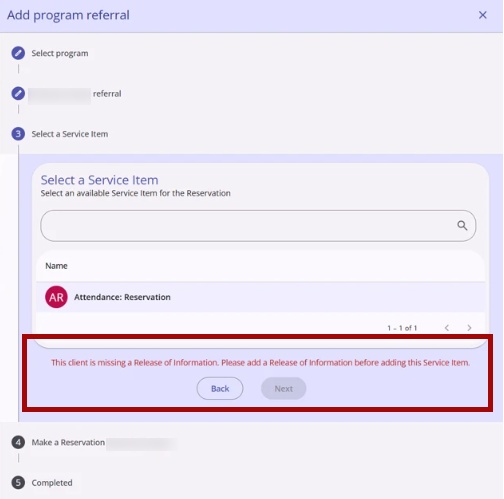
Once an active ROI is added for the client and the user returns to the reservation workflow, the warning message no longer appears, and the Next button becomes active.
No warning message is displayed, and the Next button behaves normally, in the following cases:
- The selected service item does not have the Require Release of Information toggle enabled.
- The client has an active ROI on file.
ROI Verification for Service Items
When the user is creating a reservation via a service item, the selected service item has the Require Release of Information toggle enabled, and the client does not have an active ROI on file, the following occurs:
- A red warning message appears with Back and Next buttons below it:
"This client is missing a Release of Information. Please add a Release of Information before adding this Service Item."
- The Next button is grayed out and cannot be clicked while the warning is displayed.
- The Back button remains active and functions normally.
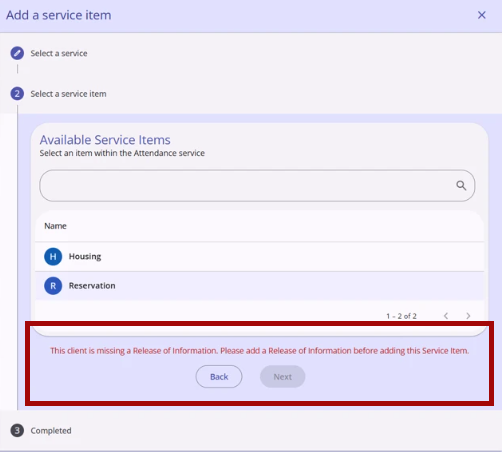
Once an active ROI is added for the client and the user returns to the reservation workflow, the warning message no longer appears, and the Next button becomes active.
No warning message is displayed, and the Next button behaves normally, in the following cases:
- The selected service item does not have the Require Release of Information toggle enabled.
- The client has an active ROI on file.
Published: 06/24/2026