
Table of Contents
Overview
When creating a staff member's account, a system administrator selects a primary agency for that staff member. System administrators can also grant access to other agencies for staff members, allowing them to switch agencies.
Notes:
- Staff members with a System Administrator Access Role have access to view, create, and edit data as well as manage agency and program configuration for all agencies by default.
- Only staff members with a System Administrator Access Role can grant additional agency access.
- An Access Role assigned for Additional Agency Access must be equal to (or less than) the Role Type of the Access Role for the primary agency. This also applies to Data Analysis access; if a user needs Data Analysis access within an agency assigned via Additional Agency Access, an Access Role with Data Analysis access should be assigned at the primary agency as well.
- If your primary Access Role has Attendance Standalone Module access only, you will not be allowed to have additional agency access.
For more details on configuration, refer to the Additional Agency Access Management article.
Primary and Additional Agency Access Agencies in the Client Record
To maintain transparency when users work across multiple agencies, the new Clarity interface automatically logs and displays a user’s Home (Primary) Agency whenever they perform an action using Additional Agency Access.
When a user switches into a different agency to record data, a third row of information is added to the action row. This row identifies the staff member and their primary agency at the moment the data was entered.
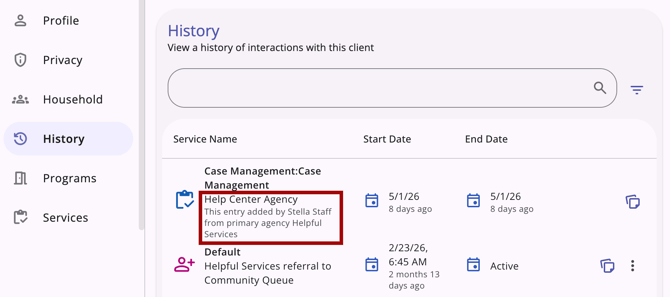
Display Logic
- Switched Access: The primary agency is only displayed if the action was performed while the user was switched into an agency that is not their primary one.
- Standard Access: If a staff member records data under their own primary agency, this additional row will not display.
- Privacy Settings: If the primary agency’s sharing setting for a specific item is set to Not Shared, the system protects that information by displaying Not Shared Agency instead of the agency's name.
Where Information is Displayed
You can find primary agency details in the following locations within the system in client records and referral records.
Client Records
Primary agency information is visible in the following client record locations:
- Client Record
- Enrollment Record
Referral Records
Primary agency information is visible in the following Referral-related areas:
- Referral Edit modal of a referral
- Information is positioned directly above the Referred by Staff field.
- History section of a referral
- Referrals list on Incoming Referrals
- Referrals list on Community Queue
- Referral Assign screen on the Community Queue
Updated: 10/20/2026