
Release Schedule:
- All Training Sites: October 20, 2026
- All Production Sites: November 3, 2026
Unless a specific feature entry notes otherwise, each update is available across all training and production sites on the release dates above.
Feature Focus:
The Feature Focus webinar took place on Thursday, October 29, 2026. The recording will be available soon and the link will be added here when available.
Required Action(s) for this Release:
This table lists the updates that need action from you or your team. Refer to each update’s entry in this article for full details. Select an update name to go to its entry.
| Update | Who Needs to Act | Action Type | What to Do |
|---|---|---|---|
| Merge Module: Program Move Tool & Service Connections | System Administrators |
Review Recommended |
No action is needed to receive the correction.
|
| 2026 VA: Project Enrollment Screen Updates (production sites: October 16, 2026) | System Administrators | Required | Update any custom enrollment screens used for VA-funded Homelessness Prevention programs. Change each field in the SSVF HP Targeting Criteria section from Soft Required to Required. Custom enrollment screens are not updated automatically. |
Table of Contents
Clarity Human Services Updates
- Reports Module
- Reports > Report Library
- Reports > Explore
- Reports > Data Analysis
- Inventory: Deletion Restriction for Previously Occupied Units
- Inventory: Retain Bed Status When Changing Unit Configuration Type
- Merge Module: Program Move Tool & Service Connections
- Interoperability: Clarity API - Send a Referral to a Community Queue
Additional Updates
- 2026 VA: Project Enrollment Screen Updates
- Occupancy at Project Exit
- Community Queue: Eligible Programs
- Current Living Situation (CLS) and Household Members: Step Order Change
- Outreach and Data Analysis: Housed and Sheltered Labels
- Customer Portal: Program Selection for Assessment Requests
- Field Check Implemented for 3 HUD Fields
- Services: Agency Correction for Modified Service Records
Notes:
- Article format: A new Required Action(s) for this Release table near the top lists the updates that need you to act. Report Library and Data Analysis updates appear within the related Clarity Human Services update. An Additional Updates section provides details on changes beyond the scheduled feature release.
- For future articles, this article format will continue. If there are Report Library and Data Analysis updates without a related Clarity Human Services change, they will get their own section.
-
Deployment: The updates described in this article will be deployed in the early morning hours on scheduled release days. During release, the Clarity Human Services application, Pentaho Reports, and Data Analysis Tool may experience performance delays. We recommend clearing your cache at your initial login if you are experiencing difficulty.
- Change logs: The 2026 Data Services Change Log and Known Issues and Data Analysis Upgrade Note articles are released separately. Report Library change log entries, such as logic changes, report output format changes, and field handling standardizations, are documented in the Change Log alongside Data Analysis entries.
Clarity Human Services Updates
Reports Module
The new Clarity interface now includes a Reports module, so you can browse, build, or run reports without switching back to the legacy interface. Select Reports in the primary navigation menu to open the Reports module, with up to 3 options available depending on your access role.
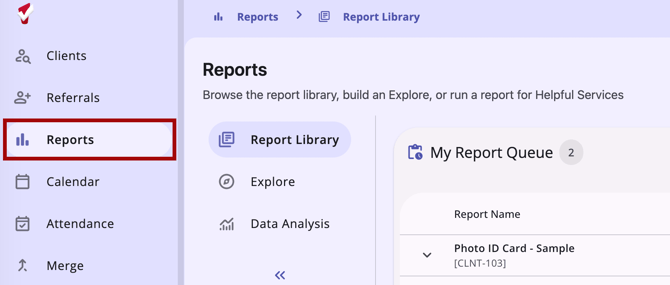
The 3 possible options are:
- Report Library: Find, run, and schedule Bitfocus-maintained reports from a single searchable table. The Report Library workspace includes the Available Reports, My Report Queue, and Favorites sections.
- Explore: Build ad hoc reports using the Explore workspace. Choose a data model available to your community and build your query.
- Data Analysis: Browse and run pre-built reports organized by category. Looks saved from Explore appear here.
See how it works in The Reports Module.
Required Action: None. Visibility and access continue to use existing access rights; no new permissions are introduced.
Reports > Report Library
Users with Report Library access rights can find, run, and schedule reports without switching back to the legacy interface.
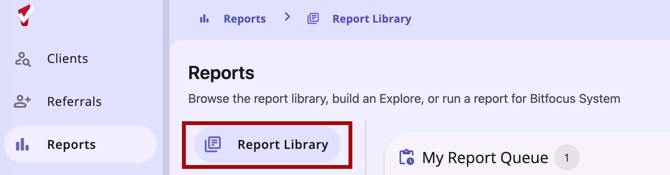
- Searchable report table: All reports now live in a single table with free-text search and filtering by Category and Last Run.
- Reworked parameter picker: Select multiple values, such as Agencies and Programs, from a searchable list. A count shows how many you’ve selected, with a visible count of your current selections.
- My Report Queue: A single card now shows your scheduled, in-process, and completed report runs from the last 60 days, including the parameters used on each run.
- Favorites, made clearer: A dedicated Favorites card includes your frequently run reports, and a new tooltip explains that favoriting a report saves its last-run parameters for your current agency.
- One global status indicator: A single report status indicator now covers both Report Library and client-level reports, so there's one place to check on anything you've submitted.
- Consistent output: Report outputs match the new Clarity interface.
See how it works in Reports Module: Report Library.
Required Action: None. Report Library visibility and report access continue to use existing access rights; no new permissions are introduced.
Article Updates:
Reports > Explore
Users with Data Analysis access can now build ad hoc reports and save them in the new Clarity interface. Explore is available in the Reports module.

When you select Explore in the Reports module, you'll see a list of the data models available to your community. Select a model name to open the Explore workspace for that model. Field selection, filters, pivots, and table calculations are all handled within this embedded view.
See how it works in Reports Module: Explore.
Required Action: None. Explore visibility and report access continue to use existing access rights; no new permissions are introduced.
Article Updates:
Reports > Data Analysis
Users with Data Analysis access can browse and run built-in and custom reports in the new Clarity interface. Data Analysis is available in the Reports module.
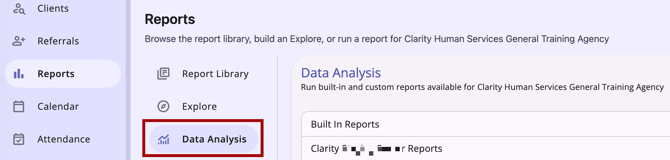
- Data Analysis: Appears after Report Library and Explore in the Reports navigation menu.
- Report categories: Reports are grouped into three collapsible categories: Built In Reports, [Instance Name] Reports, and [Agency Name] Reports. Each category shows how many reports it contains.
- Browsing reports: Selecting a category with one or more reports expands it to show the reports inside.
- Running reports: Selecting Run on a report opens Looker's embedded view as a full-page experience, matching how the Explore tab already works.
- Mobile support: Data Analysis is available on mobile and tablet, as well as desktop.
See how it works in Reports Module: Data Analysis.
Required Action: None. Data Analysis visibility and report access continue to use existing access rights; no new permissions are introduced.
Article Updates:
Inventory: Deletion Restriction for Previously Occupied Units
Inventory units that have been occupied cannot be deleted; they can only be updated to the Inactive status. This closes a gap where a unit's Delete (trash can) icon reappeared once its occupancy ended, which could result in the loss of historical occupancy data used for reporting.
- If a unit has been occupied at any point in the past, its status can be changed to Inactive, but it can not be deleted.
- A unit that only ever had a Pending Occupancy that never converted into an actual occupancy is not affected by this change and can still be deleted. Deleting the unit automatically deletes that pending occupancy record.
- Units connected to any beds continue to be non-deletable, as before.
Required Action: None.
Data Analysis: Unit Availability History and Unit Lifecycle Views
We updated the Inventory Model to align with the Inventory: Deletion Restriction for Previously Occupied Units feature update detailed above. Two new views, Unit Availability History and Unit Lifecycle, let you report on the periods a unit or bed spent in each availability status and on each unit's lifecycle.
Unit Availability History View
The following fields have been added to the Inventory - Unit Availability History view.
| Label | Description | LookML Field | Dimension Group Exposed |
|---|---|---|---|
| Availability Status Text | The current availability status of the unit - shows if the unit is Available, Inactive, Offline, Pending Occupancy or Occupied. |
unit_availability_history. |
N/A |
| Status Start Date | The start date of the time period associated with the current Availability Status. |
unit_availability_history.
|
Time, Date, Week, Month, Quarter, Year |
| Status End Date | The end date of the time period associated with the current Availability Status. |
unit_availability_history.
|
Time, Date, Week, Month, Quarter, Year |
| Added Date | The date the record was added. |
unit_availability_history. |
Time, Date, Week, Month, Quarter, Year |
| Last Updated Date | The date the record was last updated. |
unit_availability_history. |
Time, Date, Week, Month, Quarter, Year |
The following fields have been added to the Inventory - Unit Availability History view under the group label Duration In Status During Analysis Period.
| Label | Description | LookML Field | Dimension Group Exposed |
|---|---|---|---|
| Duration In Status During Analysis Period | The duration of the Unit or Bed with the Availability Status stated during the analysis period set on the Date Filter. |
unit_availability_history.
|
Days, Weeks, Months, Quarters, Years |
The following fields have been added to the Inventory - Unit Availability History view under the group label Total Days. Each field uses the analysis period set on the Date Filter.
|
Label |
Description |
LookML Field |
|
Unit/Bed in Analysis Period |
Duration in days when the Unit or Bed existed during the time period. This measure is equal to the sum of all other availability statuses during the time period. If this measure is not equal to the length of days in the time period, that indicates that the Unit or Bed start date or end date is within the analysis period. |
unit_availability_history.
|
|
In Available status |
The total duration in days of the Unit or Bed with the Available status during the analysis period set on the Date Filter. |
unit_availability_history.
|
|
In Inactive status |
The total duration in days of the Unit or Bed with the Inactive status during the analysis period set on the Date Filter. |
unit_availability_history.
|
|
In Occupied status |
The total duration in days of the Unit or Bed with the Occupied status during the analysis period set on the Date Filter. |
unit_availability_history.
|
|
In Offline status |
The total duration in days of the Unit or Bed with the Offline status during the analysis period set on the Date Filter. |
unit_availability_history.
|
|
In Pending Occupancy status |
The total duration in days of the Unit or Bed with the Pending Occupancy status during the analysis period set on the Date Filter. |
unit_availability_history.
|
|
In Unavailable status |
The total duration in days of the Unit or Bed with the Unavailable status during the analysis period set on the Date Filter. |
unit_availability_history.
|
Unit Lifecycle View
The following fields have been added to the Inventory - Unit Lifecycle view.
| Label | Description | LookML Field | Dimension Group Exposed |
|---|---|---|---|
| Lifecycle ID | A chronological counter that sequentially numbers each status change experienced by the Unit/Bed. |
unit_lifecycle. |
N/A |
| Status Start Date | The start date of the unit lifecycle. |
unit_lifecycle. |
Time, Date, Week, Month, Quarter, Year |
| Status End Date | The end date of the unit lifecycle. |
unit_lifecycle. |
Time, Date, Week, Month, Quarter, Year |
Required Action: None
Inventory: Retain Bed Status When Changing Unit Configuration Type
Changing a Unit's Unit Configuration Type (UCT) while it has an active or upcoming occupancy no longer automatically changes bed statuses and bed identifiers. Instead, the system now asks the user to confirm how each occupancy should map to the new UCT, and carries bed statuses and bed identifiers forward wherever possible, keeping historical reporting connected and reducing manual cleanup after a UCT change.
Once you set the As Of Date for a unit/bed's new UCT, and the unit/bed has a current, future, current pending, or future pending occupancy status, an ASSIGN UNIT CONFIGURATION mapping pop-up immediately appears listing every affected occupancy.
For each one, the user maps the client to a unit/bed in the new UCT by selecting one from the dropdown, or selecting the End Occupancy option, before the change can be saved.
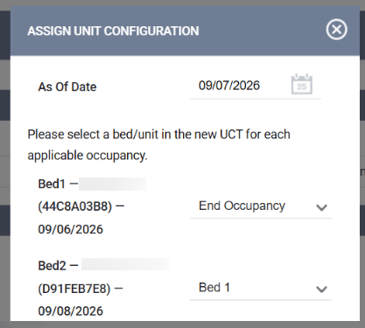
Units/Beds with matching names between the current and new UCT are filled in automatically. Only eligible units/beds are shown in the dropdown list; any occupied unit/bed is hidden.
Eligibility is checked for each client individually. Users with the appropriate access can use the Eligibility Override toggle to see the full list of units/beds.
Note: To see the Eligibility Override option, users need either the Referrals - Unit Eligibility Override or Edit Enrollment-based Unit Records - Eligibility Override access right(s) depending on the type of record being mapped. Refer to the Rights Glossary for Access Roles article for full details.
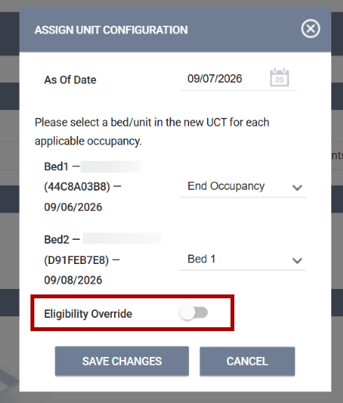
If the new UCT has fewer units/beds than the old one, the End Occupancy option is offered for a client who can't be placed. If the former UCT had units/beds enabled but the new one doesn't, one client is selected to stay on the unit/bed, and End Occupancy is set automatically for the rest. In this case, if the As of Date for the UCT change is earlier than an additional household member’s Occupancy Start Date, the occupancy will be removed instead of ended.
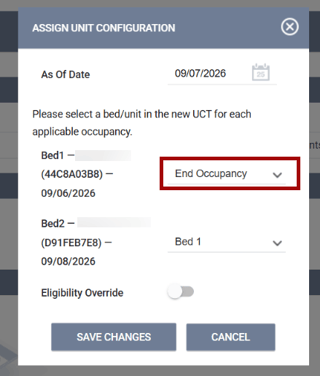
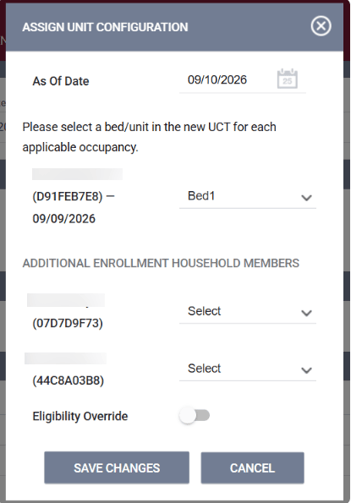
If the former UCT didn't have units/beds enabled but the new one does, users can choose a unit/bed for the client currently in the unit/bed (other household members are optional). The End Occupancy field in either case is dated to the last day the previous configuration was active.
The associated enrollment’s assigned staff member will receive an email and Clarity Inbox notification when a client's current occupancy is impacted by a UCT change.
Required Action: None.
Report Library: Last Bed Occupied and Unit Configuration History
We updated the following reports to align with the Inventory: Retain Bed Status When Changing UCT functionality, detailed above. When a Unit Configuration Type (UCT) changes, these reports now show more accurate bed and unit information.
Last Bed Occupied
These reports now show the last bed the client occupied on or before the Report End Date. Deleted beds now display as "Deleted" instead of "-".
- [UNIT-101(-AD)] Unit Configuration Report
- [UNIT-102(-AD)] Unit Client Detail - Referral Report
- [UNIT-103(-AD)] Unit Client Detail - Enrollment Report
UCT Changes in Historical Data
These reports now show UCT changes in the historical data in drilldowns and unit assignments.
- [CLNT-102] Client History Report
- [GNRL-106] Program Roster Report
- [GNRL-220(-AD)] Program Details Report
- [RFRL-102(-AD)] Referral Outcomes Statistics Report
- [RFRL-103(-AD)] Referral Statistics - Inbound Report
- [RFRL-104(-AD)] Referral Statistics - Outbound Report
Required Action: None.
Data Analysis: Unit Configuration Bed Mapping
We updated the Inventory Model to align with the Inventory: Retain Bed Status When Changing UCT functionality, detailed above. When a Unit Configuration Type (UCT) changes for a unit with occupancies, Clarity now records how each occupancy was mapped from the beds in the previous UCT to the beds in the new UCT. The fields below can be used to report on those mappings.
Bed Occupancy View
The following fields have been added to the Bed Occupancy view, with the group label Unit Configuration Bed Mapping.
| Label | Description | LookML Field |
|---|---|---|
| Previous Unit Configuration ID | The ID of the previous unit configuration. |
unit_configuration_bed_mapping. |
| Previous Unit Configuration Name | The name of the previous unit configuration. |
unit_configuration_bed_mapping. |
| New Unit Configuration ID | The ID of the new unit configuration the occupancy has been mapped to. |
unit_configuration_bed_mapping. |
| New Unit Configuration Name | The name of the new unit configuration the occupancy has been mapped to. |
unit_configuration_bed_mapping. |
| Previous Bed ID | The ID of the previous unit configuration bed, if the bed has been mapped from a previous unit configuration during the client's occupancy. If a unit configuration change did not occur during the client's occupancy, this value will be null. |
unit_configuration_bed_mapping.
|
| Previous Bed Name | The name of the previous unit configuration bed, if the bed has been mapped from a previous unit configuration during the client's occupancy. If a unit configuration change did not occur during the client's occupancy, this value will be null. |
unit_configuration_bed_mapping.
|
| New Bed ID | The ID of the new unit configuration bed the occupancy has been mapped to, if the bed has been mapped from a previous unit configuration during the client's occupancy. If a unit configuration change did not occur during the client's occupancy, this value will be null. |
unit_configuration_bed_mapping.
|
| New Bed Name | The name of the new unit configuration bed the occupancy has been mapped to, if the bed has been mapped from a previous unit configuration during the client's occupancy. If a unit configuration change did not occur during the client's occupancy, this value will be null. |
unit_configuration_bed_mapping.
|
| Added Time | The system date/time the new mapped unit configuration was applied to the unit, if the bed has been mapped from a previous unit configuration during the client's occupancy. If a unit configuration change did not occur during the client's occupancy, this value will be null. |
unit_configuration_bed_mapping.
|
| Start Date | Start date of the new mapped unit configuration record, if the bed has been mapped from a previous unit configuration during the client's occupancy. If a unit configuration change did not occur during the client's occupancy, this value will be null. |
unit_configuration_bed_mapping.
|
| End date | End date of the new mapped unit configuration record, if the bed has been mapped from a previous unit configuration during the client's occupancy. If a unit configuration change did not occur during the client's occupancy, this value will be null. |
unit_configuration_bed_mapping.
|
Unit Occupancy View
The following fields have been added to the Unit Occupancy view, with the group label Unit Configuration Bed Mapping.
|
Label |
Description |
LookML Field |
|
Previous Unit Configuration ID |
The ID of the previous unit configuration, if the bed occupancy has been mapped from a previous unit configuration during the client's occupancy. If a unit configuration change did not occur during the client's occupancy, this value will be null. |
unit_configuration_unit_bed_mapping.
|
|
Previous Unit Configuration Name |
The name of the previous unit configuration, if the bed occupancy has been mapped from a previous unit configuration during the client's occupancy. If a unit configuration change did not occur during the client's occupancy, this value will be null. |
unit_configuration_unit_bed_mapping.
|
|
New Unit Configuration ID |
The ID of the new unit configuration the occupancy has been mapped to, if the bed occupancy has been mapped from a previous unit configuration during the client's occupancy. If a unit configuration change did not occur during the client's occupancy, this value will be null. |
unit_configuration_unit_bed_mapping.
|
|
New Unit Configuration Name |
The name of the new unit configuration the occupancy has been mapped to, if the bed occupancy has been mapped from a previous unit configuration during the client's occupancy. If a unit configuration change did not occur during the client's occupancy, this value will be null. |
unit_configuration_unit_bed_mapping.
|
|
Previous Bed ID |
The ID of the previous unit configuration bed, if the bed has been mapped from a previous unit configuration during the client's occupancy. If a unit configuration change did not occur during the client's occupancy, this value will be null. |
unit_configuration_unit_bed_mapping.
|
|
Previous Bed Name |
The name of the previous unit configuration bed, if the bed has been mapped from a previous unit configuration during the client's occupancy. If a unit configuration change did not occur during the client's occupancy, this value will be null. |
unit_configuration_unit_bed_mapping.
|
|
New Bed ID |
The ID of the new unit configuration bed the occupancy has been mapped to, if the bed has been mapped from a previous unit configuration during the client's occupancy. If a unit configuration change did not occur during the client's occupancy, this value will be null. |
unit_configuration_unit_bed_mapping.
|
|
New Bed Name |
The name of the new unit configuration bed the occupancy has been mapped to, if the bed has been mapped from a previous unit configuration during the client's occupancy. If a unit configuration change did not occur during the client's occupancy, this value will be null. |
unit_configuration_unit_bed_mapping.
|
|
Added Time |
The system date/time the new mapped unit configuration was applied to the unit, if the bed has been mapped from a previous unit configuration during the client's occupancy. If a unit configuration change did not occur during the client's occupancy, this value will be null. |
unit_configuration_unit_bed_mapping.
|
|
Start Date |
Start date of the new mapped unit configuration record, if the bed has been mapped from a previous unit configuration during the client's occupancy. If a unit configuration change did not occur during the client's occupancy, this value will be null. |
unit_configuration_unit_bed_mapping.
|
|
End Date |
End date of the new mapped unit configuration record, if the bed has been mapped from a previous unit configuration during the client's occupancy. If a unit configuration change did not occur during the client's occupancy, this value will be null. |
unit_configuration_unit_bed_mapping.
|
Count of Enabled Beds
The following field has been added to the Inventory and Project Descriptor models, under the Inventory - Building Units view.
| Label | Description | LookML Field |
|---|---|---|
| Count of Enabled Beds | The count of Beds for Units that have Beds Enabled. |
bed_identifiers.count |
Required Action: None.
Merge Module: Program Move Tool & Service Connections
✔️ Required Action
We've corrected an issue with how the Move Client Programs tool in the Merge Module handles a client's service records when their program enrollment is moved to a new agency.
Previously, when an enrollment moved between agencies, the client's service records stayed connected to service items owned by the previous agency.
With this update, the Move Client Programs tool now:
- Checks whether the new agency already has the original service and service item, or a copy made by an earlier program move, and copies the setup from the original agency only if it doesn't.
- Reconnects the client's existing service records to the new program's service items, so the full service history moves with the client.
- Adds “[Program Move Copy]” to the end of any service or service item name it copies, so you can tell which ones were created by this process.
- Logs the move in the audit log for the client's affected services, assessments, and files.
Note: If a client has any Coordinated Entry Events tied to the program you're moving them from, you'll now see a warning message before the move completes, since those events don't move over. You can review the warning and choose to proceed or cancel.
Records from Previous Moves:
As part of this release, Clarity automatically corrects client service records from program moves made before this update. Each client service on a moved enrollment that is connected to a service owned by a different agency, including services intentionally shared across agencies, is reconnected to a service item in the client's agency. Existing items are reused, and copies are created only when needed.
Required Action: Review Services Setup (System Administrators)
- System Administrators may want to review services and service items in the Manage module, where copies may appear alongside similarly named services.
- Review any saved report or filter built on the original service or service item IDs. Client service records now point to the copied or reused items.
- If you would like a report of all of the impacted and corrected records, please reach out to the Bitfocus Support Team.
Data Analysis: Service Copied From Fields
We updated the Project Descriptor Model to align with the feature update detailed above.
The following fields have been added to the Services view, with the group label Service Copied From. They show which agency, service, and service item a service or service item was copied from when the Move Client Programs tool copied it to the destination agency.
| Label | Group Item Label | Description | LookML Field |
|---|---|---|---|
| Copied From Service ID | Service ID | The ID of the original service this service was copied from. Blank if the service is not a copy. | agency_services.copied_from |
| Copied From Service Name | Service Name | The name of the original service this service was copied from. Blank if the service is not a copy. | agency_services.copied_from_name |
| Copied From Service Item ID | Service Item ID | The ID of the original service item this service item was copied from. Blank if the service is not a copy. | service_items.copied_from |
| Copied From Service Item Name | Service Item Name | The name of the original service item this service item was copied from. Blank if the service is not a copy. | service_items.copied_from_name |
| Copied From Agency ID | Agency ID | The ID of the agency that owns the original service item. Blank if the service item is not a copy. | service_items.copied_from_agency_id |
| Copied From Agency Name | Agency Name | The name of the agency that owns the original service item. Blank if the service item is not a copy. | service_items.copied_from_agency_name |
Required Action: None.
Interoperability: Clarity API - Send a Referral to a Community Queue
The Clarity Application Programming Interface (API), which uses the Representational State Transfer (REST) specification, supported only basic referral create, read, update, and delete actions. It had no way to place a referral on a community queue from an external system.
With this release, the Clarity API (REST) can list the community queues a client is eligible for and send a client to one or more of them. This release adds two endpoints and makes no additional changes beyond those already released.
Required Action: None.
Additional Updates
These items are in addition to the scheduled feature releases above.
2026 VA: Project Enrollment Screen Updates (10/16/2026)
✔️ Required Action
On the 2026 VA: Project Enrollment system screen, all fields in the SSVF HP Targeting Criteria section have been changed from Soft Required to Required.
This update is live in all production sites as of October 16, 2026.
Only the 2026 VA: Project Enrollment system screen will be updated, and System Admins will need to update any custom enrollment screens used for VA-funded Homelessness Prevention programs (see the full list of fields below).
| Question | Clarity Field Name | Previous Data Quality Check | Updated Data Quality Check |
|---|---|---|---|
| Is Homelessness Prevention targeting screener required? |
ssvf_targeting_ |
Soft Required | Required |
| Housing loss expected within… |
ssvf_targeting_ |
Soft Required | Required |
| Current household income |
ssvf_targeting_ |
Soft Required | Required |
| Past experience of homelessness (street/shelter/transitional housing) (any adult) |
ssvf_targeting_ |
Soft Required | Required |
| Head of Household is not a current leaseholder/renter of unit |
ssvf_targeting_ |
Soft Required | Required |
| Head of Household has never been a leaseholder/renter of unit |
ssvf_targeting_ |
Soft Required | Required |
| Currently at risk of losing a tenant-based housing subsidy or housing in a subsidized building or unit (household) |
ssvf_targeting_ |
Soft Required | Required |
| Rental Evictions within the past 7 years (any adult) |
ssvf_targeting_ |
Soft Required | Required |
| Criminal record for arson, drug dealing or manufacture, or felony offense against persons or property (any adult) |
ssvf_targeting_ |
Soft Required | Required |
| Incarcerated as adult (any adult in household) |
ssvf_targeting_ |
Soft Required | Required |
| Discharged from jail or prison within last six months after incarceration of 90 days or more (adults) |
ssvf_targeting_ |
Soft Required | Required |
| Registered sex offender (any household members) |
ssvf_targeting_ |
Soft Required | Required |
| Head of household with disabling condition (physical health, mental health, substance use) that directly affects ability to secure/maintain housing |
ssvf_targeting_ |
Soft Required | Required |
| Currently pregnant (any household member) |
ssvf_targeting_ |
Soft Required | Required |
| Single parent/guardian household with minor child(ren) |
ssvf_targeting_ |
Soft Required | Required |
| Household includes one or more young children (age six or under), or a child who requires significant care |
ssvf_targeting_ |
Soft Required | Required |
| Household size of 5 or more requiring at least 3 bedrooms (due to household composition) |
ssvf_targeting_ |
Soft Required | Required |
| Households which may include one or more members meeting other criteria for targeting prevention determined by the CoC |
ssvf_targeting_ |
Soft Required | Required |
| HP applicant total points (integer) |
ssvf_targeting_ |
Soft Required | Required |
| Grantee targeting threshold score (integer) |
ssvf_targeting_ |
Soft Required | Required |
Required Action: System Administrators should update any custom enrollment screens used for VA-funded Homelessness Prevention programs. Change each field in the SSVF HP Targeting Criteria section from Soft Required to Required, using the field list above. Custom enrollment screens are not updated automatically.
Article Updates: None.
Occupancy at Project Exit
Clarity Human Services now keeps a unit or bed occupancy that starts on a client’s Project Exit Date. Previously, it deleted that occupancy when you saved the exit.
The table shows examples for a Project Exit Date of 10/05/2026.
|
Occupancy |
Before This Update |
Now |
|
Started 10/01/2026 at 9:00 AM, no End Date |
Ended at exit |
No change. |
|
Started 10/05/2026 at 4:45 PM, no End Date entered |
Deleted |
Kept. Ends at its start time (10/05/2026 at 4:45 PM). |
|
Started 10/05/2026 at 5:30 PM, End Time of 6:00 PM entered on the exit screen |
Deleted |
Kept as entered (5:30 PM to 6:00 PM). |
|
Starts 10/06/2026 or later |
Deleted |
Deleted. The stay begins after the exit, so this behavior has not changed. |
Entering an End Date and Time at Exit
An occupancy that starts on the Project Exit Date now appears as a current occupancy on the exit screen. You can enter its end date and time before you save.
- New Clarity interface: The occupancy appears in the Open Occupancies step of the Exit modal. The End Date and End Time default to the occupancy’s start date and time. If you enter an End Date before the occupancy start, a message shows the occupancy’s start date and time.
- Legacy interface: The occupancy appears in the Open Occupancy section of the exit screen with an editable End Date. The date is prefilled with the Project Exit Date and cannot be earlier than the occupancy start.
Occupancies That Start After the Exit Date
The system still deletes an occupancy that starts after the Project Exit Date. The exit screen shows this message:
"This occupancy is scheduled to begin after the entered Project Exit Date, and will be automatically deleted from the client's record when changes are saved."
Required Action: None. This change applies automatically, and no configuration is needed.
Community Queue: Eligible Programs (10/14/2026)
Case Managers can now see which programs a client is eligible for without opening each referral. The Eligible Clients field on the Community Queue is now labeled Eligible Programs and automatically appears next to the Referral Date as a column. A Yes or No appears for each client.
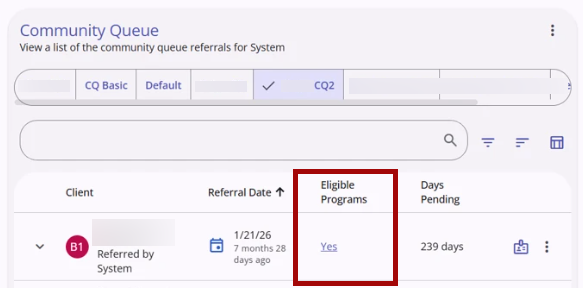
- Eligible Programs field: Yes means the client is eligible for at least one program and is a hyperlink. No means the client has no eligible programs and appears as plain text.
- Eligible Programs panel: Click Yes to replace the Referral Status chart in the sidesheet with a list of the client's eligible programs. The client's name appears under the panel title. Click the back arrow to return to the Referral Status chart.
- On mobile, the Eligible Programs panel opens as a full-screen takeover for easier navigation on smaller screens.
- Program cards: Each card shows the program name and the agency that owns it. When a program has documentation requirements, the card also shows the client's document status: Documents complete, Some documents missing, or Documents missing.
- There is a → arrow on each card. When the client is eligible to be referred to the program, the arrow's tooltip says "Refer clients to this program." Clicking the arrow brings the user directly to the referral page with the program enrollment sidesheet opened and prefilled with the program name.
- Even if the card says “Some documents missing” or “Documents missing”, the documentation requirements do not block a client from being referred to a program.
- There is a → arrow on each card. When the client is eligible to be referred to the program, the arrow's tooltip says "Refer clients to this program." Clicking the arrow brings the user directly to the referral page with the program enrollment sidesheet opened and prefilled with the program name.
- Document Status filter: On the Eligible Programs sidesheet, filter the list by All programs (the default), No documents required, Documents complete, Some documents missing, or Documents missing.
- Documentation Requirements: The cards show document status only. To see which documents a program requires, expand the program's details at the Select Program step of the referral workflow.
Required Action: None.
Article Updates: This update is live in all training and production sites as of 10/14/2026. The following article has been updated:
Current Living Situation (CLS) and Household Members: Step Order Change (10/08/2026)
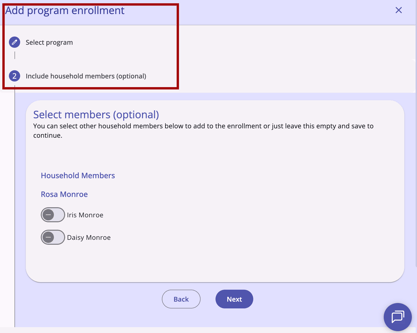
When you enroll a client in a program that has Current Living Situation (CLS) assessment enabled, the Include household members (optional) step now appears right after you select the program. It no longer appears after the first client's enrollment screen. This is the same order that programs without a CLS enabled already use.
Here is how the order of steps changes for a client with household members:
|
Step |
Before This Update |
Now |
|
1 |
Select the program. |
Select the program. |
|
2 |
Complete the first client's enrollment screen. |
Include household members (optional) |
|
3 |
Include household members (optional) |
Complete the first client's enrollment screen. |
|
4 |
Record the first client's CLS. |
Record the first client's CLS. |
|
5 |
Complete the next member's enrollment screen. |
Complete the next member's enrollment screen. |
|
6 |
Record the next member's CLS. |
Record the next member's CLS. |
Repeat steps 5 and 6 for each additional household member you selected.
What stays the same:
- Programs without a CLS enabled: No change.
- Each household member's CLS form still prefills from the head of household's answers.
Required Action: None. This change applies automatically, and no configuration is needed.
Article Updates: This update is live in all training and production sites as of 10/08/2026. The following articles have been updated:
- Current Living Situation (CLS) Assessment Guide
- Creating and Managing Program Enrollments (New Clarity Interface)
Outreach and Data Analysis: Housed and Sheltered Labels
There was an issue with the system saving housed dates that are directly related to the HOUSED and SHELTERED labels in Outreach, and with the Outreach Model housed data in Looker, which has since been resolved. This does not impact program data. With this fix, the housed dates for Outreach are saving again. A data repair is underway to correct past impacted Outreach records.
If your community utilizes any housed and sheltered metrics in the Looker Outreach Model, this may shift for prior periods, including within customer-built reports and dashboards. Please reach out to Bitfocus Support with any questions.
Required Action: None.
Article Updates: None.
Customer Portal: Program Selection for Assessment Requests
You can now connect an assessment request to a program enrollment when you send it to a client. When you send an assessment request from the Client Portal workspace or the Client Portal card in the new Clarity interface, the Program field lists the client's active enrollments with available assessments. Select one to connect the assessment to that program.
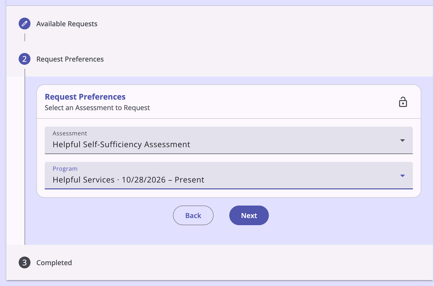
When the client completes the assessment in the Customer Portal, it is saved to the client record and connected to the enrollment. It then appears on the program's Assessments workspace.
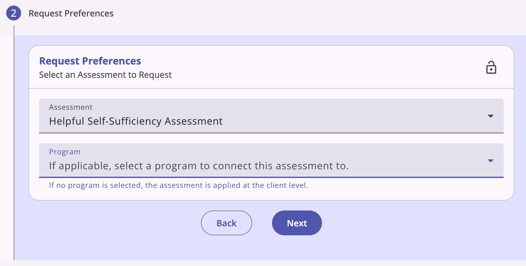
The Program field is optional if the assessment is available at both the program and client levels. If you do not select a program, a message appears and reads:
"If no program is selected, the assessment is applied at the client level."
Required Action: None.
Article Updates: This update is live in all training and production sites as of 10/21/2026. The following articles have been updated:
Field Check Implemented for 3 HUD Fields
On November 4, 2026, a check is being implemented based on HMIS type for HUD fields R18.2 SessionsInPlan, R18.B SessionCountAtExit, and V7.S ThresholdScore. The check is switched on by the HUD element type recorded in the field catalog (xs:positiveInteger) to ensure that the number entered is greater than 0.
Any stored '0' in fields R18.2 SessionsInPlan and R18.B SessionCountAtExit will be automatically updated to null to ensure validity in relation to the HMIS Data Standards. No automatic updates to stored values will be made to V7.S ThresholdScore.
If you would like a list of impacted fields in your instance that have been updated from 0 to null, please reach out to the Support Team.
Required Action: None.
Article Updates: None.
Services: Agency Correction for Modified Service Records
For a number of service records in which an existing service was modified (for example, after its enrollment, or when the whole program was moved to another agency), the modification reassigned the enrollment's services, while the catalog service stayed with the original agency; i.e., that service updated the agency that owned the service instead of the service it was technically recording under. This issue has been resolved, and on November 4, 2026, impacted records will be updated to their original agency.
If you would like a list of impacted records, please reach out to the Support Team.
Required Action: None.
Article Updates: None.
We Welcome Your Ideas
We encourage you to suggest improvements and new features for our products. You can create feature suggestions or vote, watch, and comment on existing suggestions at ideas.bitfocus.com. Refer to our Feature Suggestions article for additional details.
Updated: 10/28/2026