
Only users with the Admin access role seat type and the Merge access right enabled for their access role can access the Merge module. In this article, users will be referred to as Admin user(s).
Table of Contents
Overview
The Merge module is available to combine duplicate records. The module includes the following four workflows:
- Merge Clients: Search, queue, and merge duplicate client records.
- Link/Unlink Clients: Manage Personal ID groupings for HUD standardization.
- Merge Client Programs: Consolidate duplicate enrollments.
- Move Client Programs: Relocate an enrollment, with optional household-member handling.
Merge Clients
Duplicate client records occur when staff create multiple records for the same client. Admin users can merge duplicate client records on the Merge Clients workspace.
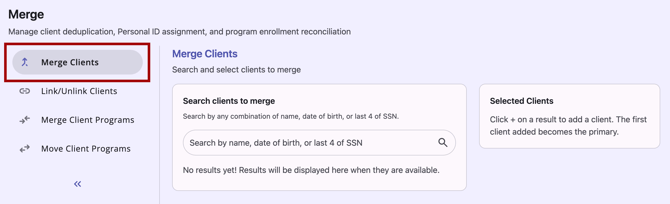
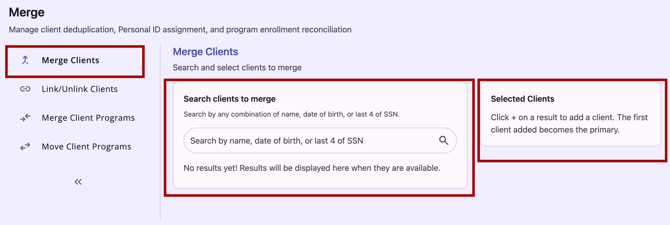
The Merge Clients workspace displays a client search panel on the left and an empty Selected Clients panel on the right.
Note: When multiple client records are merged into one client record, occupancy records from the Client > Units/Beds tab are merged into the new record. Refer to the Overnight Unit/Bed Drop-ins article for details.
Searching for Clients to Merge
- The Search bar accepts a full or partial client name, date of birth, and/or the last four digits of SSN, or any combination of these.
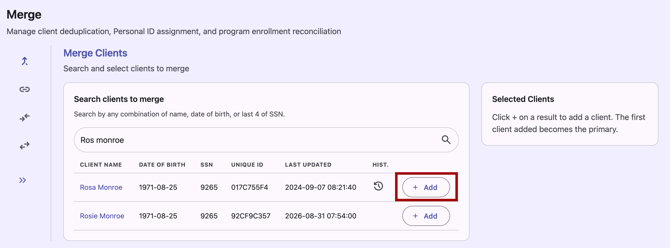
- On search, results display in a table with the following columns: Client Name, Date of Birth, SSN (last four digits), Unique ID, Last Updated, and a column with a History icon that, on hover, shows a tooltip of Service and Program History count if the client has service or program history.
- Each client name in the search results is a clickable link that opens the client's Profile.
Building the Client Selection to Merge
When the Admin user clicks the Add (+) button, the client is added to the Selected Clients panel on the right.
- There is no maximum number of clients that can be added to the selection.
- A client added to Selected Clients appears as the first entry and is automatically designated as the Primary record, displayed in bold.
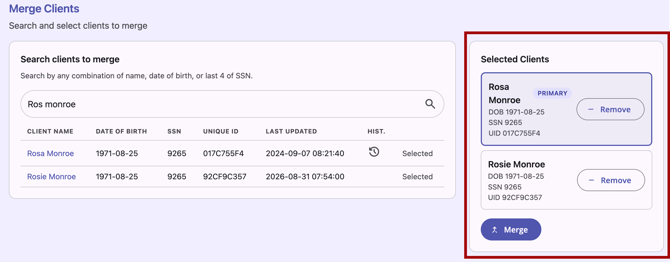
Any selected client can be designated as the primary.
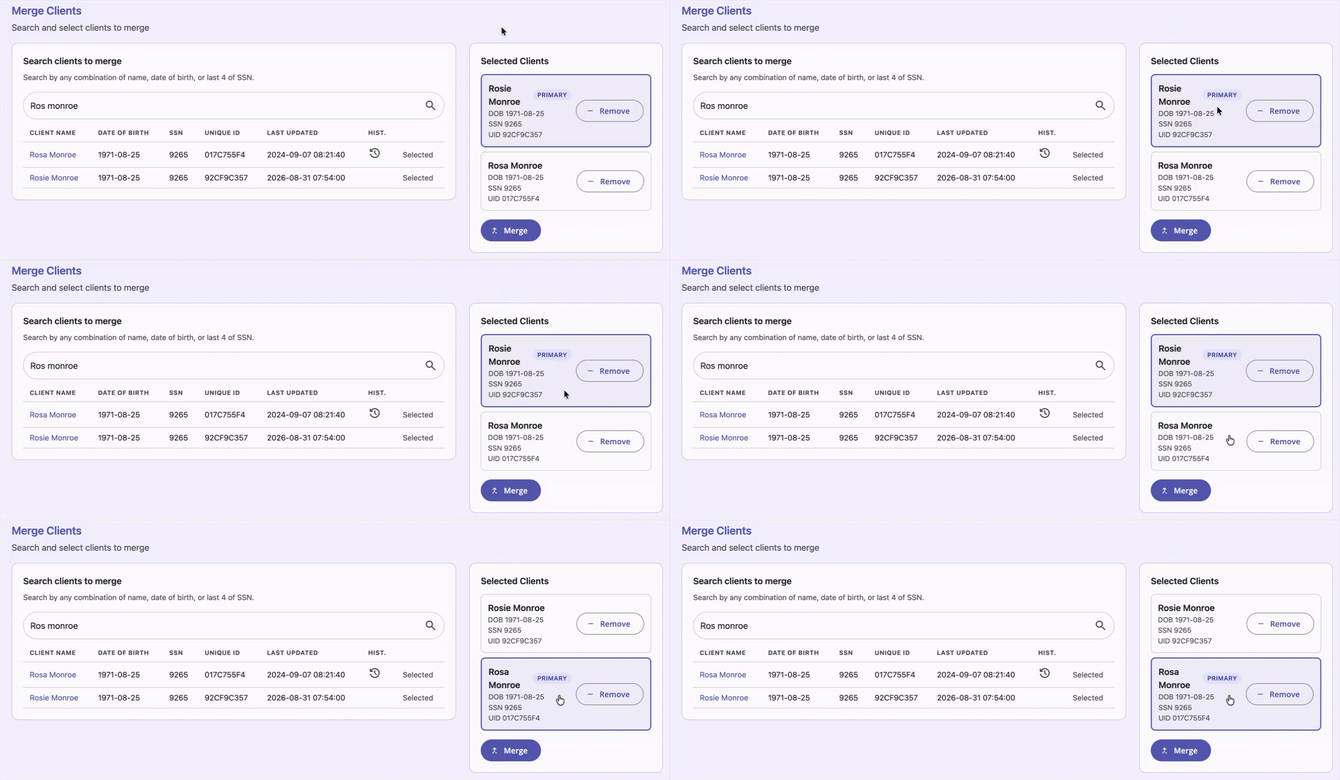
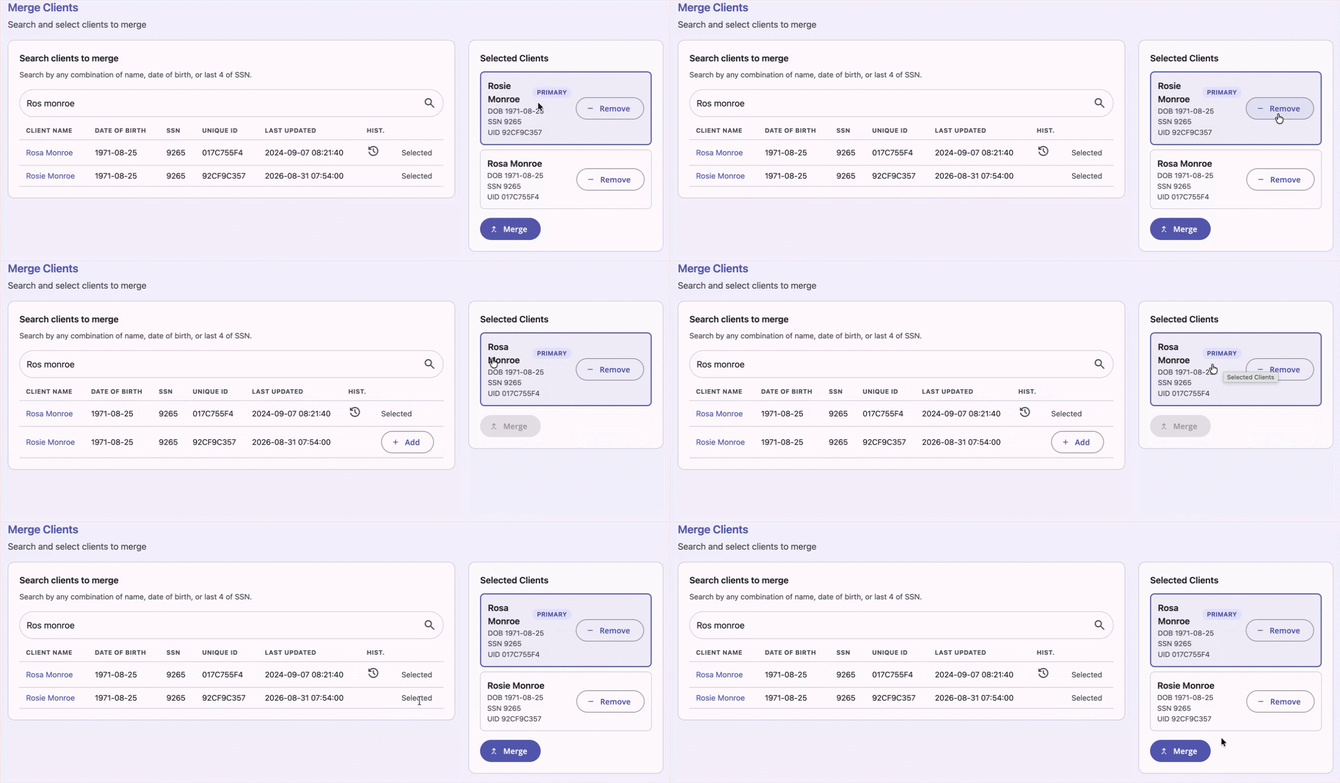
Users can click the - Remove button to remove any selection. If the primary client is removed and others remain, the next client in the selection becomes the new primary.
Merging Clients
When a secondary record has an active Customer Portal connection, or when a Coordinated Entry (CE) program auto-exit should be triggered, the system shows a warning before merging.
- When the Admin user clicks Merge, the system checks all secondary (non-primary) records in the selection for the following:
- If any secondary record has an active Customer Portal connection, a warning dialog is displayed before the merge confirmation dialog.
- If the merge triggers an auto-exit from a CE program with the Auto Exit to Permanent Destination setting enabled, a warning dialog is displayed. The warning message is dynamically generated based on whether household members are affected.
If no warnings apply, the system proceeds directly to the merge confirmation dialog. The merge confirmation reads:
"You are about to merge the clients. This action is irreversible. Do you wish to continue?"
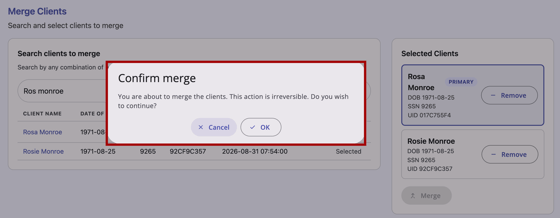
Click OK to continue or Cancel to cancel the merge and return to the Merge Clients workspace.
If the merge is successful, a message displays:
"Clients merged successfully."
If the merge is unsuccessful, a message displays:
"An error occurred. Please try again. If the problem persists, contact your administrator."
Link/Unlink Clients
The Link/Unlink Clients option is the second option in the Merge module and allows the Admin user to change the Personal ID of client record(s) to match the Personal ID of another record.
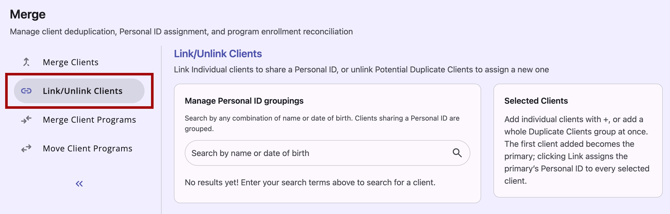
The Link/Unlink Clients workspace displays a client search panel on the left and an empty Selected Clients panel on the right.
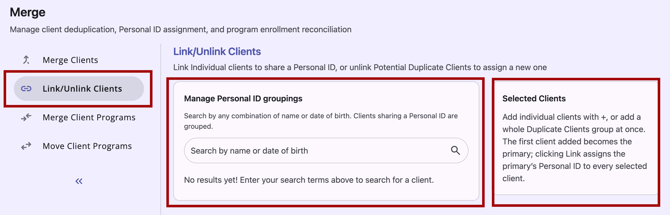
Searching for Clients to Link
- The Search bar accepts a full or partial client name, date of birth, and/or any combination of these terms.
- Search results display in a table with the following columns: Client Name, Personal ID, Unique ID, Date of Birth, SSN (last four digits), Last Updated, and a column with a History icon that, on hover, shows a tooltip of Service and Program History count.
- Clients sharing the same Personal ID are grouped under a header row labeled Potential Duplicate Clients – [personal_id].
- Each client name in the search results is a clickable link that opens the client's Profile.
Building the Client Selection to Link Clients
Clicking the Add (+) button on an individual client row adds that client to the Selected Clients section.
- The first client added to Selected Clients is automatically designated as primary.
- Any selected client can be designated as the primary.
- If the primary client is removed and others remain, the next client in the selection becomes the new primary.
Linking Clients
- When the Admin user clicks the Link button, a confirmation dialog displays:
"You are about to link the clients, and assign all clients the Personal ID [personal_id]. Do you wish to continue?"
( [personal_id] is the Personal ID of the primary client)
Unlinking Clients
In a Potential Duplicate Clients list, an Action Menu (three dots) menu includes the Unlink from Personal ID option, which triggers a confirmation dialog with the message:
"Unlink and Change Personal ID — You are about to unlink and change the Personal ID for this client. With this action, a new Personal ID will be generated for this client. Do you wish to continue?"
Merge Client Programs
The Merge Client Programs option is the third option in the Merge module. Admin users can combine the program enrollments of household members who were enrolled separately or merge programs within the same client profile for enrollment deduplication.
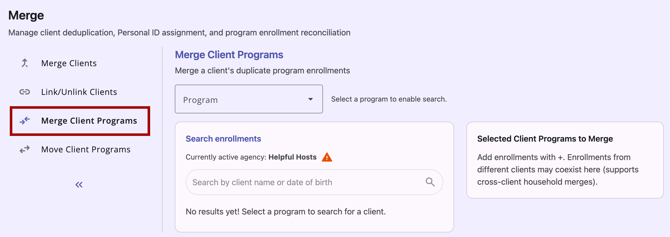
The Merge Client Programs workspace displays a Program dropdown list at the top, a client search panel on the left, and a Selected Client Programs to Merge panel on the right.
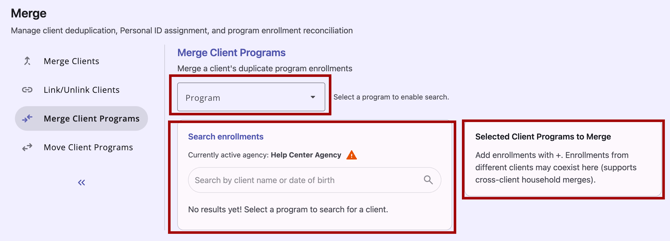
Note: When client programs are merged, the occupancy record stays in the client program where it was. Refer to the Overnight Unit/Bed Drop-ins article for details.
Searching for Enrollments to Merge
The Program dropdown lists all active programs accessible to the Admin user in their current agency context.
- The Admin user must select a program from the dropdown before searching. The search bar is inactive until a program is selected.
Once a program is selected, the search bar accepts a full or partial client name and/or date of birth.
- Search results display a list of clients matching the criteria who have enrollments in the selected program.
- Each result row displays the client name and an Expand icon. Clicking the Expand icon reveals the program start and end dates for that enrollment.
Building the Enrollment Selection to Merge
Clicking the Add (+) button on the expanded row for the client designates it as the Primary enrollment.
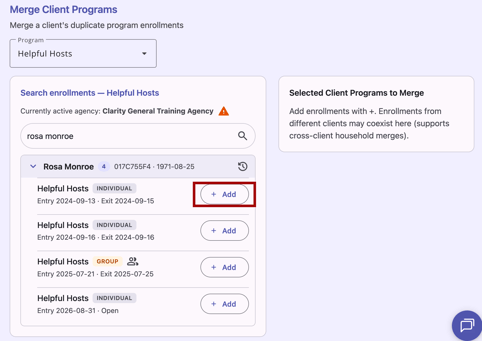
- Any individual enrollment can be designated as Primary.
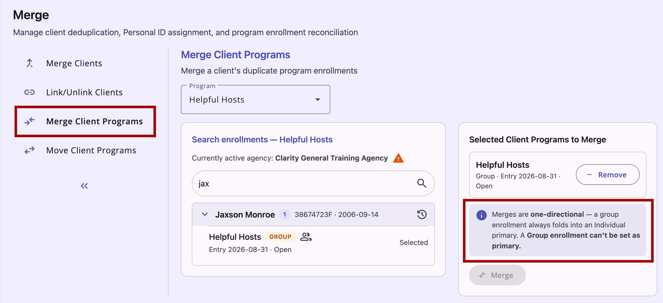
- Group enrollments cannot be designated as Primary.
Note: If the user selects a Group enrollment during enrollment selection, a message appears on the Selected Client Programs to Merge panel that reads:
"Merges are one-directional - a group enrollment always folds into an individual primary. A Group enrollment can't be set as primary."
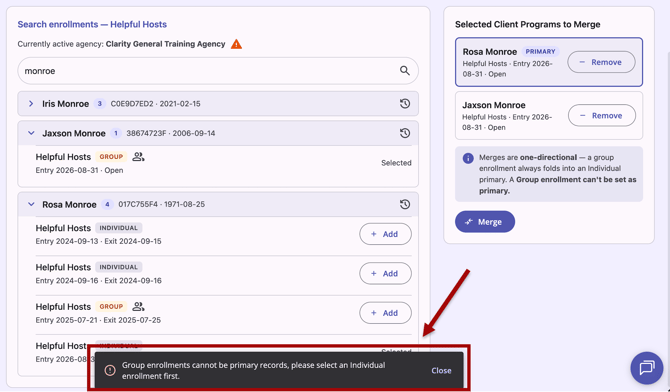
If the Admin user attempts to select a group enrollment as primary, a notification pops up that reads:
"Group enrollments cannot be primary records, please select an individual enrollment first."
If the Admin user selects a new program from the dropdown, the selection on the right is cleared.
Merging Enrollments
If the selected enrollments do not include a group enrollment, a standard confirmation appears:
"You are about to merge the program enrollments. This action is irreversible. Do you wish to continue?"
- On merge, if the merge is taking place on the same client, the client's services, notes, files, and assessments on the selected enrollments move onto the Primary enrollment.
- On success: a message displays:
"Enrollments merged successfully."
- On fail: a message displays:
"An error occurred. Please try again. If the problem persists, contact your administrator."
The merge is recorded in each affected client's audit log.
Merging Group Enrollments
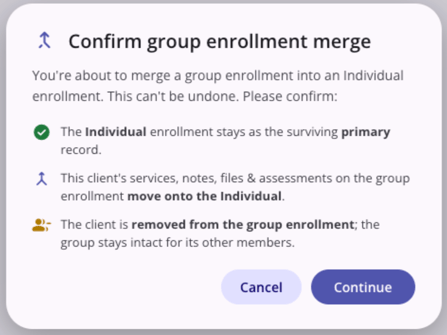
If the selected enrollments include a group enrollment, the following confirmation appears:
"You are about to merge a group enrollment into an individual enrollment. This can't be undone. Please confirm:
The individual enrollment stays as the surviving primary record.
This client's services, notes, files, & assessments on the group enrollment move onto the individual.
The client is removed from the group enrollment; the group stays intact for its other members."
Move Client Programs
The Move Client Programs option is the fourth option in the Merge module. This tool can be used when a client has been enrolled in an incorrect program and/or if a program is no longer active, and clients need to be moved to a new program.
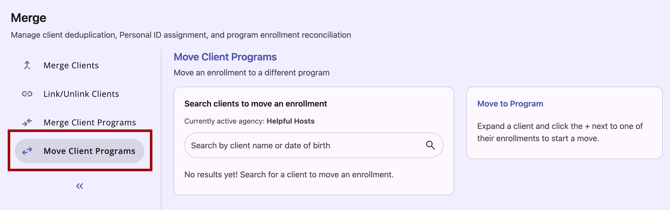
The Move Client Programs workspace displays a client search panel on the left and a Move to Program panel on the right.
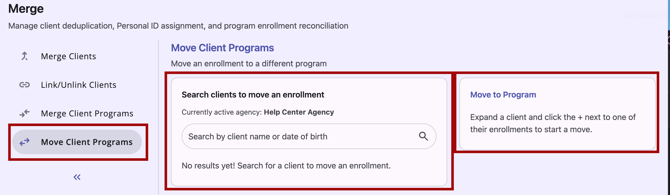
Note: Occupancy records are deleted if the program is moved. Refer to the Overnight Unit/Bed Drop-ins article for details.
Searching for Enrollments to Move
The search bar accepts a full or partial client name and/or date of birth.
- Search results display a list of matching clients in that program within the agency that the Admin user is currently logged into. Program enrollments outside of the current agency do not appear in the returned search results.
Building the Enrollment Selection to Move
Clicking the Arrow (down) icon next to a client expands their enrollments.
- An Add (+) button appears to the right in the row of the program.
- Clicking the Add (+) button adds that enrollment to the Move to Program section on the right.
- If the enrollment is not part of a Group enrollment, the Move Group Members toggle is hidden since it is not applicable.
Moving Enrollments
When the Admin user clicks the Move button, the system checks whether the client's current program enrollment has any associated inferred or manual Coordinated Entry (CE) events recorded.
- If there are no CE events associated, clicking Move triggers a confirmation warning that reads:
"Move enrollment — This will move the selected enrollment to the destination program. Continue?"
- If CE events are associated, a warning dialog is displayed before the confirmation dialog that reads:
"Warning: Coordinated Entry Events will not be moved over when using the Move Client Programs tool. Continue?"
- Any services, assessments, and notes attached to the enrollment are included in the move. Refer to Moving Services with an Enrollment for how services are handled.
- On success: a message displays:
"Enrollment moved successfully."
- On fail: a message displays:
"An error occurred. Please try again. If the problem persists, contact your administrator."
Moving Group Members
The Admin user should confirm the program enrollment move, including handling group members.
- When selecting an enrollment to move to a different program, if it is part of a group enrollment, a Move Group Members toggle is visible.
- If Move Group Members is toggled on, all household members' enrollments in the same program are included in the move.
- Any services, assessments, and notes attached to the enrollment are included in the move. Each household member’s services are handled as described in the Moving Services with an Enrollment section.
- Selecting Move with Move Group Members toggled on triggers a confirmation message:
"Move enrollments — This will move [n] enrollments — the selected client and their household members — to the destination program. Continue?"
- On success: a message displays the number of enrollments in the group that were successfully moved.
- On fail: a message displays:
"An error occurred. Please try again. If the problem persists, contact your administrator."
Moving Services with an Enrollment
When you move an enrollment to a program in a different agency, the client’s service records move with it. The tool connects each service record to a service and service item that the destination agency owns. The client’s full service history then appears in the destination agency’s records and reports.
What the Tool Does
When you click Move, the tool does the following for each service on the enrollment:
- Checks whether the destination agency already has the service and service item. This includes a copy made by an earlier move from the same program.
- Reuses the service and service item if they exist.
- Copies the service and service item setup from the original agency if they do not exist. The destination program is enabled for the copied service.
- Connects the client’s existing service records to the destination agency’s service item. Dates, durations, and notes stay as they were.
- Records the move in the audit log.
Copied Service Names
The tool adds “[Agency Name: Program Name - Move Copy]” to the end of the name of each service and service item it copies. Agency Name and Program Name identify the agency and program the client moved from. For example: “Case Management [Agency A: Shelter Program - Move Copy].”
Notes:
- If the name is too long, the tool shortens the original name and keeps the full suffix.
- If you move an enrollment that uses a copy from an earlier move, the new suffix replaces the old one.
Copied Services Are Inactive
The tool sets each copied service to Inactive in the destination agency. The client’s moved service records stay in their service history. Staff in the destination agency do not see a copied service as an option to provide until a System Administrator makes it Active. Service items follow the status of their service. If the tool reuses an existing copy, the copy keeps its current status.
Data Analysis users can identify copies with the Service Copied From fields in the Project Descriptor Model.
Audit Log
System Administrators with the Audit Log access right can view audit logs throughout the system. Refer to Rights Glossary for Access Roles for details on access rights.
To open the audit log, click the Action Menu (three dots) icon in the upper right of the workspace and select View Audit Log. The audit log shows all changes made to every merge, link, unlink, and move action.
When a move changes the agency of the client’s services, assessments, or files, the audit log for each record states that it moved from one agency to another.
Updated: 11/03/2026