
Table of Contents
Overview
Using the Overnight Drop-in feature, staff can quickly add an overnight drop-in for a unit/bed without a full intake workflow.
Key highlights:
-
System Admins can enable and configure Overnight Drop-in settings at the Site, Building, or Unit level, including whether program enrollment is required and when occupancy automatically ends.
-
Nine new access rights give administrators granular control over who can create, edit, and delete drop-in and enrollment-based occupancy records.
-
Drop-ins can be added to any available, occupied, or pending bed from the Inventory Dashboard, with eligibility checking and optional enrollment steps built into the workflow.
-
Auto-exit logic, from the unit/bed and from the enrollment, handles program enrollment cleanup when a drop-in ends, with rules for multiple drop-ins and existing activities.
- Linking and unlinking lets staff connect a drop-in to a program enrollment after the fact, or remove that connection, from the program Units/Beds tab.
- Sharing rules, privacy settings, and Public Alerts are all extended to cover occupancy records.
- Occupancy records are also visible in the client History tab and Program Units/Beds tab, and behave correctly through client merge, program merge, and program move actions.
Settings Configuration
The System Administrator can configure Overnight Drop-in settings on Inventory screens.
The following new settings were added to the Sites, Buildings, and Units screens.
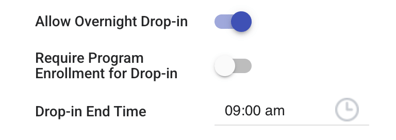
- Allow Overnight Drop-in toggle. Default: Off.
- When toggled On, the Add Overnight Drop-in option is available on the Inventory dashboard, in the unit row-level action menu.
- Require Program Enrollment for Drop-in toggle.
- This toggle only shows when the Allow Overnight Drop-in setting is On.
- If On: User must create a new enrollment for the drop-in client.
- If an enrollment already exists for the drop-in date, the system connects the drop-in to the existing enrollment automatically.
- If multiple enrollments exist, the system connects the drop-in to the latest enrollment.
- If Off: User can attach a client profile to the unit/bed stay without a full program enrollment.
- You can link the drop-in to a program enrollment later. Refer to the Linking and Unlinking Overnight Drop-ins section.
- Drop-in End Time time field.
- Only shows when the Allow Overnight Drop-in setting is On.
- Defaults to 9:00 AM.
- This is the time the occupancy automatically ends for clients with an overnight drop-in.
Settings cascade from the Site Screen → Building screen → Unit screen.
- The cascading applies when the setting is enabled.
- When these fields are filled on the higher level, the user is unable to modify them on the lower level.
- If the fields are filled on the lower level, the same fields can be filled on the higher level and override the value from the lower level.
- Changes are reflected in the Audit log of both higher-level and lower-level screens.
These settings configuration details are also described in the following articles:
Access Rights for Units/Beds Tab and Occupancy Records
The following Access Rights control access to the client-level Units/Beds workspace and to occupancy record management.
- Units/Beds
- Provides access to the client-level Units/Beds workspace and the ability to manage occupancy records.
- Available for all access role seat types.
- On by default for existing Role Type = Admin. Off by default for all other access role seat types.
- Create Overnight Drop-in Unit Records
- Provides the ability to add Overnight Drop-ins.
- Available for all access role seat types.
- On by default for existing Role Type = Admin. Off by default for all other access role seat types.
- The Units/Beds access right must be enabled.
- Create Overnight Drop-in Unit Records - Eligibility Override
- Provides the ability to add Overnight Drop-ins and override eligibility requirements.
- Available for all access role seat types.
- On by default for existing Role Type = Admin. Off by default for all other access role seat types.
- The Units/Beds access right must be enabled.
- Edit Overnight Drop-in Unit Records
- Provides the ability to edit Overnight Drop-ins.
- Available for all access role seat types, except Volunteer.
- On by default for existing Role Type = Admin. Off by default for all other access role seat types.
- The Units/Beds access right must be enabled.
- Edit Any Agency Overnight Drop-in Unit Records
- Provides the ability to edit any agency Overnight Drop-ins.
- Available for all access role seat types, except Volunteer.
- On by default for existing Role Type = Admin. Off by default for all other access role seat types.
- The Units/Beds access right must be enabled.
- Edit Any Agency Enrollment-based Unit Records
- Provides the ability to edit any agency occupancy within enrollment.
- Available for all access role seat types, except Volunteer.
- On by default for existing Role Type = Admin. Off by default for all other access role seat types.
- The Units/Beds access right must be enabled.
- Delete Overnight Drop-in Unit Records
- Provides the ability to delete Overnight Drop-ins.
- Available for all access role seat types, except Volunteer.
- On by default for existing Role Type = Admin. Off by default for all other access role seat types.
- The Units/Beds access right must be enabled.
- Delete Any Agency Overnight Drop-in Unit Records
- Provides the ability to delete any agency Overnight Drop-ins.
- Available for all access role seat types, except Volunteer.
- On by default for existing Role Type = Admin. Off by default for all other access role seat types.
- The Units/Beds access right must be enabled.
- Delete Any Agency Enrollment-based Unit Records
- Provides the ability to delete any agency occupancy within enrollment.
- Available for all access role seat types, except Volunteer.
- On by default for Role Type = Admin. Off by default for all other access role seat types.
- The Units/Beds access right must be enabled.
These access rights are also described in the following article:
Sharing Rules for Occupancy Records
Administrators can set sharing rules for Occupancy records to appropriately limit access to a client's occupancy information.
There is a new option for Sharing Groups: Unit/Bed Occupancy.
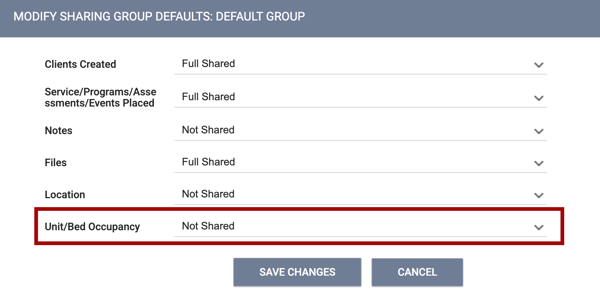
This new option has the same sharing options as other sharing categories:
- Not Shared
- Basic Shared
- Full Shared
By default, Unit/Bed Occupancy is set to Not Shared for the Default Group and any custom Sharing Groups.
Notes:
- Unit/Bed Occupancy record ownership is based on the enrolling agency, for both referral-based occupancies and drop-in occupancies recorded without an enrollment.
-
The Unit/Bed Occupancy sharing setting affects the visibility of occupancy records in both the current and new interfaces, as well as wherever Unit/Bed occupancy appears.
If the Full System Sharing Access access right permission is enabled for the user, the user has full sharing access to occupancy records.
Unit/Bed Occupancy settings and sharing impacts specific to the client-level Units/Beds tab.
-
If the user access role has Full System Sharing Access = On, but Edit Overnight Drop-in Unit Records = Off, this user sees the View link to the left of the Overnight Drop-in records on the client-level Units/Beds tab instead of an Edit icon.
Unit/Bed Occupancy settings and sharing impacts specific to the Unit Card on the Inventory Dashboard:
- If Unit/Bed Occupancy is set to Full Shared or Basic Shared, the user continues to see this information.
- If Unit/Bed Occupancy is set to Not Shared, the system hides the occupancy details from the user.
The Unit/Bed Occupancy sharing option is also added to Agency Sharing Exceptions.
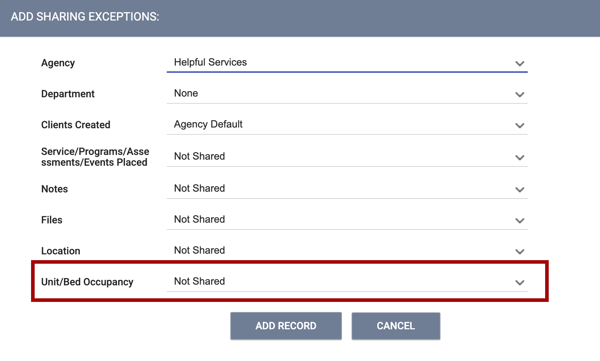
These details are also described in the following articles:
Client Merge, Program Merge, and Program Move Logic
Occupancy records are included in Client Merge, Program Merge, and Program Move logic.
Client Merge: When multiple client records are merged into one client record, occupancy records from the Client > Units/Beds tab are merged into the new record.
Program Merge: When the client programs are merged, the occupancy record stays in the client program where it was.
Program Move: The occupancy is deleted if the program is moved.
These details have also been added to the following article:
Inventory Dashboard: Adding Overnight Drop-in Clients
You can add a drop-in client to any unit/bed with an Available, Occupied, or Pending occupancy status on the Inventory Dashboard.
The Add Overnight Drop-in option is added to the unit's Action Menu when Allow Overnight Drop-in is enabled for the unit. This option is available for all units except Offline, Inactive, and Reservations-enabled units.

When the Add Overnight Drop-in option is selected, a modal opens with the following workflow.
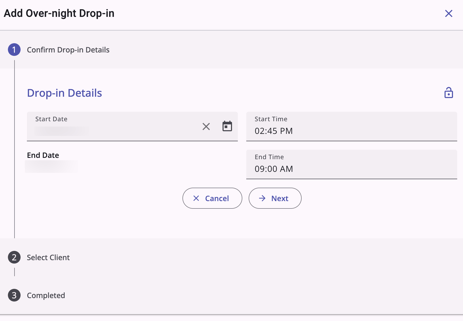
Step 1 - Confirm Drop-in Details
- Select bed, if applicable.
- The bed list shows all beds within the selected unit, if applicable.
- Occupancy Start Date
- Defaults to the current date, but remains editable.
-
Occupancy Start Time
-
Defaults to the current time, but remains editable.
-
-
Occupancy End Date
- Auto calculates to the following morning.
- The Occupancy End Date auto-calculates to the same day when the start time is between 12:00 am and the Drop-in End Time.
-
If the Start Date and the End Date are the same date, the system validates that the start time is earlier than the end time.
-
- The Occupancy End Date auto-calculates to the same day when the start time is between 12:00 am and the Drop-in End Time.
- Auto calculates to the following morning.
- The Occupancy End Time defaults to the unit's Drop-in End Time that was configured in the Overnight Drop-in Settings, but remains editable.
If you select a date/time period where the unit already has an overnight drop-in, then:
-
The Next button is grayed out and cannot be clicked.
-
There is a message that reads:
"An overnight drop-in already exists for the date selected. Please change the date or select a different unit/bed."
Step 2 - Select Client
A client search window prompts you to select a client for the overnight drop-in.
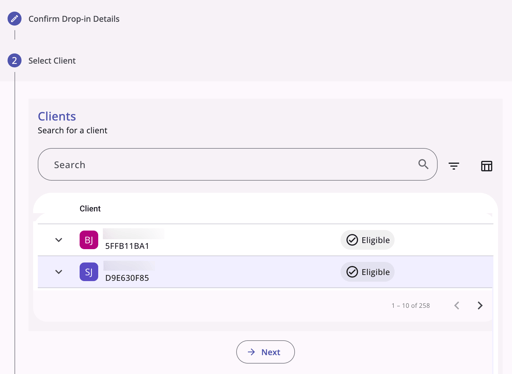
Search using the same search terms as other client Search bars. Filter options include:
-
Alias
-
First Name
-
Last Name
When you click a client row, the system starts calculating eligibility. When it finishes, you see Eligible or Not Eligible.
-
If your access role includes Create Overnight Drop-in Unit Records - Eligibility Override, the Next button turns from gray to purple and is clickable, regardless of the eligibility result.
-
If your access role does not have that access right, the Next button becomes enabled only if the eligibility result for the selected client shows Eligible. Otherwise, the button is gray and not clickable.
-
If the Prohibit Eligibility Override setting is enabled for the site the unit belongs to, the Next button stays gray for a client who isn’t eligible, even if you have the Eligibility Override right.
-
-
-
If the client is not eligible, and you cannot override eligibility, a warning prompts you to select an eligible client. The warning is: "Please select an eligible client."
Step 3 - Completed or Program Enrollment
When the Require Program Enrollment for Drop-in setting is disabled, and you have selected a client in Step 2, you complete the workflow on Step 3.
When the Require Program Enrollment for Drop-in setting is enabled AND the client does not already have an active enrollment in the unit's program during the drop-in date, the Enrollment screen for the program connected to the unit is available on Step 3.
-
The Project Start Date defaults to the Drop-In Start Date from the previous step, but remain editable.
-
The system will check to make sure the Project Start Date is earlier or equal to the Drop-In Start Date. If not, red text appears under the Project Start Date that reads: "Date must be on or before the Drop-In Start Date."
-
When the Require Program Enrollment for Drop-in setting is enabled AND the client has an enrollment that meets the following criteria for the unit's program, the system shows the message: "Client already enrolled. Overnight Drop-In is connected to the [Program Name] enrollment that started on [Project Start Date]."
-
The Project Start Date is prior to the Occupancy Start Date
AND
-
The Project End Date is null or later than the Occupancy Start Date.
Step 4 - Completed
When the Require Program Enrollment for Drop-in setting is enabled, you will complete the workflow on Step 4.
When an Overnight Drop-in is created:
- The Unit's availability status updates the same way general occupancy records do.
- If the unit/bed has a pending occupancy, the pending occupancy remains pending when an Overnight Drop-in is added.
- When the pending occupancy becomes an occupancy, the system checks for any overnight drop-ins and splits the occupancy into multiple records to avoid overlapping dates between the occupancy and the overnight drop-in.
-
The Unit's Occupancy History tab shows Occupied when a unit is occupied by an Overnight Drop-in.
-
The unit is treated as occupied for the overnight drop-in dates, so you cannot add another occupancy for the drop-in period.
- Overnight Drop-in records display in the unit information card the same way general occupancy records do.
Ending the Overnight Drop-in
When the Overnight Drop-in record reaches the confirmed End Date and End Time, the unit will revert to the availability status immediately prior to the Overnight Drop-in.
- If the unit/bed was occupied, the original client's occupancy begins again immediately after the Overnight Drop-in End Date and End Time.
- If the client was enrolled into a program for the Overnight Drop-in, the client will be auto-exited from the program at the same End Date and End Time they are exited from the Unit/Bed.
- The system checks:
- If there are only overnight drop-in activities within the client program, the system auto-exits the program on the End Date of the latest overnight drop-in.
- If there are any activities with dates less than or equal to (<=) the End Date of the last overnight drop-in, the system auto-exits the program on the End Date of the latest drop-in.
- If there are other activities for the next day or later after the last overnight drop-in End Date, the program does not auto-exit immediately. These programs may be auto-exited using Auto Exit Due to Inactivity settings.
- If the client creates a second overnight drop-in (future dated) connected to the program enrollment that was created while creating the first overnight drop-in, the system does not auto-exit the enrollment until after the future drop-in.
-
The system populates all fields in the exit screen except for Project Exit Date and Destination with a response of "Data not collected."
-
The Project Exit Date will match the Occupancy End Date.
-
The destination will be recorded as "No exit interview completed."
- The system checks:
These details have also been added to the following article:
Linking and Unlinking Overnight Drop-ins
When Require Program Enrollment for Drop-in is Off, you can add an overnight drop-in without a program enrollment. You can link that drop-in to a program enrollment later. You can also unlink a drop-in from an enrollment.
Both actions happen on the program enrollment's Units/Beds workspace. Refer to Program Level Units/Beds.
- Linking connects an existing occupancy record to the program enrollment. The record appears on the program’s Units/Beds workspace, and the Program Connection icon appears on it in the client-level Units/Beds workspace.
- Unlinking removes that connection. It does not delete the occupancy record.
Note: System Administrators, or staff with the Manage Agency access right, must turn on Link from History for each program that should use linking and unlinking. If Link from History is off, the Link from Units/Beds and Unlink Occupancy from Program options do not appear on the program's Units/Beds workspace. For setup steps, refer to How To Set Up A Program: Detailed Instructions.
How Overnight Drop-ins Affect Other Records
These details describe how overnight drop-ins behave in other parts of Clarity.
- Occupancy record only. Creating an overnight drop-in creates an occupancy record. It does not create a service, such as a Clarity Bed Night.
- Original occupant. If the unit/bed was occupied, the original client’s occupancy ends and then begins again after the drop-in. The original client’s program enrollment is not affected.
- Households. An overnight drop-in applies only to the unit/bed you select. It does not change the occupancy records or enrollments of other household members.
Private Occupancy Records
To mark an Overnight Drop-in occupancy record private, click the Privacy (lock) icon in Step 1 of the workflow.
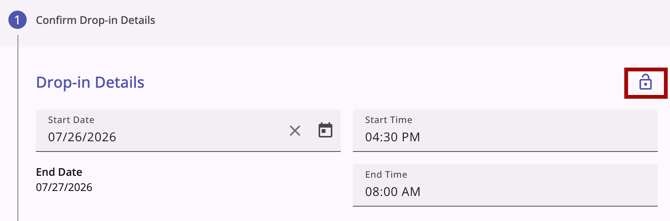
When an occupancy record is marked private, only users at the agency the occupancy belongs to are able to see the record.
These details are also available in the following article:
Public Alerts on Inventory Dashboard
The system shows Public Alerts in the Inventory dashboard. When a unit is occupied or pending occupancy, and the associated client has an active Public Alert, an Alert icon shows in the Inventory Dashboard, in the Unit row.
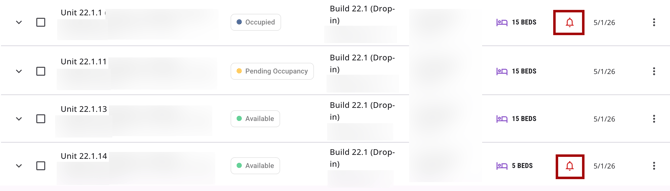
Hover over the Alert icon to see the alert details.
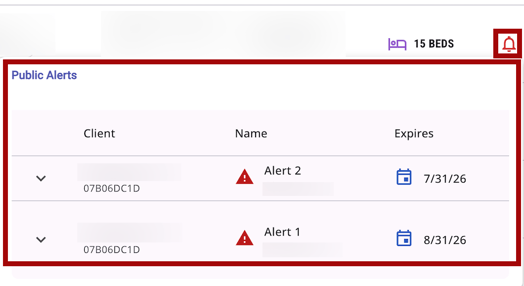
If more than one client occupies beds in a unit, the alert tooltip table adds a Client column on the far left that lists each client’s name.
Users who have access to see the alert in the client record are able to see the alert in Inventory.
These details are also available in the following article:
Viewing Occupancy Records
You can view occupancy records, including overnight drop-ins, in these areas of the client record:
- The client-level Units/Beds workspace: All of the client’s occupancy records, including overnight drop-ins. If your access role allows, you can edit and delete records from here. Refer to Client Level Units/Beds.
-
History: Occupancy records, including Overnight Drop-in records, display. Refer to the History article.
-
The program-level Units/Beds workspace: Occupancy records, including program enrollment connected Units/Beds and Overnight Drop-in records, display. Edit and delete appear if your access role includes Edit Enrollment-based Unit Records or Delete Enrollment-based Unit Records. Refer to Program Level Units/Beds.
Updated: 10/30/2026