
This article is for the new Clarity interface. Screenshots and descriptions will be updated as features are released. For the current interface article, see The Units/Beds Tab.
Table of Contents
Overview
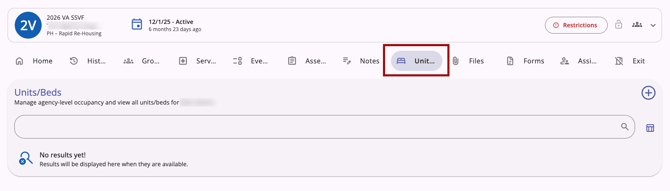
The Units/Beds tab in program enrollments allows you to view and manage the unit and bed occupancies a client has been assigned to within a program in the new Clarity interface.
When a program has Manage Units/Beds enabled on the program setup page, a Units/Beds tab appears within the client's program enrollment.
Client-level Units/Beds Tab
There is also a client-level Units/Beds tab that displays all the client's Inventory-related occupancy records, including past, current, and future occupancies. The tab also displays program-connected occupancy records (detailed in this article) and overnight drop-ins. For more information about the client-level Units/Beds tab, refer to the Client Level Units/Beds Tab (New Clarity Interface) article.
Viewing Unit/Bed Occupancies
If the client has been assigned to at least one unit or bed, the tab displays a list with the following columns:
- Unit/Bed: The name of the unit and bed, with the site and building name displayed beneath the unit name
-
Start Date: The Occupancy Start Date
-
End Date: The Occupancy End Date
A Link icon appears at the far right of a row if that unit was added by a referral. Hovering over the Link icon displays the Referred By agency and the Referred Date.
Adding a Unit/Bed Occupancy
Clicking the Add (+) icon opens the Add a Unit/Bed Occupancy modal on the right side of the screen.
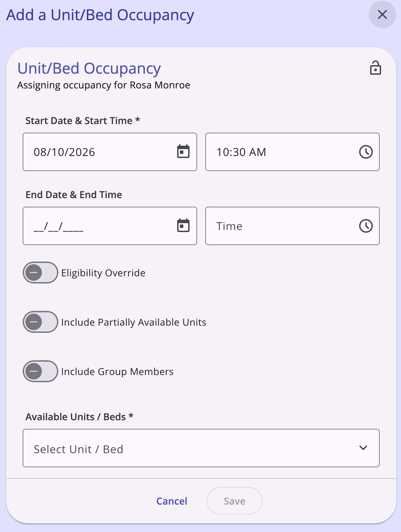
The Add (+) icon is only visible to users with the Edit Enrollment-based Unit Records permission enabled in their access role.
Fields and options in this modal:
- Start Date and Start Time
-
End Date and End Time
Private Occupancy Records
Occupancy records can be marked private by clicking on the Privacy icon in the Add a Unit/Bed Occupancy modal.
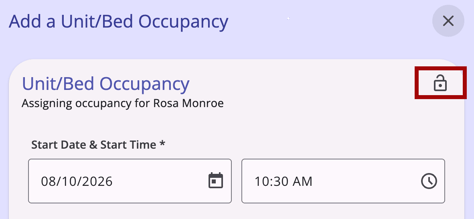
When an occupancy record is marked private, only users at the agency it belongs to can see it.
For more details on how to mark a client record private, refer to the Making Client Data Private (New Clarity Interface) article.
Eligibility Override Toggle
This toggle is visible only to users with Edit Enrollment-based Unit Records – Eligibility Override enabled in their role. By default, the Available Units/Beds field shows eligible units and beds based on eligibility requirements, excluding age and program restriction requirements (which cannot be calculated immediately).
If a selected bed is not eligible after clicking Save, the system displays a message with an OK button:
- "This client has an active program restriction and cannot be referred."
- "This client will not meet the age requirements of this placement on <date>, and cannot be referred."
If Prohibit Eligibility Override is ON for referral settings or specific sites:
- The Eligibility Override toggle remains visible, but only ineligible units from sites where Prohibit is enabled are listed in the units dropdown.
- When Eligibility Override is toggled ON, units that are ineligible due to the Prohibit Eligibility Override setting do not appear. Units that would otherwise be eligible are still listed.
Include Partially Available Units Toggle
This toggle is visible only to users with the Edit Enrollment-based Unit Records – Eligibility Override permission enabled in their access role.
Include Group Members Toggle
The Include Group Members toggle appears only when household members are available. As soon as this toggle is enabled, only units with enabled beds appear in the Available Units/Beds field.
Only openings with the same number of beds as or more than the number of household members are shown. If there are no openings with enough beds, the message:
"There are no openings with the required number of beds." appears.
Available Units/Beds Field
This is a hierarchical tree-select field. The following are excluded from the dropdown:
- Offline and Inactive units/beds when the selected date/time range falls within their Offline/Inactive period
- Deleted units/beds
- Units/beds with Reservations enabled when a service is connected to the program enrollment.
Include Household Members Section
Displayed below the Available Units/Beds field, with each household member listed alongside a bed selection field. If there are no other household members, the Include Group Members toggle does not appear.
Selecting a Unit/Bed
When you select a unit and bed for the current client, the unit appears in the Available Units/Beds field, and the selected bed appears below, to the right of the client's name. The bed dropdown for the current client is read-only.
"Set remaining x beds to Offline" Toggle
If more beds are available in the selected unit than there are household members, a toggle labeled "Set remaining x beds to Offline" appears, where x equals the number of remaining beds. This number updates as additional beds are assigned to household members.
- When toggled ON, all other beds in the unit are updated to Offline status.
- This toggle does not appear if the unit already has some beds occupied or pending occupancy by another household with some beds left empty.
- If this toggle was disabled when the occupancy was created, and a household member later leaves, or their occupancy is ended/deleted, their bed becomes Available (unless an automatic offline status is configured for the bed, in which case the bed becomes available after the automatic offline period ends).
- If this toggle was enabled when the occupancy was created, and a household member later leaves, or their occupancy is ended/deleted, their bed becomes Offline.
No Available Units/Beds
If no units or beds match the current filters, the dropdown displays the following message in red:
"No available units or beds match the current criteria."
No unit or bed can be selected, and the Save button remains disabled until a valid selection is made. You can adjust the filters, reopen the dropdown, or click Cancel to dismiss the modal.
Pending Occupancy Warning
If you select a unit that has one or more future pending occupancies, a warning message appears in red below the field:
"This Unit has one or more pending occupancies starting Month DD, YYYY"
If the unit has multiple referrals enabled, you can still select the unit. The warning displays the start date of the earliest upcoming pending occupancy.
Saving and Error Handling
- Cancel — Dismisses the modal with no changes saved.
- Save — Saves the unit/bed occupancy, dismisses the modal, and adds the occupancy to the table.
If the selected unit/bed is no longer available when you click Save (for example, because it became occupied while the modal was open):
- The occupancy is not saved, and the modal remains open.
- An inline error message appears at the top of the modal:
"The selected unit/bed is no longer available. Please select a different unit/bed." - Clicking Confirm dismisses the message and returns you to the modal.
- The Available Units/Beds field is cleared, and you must make a new selection.
Editing and Deleting Unit/Bed Occupancies
Users with the appropriate access can edit and delete unit/bed occupancies.
Editing Unit/Bed Occupancies
Users with the Edit Enrollment-based Unit Records permission enabled in their access role can edit a client's unit/bed occupancy. Click on the client's occupancy record in the Units/Beds tab to open the Edit Occupancy modal.
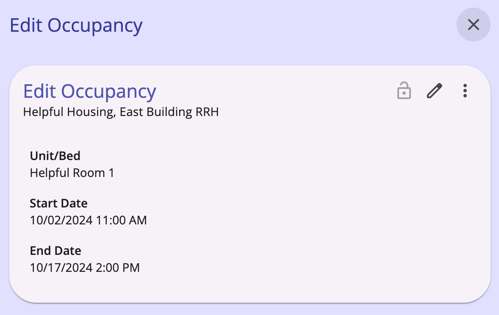
Clicking the Edit (pencil) icon in the top right makes the Start Date, Start Time, End Date, and End Time fields editable. The Privacy icon will also be editable.
If an occupancy was created automatically as a result of clicking Present for a reservation day related to the program, or as a result of providing an attendance service connected to the unit/bed within the client program:
- The occupancy details are read-only and cannot be edited or deleted.
- An i icon displays within the listing with the message:
"Occupancy managed with reservations."
Validation when editing occupancies in a closed program enrollment:
- If you enter an End Date that is after the Program Exit Date:
- The field is outlined in red.
- Error message:
"The End Date cannot be after the Program Exit Date" - You cannot save until the error is corrected.
- If you clear the Occupancy End Date and/or End Time fields:
- The field is outlined in red.
- Error message:
"This Program Enrollment has ended. Please provide an Occupancy End Date." - You cannot save until the error is corrected.
Validation when a pending referral exists:
If a pending referral is connected to the unit/bed, the End Date cannot be cleared or set later than the referral's Referred Date — regardless of whether the program enrollment is open or closed.
- The field is outlined in red.
- Error message: "This Unit/Bed has a pending referral. Please provide an End Date on or before the Referred Date."
- You cannot save until the error is corrected.
Marking occupancy records private when editing:
Occupancy records can be marked private by clicking on the Privacy icon in the Edit Occupancy modal.
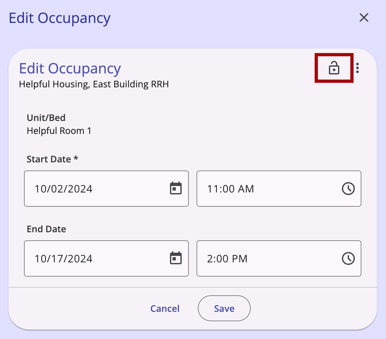
When an occupancy record is marked private, only users at the agency it belongs to can see it.
For more details on how to mark a client record private, refer to the Making Client Data Private (New Clarity Interface) article.
Note: Users with the Edit Enrollment-based Unit Records permission enabled in their access role (or the Edit Any Agency Enrollment-based Unit Records access right) can also edit a client's program-level unit/bed occupancy in the client-level Units/Beds tab. Refer to the Client Level Units/Beds Tab (New Clarity Interface) article.
Deleting Unit/Bed Occupancies
Users with the Delete Enrollment-based Unit Records permission enabled in their access role can delete a client's unit/bed occupancy. Clicking the Action Menu icon to the right of an occupancy and selecting Delete displays the following confirmation message:
"This record will be permanently deleted. Associated group member records will not be updated and may require manual changes."
Notes:
- If the occupancy record being deleted is connected to a completed unit referral (indicated by the Link icon), the referral remains in Complete status. The unit's occupancy status reverts to Pending Occupancy rather than reopening the referral.
-
Users with the Delete Enrollment-based Unit Records permission enabled in their access role (or the Delete Any Agency Enrollment-based Unit Records access right) can also delete a client's program-level unit/bed occupancy in the client-level Units/Beds tab. Refer to the Client Level Units/Beds Tab (New Clarity Interface) article.
Adding a Referral Connection
If the client already has unit referral(s) for the program, an Action Menu icon appears to the right of the Add (+) icon. Clicking it reveals an Add Referral Connection option (called "Add Unit Connection" in the current interface). This option appears only when the client has at least one referral to the program.
Single Referral: Single-form Modal
If there is only one unit/bed referral for the client that is not connected to the program, a single-form modal opens with the following:
- Bed, Unit, and Referral Date: displayed as read-only.
- Start Date and Start Time (required):
- If cleared, the field is highlighted in red with the message:
"This field is required." - If the Start Date is before the Referral Date, the message displays:
"The Start Date cannot be before the Referral Date." - End Date and End Time (not required unless the Program Enrollment has ended):
- If the program has ended and you attempt to save without an End Date, a pop-up warning displays:
"This Program Enrollment has ended. Please provide an Occupancy End Date." - Save: Saves the referral connection, dismisses the modal, and populates the connection in the Units/Beds tab table.
Multiple Referrals: Multi-step Modal
If more than one unit/bed referral exists for the client that is not connected to the program, the Add Referral Connection modal opens with a multi-step workflow.
Step 1: Select Referral
The unit/bed referrals made to the program are listed. Only occupancy records for units/beds related to the current program are shown. You can select only one occupancy record to connect; once you check one box, all others are grayed out. Save and Cancel buttons are available.
Step 2: Add Occupancy Details
- Bed, Unit, and Referral Date are displayed as read-only.
- Start Date and Start Time (required). By default, the start date is set to the Referral Date/Time (the Referred Date/Reassignment Date). You can set a later date, but not an earlier one.
- If the Start Date is before the Referral Date, the message displays:
"The Start Date cannot be before the Referral Date." - End Date and End Time:
- If the program enrollment has an Exit Date, the End Date and End Time default to the Program Enrollment Exit Date (End Time defaults to 12:00 PM) and are required.
- If the program does not have an Exit Date, these fields are blank by default and are not required.
- If the program has an Exit Date and you clear the End Date and/or End Time fields and click Save, the system displays:
"This Program Enrollment has ended. Please provide an Occupancy End Date." - Save and Cancel buttons are available.
Step 3: Confirmation
Confirms the workflow has been completed. A Complete button closes the modal.
Warning Messages
The following warnings appear in specific scenarios when adding a referral connection:
- Overlapping occupancy dates: "The selected Occupancy dates overlap with an existing occupancy starting <date/time> and ending <date/time>. Please choose a different date range."
- Conflict with a future offline or inactive period: "The Unit Start Date conflicts with a time period when this unit is Inactive from <date/time>. Please adjust unit dates as appropriate."
Pending Unit/Bed Occupancy Alert
When a unit/bed referral is made to a program for a client and the Housing Move-In Date and Initial Occupancy Start Date fields are left blank during program enrollment, an alert banner reading "Pending Unit/Bed Occupancy" (in red text with a red Warning (triangle !) icon) appears at the top of the client's profile page.
Clicking the alert opens the Units/Beds tab.
One Unconnected Referral
The user is navigated directly to the Units/Beds tab of the program to which the unconnected referral was sent, and the Add Referral Connection modal opens automatically with the Bed, Unit, and Referral Date details pre-populated as read-only.
Multiple Unconnected Referrals
The Select Program pop-up displays a list of programs with unit/bed referrals that have not yet been linked to the program. Each program name is listed with its Enrollment Start and End Dates (if applicable) and is clickable.
- Clicking a program navigates you to that program's Units/Beds tab, and the Add Referral Connection modal opens automatically.
- If there is more than one unconnected referral for the selected program, the referrals are listed on Step 1 (Select Referral), with each row displaying the Referred Bed, Referred Unit, and Referral Date, along with an unchecked checkbox to the left of each row.
- If there is only one unconnected referral for the selected program, you are directed to the single-form Add Referral Connection modal after making the program selection.
Audit Log
Clicking the Action Menu icon to the right of an occupancy, then selecting View Audit Log, opens the Audit Log, displaying a record of all changes to the occupancy. The View Audit Log option is visible only to users with the Audit Log permission enabled in their access role.
Updated: 09/11/2026