
Table of Contents
- Overview
- Running and Scheduling Reports
- Report Parameters
- Report Categories
- Drilldowns
- Privacy and Sharing in Reports
- Additional Resources
Overview
Reports in Clarity Human Services share a common set of basics: how you run and schedule a report, what the parameters mean, how drilldowns work, and how privacy and sharing settings shape what appears in a report.
This article applies to Report Library reports and client-level reports in Clarity Human Services.
Note: Bitfocus builds and maintains the reports in the Report Library. To build your own reports and dashboards, use Explore and Data Analysis. Refer to The Reports Module and Introduction to the Data Analysis Tool and Looker Resources.
Running and Scheduling Reports
You can run reports from the Report Library in the Reports module and from the Reports workspace in a client record. The steps are the same in both places.
Running a Report
- Find the report. In the Report Library, search or filter the Available Reports table. In a client record, open the Reports workspace.
- Select Run on the report’s row to open the parameter page.
- Set the parameters. Refer to the Report Parameters section of this article.
- Select Submit. The run appears in My Report Queue with a Processing status.
- When the status changes to Ready, select Open.
Note: You can open a Ready report only on the day it was processed. After that day, the run stays in My Report Queue as a record, and you can run the report again.
For full details, refer to Reports Module: Report Library and Client Reports.
Scheduling a Report
To run a report on a future date, schedule it.
- Select Schedule from the report row’s Action Menu.
- Choose a Scheduled Process Date. You can select only dates after today.
- Set the parameters, then select Submit.
Scheduled reports begin processing daily at 2:30 AM Pacific, on the date you selected. The run appears in My Report Queue with a Scheduled status.
Canceling a Scheduled Report
To cancel a scheduled report, open the run’s Action Menu in My Report Queue and select Delete. Confirm when prompted.
Report Parameters
Most reports ask for parameters. Select Run on a report to open its parameter page. Available parameters vary by report. These are the most common.
Choosing a CoC
Clarity Human Services can define a Continuum of Care (CoC) in several ways. These parameters control which CoC a report uses.
- CoC Filter Category: Choose how the report defines CoC: Agency, Program, Bed, or Site. Agency is the default. You can choose only one.
- CoC: Choose the CoC or CoCs to include. If your instance uses only one CoC, the report selects it by default.
- Apply Client Location filter: Select Yes to include only clients whose Head of Household has the selected CoC as the Client Location at project enrollment.
Note: If you choose Program, Site, or Bed as the CoC Filter Category, the CoC you select must also be selected on the Program, Site, or Bed Inventory screen.
Choosing Programs and Agencies
- Program Type: Choose the HMIS project types (Data Element 2.4) to include.
- Agency or Program Status: Narrow the report to All, Active, or Inactive agencies or programs. The status comes from the Agency or Program screen.
- Choose Agency(ies) or Program(s): Select the agencies or programs to include. The agency parameter is available only on Administrator Reports.
Setting the Report Start and End Dates
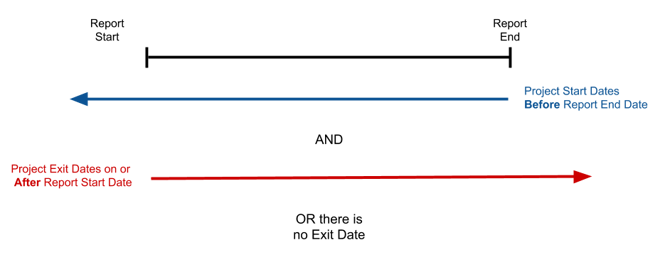
For reports based on program enrollments, the Report Start Date and Report End Date determine which enrollments the report includes.
A report includes an enrollment when both of these are true:
- The project start date is before the Report End Date.
- The project exit date is on or after the Report Start Date, or the enrollment has no exit date.
Selecting a Report Format
Most reports offer three formats in the Select Report Format parameter:
- Web Page: Opens in a new browser window.
- PDF: Downloads as a PDF file.
- Excel: Downloads as an Excel workbook you can use for further data exploration.
Refer to the Reports Module: Report Library article for more about opening and downloading results.
Report Categories
Reports are grouped into categories. Your system administrator controls which categories and reports you see. The default categories are:
- HUD Reports: Federal partner reports for HUD CoC, ESG, PATH, RHY, and SSVF projects.
- Housing: Reports that provide an overview of housing programs.
- Service-Based Reports: Reports run on service items.
- Administrator Reports: Visible only to system administrators by default.
- Program-Based Reports: Reports run on program enrollments.
- Agency Management: Reports on users and staff activity.
- Community and Referrals: Reports on referrals and Community Queues.
- Data Quality Reports: Reports that track data quality issues.
- Assessment-Based Reports: Reports for standalone and Coordinated Entry assessments.
- Profile Screen Reports: A report that provides details from a client's profile screen.
Notes:
- Only Administrator Reports can run for more than one agency, CoC-wide, or system-wide.
- If a system administrator adds an authorized access role to an Administrator Report, users with that role see the full report, including client names and dates of birth. Access to client records still depends on the user’s access role.
System administrators can change which reports each access role sees. Refer to System Advanced Options: Report Library.
Drilldowns
Most reports include drilldowns for reported client counts. A drilldown shows which clients are included in a count.
If you need a custom report, include the required drilldowns and layout in the report specifications when you request a quotation.
Using a Drilldown
- Run the report with the Web Page format.
- Hover over a count.
- If a drilldown is available, the cursor changes from an arrow to a pointing hand.
- Click the count.
- A separate tab or window opens with the drilldown report.
Reading a Drilldown Report
The drilldown report’s header shows the report title and which table and cell the drilldown covers. The body lists details about each client included in the count.
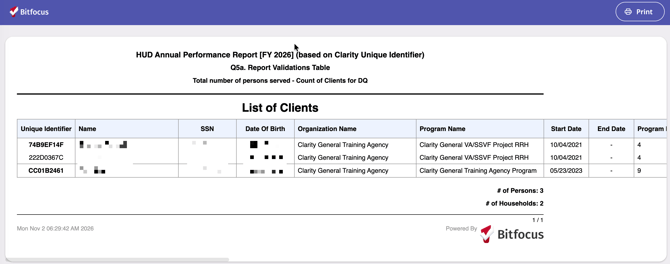
The example above comes from the [HUDX-227] Annual Performance Report.
Privacy and Sharing in Reports
Privacy and sharing settings control which client program data appears in Report Library reports. The rules differ for Administrator Reports and all other reports.
Administrator Reports
Administrator Reports have no privacy or sharing restrictions.
If a user’s access role or agency is authorized for an Administrator Report under SETUP > SETTINGS > Advanced Options > Report Library, the user inherits access to that report. Refer to System Advanced Options: Report Library.
All Other Reports
These rules apply to reports that are not in the Administrator Reports category.
Program options in the parameters. The options in the Program(s) parameter depend on the agencies you select in the Switch Access Agency(ies) parameter. The list includes only the programs at the selected agencies that are shared with you under the configured sharing settings, including departmental sharing and agency exceptions.
Enrollments included in the report. A client’s enrollment, and its associated data such as services provided within the enrollment, appears in the report when both of these are true:
-
The enrollment falls within the report date range you selected.
- You have permission to see the program enrollment in Clarity. This requires all of the following:
- Your access role has the appropriate access rights, such as History and Programs. System administrators see all client data regardless of privacy or sharing settings.
- The Client Privacy setting is not set to “Private.”
- The Make Program Private setting for the program enrollment is not enabled.
- The program enrollment is shared with you under the configured sharing settings, including departmental sharing and agency exceptions.
Note: If a client or enrollment is missing from a report, check each of the conditions above.
Additional Resources
- The Reports Module
- Reports Module: Report Library
- Client Reports
- System Advanced Options: Report Library
- Rights Glossary for Access Roles
- Introduction to Sharing Client Data
- Making Client Data Private
Published: 11/03/2026