
This feature is part of the November 2026 Feature Updates. The functionality described in the article will be available on training sites on October 20, 2026, and on production sites on November 3, 2026.
Table of Contents
Overview
The Report Library contains all Bitfocus-maintained reports developed using the Pentaho platform. To access the Report Library, open the Reports module from the primary navigation menu. The Report Library is the first item in the Reports module and loads by default if you have access to it.
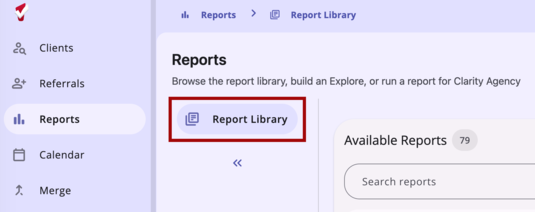
Note: Which reports display depends on the Report Library configuration established by system administrators. System administrators also control which users have access to reports based on Access Role.
Finding a Report
Rather than browsing category sections, the Report Library presents all reports you have access to in a single Available Reports table.
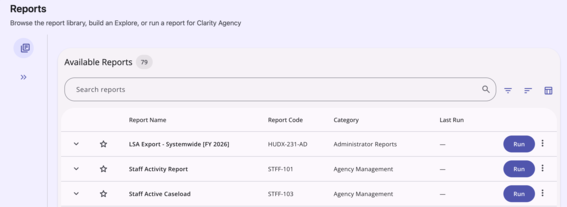
The table displays the following columns: Report Name, Report Code, Category, and Last Run. Each report has a Run action shown to the left on the report row.
- Search: Use the search field to find a report by name, report code, or category.
- Filter: Filter the table by Category or by Last Run date range.
- Sort: By default, the table sorts alphabetically by Category, then by Report Code. You can also sort by Report Name or Last Run.
- The table is paginated, showing 20 reports per page by default.
If your search or filters don't match any reports, the table displays a message letting you know.
Report Status Badges
You may see badges displayed below a report's Report Code. These badges provide a visual indicator of the report's status.

- BETA – The report is in BETA status. This label is typically reserved for federal reports that have had updated specifications, have already passed QA/testing, and were recently released. When this label is used, the report can be run and submitted for federal reporting initiatives. Updates may occur to this report while the label is attached, based on HUD guidance.
- In Development – The report is in production but still under development. Reports with this label may be limited to the System Agency/System Administrator roles and may return reporting errors while being actively worked on.
- In QA – The report is currently being tested by Bitfocus Quality Assurance staff.
- Retired – The report is no longer intended to be used for official purposes and will be removed from the Report Library soon.
Reports with an Active status do not display a badge.
Note: Reports labeled BETA, In Development, and In QA are fully functioning and usable. Reports labeled as In Development may be updated while the label is attached to improve logic.
Viewing a Report's Description
If a report has a description configured, an Expand (arrow) icon appears on the left side of its row.
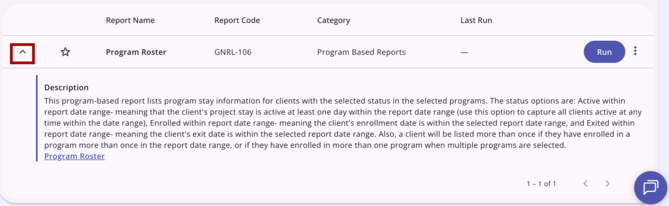
Selecting the Expand (arrow) icon reveals a summary of the report and, where available, a link to the report's associated Help Center article. Selecting the Help Center link opens the article in a new browser tab.
Running a Report
Select Run on any report row to open that report's parameter page.
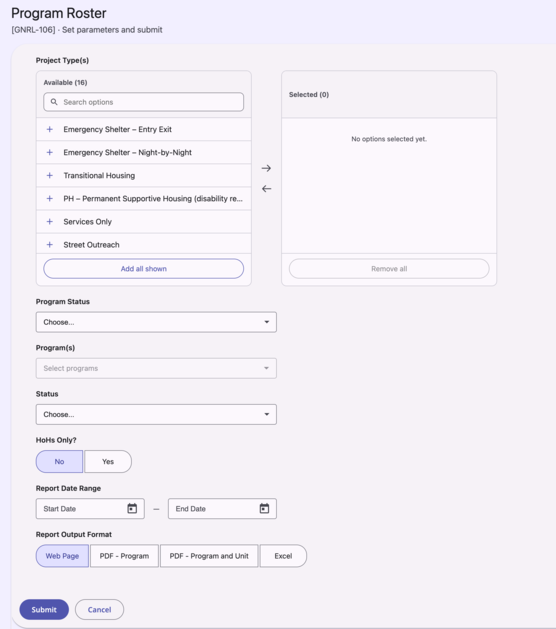
Fill in the report's parameters and select Submit. Once submitted, the report is added to the processing queue, and you're returned to the Report Library, where the run appears on your My Report Queue card (see the My Report Queue section for details). Select Cancel at any time to return to the Report Library without submitting.
If a required parameter is incomplete, or a date range is invalid, the page displays a field-level error and blocks submission until it's corrected.
If a report you already ran is still processing, its Run action is temporarily hidden until that run finishes; you won't be able to start a second run of the same report while one is in progress.
If a submission fails due to a system or network issue, you'll see a message letting you know the report couldn't be submitted and to try again. Your parameter selections stay in place, and Submit remains available so you can retry without re-entering anything.
Selecting Multiple Options in a Parameter
Parameters with 10 or more options (such as Agencies or Programs) use a dual-list selector instead of a multi-select box.
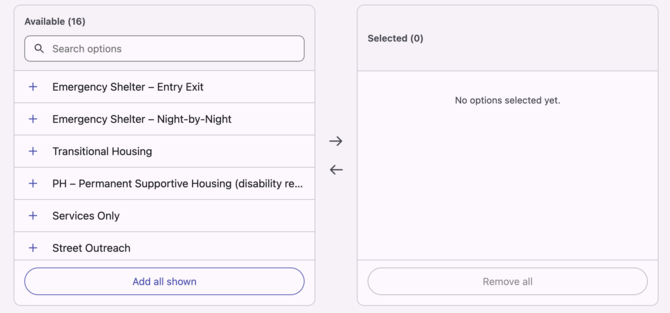
- Available options display on one side and your selected options on the other.
- Use the search field to filter the available options by name or ID.
- Move a single option, or all available options, into your selection; move them back the same way.
- A count of your current selections displays above the selected list.
- Hover or focus an option to see its full name if it's too long to display in full, along with its ID.
Scheduling a Report
To run a report on a future date rather than immediately, select Schedule from the Action Menu for a report row.

This opens the same parameter page as Run, with an additional Scheduled Process Date field.
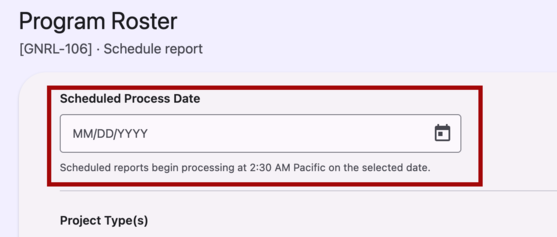
Scheduled reports begin processing daily at 2:30 AM Pacific, on the date you selected.
Favorite Reports
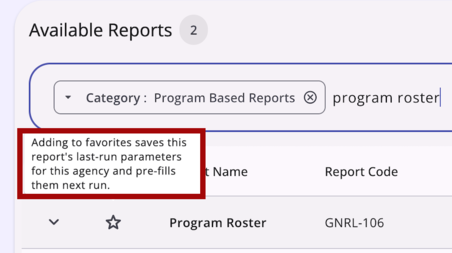
Mark a report as a favorite by selecting the Star icon on its row in the Available Reports table.
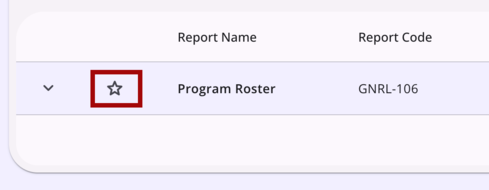
Favorited reports display in a Favorites card at the top of the Report Library. If you do not have any favorited reports, a Favorites card will not display.
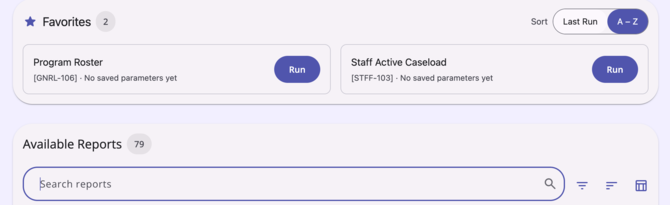
The Favorites card lists your favorited reports alphabetically by Report Name by default; you can switch the sort to Last Run. Each favorite shows the agency whose saved parameters are associated with it, along with a Run action. If the report has not been run yet when you add it to your favorites, a No saved parameters yet message displays.
Hover over the Star icon on the report row to see a tooltip explaining that favoriting a report saves its last-run parameters for your current agency and pre-fills them the next time you run it.
Parameters for Favorite Reports
The system stores the parameters you last used to run a favorited report and pre-populates them the next time you run it from the Favorites card. These saved parameters are specific to the agency you were switched into when you last ran the report.
The system clears saved report parameters in the following situations:
- After you haven't run the report for 120 days (the report remains favorited).
- When you change your Account Settings > Favorite Reports field. Refer to Staff Member Account Settings.
- When you remove the report from your favorites.
- When a System Administrator makes a Report Library settings configuration change and the report is no longer accessible to you.
Favorite Reports and Additional Agency Access
If you have Additional Agency Access, the Favorite Reports field in Account Settings controls whether your favorites display across all agencies or specific to the agency you're switched into.
- If set to Across All Agencies, removing a report from favorites removes it across all agencies.
- If set to Specific to Each Agency, removing a report from favorites removes it only for the agency you're currently switched into.
My Report Queue
The My Report Queue card shows your scheduled, in-progress, and completed report runs from the last 60 days.
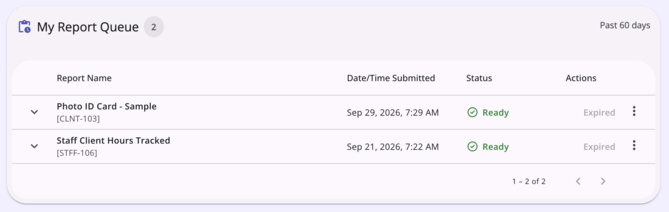
Each row displays the report name, the date and time submitted, and its status: Scheduled, Processing, Ready, or Failed. Select the Expand (arrow) icon on a row to see the parameters used for that run.
- If a run is Ready and processed today, an Open action is available.
- If a run is Ready but processed on an earlier date, results are no longer retrievable, though the run remains visible as history with its parameters viewable.
- Use a row's Action Menu to Run Again with the same parameters pre-populated, or to Delete the run from the queue. Run Again is not available while a run is still Processing.
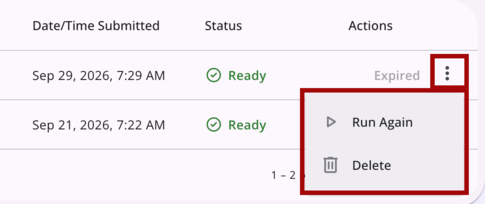
- Deleting a run prompts you to confirm before it's removed from the queue.
Statuses update automatically as runs progress; there's no need to refresh the page.
Checking Report Status
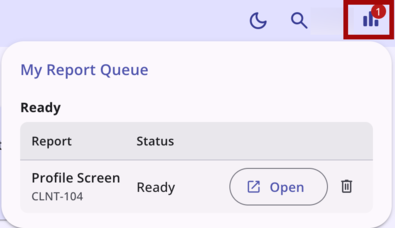
A global report status indicator, available from the primary Information bar, shows a combined count of your reports that are ready across both the Report Library and client-level Reports.
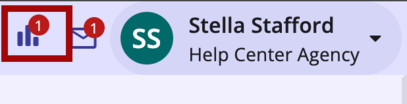
Clicking the indicator opens a list of your runs, allowing you to open or delete them without returning to the Report Library workspace.
Report Output
When you open a Ready report with Web Page output, it opens in a new browser window. The Web Page output also includes a Print option to print results or save as a PDF.
PDF and Excel output download directly to your device.
Note: Download issues may not be related to the report output itself and can instead be caused by restrictions or limitations imposed by the customer’s provider.
Published: 10/20/2026