
Release Schedule
-
All Training Sites: November 17, 2026
-
All Production Sites: December 1, 2026
Unless a specific feature entry notes otherwise, each update is available across all training and production sites on the release dates above.
Required Action for this Release:
This table lists the updates that need action from you or your team. Refer to each update’s entry in this article for full details; select an update name to jump to its entry.
|
Update |
Who Needs to Act |
Action Type |
What to Do |
|
System Administrators |
Required |
If there are mismatched program types within already configured UCTs, a Bitfocus team member will be in touch with the impact list and steps to align UCTs and program types.
Review access roles for Inventory management staff. The Agency Inventory - Add Agency Program access right has been retired. |
|
|
Customer Portal: Resource Directory Responsible Staff and Problem Notifications |
System Administrators |
Required |
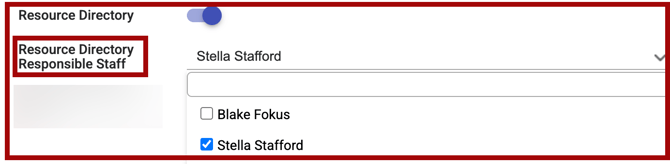
Assign a Resource Directory Responsible Staff if you use the Customer Portal Resource Directory. Go to Setup > Settings > Customer Portal. For the Resource Directory Responsible Staff setting, assign at least one user. If no one is assigned, clients can still submit reports, but no one is notified. |
Table of Contents
Clarity Human Services Updates
-
Customer Portal: Email and Text Message Notifications in Preferred Language
- Interoperability: Resource Directory Endpoints in the Clarity API
Data Analysis Updates
Additional Updates
Notes:
- Deployment: The updates described in this article will be deployed in the early morning hours on scheduled release days. During release, Clarity Human Services, the Report Library, and Data Analysis may experience performance delays. We recommend clearing your cache at your initial login if you are experiencing difficulty.
- Change logs: The 2026 Data Services Change Log and Known Issues and Data Analysis Upgrade Note articles are released separately. Report Library change log entries, such as logic changes, report output format changes, and field handling standardizations, are documented in the Change Log alongside Data Analysis entries.
Clarity Human Services Updates
Inventory: Update and Delete UCTs
✔️ Required Action
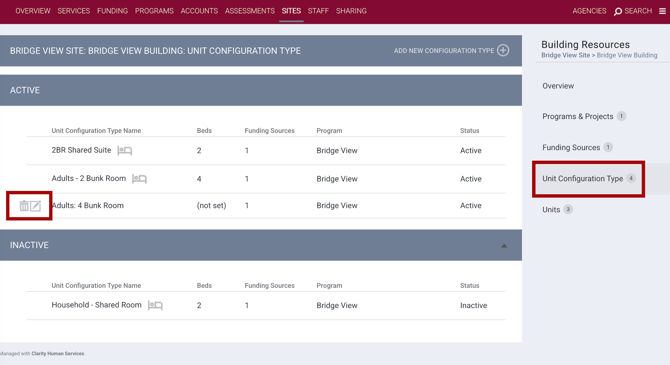
You can now delete a Unit Configuration Type (UCT) after it has been assigned to a unit, and you can change the program connected to a UCT. Previously, these corrections required a support ticket.
Highlights:
- Delete a UCT: The Delete icon appears for a UCT that is not the current configuration of any unit and has never had a recorded occupancy. If the UCT was assigned to units in the past, you can choose a replacement UCT for each unit to fill the gap in its Unit Configuration History.
- Delete a past connection: Delete a single past UCT connection from a unit’s Unit Configuration History, and choose a replacement UCT to cover those dates.
- Select a program on the UCT screen: New Agency and Program fields appear on the UCT screen. Project Type is now read-only and follows the connected program. You can change the program until the UCT has an occupancy.
- View active and inactive UCTs: The Unit Configuration Types page now separates Active and Inactive UCTs.
Access Rights
Deleting a UCT or a past connection, connecting a program when you add or change a UCT, or viewing a picklist of programs to link to a UCT is gated by Inventory access rights.
With this release, the Agency Inventory - Add Agency Program access right has been retired.
The Create Sites - Administrative and Housing Inventory Entities and Edit Sites - Administrative and Housing Inventory Entities access rights now control program connections to UCTs for the user's current agency. The Agency Inventory - Add Any Agency Program access right is still available. All access rights details are available in the article linked below.
Learn more in Managing Unit Configuration Types (UCTs).
Required Action:
- If there are mismatched program types within already configured UCTs, a Bitfocus team member will be in touch with the impact list and steps to align UCTs and program types.
- Review Access Roles for staff who connect programs to UCTs. The Agency Inventory - Add Agency Program access right has been retired.
Data Analysis: Unit Deleted Field
We updated the Project Descriptor Model to align with the Inventory: Update and Delete Unit Configuration Types update detailed above.
A new Unit Deleted dimension has been added to the model under the Inventory - Unit Configuration History view. This also affects the Inventory Model, which, by definition, filters out all the Unit Configuration History records of a deleted Unit.
|
Label |
Description |
LookML Field |
Type |
|
Unit Deleted |
If the tied Unit has been deleted. |
|
Yes/No |
Required Action: None.
Inventory: Redesigned Dashboard
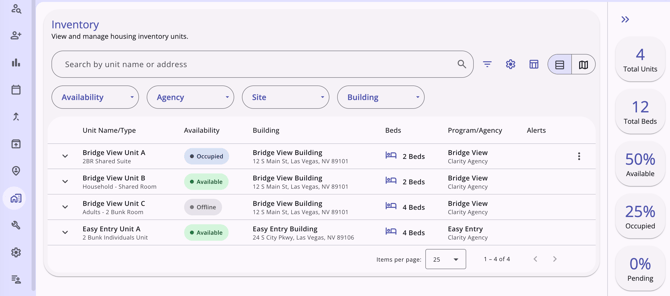
The Inventory dashboard design has been updated. The unit list, map, filters, search, bulk editing, and overnight drop-ins work on desktop and mobile. On mobile, the layout adjusts to fit smaller screens.
Highlights:
- Summary cards that count every unit that matches your search and filters.
- Search by unit name or address, or apply filters to narrow your search.
- Inactive has been added to the Availability filter, so you can find Inactive units.
- Three settings with simpler names:
Display only units with available beds is now Hide Unavailable Beds. Refresh Inventory when map position changes is now Refresh Inventory As I Move The Map.
- Bulk edit the custom fields of up to 200 units at once. Your selections stay when you change filters or pages.
- Add an overnight drop-in from a unit's Action Menu in the list or on the map.
Learn more in Inventory Dashboard.
Required Action: None. This change applies automatically, and no configuration is needed.
Inventory: Redesigned Unit Card
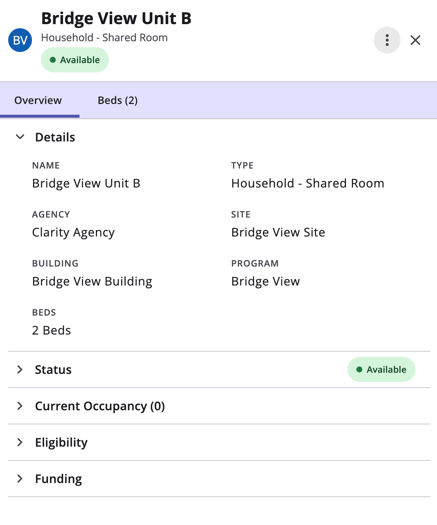
Unit Card design on the Inventory dashboard has been updated. Unit Cards now open as a side panel. One scrollable Overview replaces the six tabs of the previous Unit Card. Units with bed management also have a Beds (N) tab, where N = the number of beds.
Highlights:
- Overview sections for Details, Status, Current Occupancy, Eligibility, Funding, and More Information.
- Bed pages with the same sections, and Search beds in the Beds (N) tab.
- Change a unit's or bed's status from the card, including to Inactive and back to Active.
- Status history and occupancy history pages, with messages that explain when a new status overlaps an existing one.
- Add an overnight drop-in from the Action Menu on a unit or bed.
- An Add New Status button is now available on the Unit Status and Bed Status pages in Inventory setup, with Active as an option.
Learn more in Inventory Unit Cards.
Required Action: None. This change applies automatically, and no configuration is needed.
Customer Portal: Report a Problem in the Resource Directory
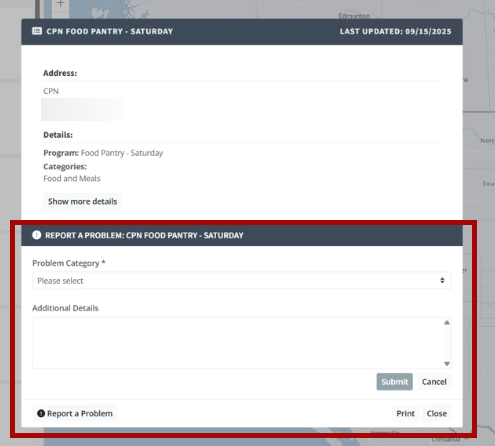
Client users of the Customer Portal can now report a problem with a resource in the Resource Directory. For example, a client can report a wrong address or a service that has closed. Reports go to the staff you choose.
Reporting a Problem
- In the Customer Portal, client users open the Resource Directory and select a resource from the list. The resource details appear. Clicking the resource on the map opens the same view.
- The client selects Report a Problem. The button is on the same line as Print and Close.
- In Problem Category, the client selects a category.
- Optional: Clients can type more information in Additional Details.
- The client selects Submit.
A temporary green bar reads "Your report has been submitted. Thank you!" If a problem occurs, a message reads "There was an issue submitting your report, please try again."
The client can select Cancel to close the form without sending a report.
Responsible Staff
You can assign a Resource Directory Responsible Staff in your Customer Portal settings to receive and review reports from client users. Jump to Customer Portal: Resource Directory Responsible Staff and Problem Notifications in this article for details.
Note: The buttons and labels appear in the client's language. Text that staff type, such as resource details, isn't translated. Jump to Customer Portal: Preferred Language Setting in this article for details.
Learn more in Reporting and Managing Resource Directory Problems.
Required Action: No configuration is needed for the feature to be available for communities that have enabled the Resource Directory for their Customer Portal. System Administrators must designate a staff member for the Resource Directory Responsible Staff setting to ensure someone is notified. Jump to Customer Portal: Resource Directory Responsible Staff and Problem Notifications in this article for details.
Data Analysis: Reported Problem Fields
We updated the Project Descriptor Model to align with the Customer Portal: Report a Problem in the Resource Directory update detailed above.
A new view, Resource Directory Reports, has been added to the model. The view exposes the following fields:
|
Label |
Description |
LookML Field |
|
ID |
The unique ID of the resource directory reported problem. |
|
|
Resource Name |
The name of the resource directory on which the problem is reported. |
|
|
Program Name |
The name of the program associated with the resource directory on which the problem is reported. |
|
|
Client ID |
The ID of the client/portal user reporting the problem with the resource directory. |
|
|
Problem Category |
The category of the resource directory's reported problem. |
|
|
Additional Details |
Additional details provided by the portal user in the resource directory's reported problem. |
|
|
Is Resolved |
Has the resource directory's reported problem been resolved? |
|
|
Assigned Staff per Resource |
The staff assigned to the resource directory's reported problem. |
|
|
Staff Resolving Reported Problem |
The staff who resolved the resource directory's reported problem. |
|
|
Added |
The date the resource directory's reported problem was added to the system. |
|
|
Last Updated |
The date the resource directory's reported problem was last updated. |
|
|
Count |
Number of problems reported. |
|
Required Action: None.
Customer Portal: Resource Directory Responsible Staff and Notifications
✔️ Required Action
System Administrators choose which staff receives the problems that clients report. Assigned staff receive a message in their Clarity Inbox and, if they have email notifications enabled, an email.
Assigning Resource Directory Responsible Staff
- Go to Setup > Settings > Customer Portal.
- In Resource Directory Responsible Staff, select the users who should receive reports.
What Staff Receive
- A message in the Clarity Inbox. The message includes the resource name, program name, client ID, problem category, additional details, and a link to the resource.
- An email, if the user has email notifications turned on. The subject line reads "Resource Directory - Problem Reported." The View Details button in the email links to the resource.
Editing the Problem Category List
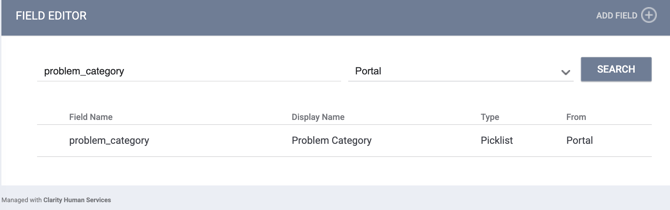
You can add custom categories and change the order of the default categories for the problem_category field in the Field Editor. The Portal category appears in the Field Editor when the Customer Portal is enabled.
Learn more in Reporting and Managing Resource Directory Problems.
Required Action: System Administrators must assign at least one user to Resource Directory Responsible Staff.
Optional: Review the Problem Category list and edit it to fit your community. The default list works without changes.
Customer Portal: Preferred Language Setting
Clients can now choose the language they want to use in the Customer Portal. When a client saves a language, the portal navigation and page headers switch to it right away. Staff can also set a client's language in the client record. See Client Profile: Preferred Language (Portal).
Client User Experience
The Customer Portal client user can choose their preferred language in their Profile settings.
- In the Customer Portal, the client user will click Profile.
- In the Preferences section, they will click Default language.
- They will select a language, then Save.
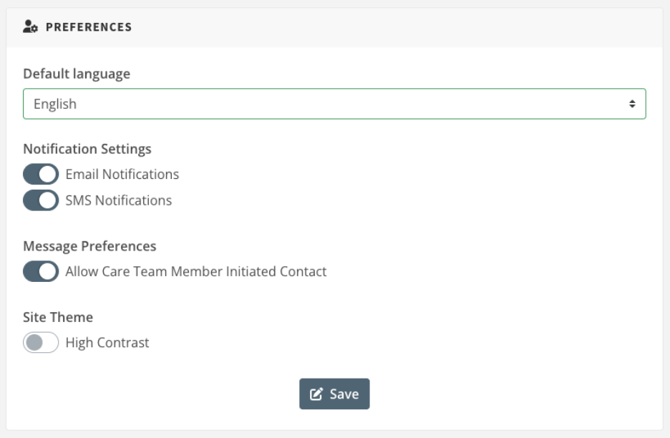
If no language has been chosen yet, the field shows Select. If the save fails, an error message appears, and the selection stays in the field.
Language Prompt After Login
If a client hasn't chosen a language, a pop-up asks them to choose one after they log in. The client can select a language and save it. The client can also select Maybe Later or click outside the pop-up to close it. The pop-up appears again at the next login until the client saves a language.
Supported Languages
The list includes English, Spanish, Chinese (Mandarin), Chinese (Cantonese), Tagalog (including Filipino), Vietnamese, Arabic, French, Korean, Portuguese, Russian, and Haitian Creole.
Note: The language setting changes what the Customer Portal itself displays, such as navigation and page headers. Text that staff enter isn't translated.
Learn more in Preferred Language and Translated Notifications.
Required Action: None. This change applies automatically, and no configuration is needed.
Customer Portal: Client Preferred Language (Portal) Field
The Profile workspace of a client record now has a Preferred Language (Portal) field for Customer Portal client users. Use it to see which language a client user uses in the Customer Portal. You can also set it for client users who can't update their own portal settings.
Setting a Client User's Language
For existing Customer Portal client users, you can update their preferred language field on their Profile.
- In Clarity, open the client record and select Profile on the client navigation menu.
- Click the Edit (pencil) icon to edit the client's profile information.
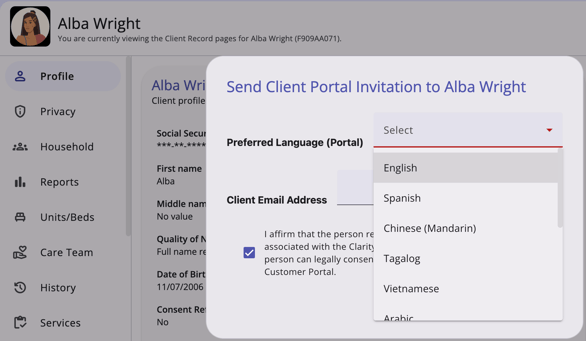
- In Preferred Language (Portal), select a language. The list shows each language in English, such as "Spanish" for "Español."
- Save your changes.
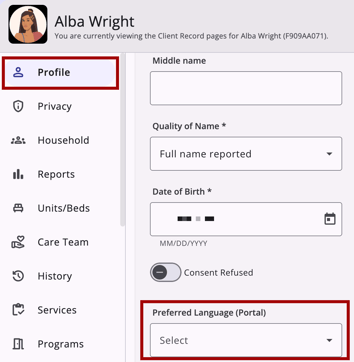
The field and the client user's portal settings stay in sync. A change you make in the client record appears in the client user's portal settings. A change the client user makes in the Customer Portal appears in the client record.
- The client's profile Audit Log shows where the language was updated.
- A label below the field shows who set the language last: (Staff-reported) or (Self-reported via Portal).
- The field appears only for clients who can use the Customer Portal.
You can also select the Preferred Language (Portal) when you send a portal invitation (if you know it). You need the Customer Portal Client Management access right to send portal invitations.
Learn more in Preferred Language and Translated Notifications.
Required Action: None. This change applies automatically, and no configuration is needed.
Customer Portal: Email and Text Message Notifications in the Preferred Language
Customer Portal emails and text messages (SMS) arrive in the language the client user chose as their Preferred Language. Before this update, these notifications were sent in English. This applies to the invitation email and to every system-triggered email and text message that Clarity sends to client users through the Customer Portal. It doesn't apply to notifications that Clarity sends to Clarity users.
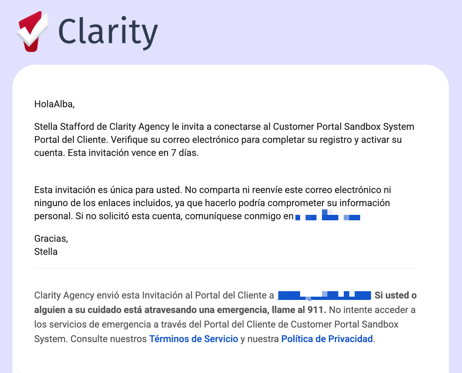
Client users choose their language in the Customer Portal, and Clarity users can set it in the client record. See Customer Portal: Preferred Language Setting.
- Emails are translated in full: the subject line, body, labels, and buttons.
- Text messages are translated in full.
- If the client user has no Preferred Language, Clarity sends the notification in English.
- If the client user changes their Preferred Language, every later notification uses the new language.
Learn more in Preferred Language and Translated Notifications.
Required Action: None.
Interoperability: Inventory Endpoints in the Clarity API
The Clarity API (REST) now includes Inventory endpoints. Your community can read the data shown on the Unit List, Summary Cards, and Unit Card, to keep inventory data in sync across systems.
Highlights:
- Unit list: A paginated list of units within the caller's Inventory Access, with each unit's name, Unit Configuration Type, availability, status start date, building, address, site, unit start date, program, agency, bed count, location, and custom unit fields. It accepts the same filters as the page.
- Availability summary: The counts shown on the summary cards, with the same filters.
- Units: The unit list now returns each unit's status and photo. You can also look up a single unit.
- Each unit: Photo, occupancy history, status history, eligibility, and funding.
- Each bed in a unit: Details, occupancy history, status history, and eligibility.
- Bulk requests: Make bulk requests of up to 200 records, with smaller limits for some writes.
Required Action: None. Using the endpoints is optional.
Interoperability: Resource Directory Endpoints in the Clarity API
The Clarity API (REST) now includes read-only Resource Directory endpoints. Your community can use them to show its Clarity resources in its own application, such as a community resource site, to providers who don't hold a Clarity license. The people who use that application never sign in to Clarity.
This update adds three read-only endpoints:
|
Endpoint |
What It Returns |
|
|
A paginated list of resources. |
|
|
One resource. |
|
|
An image from a resource's description. |
Highlights:
- The endpoints return published resources only: active entries within their Expiration Threshold, with a Record Type of Resource or Article & Resource.
- The list and the single-resource endpoint return the same fields, including contact details, location, and the formatted description.
- Show 20 resources per page by default, sort the list, and return only the fields you name.
- Images in a resource's description load with the same token.
- With
Accept: application/ld+json, each resource also includes its Clarity Data Standards type.
Note: The endpoints work only when the Customer Portal is enabled, and its Resource Directory module is turned on.
Required Action: None. Using the endpoints is optional.
Data Analysis Updates
Customer Portal Reporting: New Views and Fields
We added Customer Portal views and fields to the Project Descriptor Model and the Client Model. Use them to audit your portal setup, track invitations, monitor message activity, and see what clients supply through the portal.
Project Descriptor Model: Resource Directories View
The new Resource Directories view shows the resources in your Customer Portal Resource Directory. The following fields are available.
|
Label |
Description |
LookML Field |
|
ID |
The ID of the resource. |
|
|
Title |
The title of the resource. |
|
|
Record Type |
The type of resource. |
|
|
Display Dashboard |
Is the resource displayed in the resource directory dashboard. |
|
|
Status |
Is the resource 'Active' or 'Inactive'? |
|
|
Expiration Threshold |
The default length of time before the resource expires. |
|
|
Resource Categories |
The resource categories attached to the resource. |
|
|
Agency Name |
The name of the agency associated with the resource. |
|
|
Program Name |
The name of the program associated with the resource. |
|
|
Contact Person |
The name of the contact person for the resource. |
|
|
Contact Phone Number |
The phone number of the contact person for the resource. |
|
|
Contact Email Address |
The email address of the contact person for the resource. |
|
|
Website |
The website address associated with the resource. |
|
|
Description |
The description of the resource. |
|
|
Agency Creating |
The agency creating the resource. |
|
|
User Creating |
The user creating the resource. |
|
|
User Updating |
The user updating the resource. |
|
|
Added |
Date the resource was added to the system. |
|
|
Last Updated |
Date the resource was last updated in the system. |
|
|
Community Wide |
Is this a community-wide resource? |
|
The following fields appear in the Resource Directories view under the group label Location.
|
Label |
Description |
LookML Field |
|
Address |
Line 1 of resource address. |
|
|
Address2 |
Line 2 of resource address. |
|
|
City |
City of the resource address. |
|
|
State |
State of the resource address. |
|
|
Zipcode |
Zip code of the resource address. |
|
|
Country |
Country of the resource address. |
|
A new view, Customer Portal Settings, has been added, along with the following fields:
|
Label |
Description |
LookML Field |
|
Household Display |
Is the 'Household Display' toggled on under the Customer Portal page in the System Settings? |
|
|
Community Queue Status |
Is the 'Community Queue Status' toggled on under the Customer Portal page in the System Settings? |
|
|
Care Team Display |
Is the 'Care Team Display' toggled on under the Customer Portal page in the System Settings? |
|
|
Message Center |
Is the 'Message Center' toggled on under the Customer Portal page in the System Settings? |
|
|
Activity |
Is the 'Activity' toggled on under the Customer Portal page in the System Settings? |
|
|
Documents |
Is the 'Documents' toggled on under the Customer Portal page in the System Settings? |
|
|
Calendar |
Is the 'Calendar' toggled on under the Customer Portal page in the System Settings? |
|
|
Privacy |
Is the 'Privacy' toggled on under the Customer Portal page in the System Settings? |
|
|
Assessments |
Is the 'Assessments' toggled on under the Customer Portal page in the System Settings? |
|
|
Location |
Is the 'Location' toggled on under the Customer Portal page in the System Settings? |
|
|
Resource Directory |
Is the 'Resource Directory' toggled on under the Customer Portal page in the System Settings? |
|
|
Electronic ROI Enabled |
Is the 'Electronic ROI Enabled' toggled on under the Customer Portal page in the System Settings? |
|
|
Content Management System |
Is the 'Content Management System' toggled on under the Customer Portal page in the System Settings? |
|
|
Mass Message Send |
Is the 'Mass Message Send' toggled on under the Customer Portal page in the System Settings? |
|
|
Mass Request Send (Documents) |
Is the 'Mass Request Send (Documents)' toggled on under the Customer Portal page in the System Settings? |
|
|
Mass Request Send (Assessments) |
Is the 'Mass Request Send (Assessments)' toggled on under the Customer Portal page in the System Settings? |
|
|
Mass request Send (Location) |
Is the 'Mass request Send (Location)' toggled on iunder the Customer Portal page in the System Settings? |
|
|
Mass Request Send (Electronic ROI) |
Is the 'Mass Request Send (Electronic ROI)' toggled on under the Customer Portal page in the System Settings? |
|
|
Client Initiated Upload |
Is the 'Client Initiated Upload' toggled on under the Customer Portal page in the System Settings? |
|
|
Appointment Slots |
Is the 'Appointment Slots' toggled on under the Customer Portal page in the System Settings? |
|
|
Canceling Appointments From Portal |
Is the 'Canceling Appointments From Portal' toggled on under the Customer Portal page in the System Settings? |
|
|
ROI Expiration Notifications And Client-Initiated New ROI |
Is the 'ROI Expiration Notifications And Client-Initiated New ROI' toggled on under the Customer Portal page in the System Settings? |
|
|
Referral Notifications |
Is the 'Referral Notifications' toggled on under the Customer Portal page in the System Settings? |
|
|
Document Upload |
Is the 'Document Upload' toggled on under the Customer Portal page in the System Settings? |
|
|
Profile Photo Upload |
Is the 'Profile Photo Upload' toggled on under the Customer Portal page in the System Settings? |
|
|
Photos Require Approval |
Is the 'Photos Require Approval' toggled on under the Customer Portal page in the System Settings? |
|
A new view, Customer Portal Settings, underneath the Agency Customer Portal Settings drop-down, has been added, along with the following fields:
|
Label |
Description |
LookML Field |
|
Expired ROI Notification Frequency |
The default length of time before the roi notification frequency expires under the agency. Option is located on the Customer Portal page under the Sharing Settings. |
|
|
Customer Portal Youth Threshold |
The default length of time before the youth threshold expires under the agency. Option is located on the Customer Portal page under the Sharing Settings. |
|
|
Appointment Count |
Number of times an Appointment will occur under the agency. Option is located on the Customer Portal page under the Sharing Settings. |
|
|
Referral SMS/Email Notifications Frequency |
The default time referral SMS/Email notifications are sent under the agency. Option is located on the Customer Portal page under the Sharing Settings. |
|
A new view, Customer Portal Settings, underneath the CoC Override Customer Portal Settings drop-down, has been added, along with the following fields:
|
Label |
Description |
LookML Field |
|
Expired ROI Notification Frequency |
The default length of time before the roi notification frequency expires under the CoC. Option is located on the CoC Override section in Customer Portal page under the System Settings. |
|
|
Customer Portal Youth Threshold |
The default length of time before the youth threshold expires under the CoC. Option is located on the CoC Override section in Customer Portal page under the System Settings. |
|
|
Appointment Count |
Number of times an Appointment will occur under the CoC. Option is located on the CoC Override section in Customer Portal page under the System Settings. |
|
|
Referral SMS/Email Notifications Frequency |
The default time referral SMS/Email notifications are sent under the CoC. Option is located on the CoC Override section in Customer Portal page under the System Settings. |
|
A new view, Customer Portal Settings, has been added to the Project Descriptor model, along with the following fields:
|
Label |
Description |
LookML Field |
|
Default Client Agency |
The default agency of the Customer Portal in the System Settings. |
|
|
Default Client User |
The default user of the Customer Portal in the System Settings. |
|
|
Invite Expiration Threshold |
The default length of time before the invite to the Customer Portal expires in the System Settings. |
|
|
Enable for All Agencies |
Is the Customer Portal enabled for the System? Toggle is located on the Customer Portal page in the System Settings. |
|
|
Expired ROI Notification Frequency |
The default length of time before the roi notification frequency expires. Option is located on the Customer Portal page in the System Settings. |
|
|
Customer Portal Youth Threshold |
The default length of time before the youth threshold expires. Option is located on the Customer Portal page in the System Settings. |
|
|
Invitation Reminder Count |
Number of times an invitation reminder will occur. Option is located on the Customer Portal page in the System Settings. |
|
|
Appointment Count |
Number of times an Appointment will occur. Option is located on the Customer Portal page in the System Settings. |
|
|
Location Update Threshold |
The default length of time before the location threshold updates. Option is located on the Customer Portal page in the System Settings. |
|
|
Invitation Reminder Frequency |
The default length of time before the invite reminder frequency expires. Option is located on the Customer Portal page in the System Settings. |
|
|
Referral SMS/Email Notifications Frequency |
The default time referral SMS/Email notifications are sent. Option is located on the Customer Portal page in the System Settings. |
|
|
Disable Inactive Clients |
The default time to disable inactive clients. Option is located on the Customer Portal page in the System Settings. |
|
|
Disable Inactive Clients Warning |
The default time the warning to disable inactive clients. Option is located on the Customer Portal page in the System Settings. |
|
|
Delete Portal User Accounts |
Is the 'Delete Portal User Accounts' toggled on under the Customer Portal page in the System Settings? |
|
|
Automatically Delete Portal User Accounts Threshold |
The default length of time before the automatically deleting the Customer portal user account threshold. |
|
|
Profile Photo Upload Requirements |
The requirements of uploading a profile photo to the Customer Portal in the System Settings. |
|
|
Resource Directory Responsible Staff |
The default responsible user of the Resource Directory under the Customer Portal in the System Settings. |
|
A new view, Customer Portal Settings, underneath the CoC Override Customer Portal Settings drop-down, has been added to the Project Descriptor model, along with the following fields:
|
Label |
Description |
LookML Field |
|
Expired ROI Notification Frequency |
The default length of time before the roi notification frequency expires under the CoC. Option is located on the CoC Override section in Customer Portal page under the System Settings. |
|
|
Customer Portal Youth Threshold |
The default length of time before the youth threshold expires under the CoC. Option is located on the CoC Override section in Customer Portal page under the System Settings. |
|
|
Appointment Count |
Number of times an Appointment will occur under the CoC. Option is located on the CoC Override section in Customer Portal page under the System Settings. |
|
|
Referral SMS/Email Notifications Frequency |
The default time referral SMS/Email notifications are sent under the CoC. Option is located on the CoC Override section in Customer Portal page under the System Settings. |
|
A new view, Customer Portal Settings, underneath the Agency Customer Portal Settings drop-down, has been added to the Project Descriptor model, along with the following fields:
|
Label |
Description |
LookML Field |
|
Expired ROI Notification Frequency |
The default length of time before the roi notification frequency expires under the agency. Option is located on Customer Portal page under the Sharing Settings. |
|
|
Customer Portal Youth Threshold |
The default length of time before the youth threshold expires under the agency. Option is located on the Customer Portal page under the Sharing Settings. |
|
|
Appointment Count |
Number of times an Appointment will occur under the agency. Option is located on the Customer Portal page under the Sharing Settings. |
|
|
Referral SMS/Email Notifications Frequency |
The default time referral SMS/Email notifications are sent under the agency. Option is located on the Customer Portal page under the Sharing Settings. |
|
Client Model: Customer Portal Invitations View
The new Customer Portal Invitations view on the Client Model shows the invitations sent to clients. The following fields are available:
|
Label |
Description |
LookML Field |
|
ID |
The ID number of the customer portal invitation record. |
|
|
|
The customer email associated with the customer portal invitation. |
|
|
Status |
The status of the customer portal invitation. |
|
|
Added |
The date the customer portal invitation was added to the system. |
|
|
Last Updated |
The date the customer portal invitation was last updated in the system. |
|
|
User Creating |
The user creating the customer portal invitation. |
|
|
User Updating |
The user updating the customer portal invitation. |
|
|
Agency Name |
The agency creating the customer portal invitation. |
|
The new Customer Portal Messages view shows messages exchanged between Clarity users and clients through the portal. The view joins to clients on Client ID, so each client row can show that client's portal messages. It is available only from the Client Model explore.
|
Label |
Description |
LookML Field |
|
Message ID |
ID of the portal message. |
|
|
Conversation ID |
Identifier shared by every message of one portal conversation (a UUID). A conversation always involves a single client. |
|
|
Replied-To Message ID |
ID of the message this one replies to, in the same conversation. Empty when the message is not a reply. |
|
|
Provider User ID |
ID of the Clarity user (provider) taking part in the conversation - the sender of provider messages and the recipient of client messages. |
|
|
Provider Username |
Username of the Clarity user (provider) taking part in the conversation - the sender of provider messages and the recipient of client messages. |
|
|
Direction |
Who sent the message to whom: Provider to Client, or Client to Provider. |
|
|
Message Type |
'Mass' when a provider sent the message as part of a mass message, 'Individual' otherwise - every client message, and provider messages written to a single client. |
|
|
Read by Recipient |
Has the recipient read the message? The client for 'Provider to Client' messages or the provider for 'Client to Provider' messages. |
|
|
Deleted |
'Yes' when the message was deleted by the provider, by the client, or by both. |
|
|
Message Text |
Text of the message. Sensitive: shown only to users allowed to see sensitive data. |
|
|
Added |
When the message was sent. |
|
|
Last Updated |
The message last updated. |
|
|
Responded |
When the other side first answered the message: the first later message of the conversation sent the other way. Empty while unanswered. |
|
|
Count Messages |
Count of portal messages. |
|
New dimensions have been added to the Client Assessments, Client Files, and Client Addresses views, showing whether an assessment, client file, or address was supplied by the client via the portal and, for assessments and client files, whether it was supplied for a completed request or client-initiated. They are available only from the Client Model explore.
|
View Label |
Group Label |
Label |
Description |
LookML Field |
|
Client Assessments |
Customer Portal |
Supplied via Portal |
Whether the assessment was supplied by the client via the portal. |
|
|
Client Assessments |
Customer Portal |
Portal Supply Origin |
For assessments supplied via the portal, whether it was supplied for a completed request or client-initiated. |
|
|
Client Files |
Customer Portal |
Supplied via Portal |
Whether the client file was supplied by the client via the portal. |
|
|
Client Files |
Customer Portal |
Portal Supply Origin |
For client files supplied via the portal, whether it was supplied for a completed request or client-initiated. |
|
|
Client Addresses |
Customer Portal |
Supplied via Portal |
Whether the address was supplied by the client via the portal. |
|
The following dimensions are exposed under the Client View in the Client Model.
|
Label |
Description |
LookML Field |
|
Profile Photo Source |
Is the client's profile photo uploaded via Clarity or Client Portal? |
|
|
Profile Photo Status |
The acceptance status of the client's profile photo uploaded via 'Client Portal'? |
|
The following dimensions are exposed under the Client Contact View in the Client Model.
|
Label |
Description |
LookML Field |
|
Client Supplied Contact Type |
Is 'Client Supplied' option selected under the contact's 'Client Type'? |
|
|
Source |
Is the client's address location photo uploaded via Clarity or Customer Portal? |
|
The following dimensions are exposed under the Client Addresses View in the Client Model.
|
Label |
Description |
LookML Field |
|
Photo Source |
Is the client's address location photo uploaded via Clarity or Customer Portal? |
|
Required Action: None.
Additional Updates
Reports: [HUDX-224-AD] PATH Annual Report
An update has been made to the Data Quality Check for the fields suggested for use in building a report to identify PATH Date of Status Determination errors.
The Data Quality Check for the Looker fields (under step #4 in the article linked below) check across the screens for:
- Duplicate dates (multiple dates; multiple of same date is not flagged).
- Date Data Quality Checks where it checks to see if the date is before Project Start Date/after Exit Date.
The Pentaho Report logic pulls data from the screen using the latest information based on the program date, screen type, and ID fields.
Required Action: None.
Article Updates: This update is live in all training and production sites as of 11/04/2026. The following article has been updated:
We Welcome Your Ideas
We encourage you to suggest improvements and new features for our products. You can create feature suggestions or vote, watch, and comment on existing suggestions at ideas.bitfocus.com. Refer to our Feature Suggestions article for additional details.
Published: 11/10/2026