
This feature is part of the December 2026 Feature Updates. The functionality described in the article will be available on training sites on November 17, 2026, and on production sites on December 1, 2026.
Table of Contents
Overview
Client users of the Customer Portal can choose their preferred language. Clarity then shows the portal navigation and page headers in that language and sends the invitation, system emails, and text messages in that language as well. This article explains how client users and Clarity users set the language and what Clarity translates.
How Preferred Language Works
- A client user can set it in the Customer Portal. A Clarity user can set it in the client record.
- A change in one place appears in the other.
- If no language is set, Clarity uses English.
- Clarity translates only the text it generates. Text that Clarity users write isn't translated.
Clarity User Experience
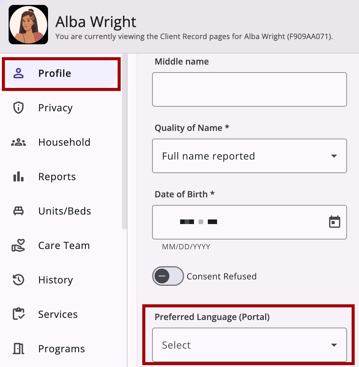
The Profile workspace of a client record now has a Preferred Language (Portal) field for Customer Portal client users. Use it to see which language a client user uses in the Customer Portal. You can also set it for client users who can't update their own portal settings.
Setting a Client User's Language
For existing Customer Portal client users, you can update their preferred language field on their Profile.
- In Clarity, open the client record and select Profile on the client navigation menu.
- Click the Edit (pencil) icon to edit the client's profile information.
- In Preferred Language (Portal), select a language. The list shows each language in English, such as "Spanish" for "Español."
- Save your changes.
Sending a Portal Invitation in the Client User's Language
The field and the client user's portal settings stay in sync. A change you make in the client record appears in the client user's portal settings. A change the client user makes in the Customer Portal appears in the client record.
- The client's profile audit log shows where the language was updated.
- A label below the field shows who set the language last: (Staff-reported) or (Self-reported via Portal).
- The field appears only for users who have access to the Customer Portal.
You can also select the Preferred Language (Portal) when you send a portal invitation. You need the Customer Portal Client Management access right to send portal invitations.
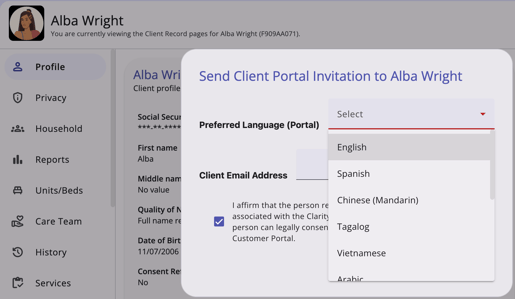
For Customer Portal client users, you can update their preferred language field on their Profile.
- In Clarity, open the client record and select Profile on the client navigation menu.
- Click the Edit (pencil) icon to edit the client's profile information.
- In Preferred Language (Portal), select a language. The list shows each language in English, such as "Spanish" for "Español."
- Save your changes.
Translated Emails and Text Messages
Clarity sends each system-triggered email and text message to a client user in their Preferred Language. This applies to notifications that Clarity sends to client users through the Customer Portal. It doesn't apply to notifications that Clarity sends to Clarity users.
- Emails are translated in full: the subject line, body, labels, and buttons.
- Text messages are translated in full.
- If the client user has no Preferred Language, Clarity sends the notification in English.
- If the client user changes their Preferred Language, every later notification uses the new language.
What Isn't Translated
Clarity translates only the text it generates. Text that a Clarity user writes stays in the language in which it was written.
For example:
- When you send an assessment request, the system notification the client user receives is in their Preferred Language. The assessment itself is in English, unless you have already translated it.
- When you send a message, the system notification the client user receives is in their Preferred Language, but the message in their inbox is in the language you wrote it in.
Tip: If your client users read different languages, write custom text in their respective languages using a translation device or service.
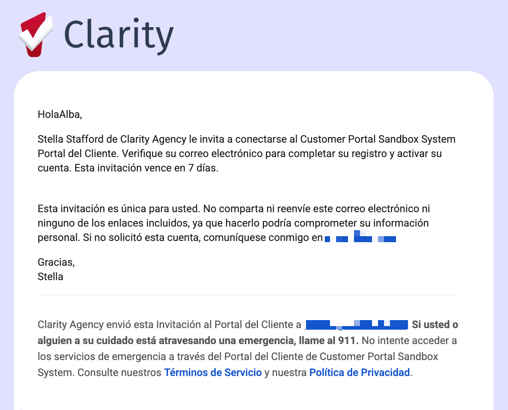
Here is an example of a system-generated Customer Portal invitation, in Spanish.
Audit Log
The client's Profile audit log shows when the language changed and where it was updated: in Clarity or in the Customer Portal.
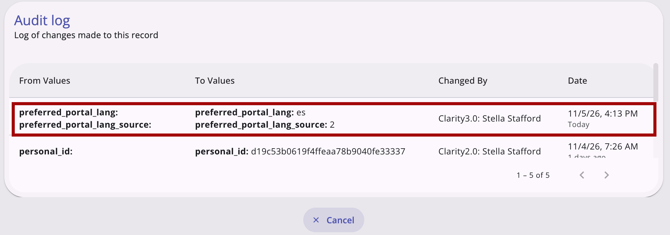
System Administrators with the Audit Log access right can view audit logs throughout the system. Refer to Rights Glossary for Access Roles for details on access rights.
To open the audit log, click the Action Menu (three dots) icon in the upper-right corner of the client's Profile workspace, then select View Audit Log.
Client User Experience
Clients can choose the language they want to use in the Customer Portal. When a client saves a language, the portal navigation and page headers switch to it right away. Staff can also set a client's language in the client record.
Choosing a Language in Profile Settings
The Customer Portal client user can choose their preferred language in their Profile settings.
- In the Customer Portal, the client user will click Profile.
- In the Preferences section, they will click Default language.
- They will select a language, then Save.
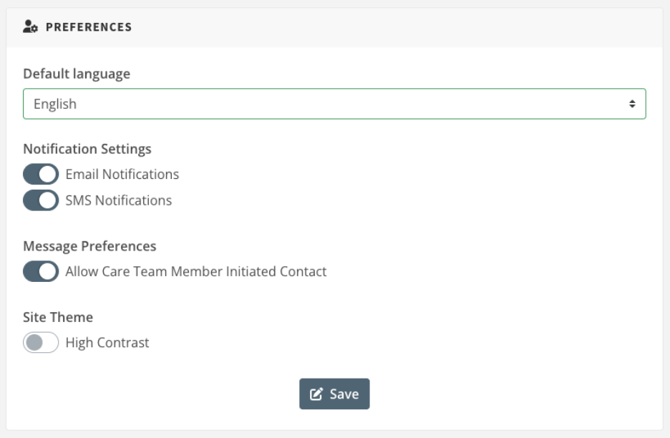
When the client user saves a language, the portal navigation and page headers switch to it right away. If no language has been chosen yet, the field displays Select. If the save fails, an error message appears, and the selection stays in the field.
Language Prompt After Login
If a client user hasn't chosen a language, a pop-up asks them to choose one after they log in. The client user can select a language and save it. The client user can also select Maybe Later or click outside the pop-up to close it. The pop-up appears again at the next login until the client user saves a language.
Supported Languages
The list includes:
- English
- Español - Spanish
- 普通话 - Chinese (Mandarin)
- 廣東話 - Chinese (Cantonese)
- Tagalog - Tagalog (incl. Filipino)
- Tiếng Việt - Vietnamese
- العربية - Arabic
- Français - French
- 한국인 - Korean
- Português - Portuguese
- Pусский - Russian
- Kreyòl Ayisyen - Haitian Creole
In the Customer Portal, each language appears in its own name, such as "Español." In Clarity, languages appear in English, such as "Spanish."
What the Customer Portal Translates
The language setting changes what the Customer Portal itself displays, such as navigation and page headers. Text that Clarity users enter isn't translated. This includes resource details, messages, and assessment content.
Additional Resources
- Customer Portal: Account Management
- Customer Portal: Mass Sending
- Customer Portal: Sending Messages
- Customer Portal: Sending Requests
- Rights Glossary for Access Roles
- System Advanced Options: Customer Portal
Published: 11/10/202