
Note: This feature is part of the December 2026 Feature Updates. The functionality described in the article will be available on training sites on November 17, 2026, and on production sites on December 1, 2026.
Table of Contents
Overview
Client users of the Customer Portal can report a problem with a resource in the Resource Directory, such as a wrong address or a service that has closed. This article explains how System Administrators choose who receives the reports, how Clarity users respond, and what client users see.
How Problem Reports Work
-
A client user selects a resource in the Customer Portal, selects Report a Problem, chooses a Problem Category, and submits the report.
-
Clarity sends a message to each user in Resource Directory Responsible Staff. The message appears in the Clarity Inbox. Users with email notifications enabled also receive an email.
- A Clarity user opens the resource and updates the listing if needed.
- The Clarity user sends the client user a message to say the problem is fixed. Clarity doesn't send this message for you.
Customer Portal Settings
If the Resource Directory is enabled, client users can report a problem at any time. System Administrators decide who receives the reports.
Note:
-
If no one is assigned as a Resource Directory Responsible Staff, client users can still submit reports, but no one will be notified.
-
A new view and fields were exposed to track reports. Jump to Viewing Reports in Data Analysis for more information.
Assigning Resource Directory Responsible Staff
- Go to Setup > Settings > Customer Portal. Refer to System Advanced Options: Customer Portal.
- For the Resource Directory Responsible Staff field, select the users who should receive reports. You can select more than one.
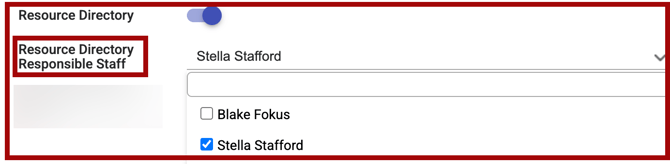
Keep these rules in mind:
- Only active, individual users within the agency can be assigned to the Resource Directory Responsible Staff field.
- The user must have the Admin role type, or the Manager role type with the Resource Directory and Create Resource Directory access rights enabled. Refer to
- Users who are deleted or inactive don't appear in the list of available users for the field.
Changes to this setting appear in the Customer Portal settings audit log.
Editing the Problem Category List
- Go to Setup > Field Editor.
- Open the Portal category and select the Problem Category field. The Portal category appears when the Customer Portal is enabled.
- Add a custom category, or change the order of the categories.
The default list works without changes. For more about fields, see Creating and Editing Fields.
Clarity User Experience
When a client user submits a report, each user assigned in the Resource Directory Responsible Staff setting receives a message in their Clarity Inbox and, if email notifications are enabled, an email notification.
What the User Receives
- A message in their Clarity Inbox. See The Staff Inbox and Secure Messaging.
- An email, if they have email notifications turned on. The subject line reads "Resource Directory - Problem Reported." The View Details button in the email links to the resource.
The message includes:
|
Item |
What It Shows |
|
Resource name |
The name of the resource the client user reported. |
|
Program name |
The program the resource belongs to. |
|
Client ID |
The unique identifier of the client user who reported the problem. |
|
Problem category |
The category the client user selected. |
|
Additional details |
Any text the client user typed. |
|
Link |
A link to the resource. |
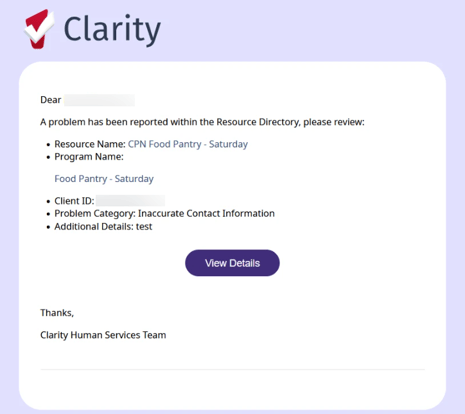
Note: The message and the email include the client user's unique identifier.
Reviewing the Resource
When the user receives the message or email, they can:
- Select the link in the Inbox message, or select View Details in the email, to open the resource.
- Check the problem the client user described.
- If the listing needs a change, update the record (if they have the Edit Resource Directory permission).
Letting the Client User Know
To inform the client user that the problem has been resolved, send them a message through the Customer Portal. See Customer Portal: Sending Messages.
Client User Experience
This section describes what client users see in the Customer Portal.
Reporting a Problem
- The client user opens the Resource Directory in the Customer Portal and selects a resource from the list or the map. Both open the same resource details pop-up.
- The client user selects Report a Problem. The button is aligned with Print and Close. The pop-up expands to show the report form.
- In Problem Category, the client user selects a category.
- The client user can enter more information in the Additional Details text box.
- The client user selects Submit.
- Submit becomes available after a Problem Category is selected.
A temporary green bar reads "Your report has been submitted. Thank you!" If a problem occurs, a message reads "There was an issue submitting your report, please try again." If the client user selects Cancel, the form closes, and no report is sent.
Problem Categories
Client users choose from these default categories:
- Inaccurate Contact Information
- Hours are wrong or outdated
- Service is no longer available
- Service is temporarily closed
- Duplicate listing
- Other (please describe below)
System Administrators can add custom categories. See Editing the Problem Category List.
Language
The buttons and labels on the form can appear in the client user's selected language. Text that Clarity users type isn't translated. This includes the resource details and any custom categories. Refer to [new resource].
Viewing Reports in Data Analysis
A new view, Resource Directory Reports, has been added to the Project Descriptor model to assist with tracking client user reports. The new view and fields are listed in the Clarity Human Services: December 2026 Feature Updates article.
Additional Resources
- Creating and Editing Fields
- Customer Portal: Resource Directory
- Customer Portal: Sending Messages
- Rights Glossary for Access Roles
- System Advanced Options: Customer Portal
- System Advanced Options: Resource Directory
- The Staff Inbox and Secure Messaging
Published: 11/10/2026