
This article is for the new Clarity interface. Screenshots and descriptions will be updated as features are released. For the current interface article, see Unit Queue for End Users.
Table of Contents
Overview
The Unit Queue is available in the new Clarity interface to show available units, determine client eligibility, and reassign referrals to Units/Beds for individuals and households.
For information on configuring the permissions and settings for this function, refer to the Unit Queue settings article.
Accessing the Unit Queue
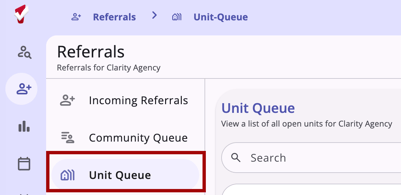
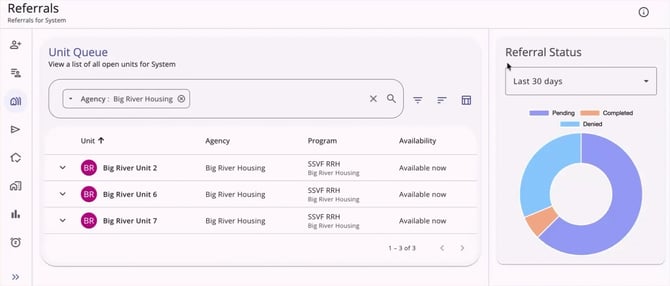
To access the Unit Queue, navigate to the global Referrals navigation menu and select Unit Queue.
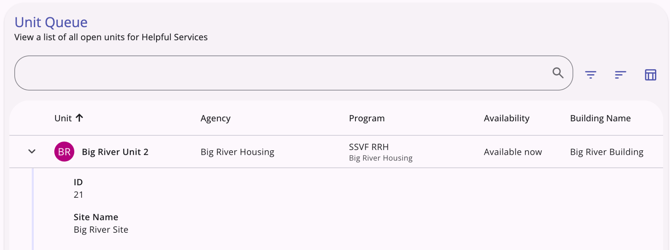
The main content area displays a list of units.

Each row displays the Unit name/Unit number, Agency name, Program name, Availability, Building Name, and Site Name.
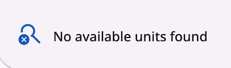
If no units meet your current filter criteria, the system will display the message:
"No available units found."
Filtering Units
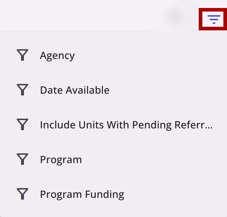
The unit list includes robust filtering and sorting capabilities. The available filters are:
- Agency
- Date Available: Defaults to today’s date. Selecting a date/time will filter for units available from that point onward.
- Include Units with Pending Referrals: Set to No by default.
- Program
- Program Funding
For more information on using filters, refer to the Client Record Overview (New Clarity Interface) article.
Sorting Units
Users can sort the list alphabetically by:
- Availability
- Agency
- Program
- Building
For more information on using sorting, refer to the Client Record Overview (New Clarity Interface) article.
Column Selector
A Column Selector is available for the Unit Queue to support a customized view. The columns available are:
- Unit
- Agency
- Program
- Building Name
- Site Name
For more information on how to use column selectors, refer to the Client Record Overview (New Clarity Interface) article.
Availability Logic
The Availability column reflects the following logic based on the Date Available filter. If the unit has an occupancy as of the Date Available and there is an End Date in the future, the Availability column shows Available on [Occupancy End Date].
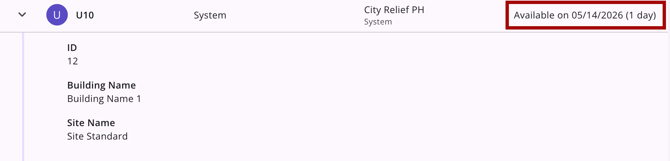
If the unit is available as of the Date Available, but has a future occupancy, the Availability column shows Available Until [Occupancy End Date].
Referral Status Overview
On the right side of the screen, a Referral Status card visualizes the breakdown of referral statuses (Pending, Completed, Denied, and Pending - In Process).
- Date Range: Defaults to Last 30 days.
- Additional options are: This Month, This Quarter, This Year, Last Month, Last Quarter, Last Year.
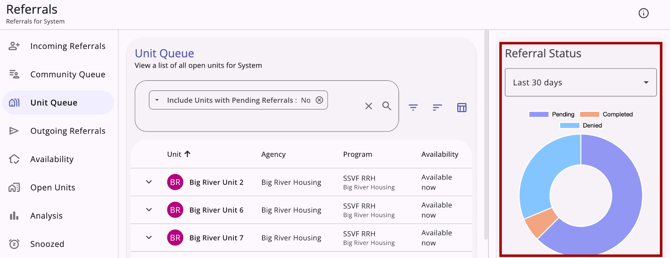
The chart and color-coded legend update automatically when a new date range is selected.
Click the Information (i) icon to hide the Referral Status card. Click the Information (i) icon again to display it.
Selecting a Unit and Determining Eligibility
Click anywhere on a specific unit’s row to open the Reassign to Unit modal on the right side of the screen to begin the referral process.
Select from Unit Queue (If Applicable)
If beds are enabled for the unit, Select from Unit Queue shows as the first step. You must select a bed to click Next.
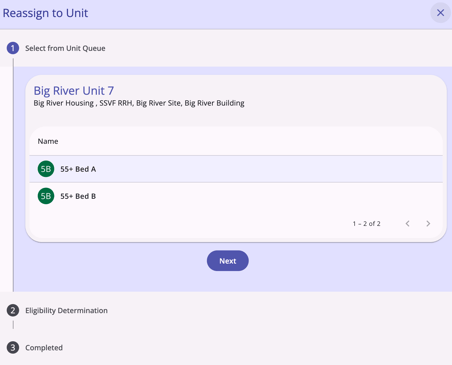
If no beds are configured, the system skips directly to Eligibility Determination.
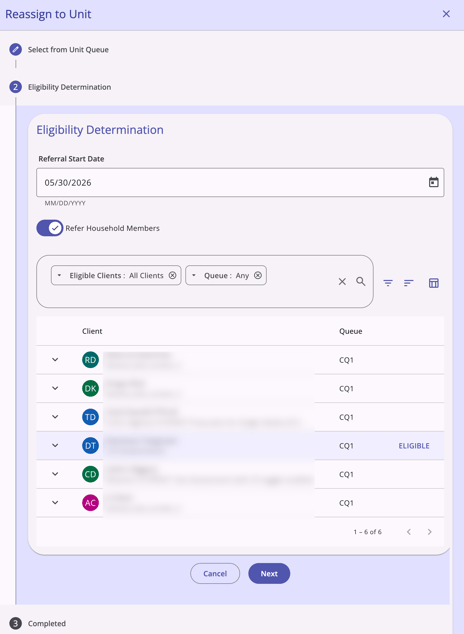
Eligibility Determination
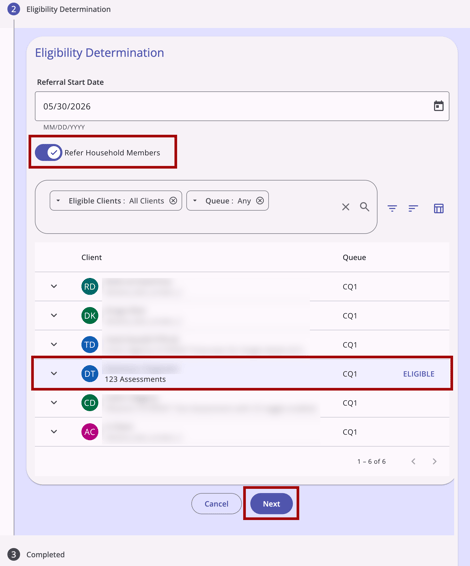
In the Eligibility Determination step, you will identify the client to be referred.
- Referral Start Date: Enter the date the referral begins.
- Refer Household Members: This toggle only appears if there is more than one available bed in the unit.
- Client Search: Use the search bar to find a client by name or filter the list using Community Queue criteria.
- Community Queue: Any and Eligible Clients: All Clients are filtered by default. Click the Remove icon to remove one or both of the default filters.
- Community Queue: Any and Eligible Clients: All Clients are filtered by default. Click the Remove icon to remove one or both of the default filters.
The Client Table
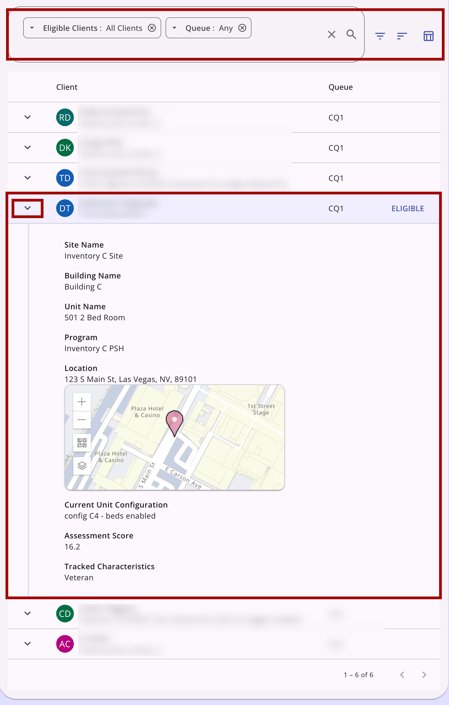
The table lists clients on a queue for the current Referral Setting.
- Duplicate Names: If a client appears multiple times (due to multiple assessments), the Assessment Name will appear below their name.
- Column Selector: Customize your view with column selector options like Assessment Score, Last Activity, Tracked Characteristics, etc.
- Unit Details: Expand a client row to see a snapshot of the unit's details.
- Alerts: An alert message appears if a referral is already scheduled for the selected unit.
Checking Eligibility
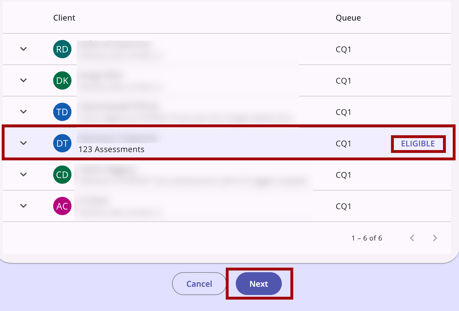
Click on a client’s row to trigger an eligibility check. The result appears on the right side of the row:
- Eligible: The client meets the requirements.
- Ineligible: A tooltip will describe the reason for ineligibility.
- Override: If you have the Referrals - Unit Eligibility Override access right, you may proceed. Otherwise, the Refer/Next button is grayed out with the message:
“Please select an eligible client."
Eligibility Flags
When filtering by All Clients, the system displays all clients. Specific flags indicate if a client is eligible now and/or in the future.
- When the client is not eligible for the unit now or in the future:
- The icon with tooltip reads:
“Client does not meet eligibility criteria.”
- When the client is eligible for the unit now, but is not eligible in the future:
- The icon with tooltip reads:
“Client meets the eligibility criteria on the date selected but does not meet the criteria that begins on [date].”
- When the client is not eligible for the unit now, but is eligible in the future:
- The icon with tooltip reads:
“Client does not meet the eligibility criteria on the date selected but will meet the criteria that begins on [date].”
- When the client is eligible for the unit now, but the future Unit Configuration Types (UCTs) are both eligible and ineligible:
- The icon with tooltip reads:
“Client meets the eligibility criteria on the date selected, and in the future eligible on dates [eligible date range].”
- When the client is not eligible for unit now, but the future Unit Configuration Types (UCTs) are both eligible and ineligible:
- The icon with tooltip reads:
“Client does not meet the eligibility criteria on the date selected, but in the future eligible on dates [eligible date range]."
Completing the Referral
Once a client is selected, the final steps depend on whether you are referring to an individual or a household.
Individual Referrals
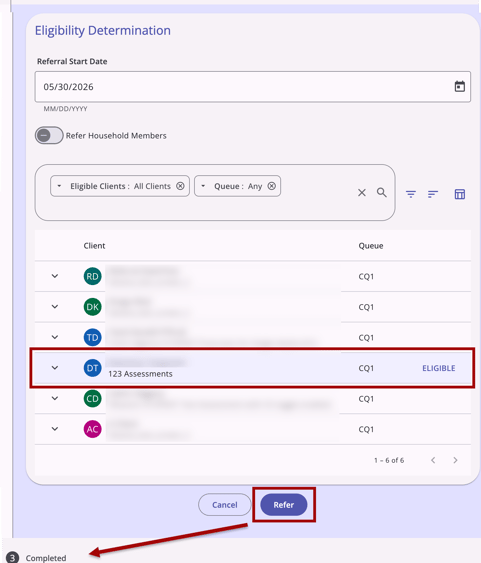
If the Refer to Household Members toggle is OFF or the client is not part of a household, Step 2/Eligibility Determination is the final step before completion. The user will see:
- Enable the Eligibility Override toggle, if available
- If there are remaining unit beds that should be set to Offline, toggle on Set remaining [x] to "Offline"
Click Refer to finalize the process and move to the Completed section.
Household Referrals
If the Refer to Household Members toggle is ON, click Next to proceed to Step 3: Reassign Household Members.
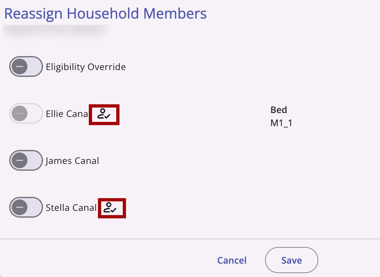
On the Reassign Household Members step, the original client (typically the Head of Household) appears read-only, with their selected unit shown and grayed out.
The user can:
- View all members in the client's global household.
- Toggle ON the members to be included.
- Select a specific Bed for each toggled household member.
- Enable the Eligibility Override toggle, if available
An Enrollment icon indicates which household members are enrolled in the original program for the Head of Household (HOH) community queue referral.
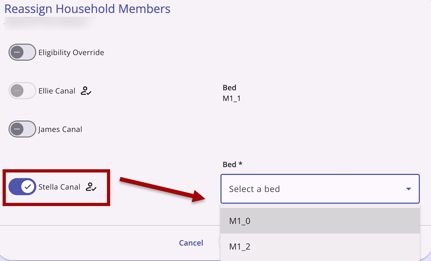
Use the toggle to include a household member, and select a bed for them.
The Select a Bed dropdown appears, listing other available, eligible beds in the same unit.
If there are more available beds than family members and the remaining unit's beds should be set to Offline, toggle on Set remaining [x] to "Offline." This allows the user to set any unassigned beds in the unit to the Offline status.
Then click Save to move to the Completed section.
Note: If no household member toggles are turned on, the single client is referred to the chosen bed, and the existing logic and workflow remain unchanged, except the Set Remaining [x] Beds "Offline" toggle will still appear.
Validation
If the user attempts to toggle on more household members than there are available beds, a warning message is displayed and reads:
"The Unit has [X] beds available for household members"
and no additional clients can be toggled on.
Status Changes
- Same logic as during the Reassign process.
- All assigned beds transition to Pending Occupancy.
- Remaining beds transition to Offline (if toggled) or Available (if not).
- Unit status transitions to Pending Occupancy (if full) or Available.
Inventory Updates
All changes are reflected on the Unit List, Bed List, and Occupancy History pages.
Post-Referral Options
After completion, you have two choices:
- View Referral: Takes you to the detailed referral page.
- Return to Unit Queue: Returns you to the main unit list to begin another referral process.
Additional Resources
This article provides an overview of the global Referrals module, which includes links to all possible global Referral workspaces:
The following articles provide general referral information:
- Introduction to Making Referrals (New Clarity Interface)
- Referral Connections (New Clarity Interface)
- Referral Details Glossary (New Clarity Interface)
- Referral History (New Clarity Interface)
- Referral Status Updates (New Clarity Interface)
Updated: 09/29/2026