
This article is for the new Clarity interface. Screenshots and descriptions will be updated as features are released. For the current interface article, see Referrals: the Snoozed Tab.
Table of Contents
Video Resources
Click play for a brief overview:
Overview
Users can snooze referrals and manage snoozed referrals in the new Clarity interface when the Community Queue Snooze setting is enabled in the community queue referral settings.
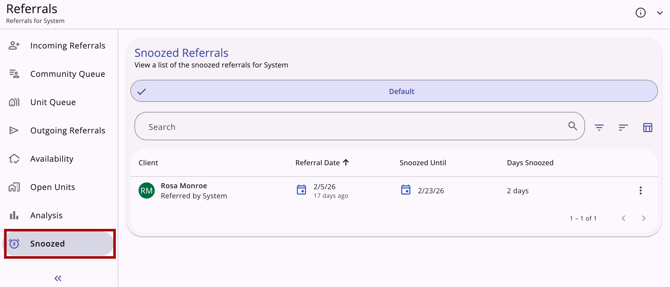
Note: A user’s access to the Snoozed workspace is configured in Access Roles. See Rights Glossary for Access Roles or Coordinated Entry Roles for more information.
Highlights
The Snoozed menu item is visible and selectable within the global Referrals navigation menu, when enabled, regardless of whether or not there are any actively snoozed referrals. The tab is accessible for any user with an access role that has Referrals AND Referrals - Community Queue access rights toggled on.
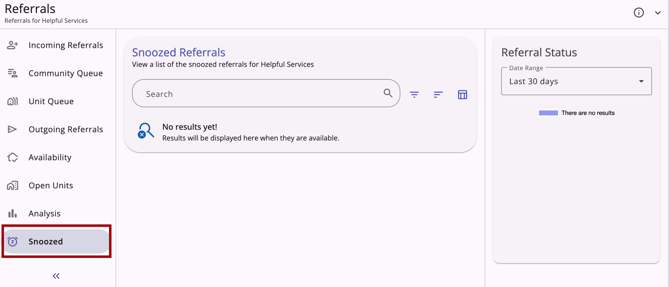
When there are multiple community queues enabled, you can choose the appropriate community queue for the Snoozed workspace first to see a list of all referrals that have been marked as “snoozed.”
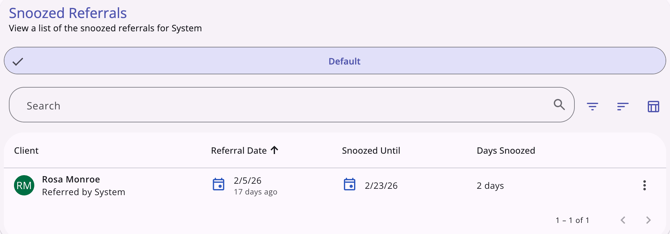
Options to Refine Search Results
The Snoozed workspace includes multiple options to refine and view search results:
- A search bar
- Filters
- Sorting option
- A column selector.
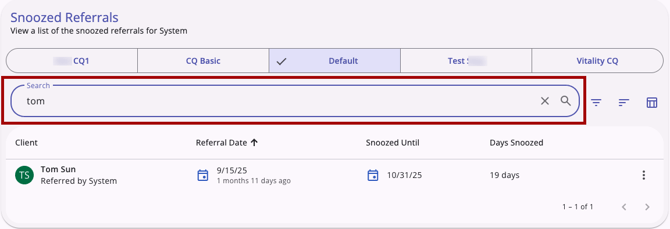
Search Bar
The search bar allows users to search the list by client name.
Filter Options
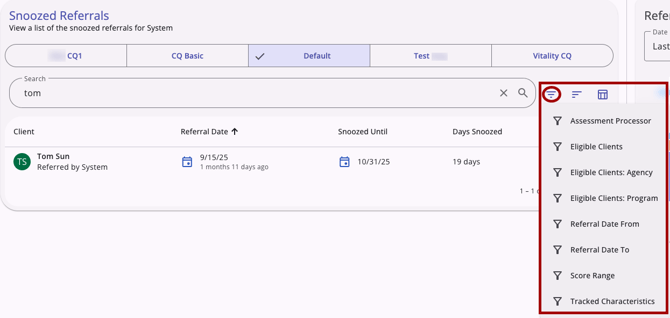
The Snoozed workspace includes the following filter options:
-
- Assessment Processor
- Eligible Clients
- Eligible Clients: Agency
- Eligible Clients: Program
- Referral Date From
- Referral Date To
- Score Range
- Tracked Characteristics
Sorting Options
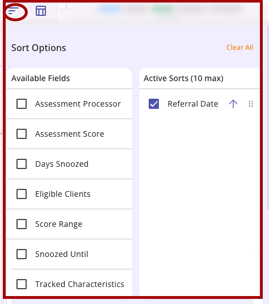
The Snoozed workspace includes the following sorting options:
-
- Referral Date (applied by default)
- Assessment Processor
- Assessment Score
- Days Snoozed
- Eligible Clients
- Score Range
- Snoozed Until
- Tracked Characteristics
- Referred By Agency
Column Selector
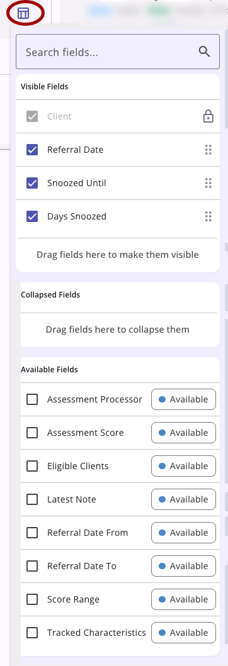
The Snoozed workspace includes a column selector.
Columns shown by default include:- Client (locked)
- Referral Date
- Snoozed Until Date
- Days Snoozed
- Assessment Processor
- Assessment Score
- Eligible Clients
- Latest Note
- Referral Date From
- Referral Date To
- Score Range
- Tracked Characteristics
Refer to the Client Record Overview article for more details.
Viewing Snoozed Referrals
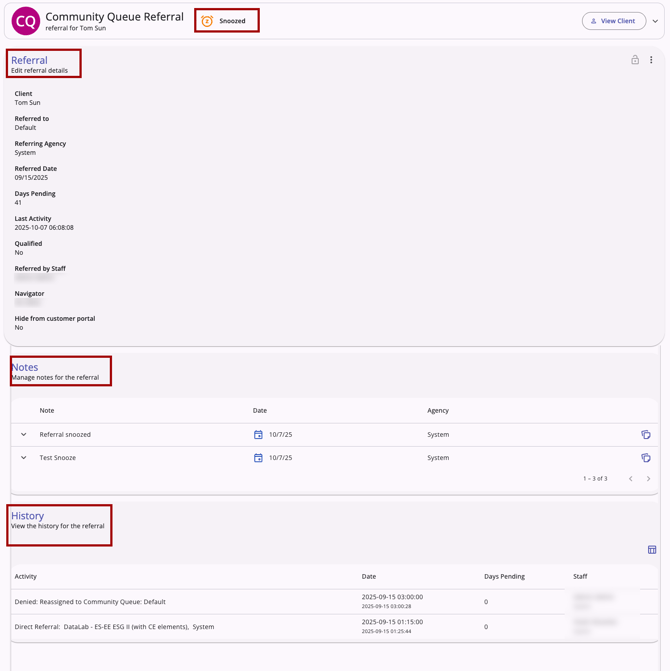
The user can view referrals on the Snoozed workspace by clicking on the appropriate client referral. The referral opens and includes sections for:
- Referral: Edit referral details
- Notes
- History
Snooze Referrals on the Community Queue
On the Community Queue, users can access the Snooze option from a menu of quick actions for a referral. The Action Menu (kebab) icon appears for each referral and, when clicked, displays the following options (access rights determine the options visible for each user):
- Reassign
- Remove from Queue
- Change Queue
- Snooze
- View Audit Log (System Admins only)
- Delete
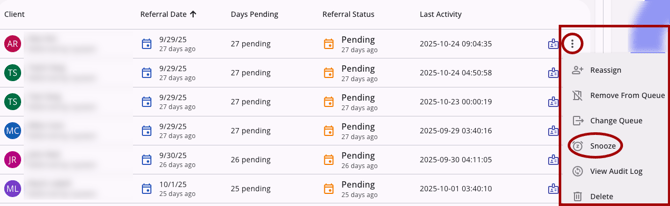
Users with the appropriate access can snooze a referral listed on the Community Queue by clicking Snooze from the Action Menu's list of options.
When the Snooze option is selected, a Snooze Referral card opens and has the following options:
- Snooze Until
- Date and Time Selector
- Note
- Text box
- Cancel
- Leave page without saving
- Save
- Save the record
- X button
- Leave page without saving.
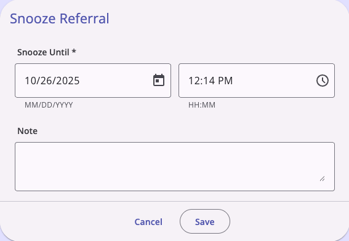
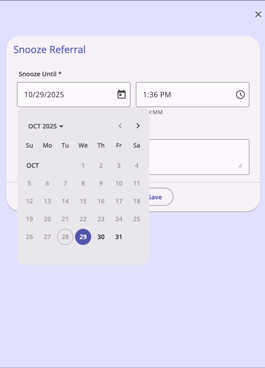
When the user selects a date and time for Snooze Until, they are only allowed to choose a date that is at least one day ahead of the current date. All dates before the current date will be grayed out and not selectable.
Additional Actions
The Action Menu (kebab) icon appears for each client listed, with the following options:
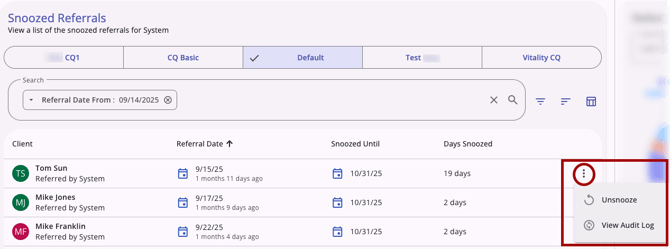
Unsnooze
When the Unsnooze option is clicked for a client’s referral, the referral is removed from the list of Snoozed Referrals, and it returns to the Community Queue.
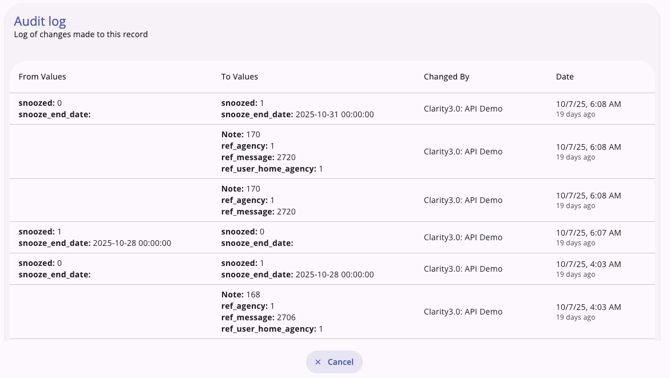
Audit Log
When the View Audit Log option is selected from the Action Menu, a log of all the snoozed and unsnoozed status changes for the referral is displayed.
Audit Logs throughout the system are available to system administrators with the Audit Log access right. Refer to the Rights Glossary for Access Roles article for full details on access rights.
Icons & Tooltips
|
Icon |
Icon/Tooltip Name |
Tooltip |
Icon Location |
|
|
Action Menu, also known as:
|
"Show more actions" |
All Screens: typically on the far right of a screen or section |
|
|
Arrows/Dropdown | (no tooltip) | All Screens: Anywhere you see this icon, you can click to collapse or expand the section |
|
|
Client | (no tooltip) | Referral record: Information box |
|
|
Column Selector |
"Show/hide fields" |
All Screens: typically paired with a search bar |
|
|
Date |
(no tooltip) |
Anywhere a Date appears |
|
|
Filter |
"Add a filter" |
All Screens: typically paired with a search bar |

|
Note | “Note [formatted note text]” | Referral record |

|
Privacy - Private |
Varies depending on screen; example from client profile: “Private Client data is not shared.” |
Referral record; All Screens within the client record |
|
|
Privacy - Public |
Varies depending on screen; example from client profile: “Public Client data is shared.” |
Referral record; All Screens within the client record |
|
|
Referral Alert | (no tooltip) | Referral record: Information box |
|
|
Search |
"Search" |
All Screens:
|
|
|
Snoozed Referrals |
(no tooltip) |
Referrals navigation menu: Snoozed |
|
|
Snoozed Status |
(no tooltip) |
Snoozed: Referral record information bar |
|
|
Sort |
"Configure sorting" |
All Screens; typically found to the right of a Search bar |
|
|
View Audit Log |
(no tooltip) |
Any screen where audit log functionality is available; visibility is dependent on access rights |


Additional Resources
This article provides an overview of the global Referrals module, which includes links to all possible global Referral workspaces:
The following articles provide general referral information:
- Introduction to Making Referrals (New Clarity Interface)
- Referral Connections (New Clarity Interface)
- Referral Details Glossary (New Clarity Interface)
- Referral History (New Clarity Interface)
- Referral Status Updates (New Clarity Interface)
Updated: 09/29/2026