
Table of Contents
Overview
When enrolling a client in a program, you are prompted to select any household members to include in the enrollment. You may need to add a client to the enrollment later if:
- The client was not in the household at the time of enrollment.
- A staff member did not select the household member for inclusion.
- A staff member closed the enrollment workflow before enrolling household members.
Refer to the Creating and Managing Program Enrollments article for more details on enrolling clients in programs.
Getting Started
Before you add a new household member to an active enrollment, ensure the client has been added to the global household first. Refer to How Do I Create a Household and Manage Members? for steps.
Note: If the household has a pending bed and unit assignment, a warning appears when you add or remove a household member. It reads:
“This household has a referral with bed and unit assignment. Please make adjustments through the referral and enrollment as needed.”
Adding a Household Member to an Existing Enrollment
- Go to the client record for a household member already included in the enrollment.
- Click Programs in the client navigation menu.
- Click the program name for the enrollment where you will add the household member.
- Click Group.
- Click the Add (plus) icon on the Group workspace. The available household members appear.
- Select the household member you want to add to the enrollment, then click Next. The enrollment workflow appears.
- Enter the member’s enrollment data. If the member entered the program on the same date as the other household members, confirm that their Program Start Date matches the Program Start Date of the previously enrolled members. If it does not, enter the actual date the member entered the program.
- Click Save & Next to save the enrollment form, then click Complete to finish the task.

The household member will now show in the list of group members on the Group workspace.

Note: You can also use this process to re-enroll a client who exited the program, as long as the client is a member of a group with an active enrollment.
Assigning a Bed to the New Household Member
If the program tracks unit and bed occupancy, assign the new household member to a bed after you enroll them.
- Open the new household member’s enrollment, then click Units/Beds.
- Click the Add (plus) icon.
- Select the unit and bed, complete the occupancy details, and save.
Refer to The Units/Beds Tab for field details.
Notes:
- The bed list shows only active, available beds that the household member is eligible for. A bed already assigned to another household member does not appear.
- If the household was assigned beds through a referral and the unused beds were set to Offline, those beds do not appear in the list.
- If the household member already has a Pending Bed/Unit Assignment from the household’s referral, assign the member’s bed. The pending item stays open until you do. Refer to Modifying Household Member Bed Assignments.
Household Members Not Enrolled Prompt
Your enrollment is saved when you save the first household member's enrollment screen. If you close the enrollment workflow before enrolling the other household members, the new enrollment's Information Bar displays a Household Members Not Enrolled prompt. Hover over the prompt to see a tooltip that explains what is missing.
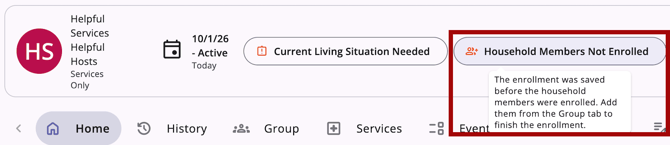
To enroll household members from the prompt:
- Click the Household Members Not Enrolled prompt on the Information Bar. The Group workspace opens, and the Add members modal opens automatically.
- Select the household member(s) you want to add to the enrollment, then click Next. The enrollment workflow appears for the first member.
- Enter the member's enrollment data. If the member entered the program on the same date as the other household members, confirm the Program Start Date matches.
- Click Save & Next to save the screen. Repeat for each selected member, then click Complete to finish the task.
The prompt disappears once every household member you can view is enrolled.
On smaller screens, such as mobile devices, the prompt appears as a pill. Tap the pill to open a bottom sheet, then tap the button at the bottom of the sheet to open the Group workspace.
Notes:
- The prompt appears only in the browser session where you closed the workflow early. Reloading the page clears it.
- If the prompt is gone, follow the steps in Adding a Household Member to an Existing Enrollment in this article.
- The prompt does not appear when you complete the full enrollment workflow.
Updated: 10/30/2026