
Table of Contents
Video Resources
Click play for a brief overview:
Click through for a hands-on experience:
Overview
By default, a newly created client record will not be associated with a Household. You may review Households, add Household Members and manage Household Members from the client record.
Getting Started
When you are on any section within a client record, you will see the Household item on the client navigation menu and an additional Household card.
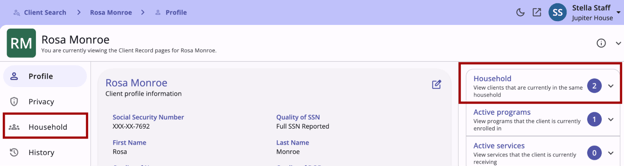
Click Household on the client navigation menu to open the Current Household Members workspace. This section includes:
- Current household members.
- Former household members.
- Previous household history.
- An Add (plus) icon for adding a new client to the system and to the household.
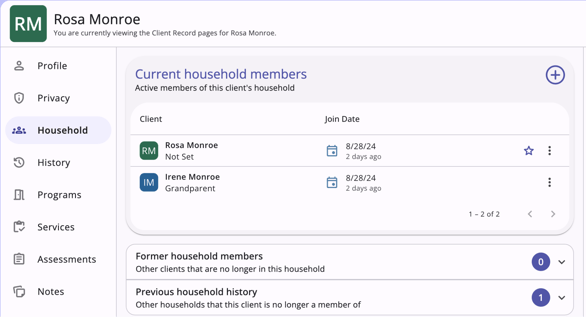
The Current household members section provides three ways to add new members to a Household, as well as to manage program participation and service placement for the entire group:
- Quick add from recently accessed clients
- Client search
- Add new client
These methods allow you to link client records to programs and services.
Note: If the household has a pending bed and unit assignment, a warning appears when you add or remove a household member. It reads:
“This household has a referral with bed and unit assignment. Please make adjustments through the referral and enrollment as needed.”
To add a household member to an existing enrollment, refer to How Do I Add a New Household Member to an Enrollment?.
Quick Add from Recently Accessed Clients
Because records for clients in the same household are generally added to the system sequentially, the client(s) who need to be associated with a Household in the system will most likely be listed in your recently accessed clients. If you don't see the clients you're looking for in this list, use the Search function (described in Client Search) at the top of the Add household member workflow.
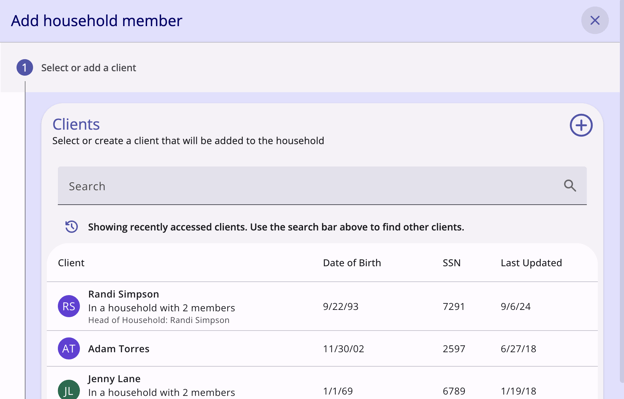
Recently accessed clients that are currently in a household will include the existing group’s Head of Household and the number of members in that Household.
Adding a client with no other household members
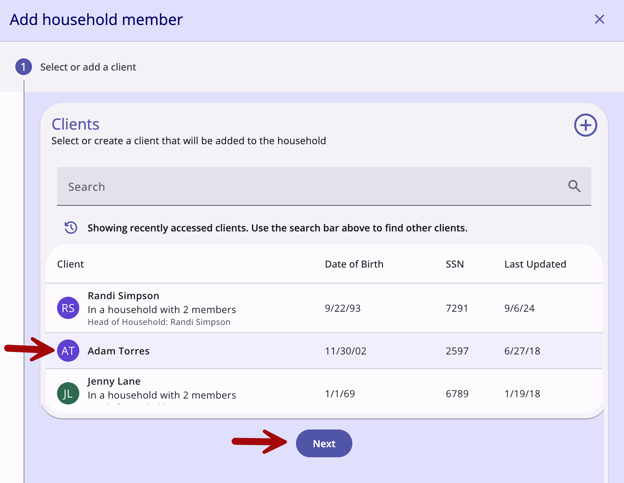
To add a client with no other household members to a Household from recently accessed clients, click the name of a client without additional household details, then click Next.
Select the appropriate responses for Relation to Head of Household* and Joined Household* then click Save & Next. On the next screen, complete the workflow and the client will be added to the Household.
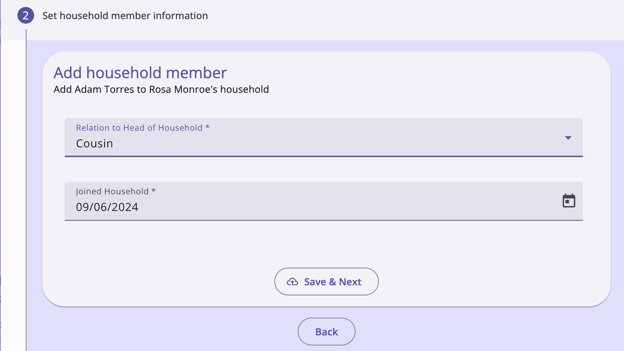
Adding a client with an existing household
Scenario 1: The Active Client Has No Household
The active client (in this case, Iris Monroe) is not a member of a household, and you want to add Rosa Monroe, who is already a member of a household.
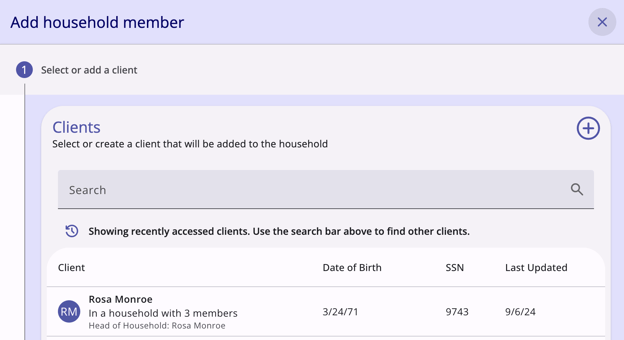
Because Rosa Monroe is already in a household, the system adds the active client (in this case, Iris Monroe) to Rosa’s household. Select the appropriate answers for Relation to Head of Household* and Joined Household*, then click Save & Next. On the next step, complete the workflow to add the client to the Household.
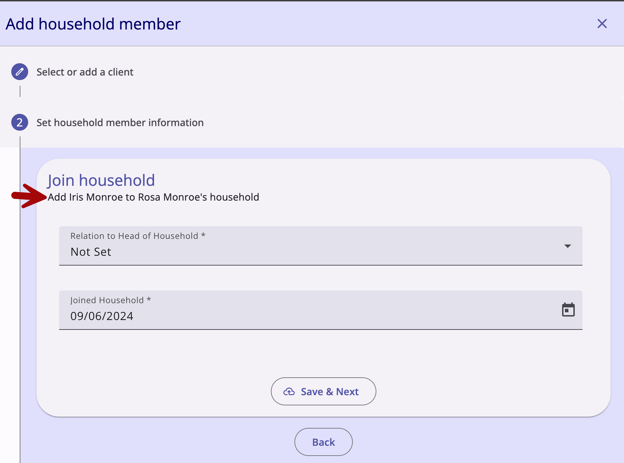
Scenario 2: The Active Client Already Has a Household
The active client (in this case, Rosa Monroe) is already a member of a household. You want to add Randi Simpson to Rosa’s household.
A client record cannot be a member of two distinct Households at the same time. You cannot keep Rosa in her existing household and also join her with Randi’s household. Click Randi’s name to select it, then click Next. A warning appears that reads:
“Active client is already in a Household. This action will end involvement in the current household and add as a member of the selected household.”
Choose one of the following options:
- Active client (in this case, Rosa Monroe) will leave and join client’s (in this case, Randi Simpson's) Household
or
- Transfer client (in this case, Randi Simpson) from their existing Household to client's (in this case, Rosa Monroe’s) Household
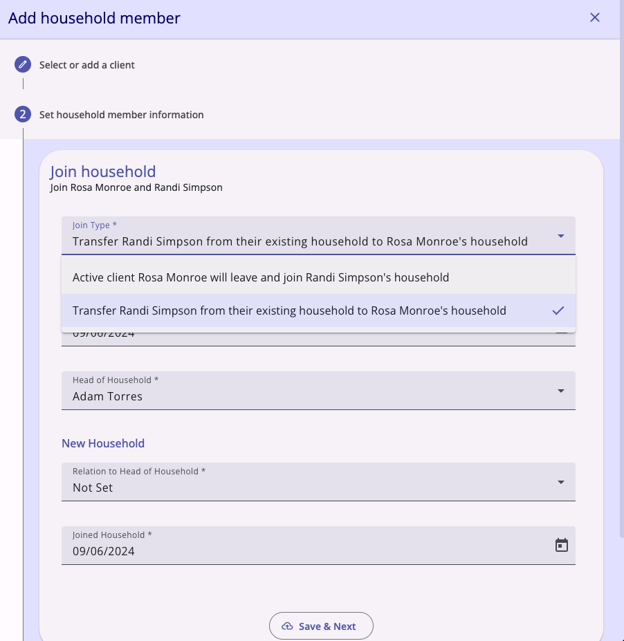
Select the appropriate option, then:
- Enter the Exited Household date and Head of Household* for the household that a client is leaving.
- Enter the Relation to Head of Household* and Joined Household* for the household that a client is joining.
- Click Save & Next.
- On the next step, complete the workflow to add the client to to the Household.
Client Search
The Client Search function allows you to search the entire client database for a matching family member to add to your client’s Family/Household group. If you find the target client, click the name of the client to select the client to add to the household.
Search results also show the existing group’s Head of Household and the number of members in that Household.
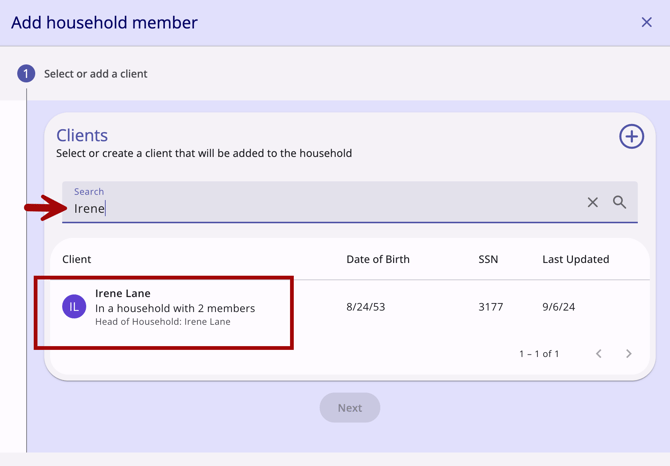
Once you have found the client, follow the workflow to add the client to the household.
Add a New Client to Household
If you use the Client Search function and do not find the client in the system, you may add the client to the system and the household at the same time. Click the Add (plus) icon on the Add household member workflow to add a client to the system and the household. Ensure you do a thorough search before adding a new client to the system.
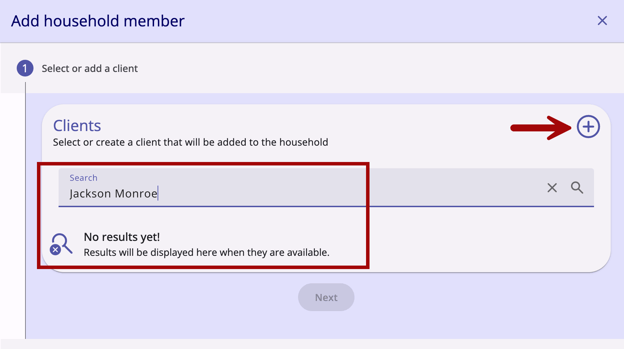
The workflow lets you add a new client record and add the client to the household.
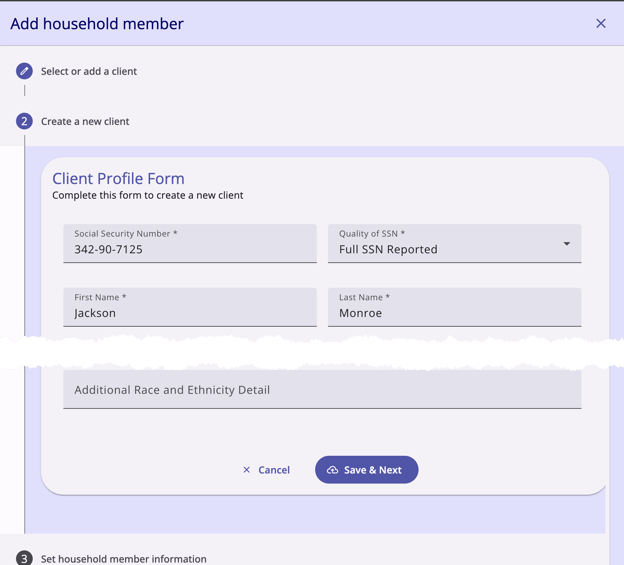
Household History
Below the Current Household Members there is a Former household members section and a Previous household history section. Click the Expand/Collapse (arrow) icon for each section to see more details.
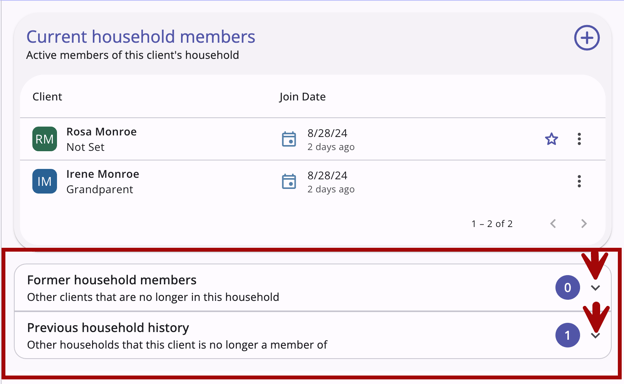
- The Former household members section lists clients who were previously in this household but are no longer in it.
- The Previous household history section lists other households that this client is no longer a member of.
Ending a Household Membership
Click play for a brief overview:
To remove a household member from the group:
- Click the Action Menu (three dot) icon to the right of the group member in the Current household members section.
- Click View Household Relation. The Edit Household member form appears.
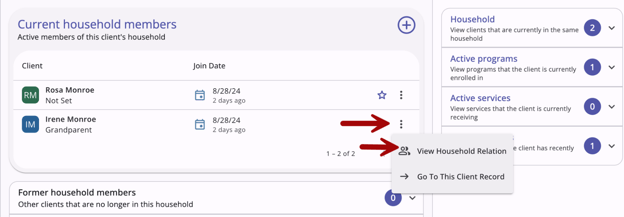
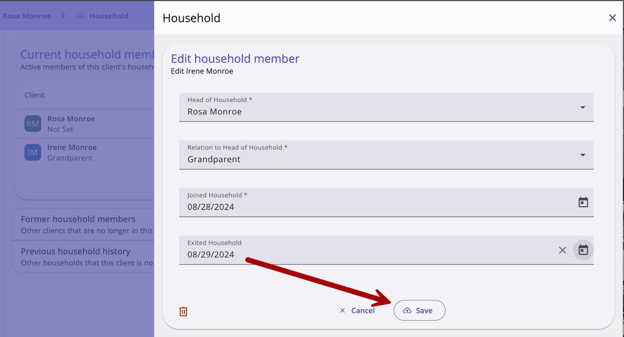
- Click the Edit (pencil) icon, enter the date the client’s participation in the group ends in the Exited Household field, then click Save.
The client is considered a member until that date. After the date passes, the system automatically removes the client record from the group and lists it in the Former household members section.
Note:
- The Exited date cannot be earlier than the Joined Household date.
- If the household member being exited is currently designated as the Head of Household, you are prompted to assign a new Head Of Household before you complete the task.
-
If the household has a pending bed and unit assignment, a warning appears when you remove a household member. It reads:
“This household has a referral with bed and unit assignment. Please make adjustments through the referral and enrollment as needed.”
Icons & Tooltips
|
Icon |
Icon/Tooltip Name |
Tooltip |
Icon Location |
|
|
Action Menu, also known as:
|
"Show more actions" |
Most workspaces: typically on the far right of a workspace, card, or section |

|
Add | "Add" | Anywhere the Add icon appears |

|
Arrows/Dropdown | (no tooltip) | All workspaces: Anywhere you see this icon, you can click to collapse or expand the section |

|
Delete | "Delete" | Anywhere the Delete icon appears |

|
Edit | "Edit" | Anywhere the Edit icon appears |
|
|
Head of Household |
"Head of Household" |
Household workspace |
|
|
Household or Group |
"Household" |
Client Navigation Menu: Household workspace |


Updated: 10/30/2026