
This article is for the new Clarity interface. Screenshots and descriptions will be updated as features are released. For the current interface article, see Referrals: the Open Units Tab.
Table of Contents
Overview
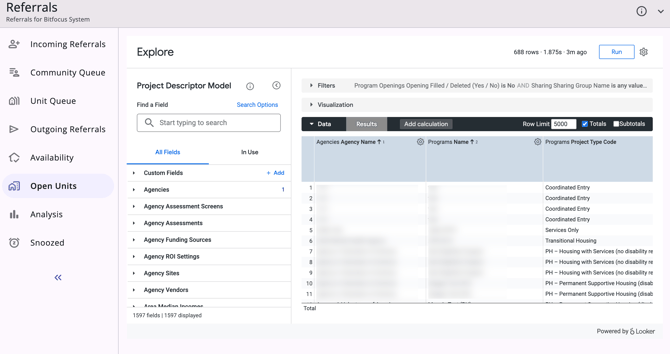
The Open Units workspace allows users with Looker access to view all open units in their programs in one place.
Accessing the Open Units Workspace
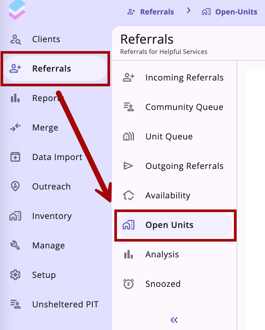
Users with the appropriate access rights can see and select the Open Units menu item on the Referrals navigation menu.
Access Rights
The following Access Rights control access to the Open Units menu item:
- Referrals
- Referrals - All Openings
- Manage Agency - Data Analysis
Open Units Setting
The Open Units Report setting on the AGENCY OVERVIEW page allows you to select which report will be displayed on the Open Units workspace.
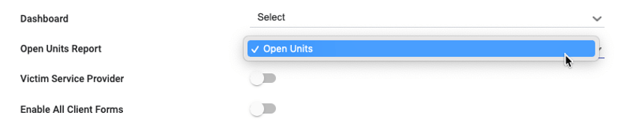
Initially, the only option is a default Open Units report, but custom reports can be created as described in the “Creating Custom Reports” section at the end of this article.
Open Units Workspace
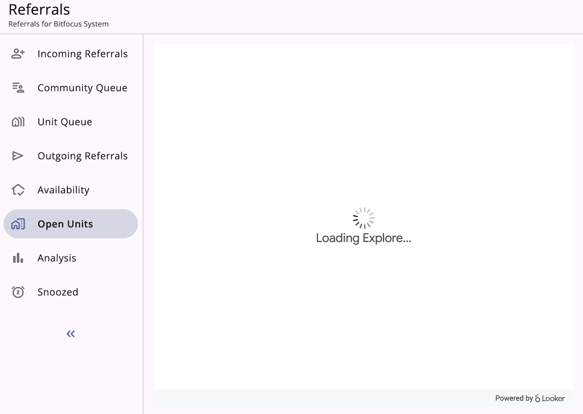
To access the Open Units workspace, click Open Units on the Referrals navigation menu. A “Loading Explore” icon appears while Looker is loading.
When the Open Units workspace opens, you will see the default Open Units report.
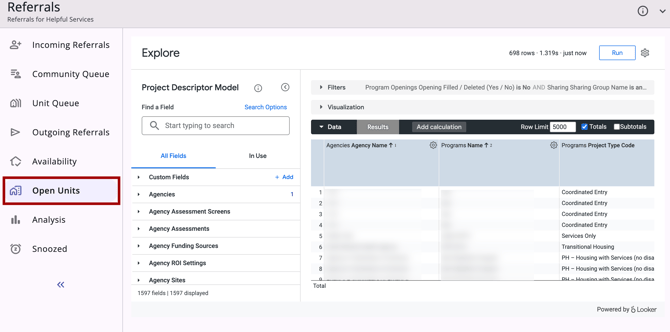
- The report’s Filters are configured with the default settings shown below.
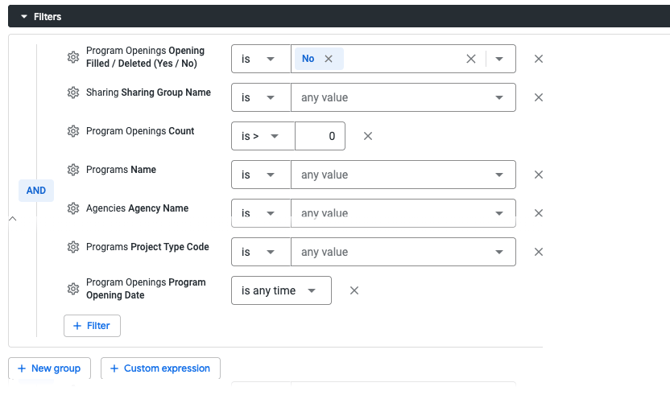
- You may adjust the filters as needed. For example:
- You could set the Sharing Group Name to be equal to a specific sharing group so that the report only shows open units for that sharing group.

- If desired, you may adjust the way the data is visualized.

- The default dimensions and measures included in the report are shown below.
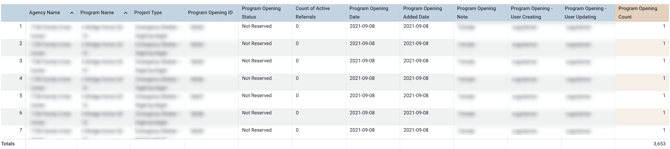
- You may adjust the dimensions and measures as needed:
- Select additional dimensions or measures from the list on the left side of the screen.
- To delete a dimension or measure, click its gear icon and select Remove.
Note: If you add or delete any dimensions or measures, the Look will not update unless you click Run again.
Creating Custom Reports
Users with access to a stand-alone version of Looker can create custom reports that appear on the Open Units workspace.
- Create the report:
- Create a Look or Dashboard in your stand-alone instance of Looker.
- Save the new Look to the program openings subspace. (If the program openings subspace does not exist, create it.)
- Add the report to the Open Units Report list:
- Navigate to SETUP > SETTINGS > Advanced Options > Data Analysis.
- On the REPORT CATEGORIES page, click the Edit icon for the appropriate report category.
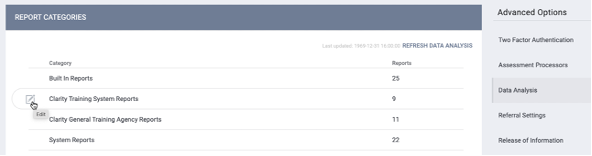
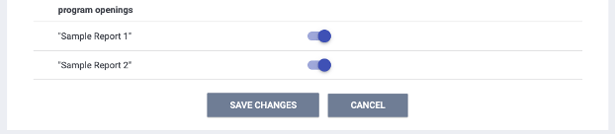
- In the program openings subspace, turn on the toggle for the report(s) you wish to add to the Open Units Report list, then click SAVE CHANGES.
Note: If you don’t see your custom Looker report, click REFRESH DATA ANALYSIS on the REPORT CATEGORIES page (SETUP > SETTINGS > Advanced Options > Data Analysis).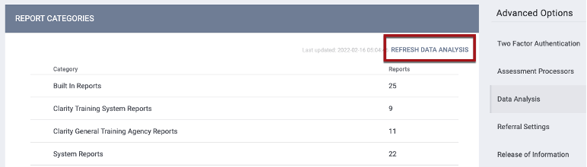
While the refresh is running (which may take a few minutes), you will see a spinning icon in the website tab.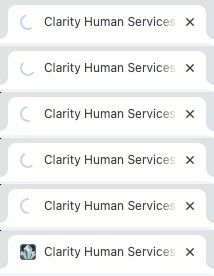
- Select the report from the Open Units Report list on the AGENCY OVERVIEW page. Click SAVE CHANGES. Repeat this step for every agency that needs access to the report.

The selected report will now be displayed in the Open Units workspace.
Note: If the custom report you created does not appear in the Open Units Report list, click Clear Cache under SETUP > SETTINGS > Advanced Options.
Icons & Tooltips
| Icon | Icon/Tooltip Name | Tooltip | Icon Location |

|
Information |
Note: this icon information varies depending on the location. |
All Screens; Open Units tab |

|
Open Units | "Open Units" | Located on the Referrals navigation menu and visible at all times for those with access to Open Units |
Additional Resources
This article provides an overview of the global Referrals module, which includes links to all possible global Referral workspaces:
The following articles provide general referral information:
- Introduction to Making Referrals (New Clarity Interface)
- Referral Connections (New Clarity Interface)
- Referral Details Glossary (New Clarity Interface)
- Referral History (New Clarity Interface)
- Referral Status Updates (New Clarity Interface)
Updated: 09/29/2026