
This article is for the new Clarity interface. Screenshots and descriptions will be updated as features are released.
Table of Contents
Video Resources
Click play for a brief overview:
Overview
The Incoming Referrals tab is available in the global Referrals tab. It includes all incoming referrals for an agency, including those referrals with a “Pending," “Pending - in Process," “Completed,” “Denied,” or “Expired” status.

Notes:
- A user’s access to the Incoming Referrals tab is configured in Access Roles. See Rights Glossary for Access Roles or Coordinated Entry Roles for more information about the different access settings.
- A referral created with a future Referral Date will not appear on the Incoming Referrals tab until that future date.
Options to Refine Search Results
The Incoming Referrals page includes multiple options to refine and view search results:
Search Bar
The Incoming Referrals page includes a Search bar.

Users can search by:
- Client name
- Program name.
Filters
Users can add a filter by clicking on the filter icon.- Users can filter by:
- Referral Status
- Program
- Referred by Agency
- Project Type
- Eligible Clients
- Tracked Characteristic
- Assessment Name
- Assessment Processor
- Score range
- Referral Date Range
Note: Clicking on one of the above filters will display any additional options to choose from for the filter. Users can select additional options, then click Apply to use as a filter. Please see an example for the Program filter:
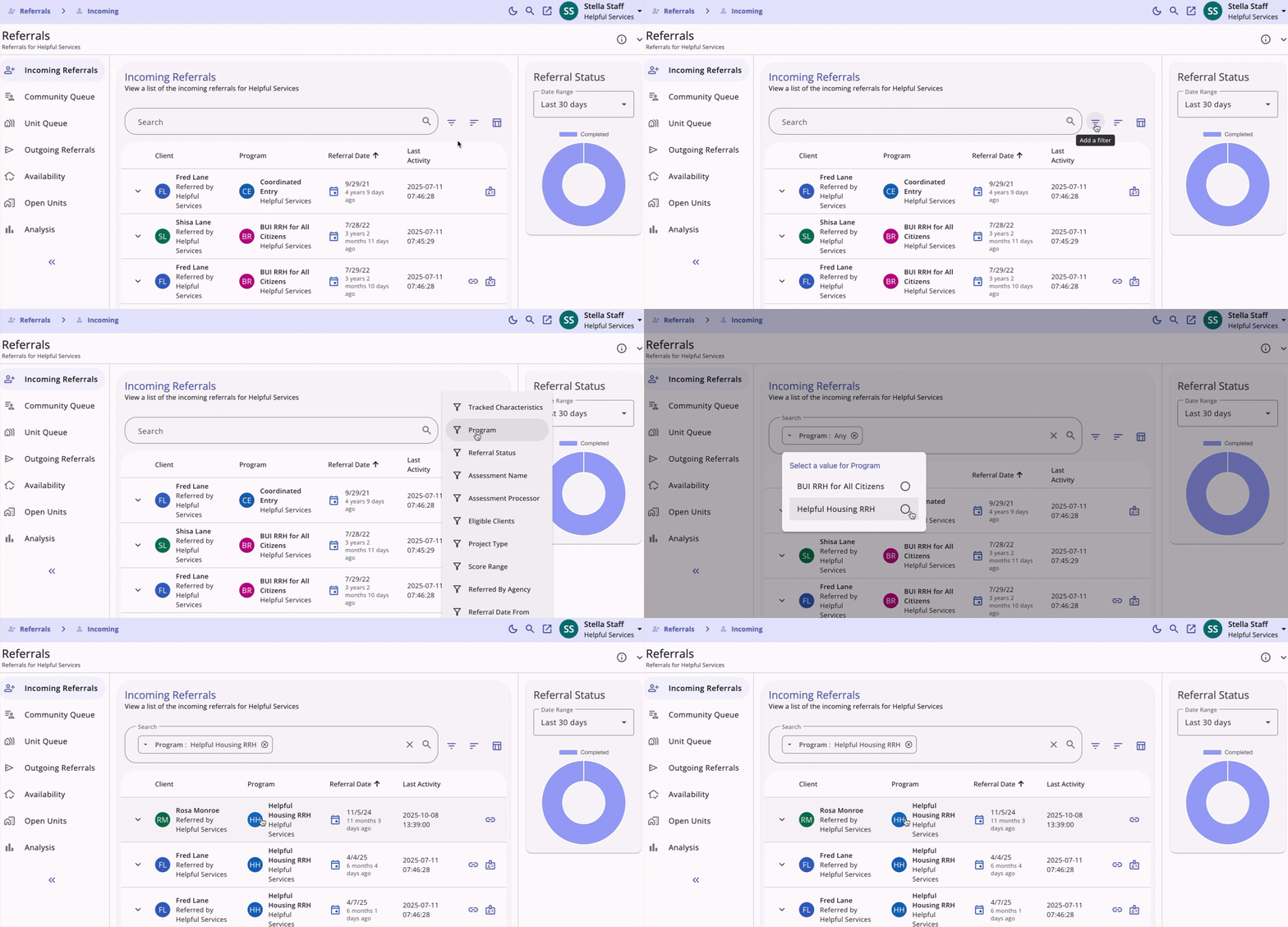
Selected Filters will display in the Search bar.
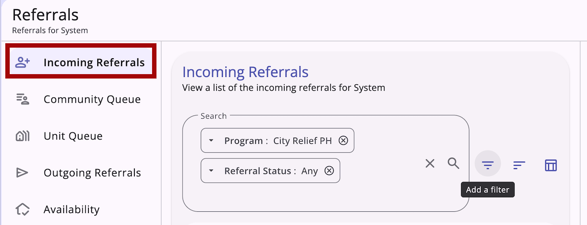
By default, the page loads the Incoming Referrals tab with a filter for referrals with a “Pending” or a “Pending - in Process” status. The page can be filtered to show referrals with “Completed,” “Denied,” or “Expired” status.
Tracked Characteristics filter: Users can select multiple Tracked Characteristics. When multiple characteristics are selected, the system uses OR logic and returns referrals that match at least one of the selected characteristics.
This differs from the legacy interface, where only one Tracked Characteristic can be selected at a time.
To filter for referrals that must meet more than one condition together (AND logic), a System Admin must configure a single Tracked Characteristic with multiple conditions joined by "And" in Referral Settings. See the Multiple Conditions section in the Referral Settings: Tracked Characteristics article for instructions.
Refer to the Client Record Overview article for more information about filters.
Sorting Options
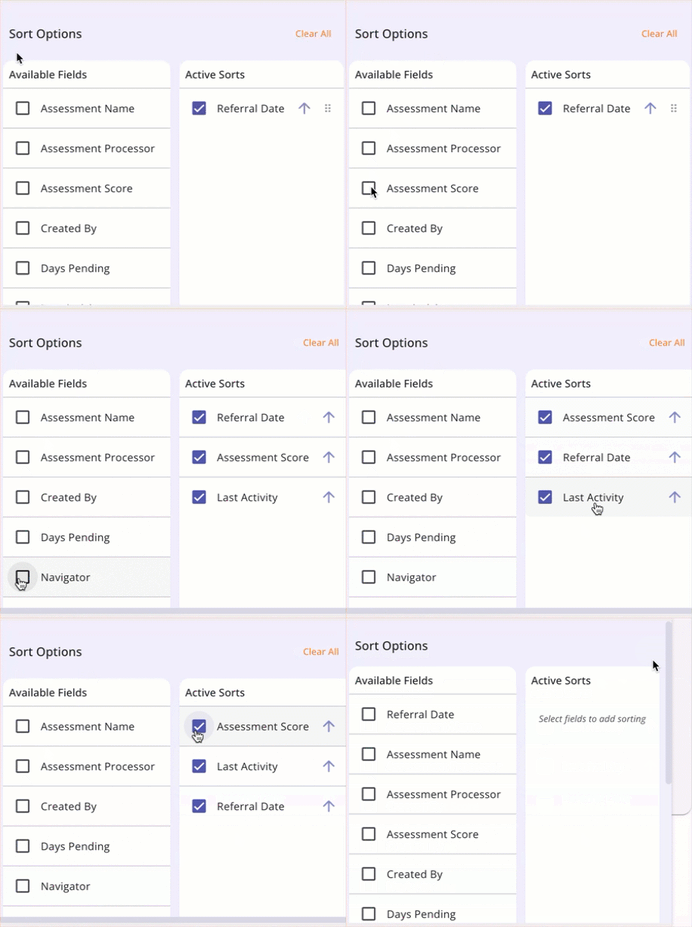
The Incoming Referrals table includes multi-layer sorting.
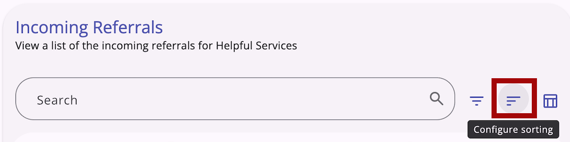
Users can sort by:
- Referral Status
- Program
- Referred by Agency
- Project Type
- Eligible Clients
- Tracked Characteristic - list each one
- Referral Date
- Case Manager
- User Creating
- Assessment Name
- Assessment Processor
- Score Range
- Assessment Score
- Days Pending
- Days In Process
- Last Activity
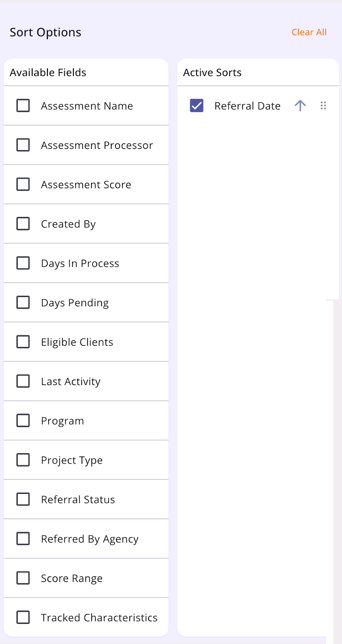
Users can utilize the checkboxes to add or remove sort options and the arrows to set the sort direction. Use the drag and drop method to move the sort options up or down or use “Clear All” to remove all sort options.
Column Selector
The Incoming Referrals page includes a column selector.
The Incoming Referrals column shows the following by default:
- Client
- Client's Name
- Referred by: Agency
- Program
- Name of Program
- Program's Agency
- User Creating
- User Home Agency
- Tracked Characteristics
- Status
- Referral Date
- Days Pending
The following are also available:
- Case Manager
- Days In Process
- Last Activity
- Qualified
- Assessment Name
- Assessment Processor
- Score Range
- Assessment Score
- Latest Note
The table is responsive to the user’s screen size. Columns shift between visible and collapsed as the screen size changes.
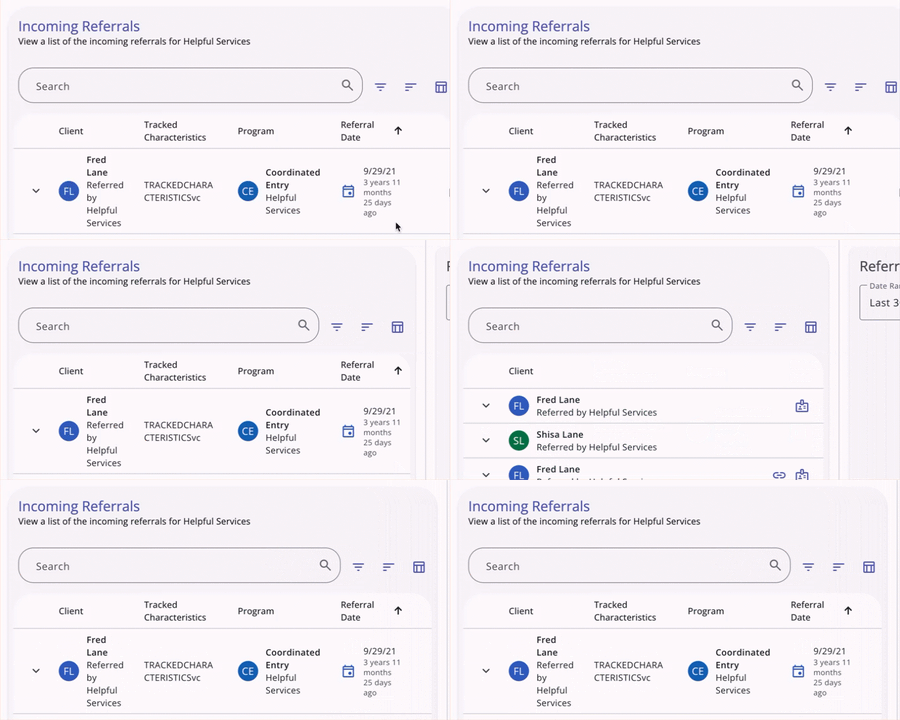
The selections made in the column selector are saved in the user’s browser and determine what they see the next time they view that screen. Refer to the Client Record Overview article for more details.
Referral Status
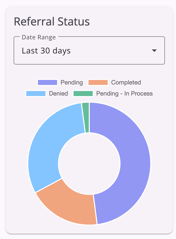
The Incoming Referrals tab has a summary of the user's agencies' referrals, organized by status. There is a Referral Status chart in the sidebar.
- The chart has a date range picker for the user to select a timeframe.
- By default the date range is set to the Last 30 days, based on the current date.
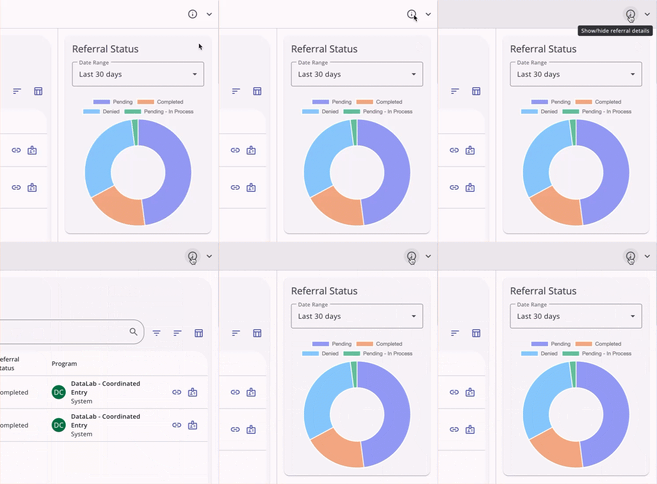
- The chart displays by default, but can be collapsed when the user clicks the information icon in the secondary title bar.
Community Referral Threshold
When a referral to a Community Queue is reassigned to a program, it will appear in the Incoming Referrals tab on its Reassignment Date and will be assigned a “Pending” status.
How long it stays in the Incoming Referrals tab depends on the queue’s Community Referral Threshold setting, which is set by system administrators in Referral Settings. Once the referral threshold period has passed, the referral status will change to “Expired,” and the referral will display with a "Denied" status. The system will generate a new referral with the information associated with the original referral, but with a different referral ID.
Referral Record
Users with the appropriate access can edit or view a referral record from the Incoming Referrals tab.
When the user clicks on a client referral record from Incoming Referrals tab, it opens the associated screen of the referral. The information displayed and/or editable is based on sharing and access role permissions, as well as the referral status.
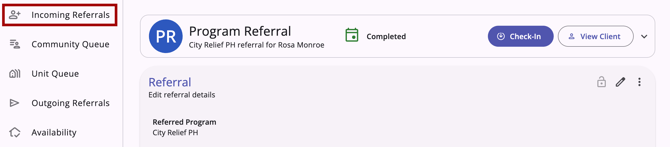
At the top of the referral screen, the type of referral, status of the referral, and any additional details display in the information box.

For referrals where the “Check-In” button applies, it will be located in the information box. When a user clicks the check-in button, the Last Activity Date will update to the date of the check-in.

When a referral is opened from the global Referrals tab, a "View Client" button to navigate to the client record is also in the header.

The sections of the referral are:
- Referral
- Notes
- History
View and Edit Referrals
The Referral page is where the end user can, with the appropriate access, edit the referral, manage the privacy of the referral, make Referral Connections, delete the referral, and/or access the audit log for the referral.
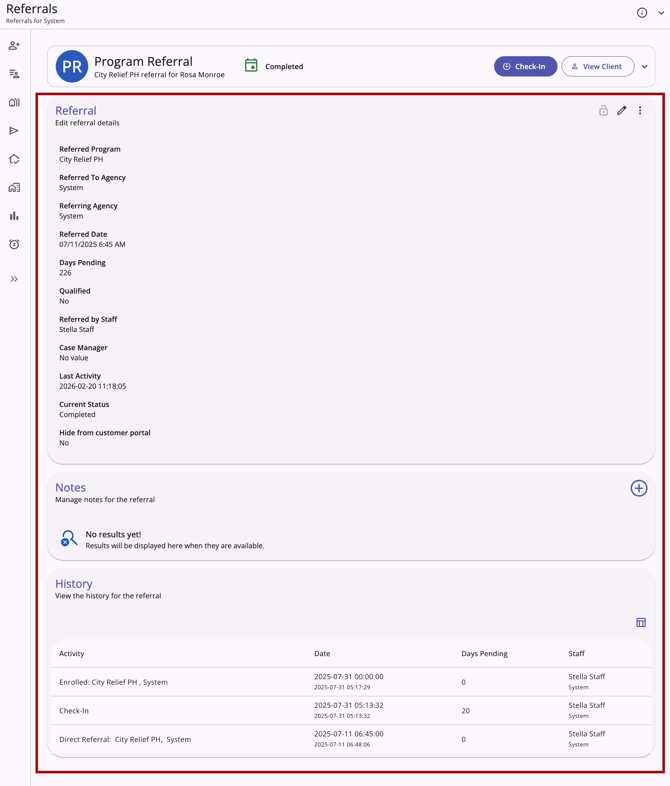
The Edit referral details section includes (depending on referral type and status):
- Referred Program
- Referred to Agency
- Referring Agency
- Referred Unit
- Referred Date
- Days Pending
- In Process
- Qualified
- [Assessment Processor Name] Score
- Referred by Staff
- Case Manager
- Last Activity
- Current Status
- If Denied:
- Denied By Type
- Denied Date
- Denied by
- Denied Reason
- Denial Information
- Send to Community Queue
- Hide from customer portal toggle
Notes Section
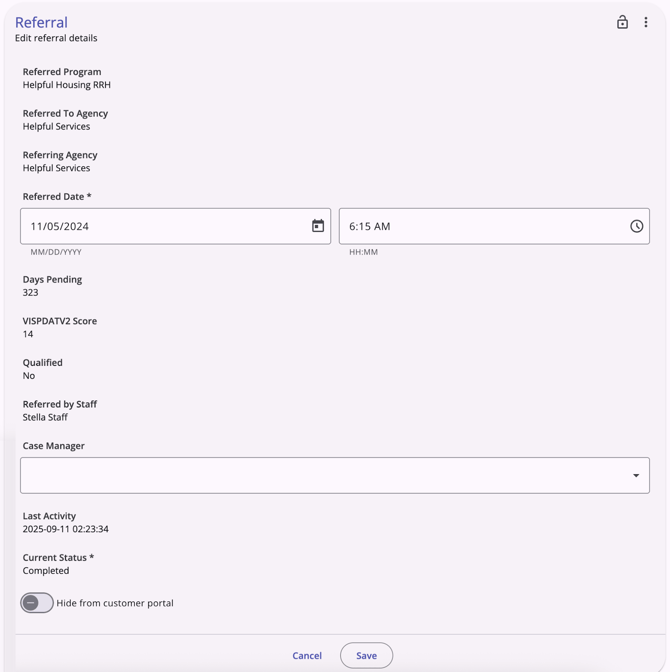
The Notes section of any referral includes a list of notes and the ability to add notes.

History Section
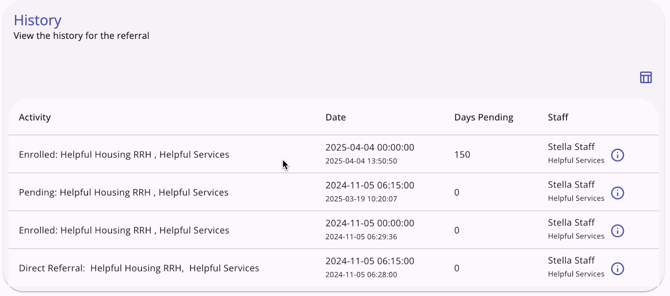
The History section of any referral includes a complete history of all actions taken for the referral.
Additional Actions
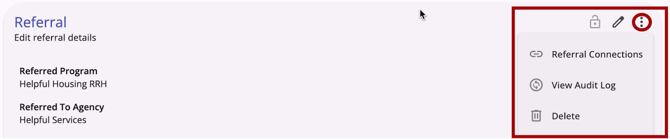
An action menu for incoming referrals includes:
- Referral Connections (click link for more information)
- View Audit Log (requires System Administrator access)
- Delete (may require additional access rights)
Audit Log
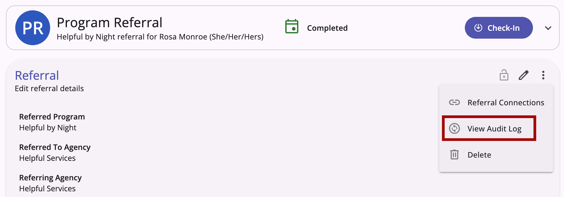
The "View Audit Log" option can be clicked by a system administrator with audit log access rights on the Edit referral details page. A log of all changes to the referral is displayed.
Icons & Tooltips
|
Icon |
Icon/Tooltip Name |
Tooltip |
Icon Location |
|
|
Action menu, also known as:
|
"Show more actions" |
All Screens: typically on the far right of a screen or section |
|
|
Add |
“Add” |
All Screens: anywhere the “Add” option occurs |
|
|
Arrows/Dropdown | (no tooltip) | All Screens: Anywhere you see this icon, you can click to collapse or expand the section |
|
|
Check-In | (no tooltip) | Referral record: Information box |
|
|
Column Selector |
"Show/hide fields" |
All Screens: typically paired with a search bar |
|
|
Completed Status |
(no tooltip) |
Referral Status column; Referral record: Information box |
|
|
Date |
(no tooltip) |
Anywhere a Date appears |
|
|
Delete |
“Delete” |
All Screens: anywhere the “Delete” option occurs |
|
|
Denied Status |
(no tooltip) |
Referral Status column; Referral record: Information box |
|
|
Edit |
“Edit” |
All Screens: anywhere the “Edit” option occurs |
|
|
Expired Status |
(no tooltip) |
Referral Status column; Referral record: Information box |
|
|
Filter |
"Add a filter" |
All Screens: typically paired with a search bar |
|
|
Incoming Referrals |
(no tooltip) |
Global Referrals tab: Incoming Referrals tab |

|
Note | “Note [formatted note text]” | Referrals tab |
|
|
Pending Status | (no tooltip) | Referral Status column; Referral record: Information box |
|
|
Pending - In Process Status | (no tooltip) | Referral Status column; Referral record: Information box |

|
Privacy - Private |
Varies depending on screen; example from client profile: “Private Client data is not shared.” |
Referral record; All Screens within the client record |
|
|
Privacy - Public |
Varies depending on screen; example from client profile: “Public Client data is shared.” |
Referral record; All Screens within the client record |
|
|
Referral Alert | (no tooltip) | Referral record: Information box |

|
Referral Connections | (no tooltip) | Action Menu option on Edit referral details page |
|
|
Search |
"Search" |
All Screens:
|
|
|
Sort |
"Configure sorting" |
All Screens; typically to the right of a Search bar |
|
|
View Audit Log |
(no tooltip) |
Any screen where audit log functionality is available; visibility is dependent on access rights |


Additional Resources
This article provides an overview of the global Referrals module, which includes links to all possible global Referral workspaces:
The following articles provide general referral information:
- Introduction to Making Referrals (New Clarity Interface)
- Referral Connections (New Clarity Interface)
- Referral Details Glossary (New Clarity Interface)
- Referral History (New Clarity Interface)
- Referral Status Updates (New Clarity Interface)
Updated: 10/01/2026