
This article is for the new Clarity interface. Screenshots and descriptions will be updated as features are released. For the current interface article, see Customer Portal: Profile Photos.
Table of Contents
Overview
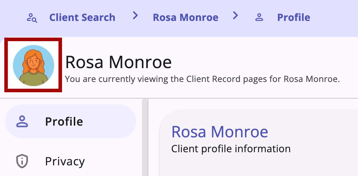
Client users of the Customer Portal can add and update their own profile photo. If the client user updates their photo, it will be visible in both the Customer Portal and their profile in the new Clarity interface.
User Experience
New Clarity interface users can view, approve, or deny profile photos uploaded by client users in the Customer Portal.
When a Customer Portal client user uploads a profile photo, and the settings require approval or denial, a message appears at the top of the client’s profile: “Photo Approval Needed.”
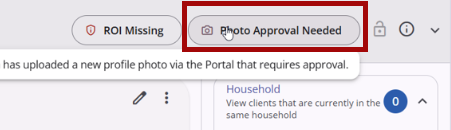
Any Clarity user who can view and edit a client’s profile in Clarity can see the message to review and either approve or deny the client user's uploaded photo. The access role for approving or denying photos is Customer Portal Client Management. If the user does not have access to view and edit a client’s profile, then they will not see the message.
If a System Administrator disables the Profile photo upload setting after the client user has submitted a photo in the Customer Portal (and before a Clarity user has had a chance to review and either approve or deny the photo), the message will disappear.
- If the Profile photo upload setting is later enabled again, the message will reappear, and the photo will be available for review and approval/denial.
Photo Approved or Denied Process
When the Clarity user clicks the message, they are redirected to a View Profile Picture page that displays the photo uploaded by the client user to the Customer Portal, along with "Approve Photo" and "Deny Photo" buttons. The page to review the photo includes the photo guidelines from the Custom Text for Profile Photo Upload Requirements setting. If there is no text in this setting, this section will not show.
When the Clarity user clicks Approve Photo, the system updates the client user's profile in Clarity and in the Customer Portal to reflect the photo. A notification is sent to the client user in the Customer Portal and via SMS/email (depending on the client user’s notification settings), letting them know their profile photo has been approved.
When a Clarity user clicks Deny Photo, the photo is not uploaded to the client’s profile in Clarity or the Customer Portal. A pop-up appears with a text box so the user can provide a reason for denying the photo. A notification is sent to the client user in the Customer Portal and via SMS/email (depending on the client’s notification settings), letting them know their profile photo has been denied.
Photo Approved or Denied Notification
A message is sent in Clarity and via regular email to the client’s Care Team members, notifying them that the client’s profile photo has been approved or denied.
Photo Approved
The message reads:
“Hello [user first and last name],
This client [UID] uploaded profile photo has been approved.
Thanks,
Clarity Human Services Team”
- The [UID] in the message is a link that directs the Clarity user to the client’s profile in Clarity where they can see the uploaded photo.
A message is sent by regular email to the client’s Care Team members letting them know the client’s profile photo has been approved.
- The subject line for the email is "Information from Customer Portal."
- The body of the email reads
“Hello [user first and last name],
This client [UID] uploaded profile photo has been approved.
Thanks,
Clarity Human Services Team” - The [UID] field in the message is a link that directs the Clarity user to the client’s profile in Clarity where they can see the photo.
Photo Denied
When a Clarity user clicks Deny Photo, the photo is not uploaded to the client’s profile in Clarity or the Customer Portal. A pop-up appears with a text box so the user can provide a reason for denying the photo.
A notification is sent to the client in the Customer Portal as well as via sms/email (depending on the client’s notification settings), letting them know their profile photo has been denied
A message is sent in Clarity to the client’s Care Team members, letting them know the client’s profile photo has been denied.
- The message reads:
“Hello [user first and last name],
This client [UID] uploaded profile photo has been denied.
[text of the reason]
Thanks,
Clarity Human Services Team”- [UID] in the message is a link that directs the Clarity user to the client’s profile in Clarity.
A message is sent by regular email to the client’s Care Team members letting them know the client’s profile photo has been denied.
- The subject line for the email is "Information from Customer Portal."
- The body of the email reads
“Hello [user first and last name],
This client [UID] uploaded profile photo has been denied. [text of the reason]
Thanks,
Clarity Human Services Team”- [UID] in the message has a link that directs the Clarity user to the client’s profile.
Client User Experience
When Client initiated profile photo is ON in Settings > Customer Portal, the Customer Portal client user can upload their own profile photo. When the client user accesses their profile in the Customer Portal, and they hover over (if accessing the Portal on a desktop or laptop) or tap on (if accessing the Portal on a mobile device or tablet) their existing profile photo or initials, they see a camera icon at the bottom right of the circle.
When the user clicks or taps on the camera icon, a window pops up titled “UPLOAD NEW PHOTO.”
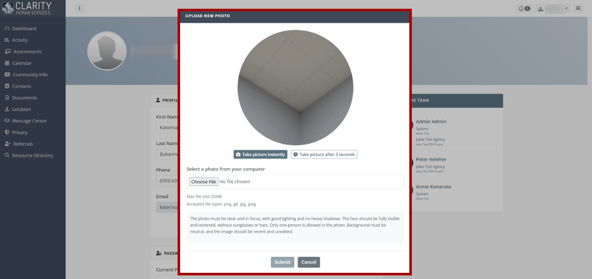
The client user can take a photo instantly with their device, or take a photo after 3 seconds. Or, the client user can select a photo from their device to upload as their profile photo. When the client user takes a picture or uploads a photo from their device and clicks Submit, the photo is submitted for approval by a Clarity user.
Refer to the Customer Portal: Profile Photos article for more information on the client user experience.
Audit Log
The "View Audit Log" option in the client profile's action menu can be clicked by a system administrator with audit log access rights. A log of all changes to profile photos is displayed.

When a client user uploads a photo to their profile in the Customer Portal and the image is approved, an entry is added to the client profile audit log in Clarity.
- The audit log entry shows the date and time the image was added, as well as an indicator that the photo was uploaded via the Customer Portal so that it can be distinguished from photos added to a client’s profile in Clarity.
When a client user uploads a photo to their profile in the Customer Portal and the image is denied, an entry is added to the profile audit log in Clarity.
- The audit log entry shows the date and time the image was denied, as well as the reason the photo was denied; the photo is not stored.
Updated: 04/21/2026