
Table of Contents
Overview
The Units/Beds workspace in the client record contains a table of all the client's Inventory-related occupancy records, including past, current, and future occupancies. The workspace also displays program-connected occupancy records and overnight drop-ins.
To open it, click Units/Beds on the client navigation menu. If you do not see Units/Beds, ask your system administrator to check your access role.
Units/Beds Table
The Units/Beds workspace displays unit/bed occupancy at the client level.
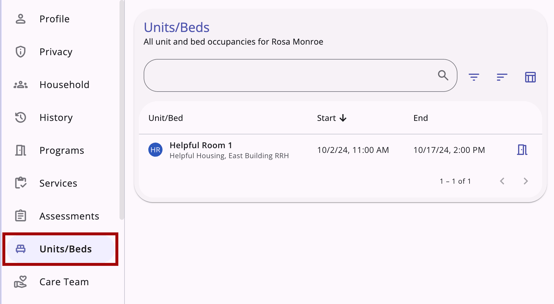
The table shows these columns by default:
- Unit/Bed: The name of the unit and bed, with the site and building name beneath it
- Start Date
- End Date
Use the search bar to search by:
- Unit Name
- Bed Name
- Site Name
- Building Name
- Program Name
For more information on using the Search bar, refer to the Client Record Overview article.
Use the filter option to filter by:
- Site
- Building
- Program
- Unit Configuration Type
- Occupancy Status
For more information on using filters, refer to the Client Record Overview article.
Use the column selector to add these columns:
- Program Name
- A No Program message is displayed when the occupancy is not enrollment-based.
- Unit Configuration Type
- Overnight Drop-in: Yes/No
For more information on using column selectors, refer to the Client Record Overview article.
The table has the following icons in each row to provide additional context:
- A Program Connection icon: The occupancy is connected to a program enrollment.
- A Referral Connection icon: A referral added the unit.
- A Privacy Icon: The occupancy record is private.
Managing Unit/Bed Occupancy at the Client Level
You can manage unit/bed occupancy at the client level and can view, edit, and delete records.
Viewing Occupancy Records
A user can view occupancy records, including overnight drop-ins, in all relevant areas of the client record, including:
- The client-level Units/Beds workspace: Occupancy records, including overnight drop-ins, display.
- The History workspace: Occupancy records, including overnight drop-ins, display.
- The program-level Units/Beds workspace: Program enrollment connected Overnight Drop-in records.
Editing Occupancy Records
Click an occupancy row to open the Edit Occupancy modal on the right side of the screen.
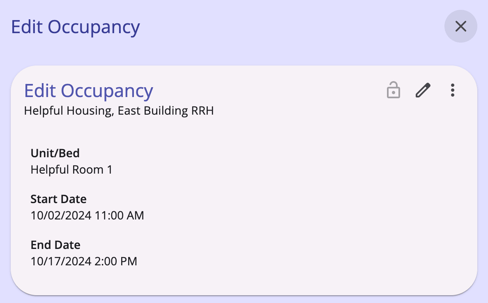
Click the Edit (pencil) icon at the top-right of the modal to make the fields editable.
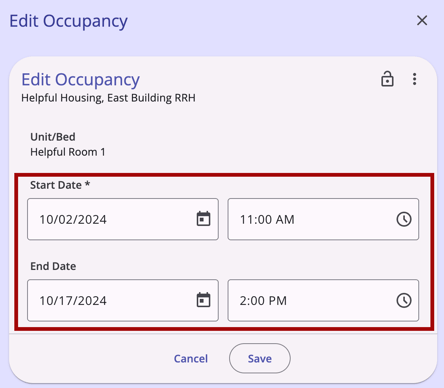
The Edit (pencil) icon appears for records matching the user's agency (or the one they are switched into) when:
- For General Occupancy Records: The Edit Enrollment-based Unit Records access right is enabled for your access role.
- If you have the Edit Any Agency Enrollment-based Unit Records access right enabled for your access role, you will also see the Edit (pencil) icon for any agency enrollment-based unit records.
- For Overnight Drop-in Records: The Edit Overnight Drop-in Records access right is enabled for your access role.
- If you have the Edit Any Agency Overnight Drop-in Records access right enabled for your access role, you will also see the Edit (pencil) icon for any agency overnight drop-in records.
The Occupancy Start Date/Time, End Date/Time, and Privacy settings are editable. The Unit/Bed is not editable. Click Save to keep your changes or Cancel to discard them.
If the occupancy record is an overnight drop-in, you cannot edit the End Date; it is automatically filled in based on the Start Date.
Deleting Occupancy Records
Click the Action Menu (three dots) icon, which is to the right of the Edit (pencil) icon at the top right of the Edit Occupancy modal.
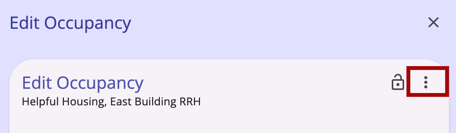
The Delete option appears for records matching your agency (or the one you are switched into) when:
- For General Occupancy Records: The Delete Enrollment-based Unit Records access right is enabled for your access role.
- If you have the Delete Any Agency Enrollment-based Unit Records access right enabled for your access role, you will also see the Delete option for any agency enrollment-based unit records.
- For Overnight Drop-in Records: The Delete Overnight Drop-in Records access right is enabled for your access role.
- If you have the Delete Any Agency Overnight Drop-in Records access right enabled for your access role, you will also see the Delete option for any agency overnight drop-in records.
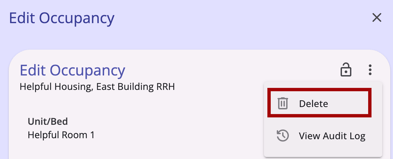
Click Delete. A message appears on the screen that reads:
"This record will be permanently deleted and cannot be restored in the future. Household member occupancy records are not impacted by this action. Please confirm."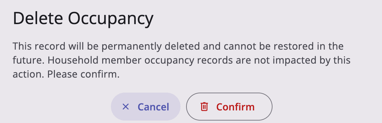
Click Confirm to delete the record or Cancel to keep it.
Note: If the deleted occupancy record is connected to a completed unit referral, the referral remains in Complete status. The unit's occupancy status reverts to Pending Occupancy rather than reopening the referral.
Private Occupancy Records
To mark an occupancy private, click the Privacy icon in the Edit Occupancy modal.
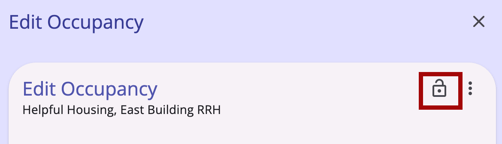
When an occupancy record is marked private, only users at the agency to which it belongs can see it.
For more details on how to mark a client record private, refer to Making Client Data Private.
Linking an Occupancy Record to a Program Enrollment
If an occupancy record is not connected to a program enrollment, you can link it from the program’s Units/Beds workspace. Use this to correct data entry errors, such as an overnight drop-in entered without an enrollment. After you link the record, the Program Connection icon appears on it here.
Refer to Linking and Unlinking Unit/Bed Occupancies for the steps.
Audit Log
System Administrators with the Audit Log access right can view audit logs throughout the system. Refer to Rights Glossary for Access Roles for details on access rights.
To open the audit log, click the Action Menu (three dots) icon in the upper right of the Edit Occupancy workspace and select View Audit Log.
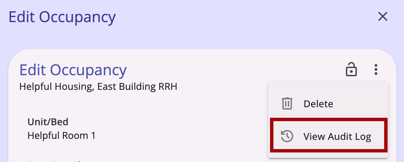
A log of all changes to the client's occupancy record is displayed.
Additional Resources
Configuration Resources
Your system administrator sets up the settings that control what appears in the client-level Units/Beds workspace. System administrators can use this table to see how each setting affects what users see. Refer to the linked articles for configuration details.
|
What users see |
What controls it |
Configuration articles |
|
The Units/Beds workspace appears on the client navigation menu. |
Required, per access role: Turn on the Units/Beds access right. It is on by default for Admin role types and off for all other role types. The other occupancy rights in this table can be enabled only when Units/Beds is on. |
|
|
The Edit (pencil) icon and the Delete option. View Audit Log is available to System Administrators only. |
Required, per access role: Turn on the matching rights. Without a right, the control is hidden. Edit Enrollment-based Unit Records and Delete Enrollment-based Unit Records: occupancies at the user’s agency. Edit Any Agency Enrollment-based Unit Records and Delete Any Agency Enrollment-based Unit Records: the same, for any agency. Edit Overnight Drop-in Unit Records, Edit Any Agency Overnight Drop-in Unit Records, Delete Overnight Drop-in Unit Records, and Delete Any Agency Overnight Drop-in Unit Records: overnight drop-ins. Audit Log: View Audit Log. |
|
|
Overnight drop-ins appear in the table, and their End Date fills in automatically. |
Optional, per site, building, or unit: Turn on Allow Overnight Drop-in, and set Require Program Enrollment for Drop-in and Drop-in End Time (9:00 AM by default) on the Inventory screens. Settings cascade from site to building to unit. Staff who create drop-ins need the Create Overnight Drop-in Unit Records access right. |
|
|
Whether users see occupancy records from other agencies, and the View link on overnight drop-ins. |
Optional: Change the Unit/Bed Occupancy sharing option in sharing groups and agency sharing exceptions. It is Not Shared by default. Users with Full System Sharing Access who cannot edit overnight drop-ins see a View link instead of the Edit icon. |
Updated: 10/30/2026