
This article is for the new Clarity interface. Screenshots and descriptions will be updated as features are released. For the current interface article, see Clarity Human Services Passwords.
Table of Contents
Overview
Clarity Human Services uses a secure sign-in process to protect client information. Once you're signed in, you land directly on your default home page.
Learn how to log in to Clarity Human Services, meet password requirements, and set up multi-factor authentication. You’ll also find steps for changing or resetting your password, as well as guidance if your account is locked.
Logging In
Follow the steps below to log in:
- Go to your community's Sign In page.
/Clarity%20email%20entry%20screen%2c%20new%20Clarity%20interface%20branding.png?width=670&height=401&name=Clarity%20email%20entry%20screen%2c%20new%20Clarity%20interface%20branding.png)
- Enter the email address associated with your account, then select Continue.
/Clarity%20email%20entry%20screen%2c%20with%20an%20arrow%20on%20Enter%20Your%20Email%20and%20Continue%20highlighted.png?width=670&height=401&name=Clarity%20email%20entry%20screen%2c%20with%20an%20arrow%20on%20Enter%20Your%20Email%20and%20Continue%20highlighted.png)
- You're redirected to a secure sign-in page. Enter your password, then select Continue.
/password%20entry%20screen%20with%20an%20error%20point%20to%20password%20field%20and%20the%20continue%20button%20highlighted.png?width=364&height=439&name=password%20entry%20screen%20with%20an%20error%20point%20to%20password%20field%20and%20the%20continue%20button%20highlighted.png)
- If prompted, complete Multi-Factor Authentication (MFA). Refer to the Multi-Factor Authentication (MFA) section below for enrollment and management details.
Password Rules
The following requirements and restrictions help ensure that your password meets a minimum level of complexity.
Password Requirements
All passwords must contain:
-
At least eight characters
-
At least one uppercase character (A through Z)
-
At least one lowercase character (a through z)
-
At least one number (0 through 9)
-
At least one non-alphanumeric character (!@#$()%^&*).
Password Restrictions
Passwords cannot contain:
-
Spaces
-
The name of your Clarity Human Services instance
-
The word "clarity"
-
Your First Name, Last Name, or Username
-
"ABC" or "123"
-
More than two consecutive characters
-
The same password as the three prior passwords.
Initial Login
Your system administrator may set your initial password when creating your account, and they may require you to change it when you log in for the first time. Refer to the Force Password Change section for more information.
Changing Your Password
Your system administrator may require a password change at initial login, or you can change your password at any time while logged in.
Password Change After Login
Once you've logged into Clarity Human Services, you can change your password at any time by clicking your avatar or initials in the upper-right corner, then selecting the Account Settings icon.
/Changing%20a%20password%20process%3B%20highlighting%20the%20Account%20Settings%20icon.png?width=292&height=243&name=Changing%20a%20password%20process%3B%20highlighting%20the%20Account%20Settings%20icon.png)
Select the Security Settings option, which provides password management and Multi-factor Authentication (MFA) management.
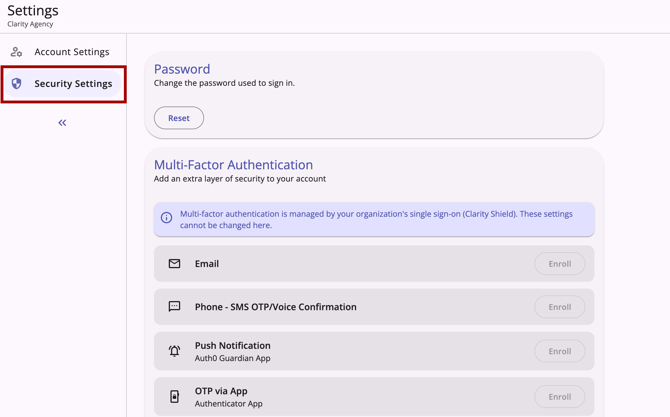
The Security Settings workspace displays a dedicated Password section. A Reset action is available.

When Reset is clicked, two fields appear: New Password and Confirm New Password.
/Password%20section%20of%20the%20Users%20Security%20Settings%20for%20Account%20Settings.png?width=511&height=215&name=Password%20section%20of%20the%20Users%20Security%20Settings%20for%20Account%20Settings.png)
- Each field has an individual Show/Hide (eye) icon allowing the user to reveal or mask their input independently.
- Both fields are required.
- Click Save to save your new password. Click Cancel to return to the Security Settings workspace without saving.
For more information, refer to Staff Member Account Settings (New Clarity Interface).
Note: If the system won't save the password you entered, try entering a different combination of characters, numbers, and symbols. Remember to follow the rules listed in the Password Rules section above.
Forgot Your Password?
If you forget your password, you can reset it yourself by selecting the Reset password link on the Enter Your Password page. The Enter Your Password page appears after you enter your email on your community's Clarity Human Services login page.
/Enter%20Your%20Password%20page%20with%20reset%20password%20link%20highlighted.png?width=328&height=428&name=Enter%20Your%20Password%20page%20with%20reset%20password%20link%20highlighted.png)
Note: If your system administrator has not enabled the Automated Password Reset feature in system settings, you will not see the "Forgot your password?" option/link. Please contact your system administrator or agency contact to reset your password.
Clicking Reset password will take you to the Forgot Your Password? page.
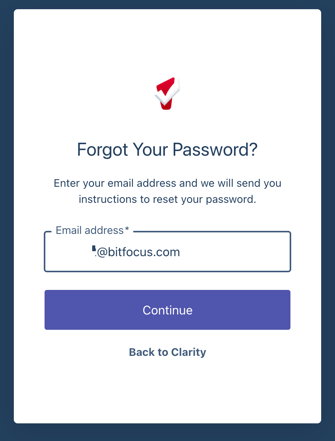
Enter the email address associated with your account and click Continue. Click the Back to Clarity link to go back to the previous page.
After you enter your email address, the system will display the following message:
“We have received your request. If you are an existing user, we will send you an email with a link to reset your password.”
/Check%20your%20Email%20page%20with%20instructions%20to%20check%20the%20email%20for%20further%20instructions.png?width=348&height=447&name=Check%20your%20Email%20page%20with%20instructions%20to%20check%20the%20email%20for%20further%20instructions.png)
Notes:
-
You will receive a warning if you request more than one password reset on the Clarity Human Services Login page within a 5-minute window.
-
If you have a Clarity Human Services account but do not receive an email, it is possible that your account is inactive. Each community handles inactive accounts differently. Please contact your system administrator or agency contact for support details.
-
When you reset your password using the Forgot Your Password? feature, you will be logged out of Clarity Human Services wherever you are currently logged in.
Force Password Change
Your system administrator may configure Clarity Human Services to require you to change your password after a designated number of days or at initial login.
The time interval starts when you receive a new password during account creation, reset your password on your own, or reset it using the Forgot your password? feature.
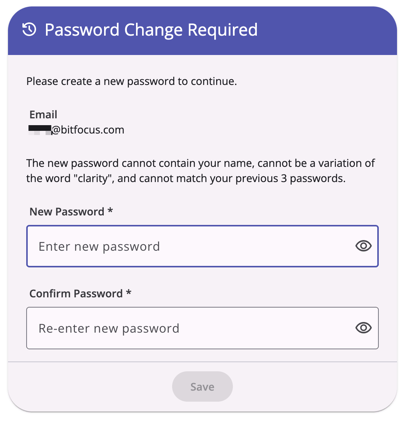
If your password has expired, or your system administrator has forced a password reset on your account, you'll see a Password Change Required screen the next time you log in. You won't be able to continue into the new Clarity interface until you save a valid new password.
The screen displays your Email address (read-only) along with New Password and Confirm Password fields.
A checklist above the Save button appears when you start creating a new password and lists the required password rules from the Password Requirements section above; each rule disappears from the list as you satisfy it.
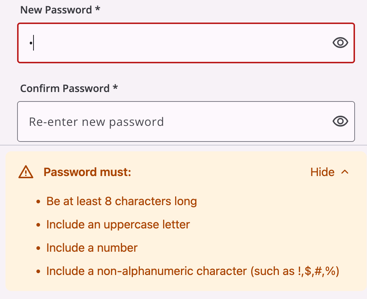
If your password breaks any of the restrictions listed in Password Restrictions (for example, it contains your username or repeats a character three times in a row), that specific rule appears in red text below the field.
- New Password and Confirm Password fields show a red border until all requirements and restrictions are satisfied.
- Both fields include a show/hide icon so you can check your password entry as you type.
- Save remains clickable at all times; selecting it before your password meets all requirements displays a message listing what's still needed.
- Attempts on this screen do not count toward your failed login attempts.
Once your password meets all requirements, click Save.
Locked Out?
System administrators manage lockout time based on the number of password attempts. Each community handles locked accounts differently. Please contact your system administrator or agency contact for support details.
Multi-Factor Authentication (MFA)
For an additional layer of security, all users are required to enroll in Multi-Factor Authentication (MFA).
Enrolling in MFA
The first time you log in, you'll be prompted to select and set up an authentication method. Supported methods include:
- A one-time password from an authenticator app (such as Google Authenticator or Microsoft Authenticator)
- A push notification through the Auth0 Guardian app
- A phone call or text message
- Email (only available as a backup method, after you've set up one other method first)
For more details on enrolling in MFA, refer to the Auth0 for Clarity Human Services Toolkit.
Managing Your MFA Methods
Once you're logged in, you can view or update your enrolled MFA methods at any time:
- Click your avatar or initials in the upper-right corner.
- Select Account Settings.
- Select the Security Settings tab.
For more details on MFA management, refer to the Staff Member Account Settings article.
Icons & Tooltips
| Icon | Icon/Tooltip Name | Tooltip | Icon Location |

|
Account Settings | (no tooltip) | Top Right: after clicking your avatar or initials |

|
Arrows/Dropdown | (no tooltip) | All Screens: Anywhere you see this icon, you can click to collapse or expand the section |
/Show%20or%20hide%20icon.png?width=37&height=29&name=Show%20or%20hide%20icon.png)
|
Show/Hide | "Show password" | Any screen where you need to enter a password |

|
Switch interface versions of Clarity Human Services | "Open page in the current version of Clarity" | All screens: always visible in the top right corner |
Configuration and Additional Resources
The following resources for general users are related to the features in this article:
The following configuration resources for system administrators are related to the features in this article:
Updated: 09/30/2026