
Table of Contents
Overview
Clarity Human Services uses Auth0, a modern, SOC 2–compliant identity platform, to manage login and Multi-Factor Authentication (MFA).
This article explains:
- How to sign in to Clarity Human Services
- Required Multi-factor Authentication (MFA)
Why Clarity Uses Auth0
A stronger security foundation: Authentication is one of the most critical components of any SaaS platform. Auth0 gives Clarity a modern foundation for managing it and helps Bitfocus support current security standards
A simpler, more scalable path to SSO and MFA: Auth0 provides a consistent, scalable way to deliver SSO and MFA across the platform.
A more unified access experience: Some customers will be able to access their data in Snowflake with the same login they use for Clarity, reducing the need for separate authentication across the platform.
Multi-Factor Authentication (MFA) Enrollment
All Clarity Human Services users are required to enroll in Multi-Factor Authentication (MFA) the first time they log in.
Supported authentication methods include:
- One-time password via authenticator app (Google Authenticator or Microsoft Authenticator for iOS and Android devices are two popular options).
- Note: If users cannot use their phones to authenticate, they can use a desktop-based authenticator like Proton.
- Push notification via the Auth0 Guardian app
- Phone (SMS or voice)
- Email
- Note: Email is only available as a secondary factor. Users must first enroll in at least one other authentication method.
Users can manage their enrolled factors directly from their Clarity account settings after migration. See the MFA Management for Users section for details.
Note:
- Clarity Shield customers will manage MFA through their own IDP provider and will not need to enroll in additional MFA.
MFA Enrollment Steps
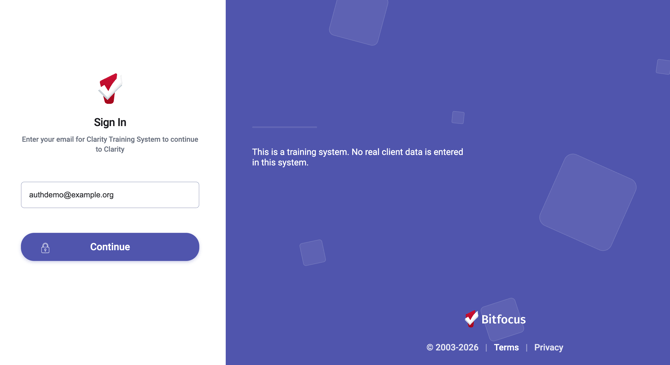
Step 1: Users enter their email address on the Clarity sign-in page:
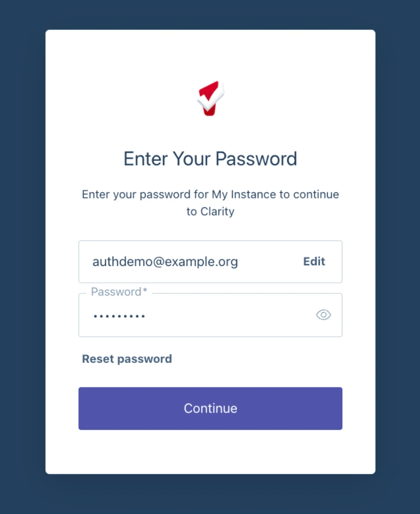
Step 2: Users are redirected to the Auth0 login page, where they enter their Bitfocus account password:
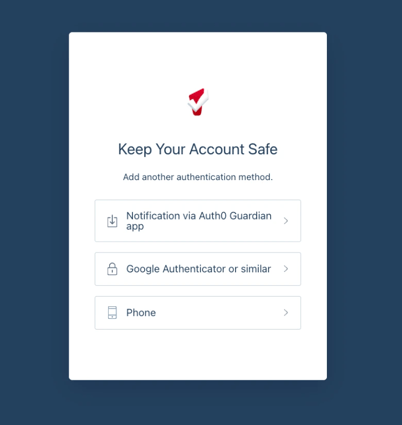
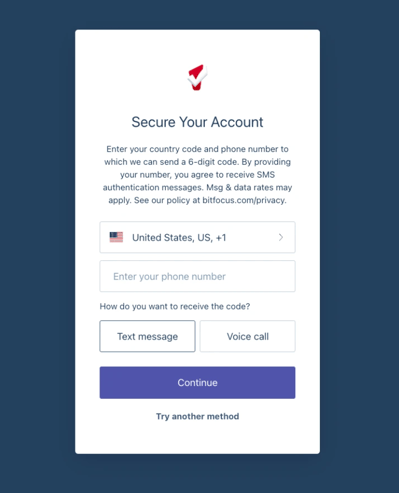
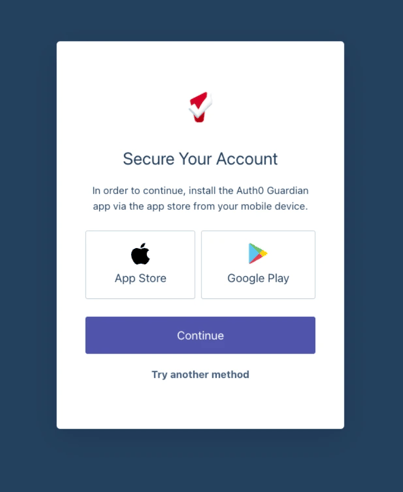
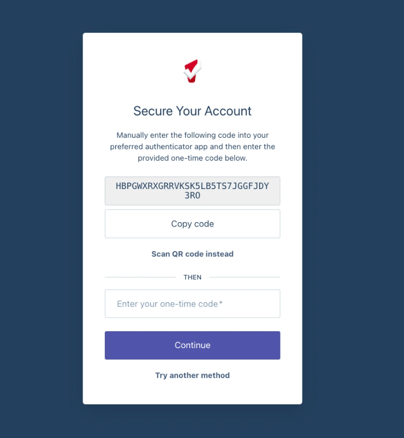
Step 4: Once the authentication method is set up, users will be prompted the next time they need to re-authenticate when they log in:
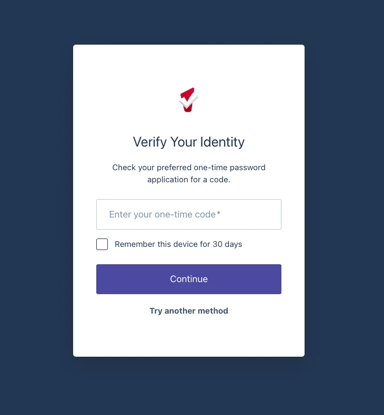
If the Remember this device for 30 days option is checked, an MFA challenge will only be presented after a 30-day grace period. If the Remember this device for 30 days option is not checked, you will be challenged every time you log in.
MFA Management
MFA management is available for administrators and users.
MFA Management for Staff Account Admins
System Admins and agency managers with the Manage Agency - Staff access right enabled for their access role can manage MFA for staff.
Navigate to Launchpad > MANAGE > Staff. Refer to the Staff Member Administration article for more details.
Search for and find the appropriate staff person, then click the Edit icon to open the MODIFY THE STAFF record. Scroll down the page to the MULTI-FACTOR AUTHENTICATION section.
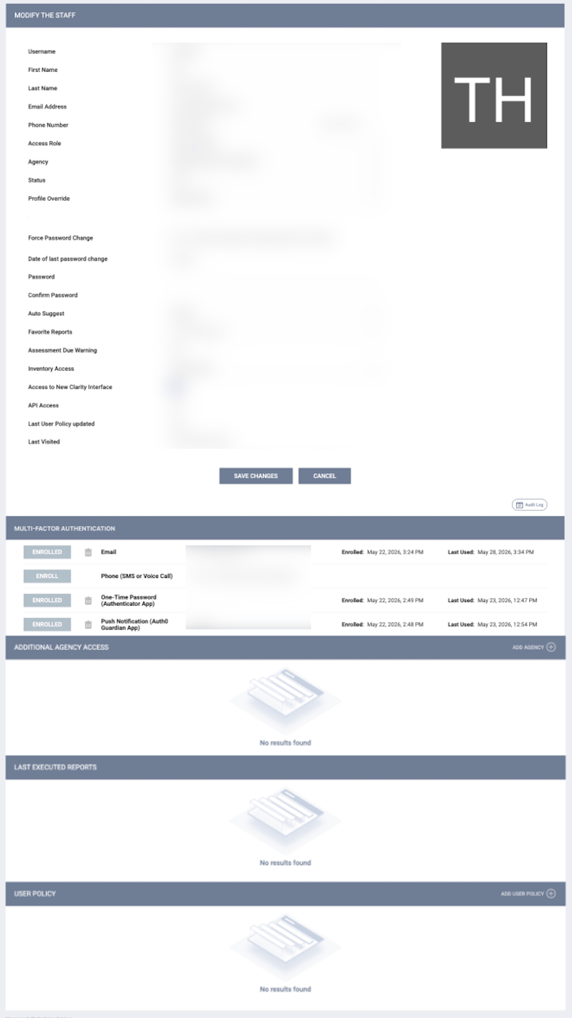
Administrators can see which MFA option(s) a user is enrolled in (jump to the MFA Enrollment section for the options). For any option that shows as ENROLLED, a Delete icon will appear to the right, allowing the administrator to remove or reset the MFA factor enrollment. Then the staff member must reconfigure their MFA factor and will be prompted to do so the next time they log in.
The administrator cannot enroll the user in any MFA option; that must be handled and configured by the end user.
If the staff member has not logged in after the Auth0 implementation, this section will remain blank until their first login.
Note: Factor enrollments on this page can only be viewed or deleted. All new factor enrollments occur during the staff member's login.
MFA Management for Users
Users can manage their MFA in their staff member Account Settings.
Once the user has logged in, they will click click anywhere on the button in the top-right corner that contains the initials/avatar and name/Agency to open a card. They will then click the Account settings icon to open a full workspace with two tabs: Account Settings and Security Settings. Then they will click Security Settings on the right side panel.
Security Settings provides password management and Multi-factor Authentication (MFA) management.
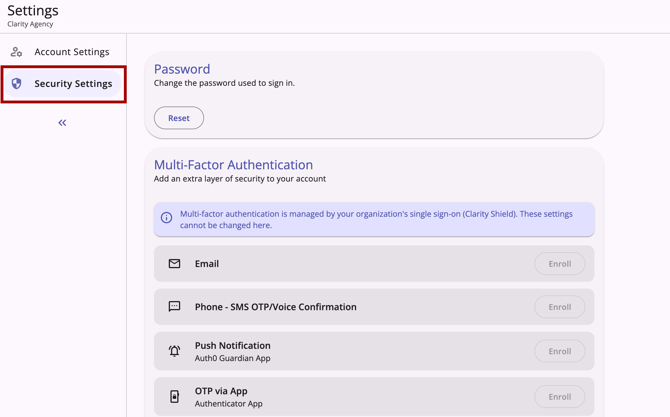
In the Multi-Factor Authentication section, they will see all available MFA options.
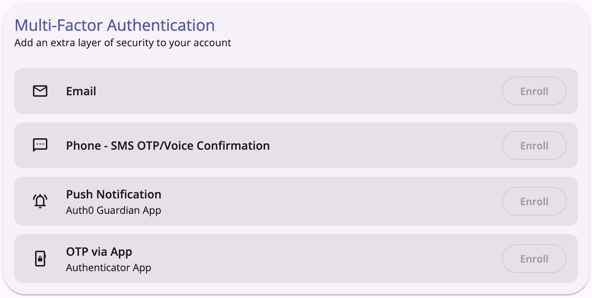
If Enrolled is shown next to a factor, a Delete icon is provided to delete the factor. Then they can reconfigure that MFA option upon login.
If Enroll is shown next to a factor, the Enroll button will be clickable, and when they click it, a new Auth0 tab will open, walking them through the enrollment/configuration for that option.
For full details, refer to the Staff Member Account Settings article.
Clarity Shield Users
Multi-factor Authentication for Clarity Shield users is managed through their organization's Identity Provider (IdP); all MFA configuration options for both admin and staff in Clarity will appear greyed out and will not be editable.
For more information about Clarity Shield, refer to the Single Sign-On and User Provisioning article.
Remember this device setting is a 30-day window
A single Remember this device for 30 days controls how often you're prompted for MFA on a given day.
Email Addresses
When a user first enrolls in Multi-factor Authentication (MFA), their staff profile email address is automatically enrolled as the backup email method. This email can be removed manually within the MULTI-FACTOR AUTHENTICATION section of the MODIFY THE STAFF profile page. If that email address is ever changed, it will be automatically unenrolled as the MFA method, and the new email will need to be manually enrolled on the Manage MFA page. System administrators should confirm noreply@bitfocus.com is allowlisted so MFA and password-reset emails aren't blocked.
Invalid Email Addresses
Email can be used as a backup recovery method if the phone or the authenticator app is first set up as a primary method. If, for any reason, a user’s primary authentication method fails, it’s important that the email address they’re using to log in is valid so they can reset their password.
System administrators still can manually reset a user’s password from the MODIFY THE STAFF page in Clarity Human Services if all other recovery methods fail.
Frequently Asked Questions for Users
Why do I use my email to sign in?
Email is globally unique and doesn't require users to invent or remember a separate identifier. It also enables built-in account recovery via password reset links sent to your inbox.
What is this login screen? Why was I redirected to another website?
Users enter their email on the Clarity sign-in page, which has the same URL as before. They’ll then be temporarily redirected to Auth0, which handles the rest of the sign-in process. Once authentication completes, users are automatically sent back to Clarity.
Why am I being asked to register an MFA device?
MFA is required for all users authenticating to Clarity Human Services and approved third-party applications. At first sign-in, users are prompted to enroll.
What if the phone number on my Clarity user profile is different than the number I use for MFA?
This will not be an issue. Auth0 does not look at the Clarity user profile and only sees the phone number the user provides during login.
How long does "Remember this device" last?
30 days.
Does the new Clarity interface require a separate login?
No. The new Clarity interface continues to authenticate via Clarity, sharing a single Auth0 session so that customers won't see two logins.
Can I use my email address for MFA?
Email can only be used if another authentication method is set up first, and the user does not have access to the phone or authenticator app they set as their primary recovery method. Email cannot be the only/primary authentication method.
Frequently Asked Questions for System Administrators
Can I customize the display name shown on our login page?
Yes, the organization's display name can be customized. Contact the Support Team at support@bitfocus.com to request a change. Note that updating your System Name later will not automatically update the login display name.
Can admins enroll a user in MFA on their behalf?
No, users enroll themselves on first sign-in.
Can I manually set a password for a user?
Yes, if a user’s email address is invalid, system administrators can set the user’s password at Launchpad > MANAGE > STAFF > MODIFY THE STAFF page in Clarity.
What if my users don’t have cell phones or can’t use their personal phones for work?
Users who don’t have cell phones or who can’t use their personal phones for work have a couple of options:
- If they have access to a direct, landline phone number, they can use that and select the option to receive the authentication code via voice call.
- They can use a desktop authentication app like Proton.
If I can’t create accounts with fake email addresses, how can I test features under different access roles?
Rather than creating separate accounts to test access roles, we recommend using Additional Agency Access. During the process of granting additional agency access, system administrators can specify which access role should be used for the additional access. Then, when the user switches to that agency, they will experience Clarity Human Services as if they had that access role and can test features accordingly.
What if I need more help?
If a question isn't covered here, contact the Support Team at support@bitfocus.com.
Updated: 10/01/2026