
This article is for the new Clarity interface. Screenshots and descriptions will be updated as features are released. For the current interface article, see Care Team.
Table of Contents
Video Resources
Click play for a brief overview:
Overview
The new Clarity interface includes a Care Team tab on the client's navigation menu. The Care Team tab includes all Assigned Staff from the client's active program enrollments, as well as any staff members manually added to the team who are involved in the client's care but aren't on the Assigned Staff list.
Accessing the Care Team Tab
Users can navigate to a client’s profile and click the Care Team tab in the client navigation menu.

Managing the Care Team
The Care Team page displays an Active Care Team member section and an Inactive Care Team member section.
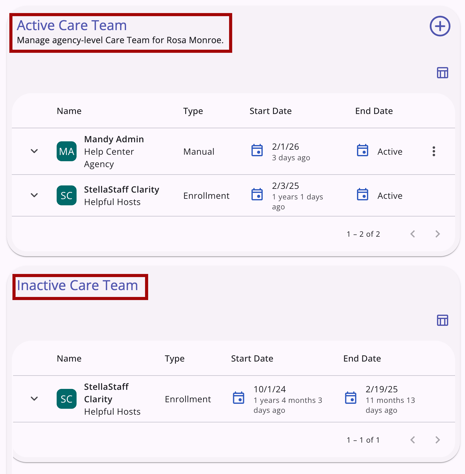
Both the Active Care Team member section and the Inactive Care Team member section have the following columns:
- Care Team Member Name
- Their Agency is listed below their name.
- Type
- Start Date
- This date reflects the actual start date that the Care Team member started working with the client.
- End Date
- This column shows Active for Care Team Members in the Active Care Team section. There is an end date for Inactive Care Team members.
- Email
- This field auto-populates from the user’s account profile.
- Phone
- This field auto-populates from the user’s account profile. If there is no phone number associated with the user’s account, the field will be blank.
A column selector is available so that the user can customize their view. For more information about column selectors, refer to the Client Record Overview article.
To the far right of each Care Team Member row is an Action Menu icon that displays 3 options. The Action Menu icon is available for each user who has been manually added.

The options are:
- Send Message
- Currently, clicking Send Message reroutes the user to the current interface.
- The Send Message option is available for each active user except the current user.
- Edit
- The user sees the Edit option in the kebab menu for the current agency and other agencies and can modify when the Edit Agency Care Team Member/Edit Any Agency Care Team Member access right is enabled.
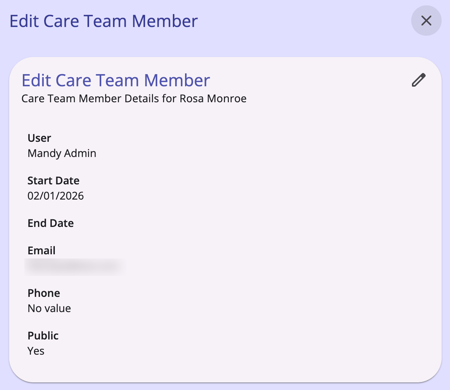
- Start Date: This date is editable by the user so that it can reflect the actual start date of a care team member
- End Date: The user can edit this date to reflect the actual end date for the care team member (only for care team members with a Manual type). The user can enter a day, month, and year.
- When the end date is before the current date, care team members are automatically moved to the Inactive Care Team section. When the User field is clicked, a dropdown menu appears with all Clarity users that can be selected as a care team member.
- When a user is selected, the Email and Phone fields are pre-populated with the data from the user’s profile.
- Email and Phone fields cannot be edited from here.
Clicking Edit causes the Edit Care Team Member page to open on the right side of the screen.- Only care team members who have been manually added can be edited from this page.
- When the end date is before the current date, care team members are automatically moved to the Inactive Care Team section. When the User field is clicked, a dropdown menu appears with all Clarity users that can be selected as a care team member.
- The user sees the Edit option in the kebab menu for the current agency and other agencies and can modify when the Edit Agency Care Team Member/Edit Any Agency Care Team Member access right is enabled.
- Delete
- The user will see the Delete option in the kebab menu for the current/another agency, and can delete when the Delete Agency Care Team Member / Delete Any Agency Care Team Member access right is enabled
-
- Clicking this triggers a warning message that pops up and reads:
“Are you sure you want to delete this care team member?”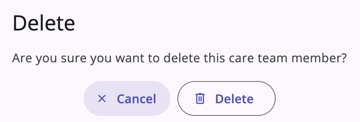
- The user can click Delete to remove the Care Team member or Cancel to return to the Care Team page, without deleting the Care Team member.
- Clicking this triggers a warning message that pops up and reads:
Note: Only manually-added Care Team members can be edited/deleted. You will not be able to edit/delete a Care Team member who is an Assigned Staff member for an active enrollment.
Adding a New Care Team Member
Click play for a brief overview:
At the top right of the Care Team page, there is an Add icon (+) that can be clicked to add a new care team member. This is visible when the user has the Create Care Team Member access right enabled.
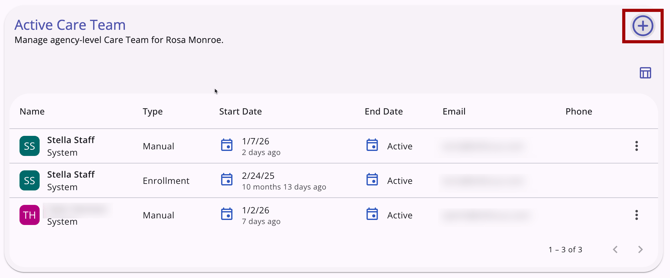
When the Add icon is clicked, an Add Care Team Member modal opens on the right side of the screen.

The following fields appear:
- User
- Use the drop-down arrow to view a selection of users to choose from
- Start Date
- Date selector
- End Date
- Date selector (can be left blank)
- Email
- Auto-populated from the user’s account record. This field is not editable.
- Phone Number
- Auto-populated from the user’s account record if a phone number is recorded there. This field is not a required field and is not editable.
- Public Toggle
- Toggle to make this care team member public or private. By default, this will be toggled ON.
Once the User and Start Date have been entered, the user can click Save and will be directed back to the Care Team page. Clicking Cancel will exit the page without saving.
Icons & Tooltips
|
Icon |
Icon/Tooltip Name |
Tooltip |
Icon Location |
|
|
Action menu, also known as:
|
"Show more actions" |
All Screens: typically on the far right of a screen or section |
|
|
Add |
“Add” |
All Screens: anywhere the “Add” option occurs |
|
|
Care Team |
"Care Team" |
All Screens: located on the primary navigation menu and visible at all times |
|
|
Column Selector |
"Show/hide fields" |
All Screens: typically paired with a search bar |
|
|
Delete |
“Delete” |
All Screens: anywhere the “Delete” option occurs |
|
|
Edit |
“Edit” |
All Screens: anywhere the “Edit” option occurs |

|
Send Message | "Send Message" | Care Team page; located in action menu for manually added Care Team members |


Updated: 04/23/2026