
Table of Contents
Video Resources
Click play for a brief overview:
Overview
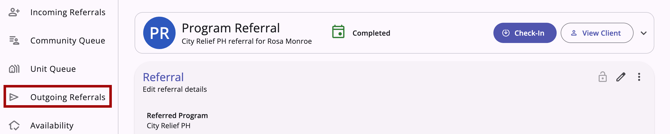
To view and manage the agency’s outgoing referrals, select Outgoing Referrals in the global Referrals navigation menu.
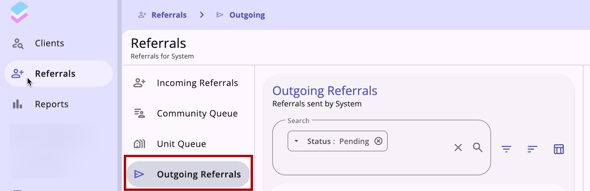
Notes:
-
User access to the Outgoing Referrals workspace is configured in access roles. See Rights Glossary for Access Roles or Coordinated Entry Roles for more information about the different access settings.
- If you used Referrals in the legacy interface, the Outgoing Referrals workspace replaces the Sent tab.
Highlights
In the Outgoing Referrals workspace, review all referrals your current agency has sent to a community queue or program. Outgoing Referrals highlights:
- The Referral status is visually represented using color-coded icons
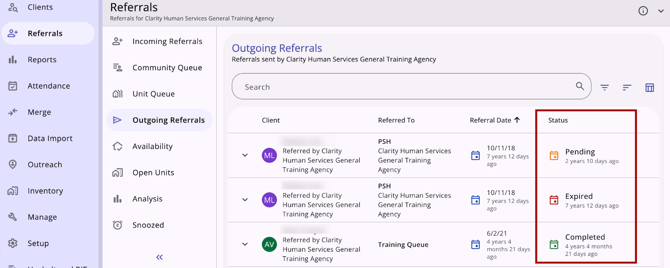
- An elapsed days indicator updates on each page refresh based on the current server time.

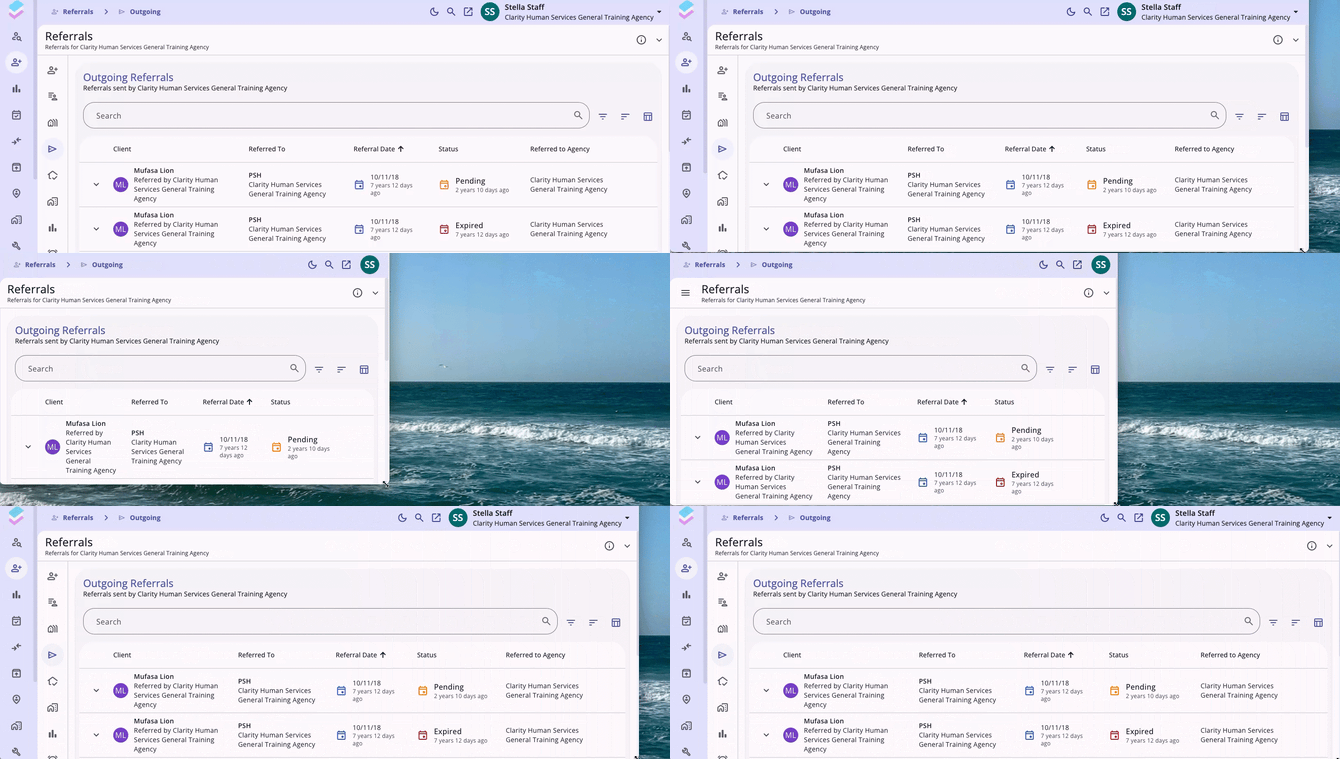
- The table is responsive and adapts its layout to different screen sizes, including touch devices.
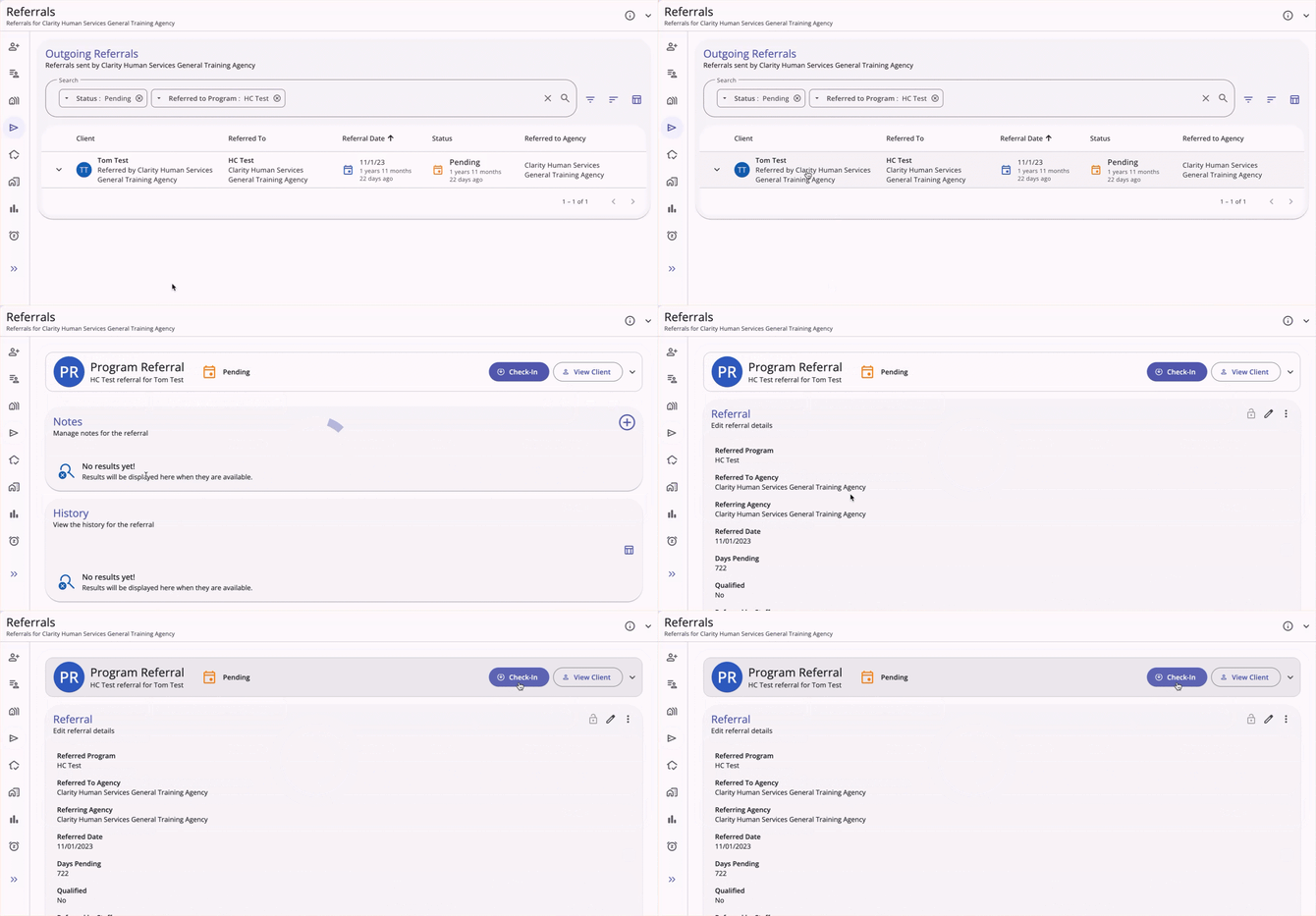
- The referral opens easily by clicking on a referral row.
Options to Refine Search Results
The Outgoing Referrals workspace includes multiple options to refine and view search results - a Search bar, Filter options, Sorting options, and a Column Selector.
Search Bar
The Outgoing Referrals workspace includes a Search bar where users can search by:
- Client Name
- Program Name
- Community Queue Name
Filter Options
Filter options include:
- Last Activity
- Referral Date From
- Referral Date To
- Referred By Staff
- Referred To Agency
- Referred To Community Queue
- Referred To Program
- Status
Note: Clicking on one of the above filters will display any additional options to choose for the filter. Users can select additional options, then click Apply to use as a filter.
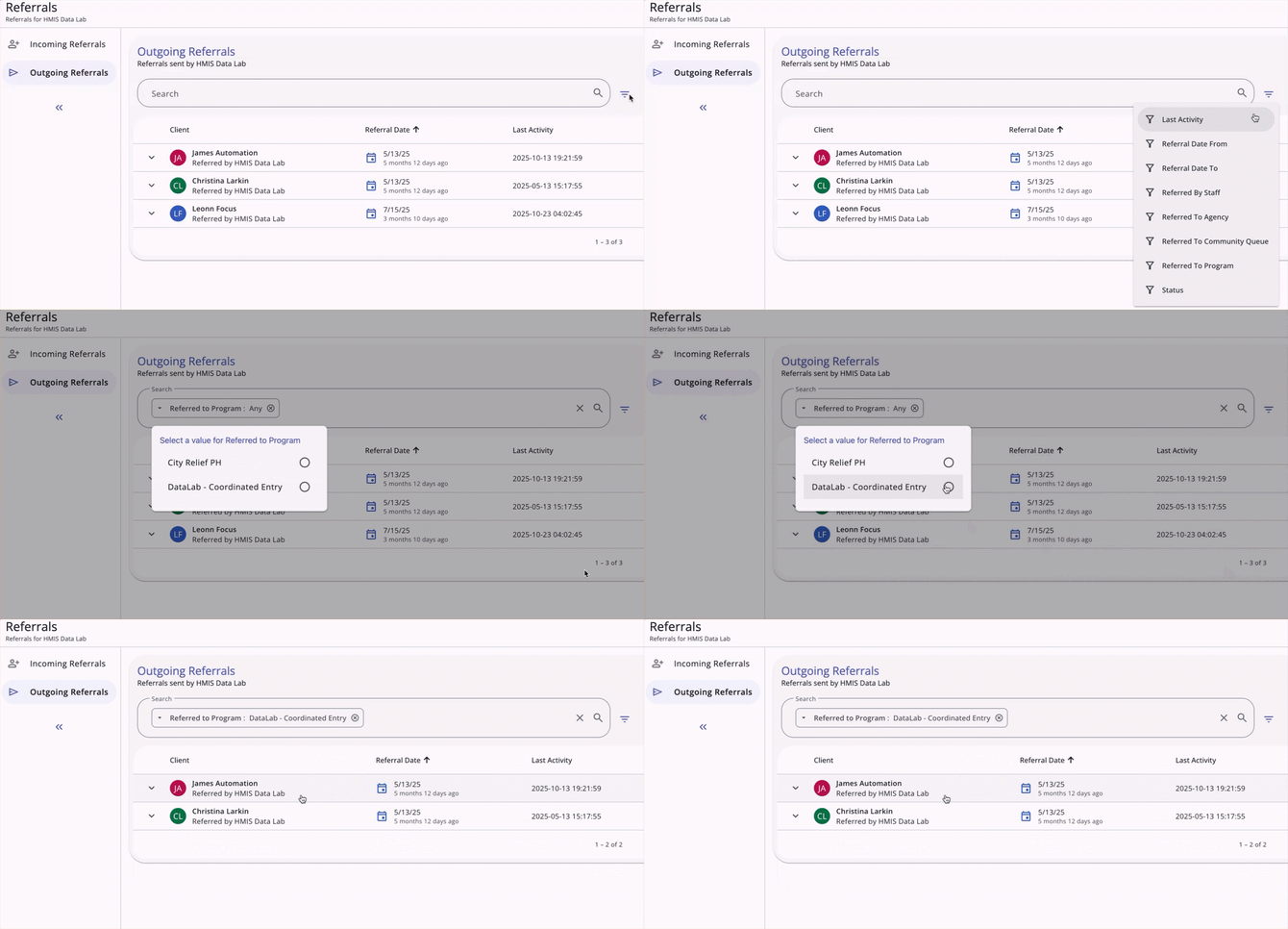
The default filter is set to show only Pending referrals. The Pending referral filter shows in the Search field to ensure the current filter is clear to the user.

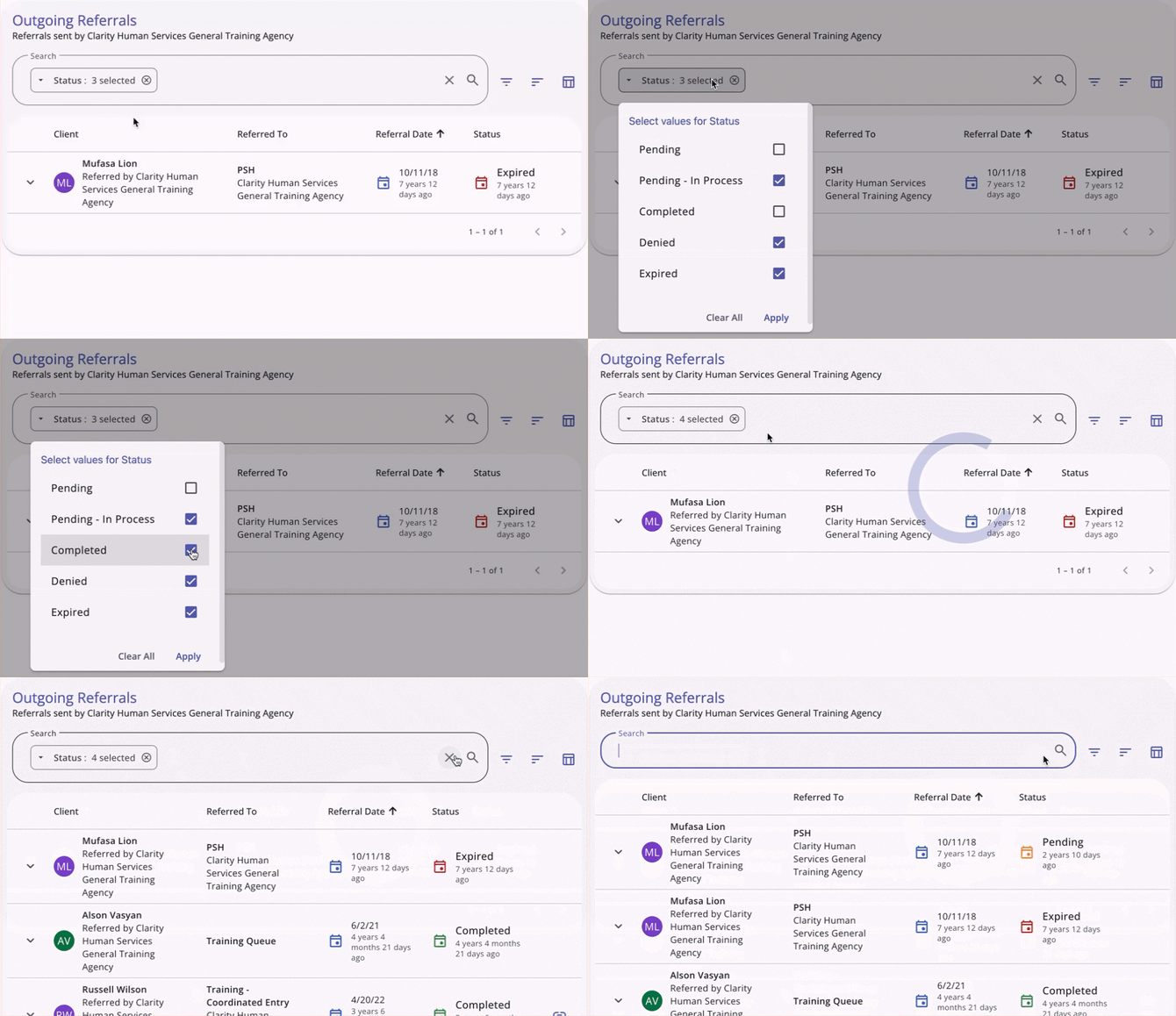
When additional Status options are added to the filter, the notification changes to show the number of statuses selected.
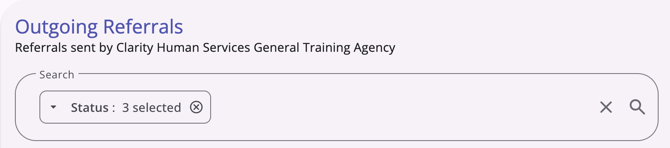
Users click on the Status bar to update the options or can click the X icon to clear all selections quickly.
Sorting Options
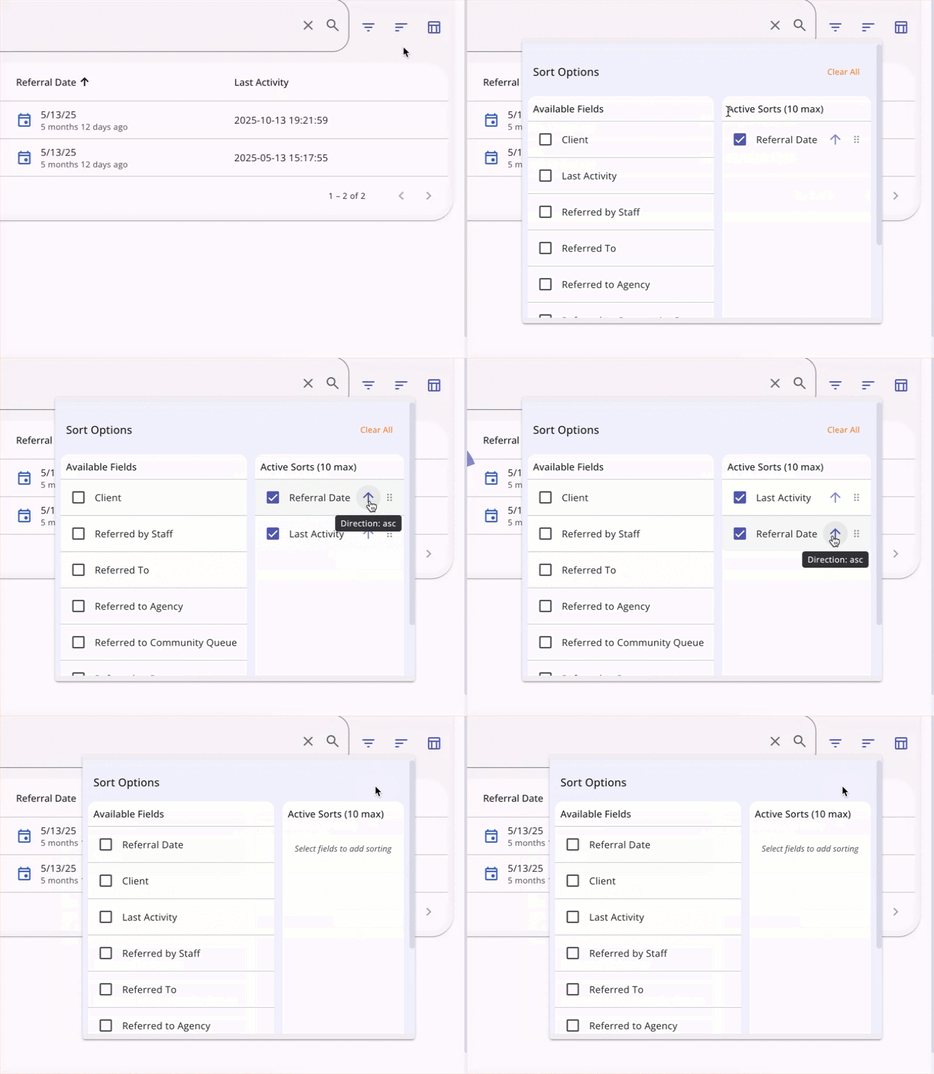
The list of outgoing referrals is sorted with the oldest referral at the top by default. Users can do a simple sort by all displayed columns.
Complex sorting is available via the sort icon. Users can sort by the following fields:
- Client
- Referral Date
- Last Activity
- Referred by Staff
- Referred to Agency
- Referred to Community Queue
- Referred to Program
- Status
Users can utilize checkboxes to add or remove sort options and use arrows to set the sort direction. Use the drag and drop method to move the sort options up or down or use “Clear All” to remove all sort options.
Column Selector
The Outgoing Referrals workspace includes a column selector. When a user sees a column selector, they can click on it to see fields available for customizing their view.
The Outgoing Referrals column shows the following by default:
- Client (locked)
- Client’s Name
- Referred by Agency
- Referred to
- Program name/agency name OR
- Community queue name
- Referral Date
- Date
- Elapsed days
- Status
- Length of time in current status
Additional column options include:
- Referred by Staff
- Name of Staff
- Staff’s Agency
- Last Activity
- Date
- Time Stamp
- Referred to Agency
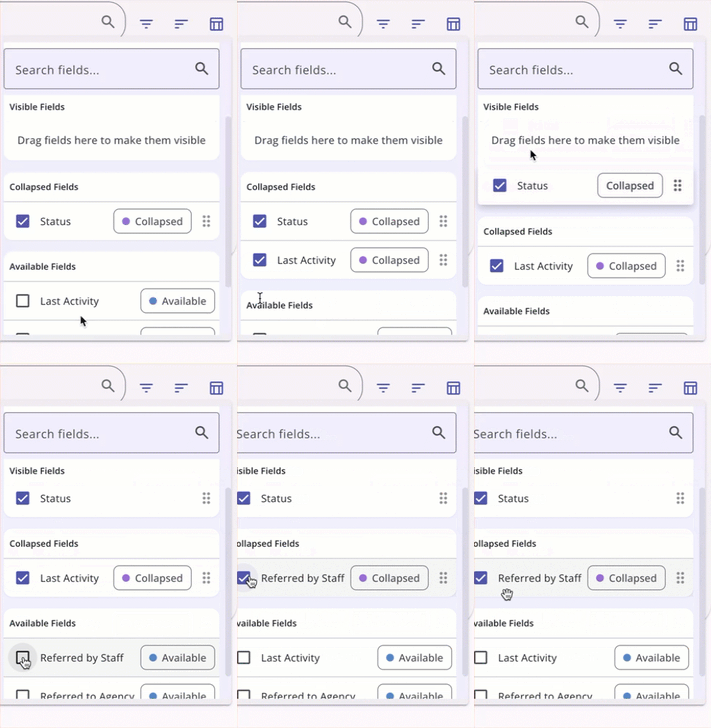
When the user clicks on the column selector icon, they will see a search bar, the fields that are available by default (or currently selected) in the Visible Fields section, the fields available to select in the Available Fields section, and a section to add fields that will collapse on the screen in the Collapsed Fields section. Fields in the Visible Fields section with a lock icon cannot be moved or removed.

Clicking a checkbox next to an Available Field will add the field to the Collapsed Fields section. The user can use a “drag & drop” feature to drag the field to the Visible Fields section to show it on the screen. Users can also drag a Visible Field to the Collapsed Field section.
Any field with a checkmark is available to be moved to and from the Visible Fields or Collapsed Fields sections.
To remove a field from the Collapsed Fields section or the Visible Fields section, click on the checkbox next to the field to remove the check; this moves the field to the Available Fields section.
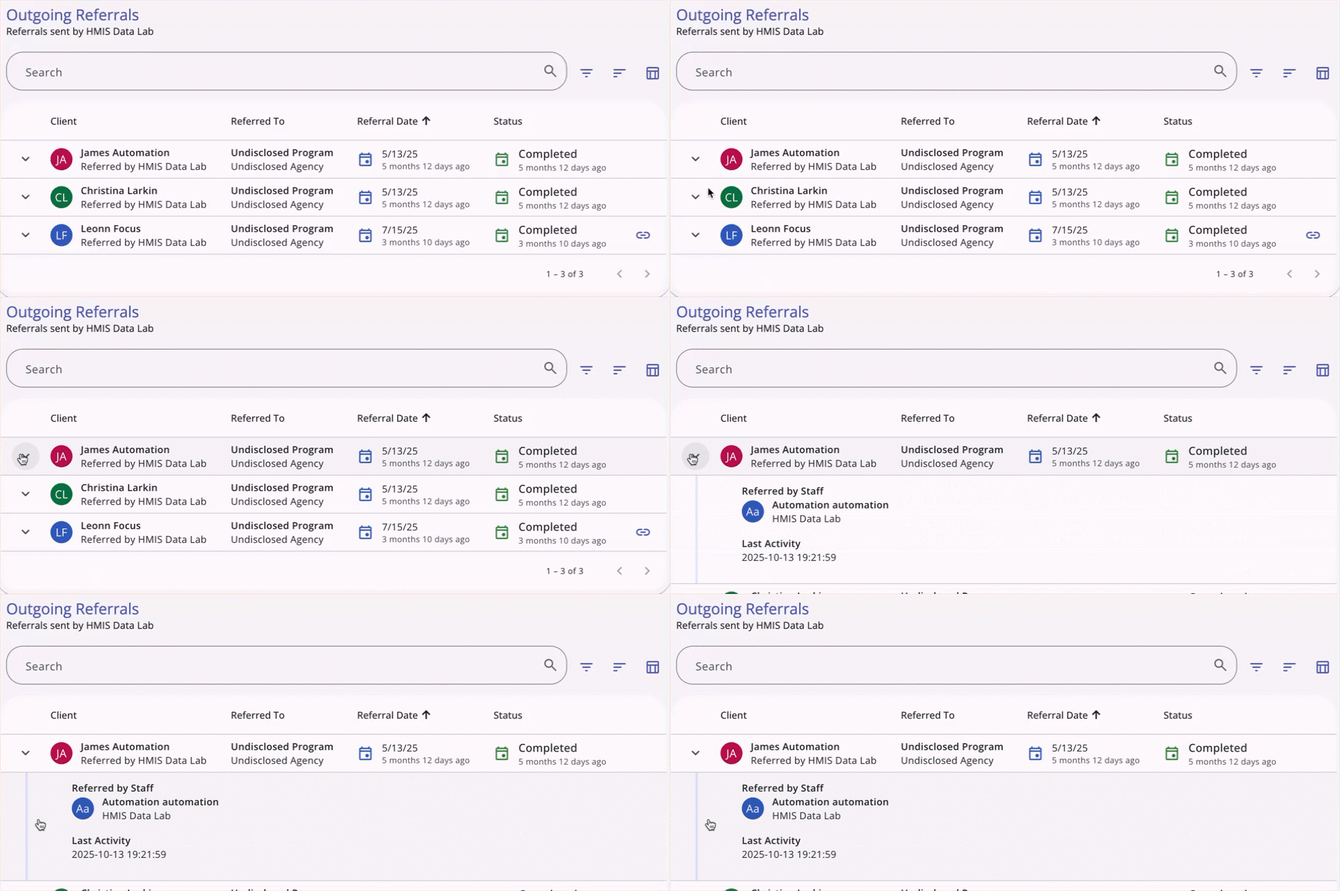
Any field in the Collapsed Field section can be seen by clicking on the drop down arrow on the page where you are working.
The selections made in the column selector will save in the user’s browser and will determine what they see the next time they view that screen.
Note: If the user uses a different browser to access Clarity, they will see the default view.
Referral Status
The Outgoing Referrals workspace has a summary of the user's agencies' outgoing referrals, organized by status. There is a Referral Status chart in the sidebar.
- The chart has a date range picker for the user to select a timeframe.
- By default the date range is set to the Last 30 days, based on the current date.

Referral Record
Users with the appropriate access can edit or view a referral record from the Outgoing Referrals workspace.
When the user clicks on a client referral record from the Outgoing Referrals workspace, it opens the the referral. The information displayed and/or editable is based on sharing and access role permissions, as well as the referral status.
At the top of the referral, the type of referral, status of the referral, and any additional details display in the information bar.

For referrals where the “Check-In” button applies, it will be located in the information bar. When a user clicks the check-in button, the Last Activity Date will update to the date of the check-in.
Checking in a referral prevents it from expiring from the Community Queue.

A "View Client" button to navigate to the client record is also in the header.

The sections of the referral are:
- Referral
- Notes
- History
View and Edit Referrals
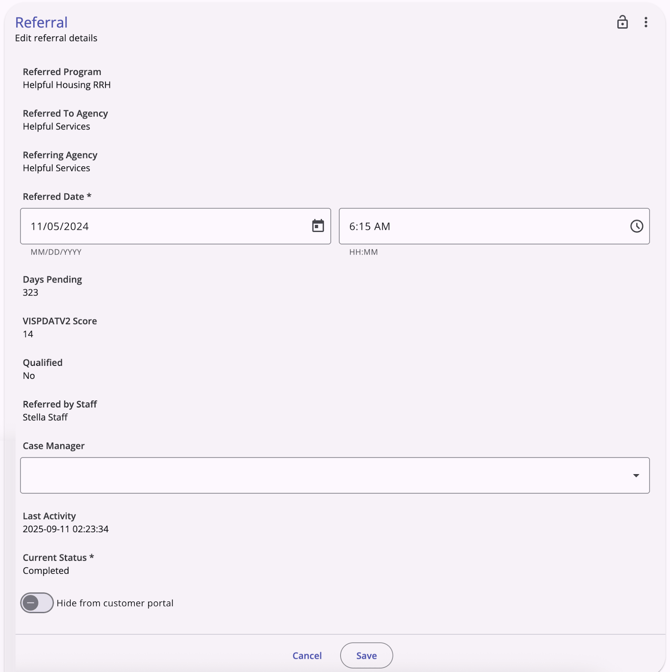
The Referral section is where the end user can, with the appropriate access, edit the referral, manage the privacy of the referral, make Referral Connections, delete the referral, and/or access the audit log for the referral.
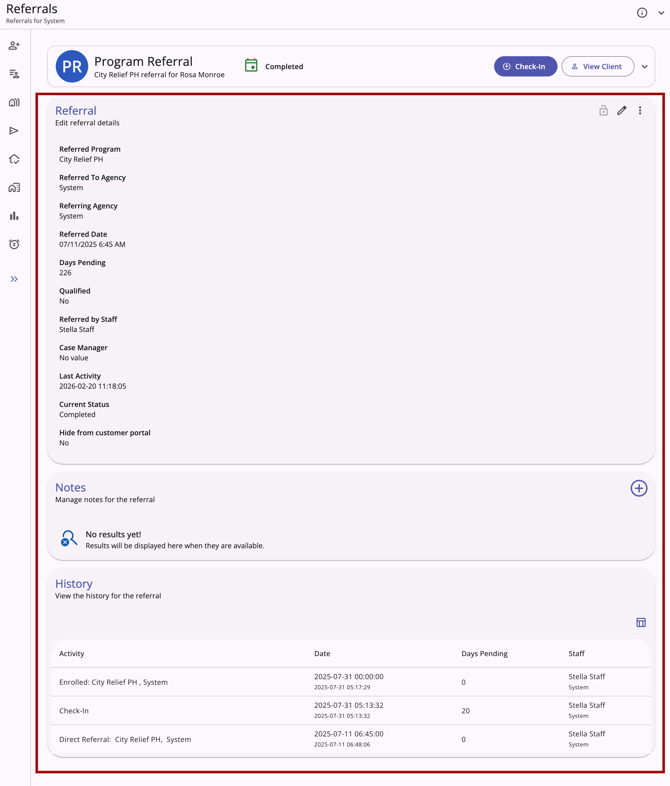
The Edit referral details section includes (depending on referral type and status):
- Referred Program
- Referred to Agency
- Referring Agency
- Referred Unit
- Referred Date
- Days Pending
- In Process
- Qualified
- [Assessment Processor Name] Score
- Referred by Staff
- Case Manager
- Last Activity
- Current Status
- If Denied:
- Denied By Type
- Denied Date
- Denied by
- Denied Reason
- Denial Information
- Send to Community Queue
- “Hide from customer portal” toggle
For descriptions of each field, refer to the Referral Details Glossary.
Notes Section
The Notes section of any referral includes a list of notes and the ability to add notes.

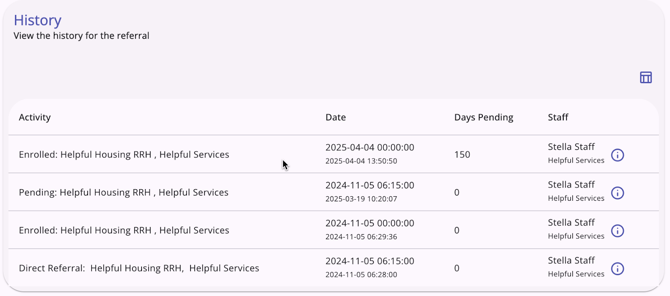
History Section
The History section of any referral includes a complete history of all actions taken for the referral.
Additional Actions
An action menu for outgoing referrals includes:
- Referral Connections (click link for more information)
- View Audit Log (requires System Administrator access)
- Delete (may require additional access rights)
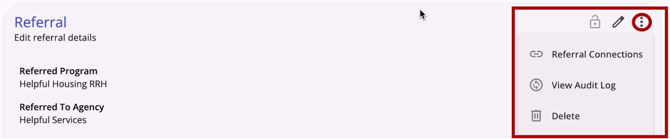
If a client enrolls in a different program while a referral is open, you can use Referral Connections to record a referral connection for the referral.
Delete a referral only if you created it in error.
Audit Log
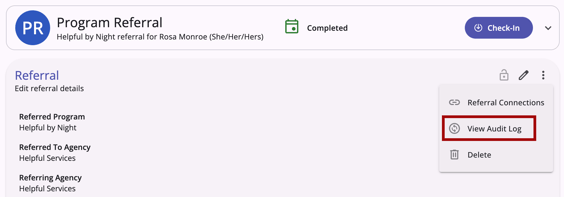
System Administrators with the Audit Log access right can view audit logs throughout the system. Refer to Rights Glossary for Access Roles for details on access rights.
To open the audit log, click the Action Menu (three dots) icon for the referral and select View Audit Log. The audit log shows all changes made to the referral.
Icons & Tooltips
|
Icon |
Icon/Tooltip Name |
Tooltip |
Icon Location |
|
|
Action Menu, also known as:
|
"Show more actions" |
All workspaces: typically on the far right of a workspace or section |
|
|
Add |
“Add” |
All workspaces: anywhere the “Add” option occurs |
|
|
Arrows/Dropdown | (no tooltip) | All workspaces: Anywhere you see this icon, you can click to collapse or expand the section |
|
|
Check-In | (no tooltip) | Referral record: Information box |
|
|
Column Selector |
"Show/hide fields" |
All workspaces: typically paired with a search bar |
|
|
Completed Status |
(no tooltip) |
Referral Status column; Referral record: Information box |
|
|
Date |
(no tooltip) |
Anywhere a Date appears |
|
|
Delete |
“Delete” |
All wrokspaces: anywhere the “Delete” option occurs |
|
|
Denied Status |
(no tooltip) |
Referral Status column; Referral record: Information box |
|
|
Edit |
“Edit” |
All workspaces: anywhere the “Edit” option occurs |
|
|
Expired Status |
(no tooltip) |
Referral Status column; Referral record: Information box |
|
|
Filter |
"Add a filter" |
All workspaces: typically paired with a search bar |

|
Outgoing Referrals | (no tooltip) | Referrals navigation menu: Outgoing Referrals |

|
Note | “Note [formatted note text]” | Referrals list |
|
|
Pending Status | (no tooltip) | Referral Status column; Referral record: Information bar |
|
|
Pending - In Process Status | (no tooltip) | Referral Status column; Referral record: Information bar |

|
Privacy - Private |
Varies depending on workspaces; example from client profile: “Private Client data is not shared.” |
Referral record; All workspaces within the client record |
|
|
Privacy - Public |
Varies depending on workspace; example from client profile: “Public Client data is shared.” |
Referral record; All workspaces within the client record |
|
|
Referral Alert | (no tooltip) | Referral record: Information bar |

|
Referral Connections | (no tooltip) | Action Menu option on Edit referral details page |
|
|
Search |
"Search" |
All workspaces:
|
|
|
Sort |
"Configure sorting" |
All workspaces; typically to the right of a Search bar |
|
|
View Audit Log |
(no tooltip) |
Any workspace where audit log functionality is available; visibility is dependent on access rights |


Additional Resources
This article provides an overview of the global Referrals module, which includes links to all possible global Referral workspaces:
The following articles provide general referral information:
- Introduction to Making Referrals
- Referral Connections
- Referral Details Glossary
- Referral History
- Referral Status Updates
Updated: 11/20/2026