
Table of Contents
Overview
Bitfocus' RESTful XML API Import tool enables customers to programmatically access the Data Import Tool (DIT) and import HMIS data standards and custom fields.
The API Import Tool can be used with Clarity XML, HUD HMIS CSV, and Clarity CSV. More information about these file types can be found in the Importing Data Using the Data Import Tool (DIT) article.
URL Paths for Import
To use the API Import Tool with XML files, use the following hostname:
https://api-YOUR-INSTANCE-NAME.clarityhs.com/import/xml/data
To use the API Import Tool for general import, use the following hostname:
https://api-YOUR-INSTANCE-NAME.clarityhs.com/import/upload
Sending Import Requests
Your API username, password, and crypt key for any specific agency can be found in the Manage > Sharing section of Clarity Human Services under API Credentials. For more information, see the DIT API Credentials article.
Examples
Visit our public Github repo for examples on how to use the DIT API.
Clarity Human Services Mapping Document
To ensure mapping between source programs and services and the target Clarity Human Services Programs and Service Items, Clarity Human Services utilizes a mapping schema. Below is a sample XML file used to provide mapping. The YOUR-Organization-ID is a numeric ID only.
<?xml version="1.0"  encoding="UTF-8"?>
<map:Map xmlns:map="http://www.clarityhumanservices.com/schema/2024/1/mapping.xsd">
    <Source>
        <SourceID>YOUR-Organization-ID</SourceID>
   </Source>
    <Programs>
        <Program>
            <ClarityID>677</ClarityID>  // Target Clarity Program ID
            <ExternalID>1</ExternalID>  // Source System Program ID
        </Program>
        <Program>
            <ClarityID>678</ClarityID>
            <ExternalID>2</ExternalID>
       </Program>
        <Program>
            <ClarityID>679</ClarityID>
            <ExternalID>3</ExternalID>
        </Program>
    </Programs>
    <ServiceItems>
        <ServiceItem>
            <ClarityID>370</ClarityID>  // Target Clarity Service Item ID
            <ExternalID>583</ExternalID> //Source System Service iD
        </ServiceItem>
    </ServiceItems>
</map:Map>
RESTful XML API Web Interface
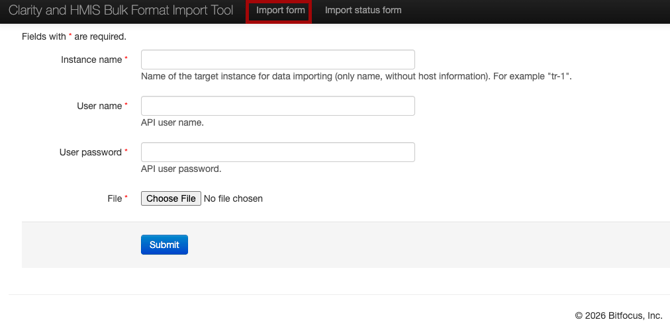
There may be times you want to manually import your XML files. We provide a web interface that lets you import your XML files after you upload your mapping XML file.
| RESTful Web URL | |
| RESTful XML API URL: | https://rest-client.clarityhs.com |
| File Status | |
| File Status URL: | https://api-Your-Instance-Name.clarityhs.com/import/xml/status/000 |
| Error Status | |
| Error Status URL | https://api-Your-Instance-Name.clarityhs.com/import/xml/errors/000 |
| Import Results: | |
| Import Status URL: | https://api-Your-Instance-Name.clarityhs.com/import/xml/result/000 |
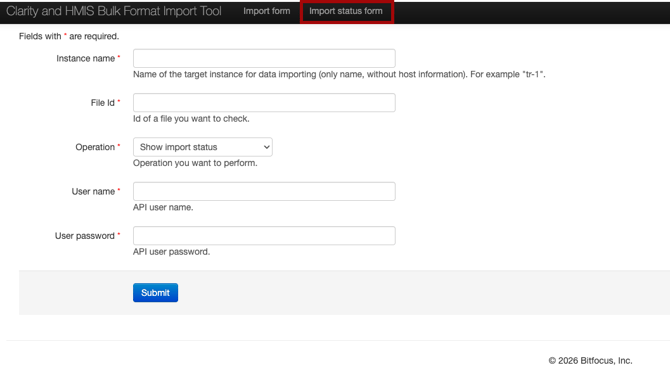
The URLs above take you to one of three pages: Import Progress, Import Errors, and Import Results.
Import Form
Import Status Form
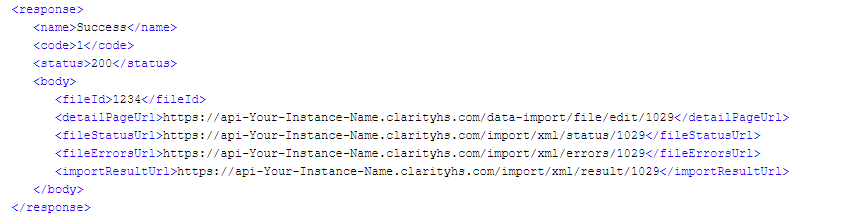
This XML response is generated whenever a Mapping or Data XML file is imported into Clarity Human Services via the REST API.
This information will be provided to you by your system administrator. Please ensure you keep this information in a secure location as defined by your organization's security policies.
Organization ID Usage
It is important that you use the same Organization ID in your Data & Mapping XML documents. This ID is the unique key that ties your imported data and mapped programs and services to your agency.
Below are examples where the identifier needs to be consistently the same. In these examples, the Organization ID is "1234."
(1): XML Mapping File – SourceID
 <Source>
  <SourceID>1234</SourceID>
 </Source>
(2): XML Data File – SourceID
<hmis:Source>
        <hmis:SourceID>1234></hmis:SourceID>
Error Messages
You may receive the following error messages:
<Category>program status</Category>
<Data>
	<EntryID>N/A</EntryID>
	<ExternalID>-8186407364975394814</ExternalID>
	<Message>Client program status wasn't processed because client program was not found(Client program was probably not imported).</Message>
</Data>
<Category>enrollment</Category>
<Data>
	<EntryID>N/A</EntryID>
	<ExternalID>2406058958600011778</ExternalID>
	<Message>Client program exit wasn't processed because enrollment not found(Enrollment was probably not imported).</Message>
</Data>
Possible Causes:
- The enrollment wasn’t imported because program mappings weren’t configured for the enrollment program.
- The enrollment hasn’t imported yet because of the tag order in the input XML file (e.g., the “Exit” tag is located higher than the “Enrollment” tag). These messages must be located before the log message about enrollment, in this case.
Error Message
<Category>enrollment</Category>
<Data>
	<EntryID>N/A</EntryID>
	<ExternalID>6455</ExternalID>
	<RelationshipToHoH>1</RelationshipToHoH>
	<Message>Client program enrollment wasn't processed because program with ID = "935" doesn't exist</Message>
</Data>
Possible Causes:
- The enrollment wasn’t imported because program mappings weren’t configured for the enrollment program.
Clarity CSV Import
The Clarity CSV was introduced as a new import format for the Data Import Tool (DIT), providing a CSV-based equivalent to Clarity XML with Clarity-specific data extensions. The release of the Clarity CSV is intended to help you prepare for the sunset of Clarity XML (planned for FY27 / October 2026), driven by HUD retirement of the HMIS XML Schema for FY26. Clarity XML will continue to be accepted during the transition period.
More information about Clarity CSV can be found in the Importing Data Using the Data Import Tool (DIT) and [GNRL-411] Clarity CSV Export articles.
Retirement of FY2024 Schemas
Bitfocus officially ended support for all FY2024 schemas on May 31, 2026, which included:
- Clarity FY2024 XML Imports
- HUD HMIS FY2024 CSV Schema
- [HUDX-111-AD] HUD CSV / XML Program Data Export [FY 2024]
Updated: 07/28/2026