
The API CREDENTIALS section under MANAGE > SHARING is associated with the DIT API. For details on Looker API credentials, refer to Looker API: Introduction and Resources.
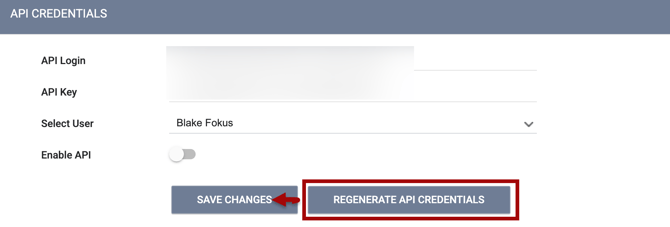
API Credentials can be found by navigating to Launchpad > MANAGE > SHARING. Scroll down to the API CREDENTIALS section.
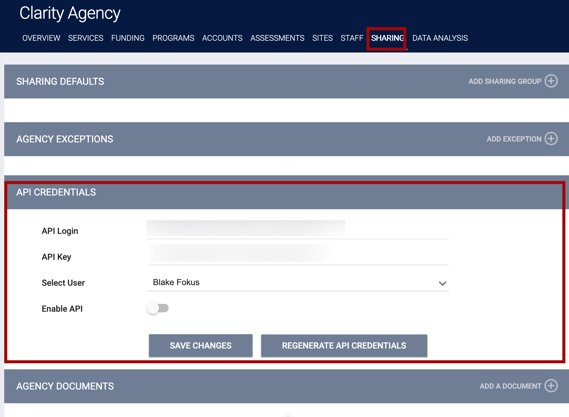
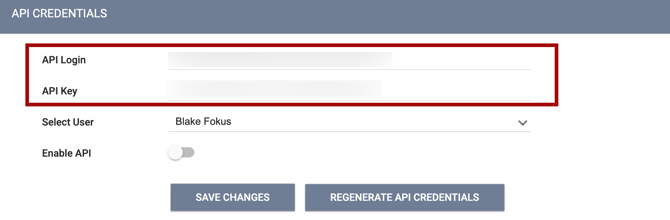
The system auto-generates API Credentials and assigns them separately to each staff member.
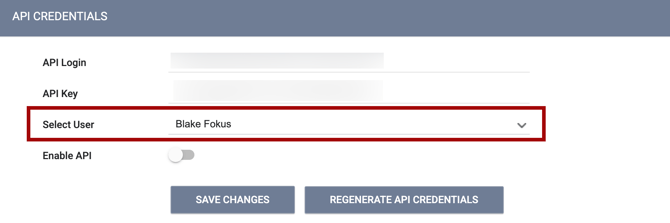
API Credentials can be assigned and modified for any user by selecting their name from the Select User dropdown menu. Available usernames will be restricted to users associated with the agency you're working with.
Toggling on Enable API will activate the API Credentials displayed and assigned to the user. Click SAVE CHANGES to finalize the configuration.
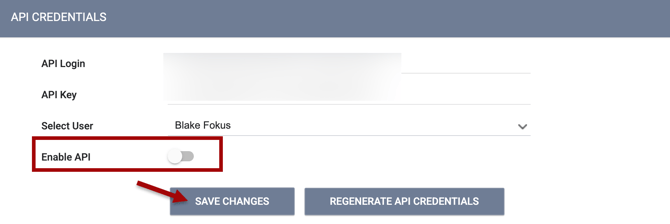
Credentials can be changed by clicking REGENERATE API CREDENTIALS. Be sure to click SAVE CHANGES to finalize the regenerated API Credentials.
Note: If you click SAVE CHANGES in the API CREDENTIALS section without making any changes, the system will not display the green "Changes successfully saved" banner and will not update last_updated and ref_user_updated.
Updated: 07/31/2026