
This article is for the new Clarity interface. Screenshots and descriptions will be updated as features are released. For the current interface article, see Referrals: the Dashboard Tab.
Table of Contents
Overview
The Referrals Dashboard workspace allows users to view one or more Data Analysis reports within the Referrals module as an embedded dashboard. System Administrators configure report availability, first in System Setup and then in Referral Settings.
Note: Your instance of Clarity Human Services, as well as your Access Role, must have Data Analysis access to view dashboard reports. The Dashboard menu item on the global Referrals navigation menu is only visible to users who hold both of the following:
- The Referrals - Dashboard access right.
AND
- General Data Analysis access.
Accessing the Dashboard
To access the Dashboard workspace, navigate to the global Referrals navigation menu and select Dashboard. The Dashboard menu item appears below the Snoozed menu item.
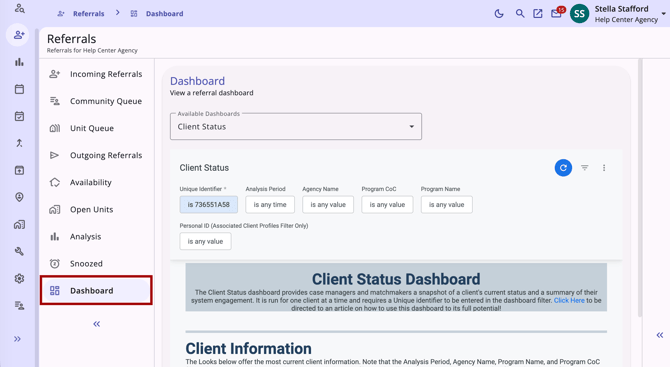
Switching Between Dashboards
If only one dashboard is configured, it loads automatically when you open the workspace, and no additional options appear.
If more than one dashboard has been configured, an Available Dashboards dropdown appears above the embedded report area, listing each configured dashboard by name in alphabetical order.
Note: The Available Dashboards dropdown is only available in the new Clarity interface. In the current interface, if multiple dashboards are available, they are displayed as tabs on the right side of the screen.
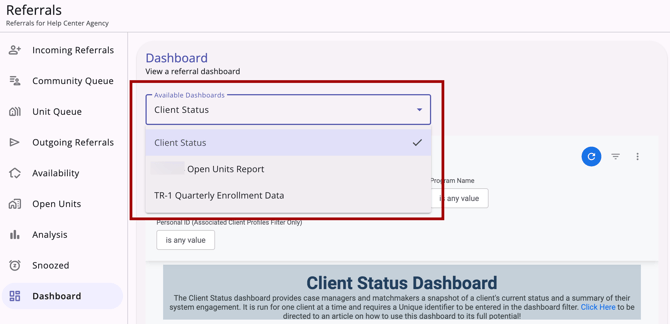
The first dashboard in the list loads by default. Selecting a different dashboard from the dropdown reloads the embedded report area without navigating away from the Dashboard workspace.
Only dashboards marked as active and allowed for your instance will appear as options.
Using the Dashboard Report
The dashboard report displayed in the Dashboard workspace supports the same filter, download, schedule, and send actions available when running the report directly in Data Analysis. For more details, refer to Introduction to The Data Analysis Tool and Looker Resources.
Additional Resources
This article provides an overview of the global Referrals module, which includes links to all possible global Referral workspaces:
The following articles provide general referral information:
- Introduction to Making Referrals (New Clarity Interface)
- Referral Connections (New Clarity Interface)
- Referral Details Glossary (New Clarity Interface)
- Referral History (New Clarity Interface)
- Referral Status Updates (New Clarity Interface)
Updated: 09/29/2026