
This article is for the new Clarity interface. Screenshots and descriptions will be updated as features are released. For the current interface article, see Referrals: the Analysis Tab.
Table of Contents
Overview
The Analysis workspace allows users with Looker access to view and sort a list of current referrals to a community queue. The Analysis workspace loads an explore from the Coordinated Entry Looker model. This is the only location within Clarity where users with Embedded Looker access can run queries through the Coordinated Entry model.
Access Rights
The following Access Rights control access to the Analysis workspace:
- Referrals
- Data Analysis
- Referrals - Analysis (Data Analysis access right must be enabled)
Users with these permissions enabled will be able to view data for clients who have an assessment created by the user’s home agency or an agency to which the user has additional agency access. Users with a System Administrator access role will be able to view data for all clients in all agencies.
Accessing the Analysis Tab
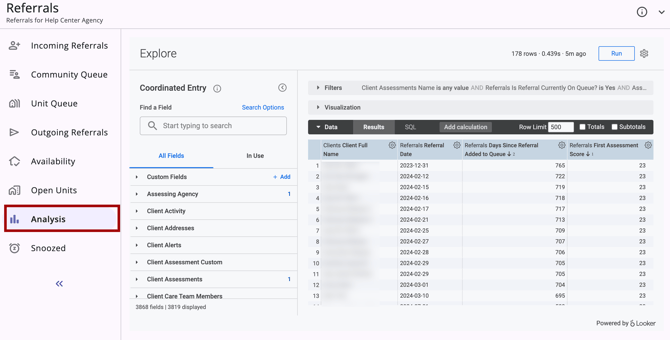
To access the Analysis workspace, select the Analysis menu item on the Referrals navigation menu. A “Loading Explore” icon appears while Looker is loading.

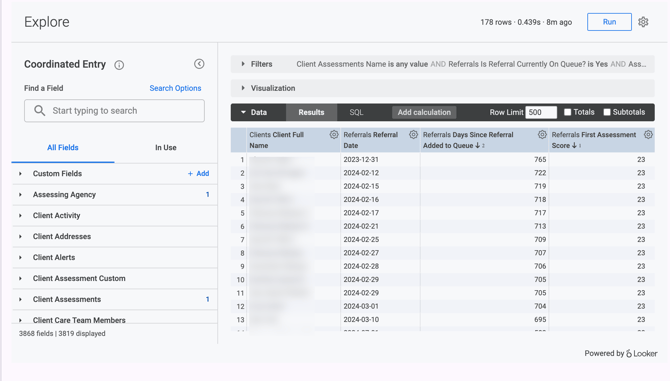
When the Analysis workspace opens, you will see a report of current referrals to the community queue.
-
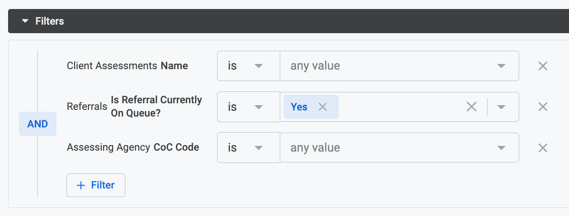
The report’s filters are configured with the default settings shown below.
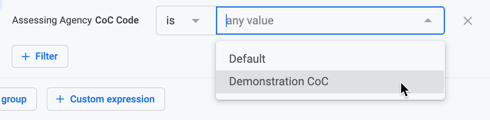
- You may adjust the filters as needed. For example, you can select a specific CoC:
- If desired, you may adjust the way the data is visualized.

- The default dimensions included in the report are shown below.

- You may adjust the dimensions as needed:
- Select additional dimensions or measures from the list on the left side of the screen.
- To delete a dimension or measure, click its gear icon and select Remove.
Note: If you add or delete any dimensions or measures, the Look will not update unless you click Run again.
Icons & Tooltips
| Icon | Icon/Tooltip Name | Tooltip | Icon Location |
|
|
Action Menu, also known as:
|
"Show more actions" |
All Screens - typically on the far right of a screen or section |
|
|
Analysis | "Analysis" | Referrals navigation menu: Analysis |
|
|
Drop-down arrow |
none |
All Screens - indicates that more information is available |
|
|
Information |
Note: this icon information changes based on the location found. |
All Screens |
|
|
Left Arrows |
None |
Global Referrals navigation menu, Primary navigation menu, Client Details cards - indicates that more information is available |
|
|
Right Arrows |
None |
Global Referrals navigation menu, Primary navigation menu, Client Details cards - indicates that more information is available |
|
|
Search |
"Search" |
All Screens:
|


Additional Resources
This article provides an overview of the global Referrals module, which includes links to all possible global Referral workspaces:
The following articles provide general referral information:
- Introduction to Making Referrals (New Clarity Interface)
- Referral Connections (New Clarity Interface)
- Referral Details Glossary (New Clarity Interface)
- Referral History (New Clarity Interface)
- Referral Status Updates (New Clarity Interface)
Updated: 09/29/2026