
Overview
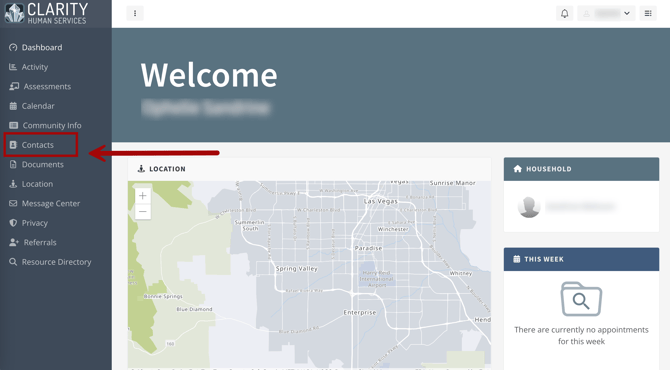
Client users of the Customer Portal can add and update their own Contacts. A Contacts tab has been added to the left sidebar of the Customer Portal.
This article includes the following sections:
Clarity User Experience
A Clarity user can hide some contacts from the client’s Customer Portal account.
Hide from Customer Portal
On the Add Contact and Edit Contact pages in Clarity, there is a toggle field labeled "Hide from Customer Portal." The field appears below the Private toggle and is visible only for contacts that are/were added in Clarity.
When a Clarity user enables the Hide from Customer Portal toggle for a contact in Clarity, that contact does not appear in the list of contacts on the Contacts page in the client’s Customer Portal account.
Client User Experience
When the client user clicks the Contacts tab, a list of contacts will appear, including those added in Clarity by a user or in the Customer Portal by a client user.
Viewing Contacts
By default, all active contacts (Active Contact = ON) will appear.

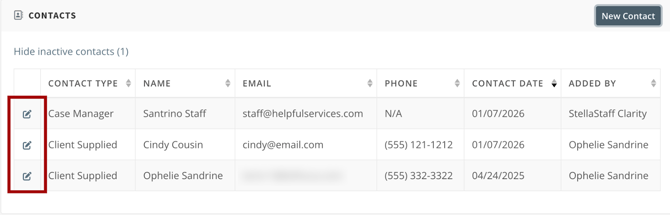
If the client has inactive contacts, there is a link labeled "Show inactive contacts" above the list, with a number in parentheses indicating the number of inactive contacts. When the Customer Portal client user clicks on Show inactive contacts, contacts with Active Contact = OFF will be visible, and the link text will change to "Hide inactive contacts."
When the user clicks Hide inactive contacts, the contacts with Active Contact = OFF will no longer be visible.
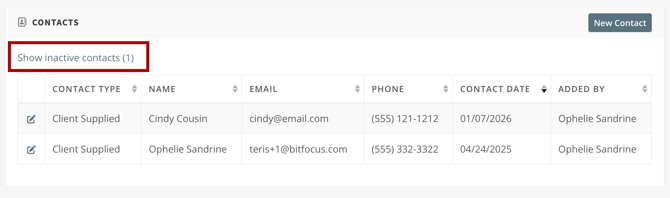
The available columns are:
- Contact Type
- Name
- Phone [if there is more than one phone number for a contact, all are listed and separated by a comma (e.g., (702) 555-1212, (516) 555-1212)
- Contact Date
- Added By [this is the Clarity user name if the contact was added in Clarity, or the client’s name if the client user added the contact via the Portal]
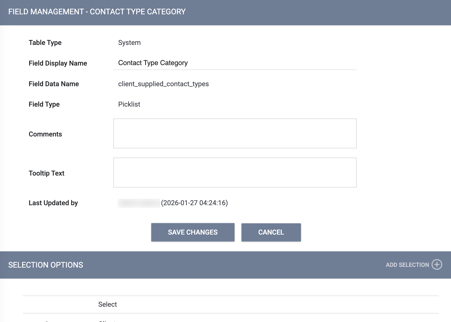
Note: The “Contact Type” column and field that appears when the client user adds a new contact from the Customer Portal will show the picklist values configured in the configurable system field, "client_supplied_contact_types."
Additional details:
- The default sort order for the table is first by most recent Contact Date, then alphabetically by Name
- The Portal user can sort the table by any of the columns
- If any of the Contact fields are null/blank, ‘N/A’ will show
Adding Contacts
To the right of the "CONTACTS" title on the CONTACTS page, there is a "New Contact" button.

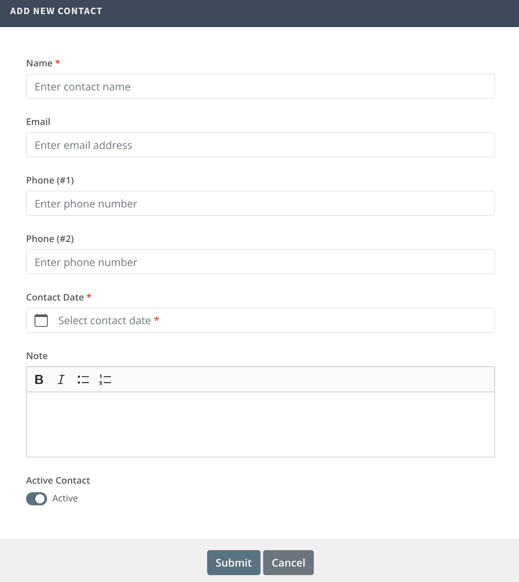
When the Customer Portal client user clicks New Contact, a pop-up window titled "ADD NEW CONTACT" appears. The fields on the "ADD NEW CONTACT" pop-up are:
- Name (a text field)
- Email (a text field)
- Phone (#1) (phone number field)
- Phone (#2) (a second phone number field)
- Contact Date (a date picker field)
- Note (a textbox with bold, italic, bulleted lists, and numbered lists formatting options)
- Active Contact (a toggle field that is ON by default but editable by the Customer Portal client user).
The fields that are required to be completed for contacts:
- Name
- Contact Date
- Both fields have a red asterisk to indicate that they are required fields.
If required fields are missing, an error message will specify which fields must be completed to submit the form.
The Customer Portal client user will provide responses to the fields in the pop-up to create a contact, then click Submit.
- If the client user clicks Cancel on the Add New Contact pop-up, the pop-up disappears, and the user is redirected to the CONTACTS page.
Additional details:
- There is no limit to the number of contacts a client user can add in the Customer Portal.
- Client users cannot mark contacts added in the Customer Portal as Private.
- Clarity users can delete contacts that are listed on the Contact page in Clarity that were added by a client user in the Customer Portal.
- When a client user adds a contact via the Customer Portal, the contact is added to the client’s Contact tab in the current version of Clarity and the new Clarity interface.
- There is an indicator in both that the client user added the contact via the Customer Portal.
- Users in the current version of Clarity and the new Clarity interface can see the contacts if they have access to that client’s records.
Editing Contacts
The Customer Portal client user can edit a contact or mark it as "active" or "inactive."
For each contact, there is an "Edit" icon to the left of each contact listed on the CONTACTS page (regardless of whether the contact was added in Clarity or the Customer Portal).
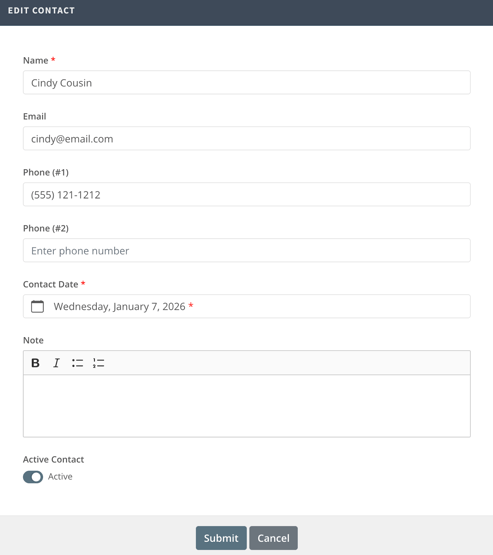
When the Customer Portal client user clicks the "Edit" icon, a pop-up window appears titled "EDIT CONTACT." Any fields that the Clarity user or client user did not provide responses for when they first added the contact are visible and editable
The Active Contact toggle is also editable:
- If the Active Contact toggle is ON, the client can turn it off.
- If the Active Contact toggle is OFF, the client can enable it.
Additional details:
- A Clarity user can edit contacts in Clarity that the client user adds in the Customer Portal.
- When the contact is edited in Clarity, the updated information is reflected in Clarity and in the Customer Portal.
- A client user can delete the contacts that they added for themselves, but they cannot delete contact records that a Clarity user added.
Audit Log
Updates to Customer Portal contacts are logged in an audit log. System Administrators with audit log access can view the following:
- When a Customer Portal client user adds a contact via the Customer Portal, there is a record in the client’s main Contact tab audit log in Clarity.
- When a Customer Portal client user marks a contact as "Inactive" when the contact had previously been set to "Active," there is an entry in the contact’s individual audit log in Clarity.
- When a Customer Portal client user marks a contact as "Active" when the contact had previously been set to "Inactive," there is an entry in the contact’s individual audit log in Clarity.
- When a Clarity user deletes a contact in Clarity that had been added in the Customer Portal, there is a record in the client’s main Contact tab audit log as well as the individual contact’s audit log in Clarity
- When a Clarity user edits a contact in Clarity that had been added in the Customer Portal, there is a record in the client’s main Contact tab audit log as well as the individual contact’s audit log in Clarity
- When a Customer Portal client user edits a contact in the Customer Portal that had been added in the Customer Portal, there is a record in the client’s main Contact tab audit log as well as the individual contact’s audit log in Clarity.
Updated: 02/10/2026