
This article is for the new Clarity interface. Screenshots and descriptions will be updated as features are released. For the current interface article, see Consent Refused.
Table of Contents
Overview
The Consent Refused functionality affects how Clarity Human Services handles the Client Profile data of clients who have refused consent for their personal information to be stored in the system.
Consent Refused Setting
When the System Administrator toggles the Enable Consent Refused setting on, a "Consent Refused" option will appear during record creation and for existing clients.
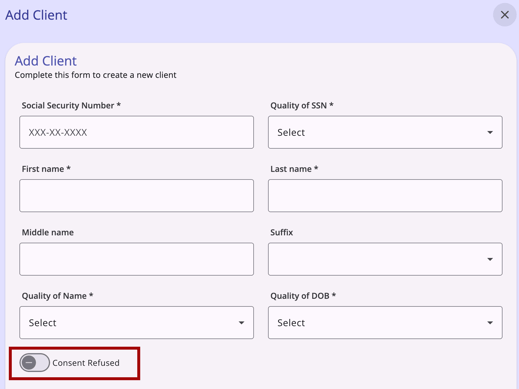
Consent Refused at Record Creation
The Consent Refused option shows on the Add Client modal below Date of Birth. If a user toggles on "Consent Refused," the system will auto-fill the client Profile fields with predefined values for:
- Social Security Number > 000-00-0000
- Quality of SSN > Client prefers not to answer
- First Name > [Generated]
- Last Name > Refused
- Middle Name > Null
- Suffix > Client prefers not to answer
- Quality of Name > Client prefers not to answer
- Quality of DOB > Client prefers not to answer
- Date of Birth > Null
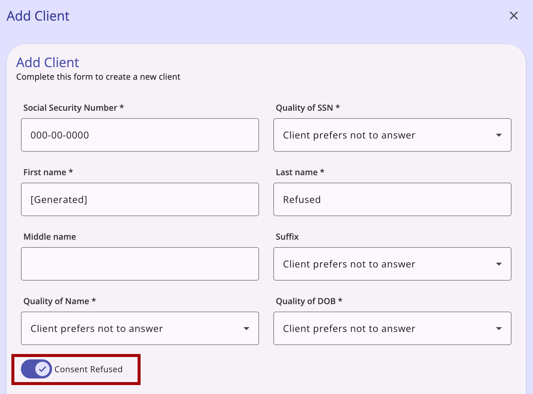
Once the user saves the record, the Consent Refused toggle and the fields will no longer be editable by a general user.
The fields in the client's Profile will be editable only by a System Administrator or a user with the Manage Consent Refused Records access right enabled for their Access Role.
Require on Creation Setting
If the Require on Creation setting is enabled in Settings, the Release of Information option will appear on the same screen when a user is creating a new client record.
Consent Refused for Existing Records
After a client record is created, System Administrators or users with the Manage Consent Refused Records access right enabled for their Access Role can enable the Consent Refused toggle on the client's Profile.
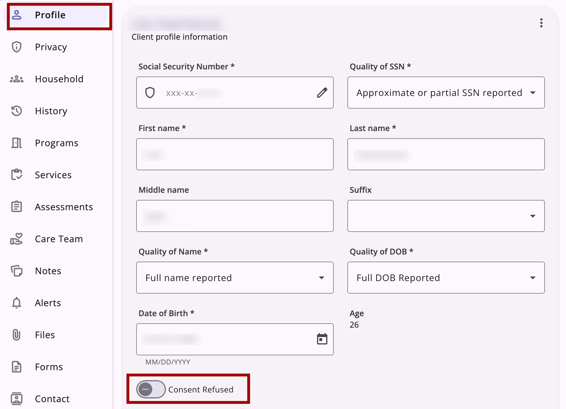
The fields will auto-fill with anonymized profile details.
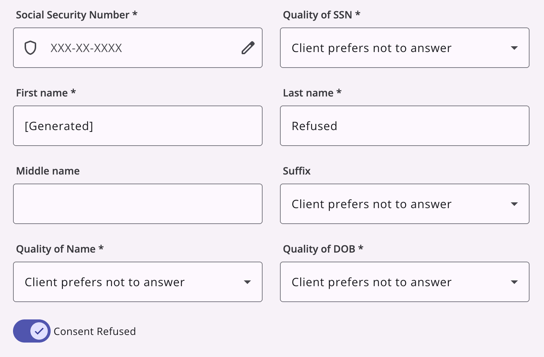
System Administrators or users with the Manage Consent Refused Records access right enabled for their Access Role can manually edit anonymized profile details.
Audit Log
The "View Audit Log" option can be clicked by a system administrator with audit log access rights on the Client profile information page. A log of all changes to the client profile is displayed.

Icons & Tooltips
|
Icon |
Icon/Tooltip Name |
Tooltip |
Icon Location |
|
|
Action menu, also known as:
|
"Show more actions" |
All Screens: typically on the far right of a screen or section |
|
|
Add |
“Add” |
All Screens: anywhere the “Add” option occurs |
|
|
Edit | "Edit" | Anywhere the Edit icon appears |
|
|
View Audit Log |
(no tooltip) |
Any screen where audit log functionality is available; visibility is dependent on access rights |


Configuration Resources
The following configuration resources were noted in this article:
Updated: 04/23/2026