
This article is for the new Clarity interface. Screenshots and descriptions will be updated as features are released. For the current interface article, see Assigned Staff.
Table of Contents
Overview
When a staff member records a program enrollment in a client record, the system automatically adds the staff member to the Assigned Staff tab of a client's program enrollment.
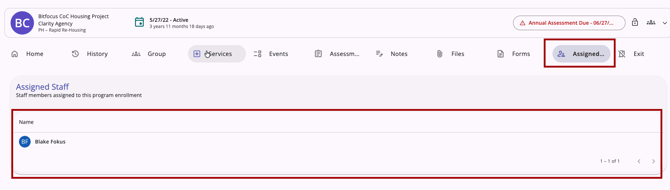
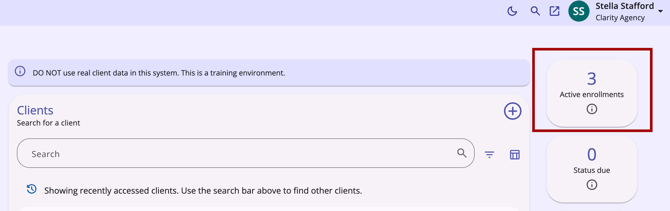
Additional staff members can be added to the Assigned Staff list assigned for an enrollment as described below in this article. When a user is set as an Assigned Staff member for an enrollment, any clients associated with the enrollment will appear in their Active enrollments widget.
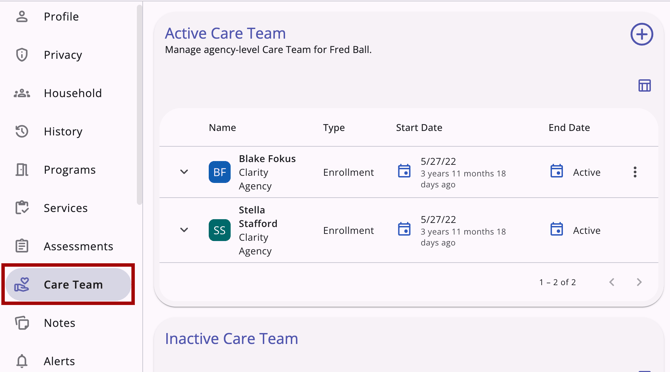
Assigned Staff members will automatically appear in the Care Team tab of the client's primary navigation menu. The Care Team tab also includes manually added staff members. For more information, refer to our Care Team article.
All conditions that apply to the initial Assigned Staff member will also apply to additional staff members. These conditions include the client displaying in their Active enrollments and Status due widgets and receiving Program Auto-Exit and Assessment Due Warning notifications.
Notes:
-
The only person who can add you as Assigned Staff to an enrollment in your non-primary agency (Additional Agency Access) is you. To do that, you will need to switch into that non-primary agency.
- There is no limit on the number of Assigned Staff members per enrollment.
Viewing Assigned Staff
The Assigned Staff tab displays a list of all staff members currently assigned to a client’s enrollment.
- The user who initially creates a program enrollment is automatically added to the Assigned Staff list.
Managing Assigned Staff
Users can add and remove staff members to an enrollment in the Assigned Staff tab.
Requirements for Adding Staff
The Add icon (+) will only be visible if the following conditions are met:
- Agency Match: Your current active agency must match the agency to which the program belongs.
- Permissions: You must have the Edit Agency Programs or Edit Any Agency Programs permission to add staff.
- Availability: Agency staff must be available to be added. The icon will disappear if all available agency staff have already been assigned to the enrollment.
How to Add Staff
- Click the Add icon (+) to open the Add Assigned Staff modal on the right side of the screen.
- Click the dropdown arrow in the Assigned Staff field.
- Select one or more staff members from the multi-select picklist.
Note: Staff members already assigned to the program will not appear in this list.
Requirements for Removing Staff
This option is only available when:
- Your current active agency matches the program’s agency.
- You have the Edit Agency Programs or Edit Any Agency Programs permission.
- There are at least two staff members assigned to the program (you cannot remove the final staff member).
How to Remove Staff
To remove a team member, click the Action Menu icon to the right of the staff member’s name and select Remove From Assigned Staff.
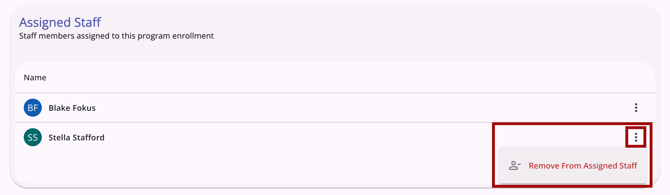
When you click Removed From Assigned Staff, a pop-up appears that reads:
"Are you sure you want to remove [staff member] from the assigned staff?"
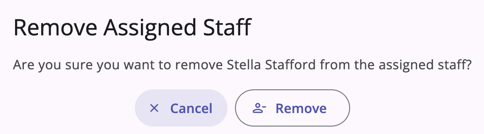
Click Remove to remove the staff member or Cancel to return to the Assigned Staff tab.
Published: 05/13/2026