
This article is for the new Clarity interface. Screenshots and descriptions will be updated as features are released. For the current interface article, see The Caseload Tab.
Table of Contents
Overview
The caseload functionality in the new Clarity Human Services interface provides easy access to your active caseload information for a specific agency.
Getting Started
A user’s caseload information is visible on the Clients search page within a specific agency on the right-hand side of the page.
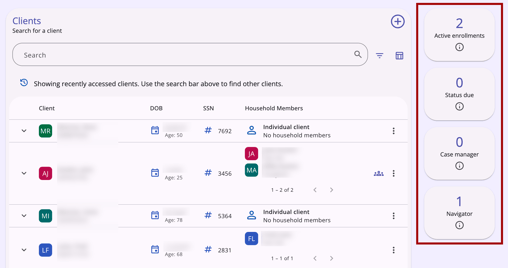
Four widgets appear: Active enrollments, Status due, Case manager, and Navigator. Each widget displays a number, the widget's name, and an information icon.
Active Enrollments
The Active enrollments widget displays the number of your active enrollments, along with an information icon.
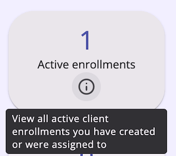
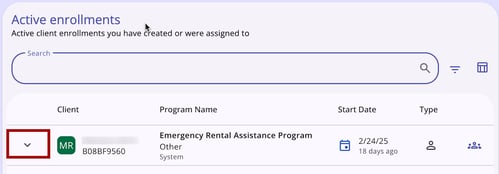
Click on the widget to see more details. You will see a list of active client enrollments you have created (or were assigned to through the Assigned Staff process), grouped by Client. The client’s Program Name, the client’s Start Date in the program, and the Type of Program are the default columns displayed. A Group icon will appear if the client is part of a household.
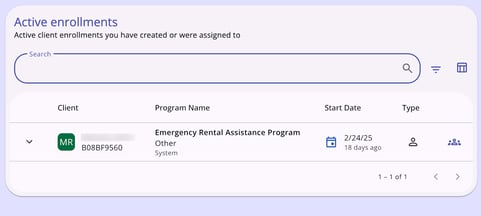
Click on the Client column header to sort the client list alphabetically by last name; click on the Start Date column header to sort the list by the client's Start Date in the program.
Note: Caseload Management is different from Care Team management. Caseload assignments happen at the program level (automatically during enrollment or manually after enrollment), while Care Team assignments happen on the Care Team tab.
To filter the display so that it only shows enrollments for a particular client, type the client’s name into the Search field at the top of the screen and click the search icon.
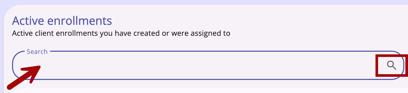
If the client is part of a household enrollment, the search result will display the name of the Head of Household. More information about the client, including any household member information, can be found by clicking on the down arrow to the left of the client’s name.
Keep in mind that this widget only displays your caseload within a specific agency. If you have additional agency access and don’t see the enrollments you expect, make sure you are switched into the correct agency.
Status Due
The Status due widget includes the number of upcoming, due or past due annual assessments and an information icon.
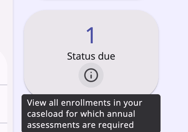
Click the widget to see a list of enrollments in your caseload, grouped by program, for which annual assessments are required. The assessment appears in this list ten days before it is due, and will remain in the list until the assessment is completed.
The Program Name, Assessment Due date, and the Last Status date are displayed. You may use the Search field to filter the list as described above.

More information about the client, including any household member information, can be found by clicking on the down arrow to the left of the client’s name.
Case Manager
The Case manager widget includes the number of Referrals you are assigned to and an information icon.
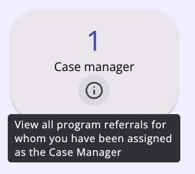
Click the Case manager widget to see a list of program referrals for whom you have been assigned as the Case Manager.
If your access role permissions allow, you can click on a client’s name to view the referral.
/Caseload.NI.9.png?width=436&height=160&name=Caseload.NI.9.png)
Navigator
The Navigator widget displays the number of referrals for whom the user has been assigned as the Navigator.
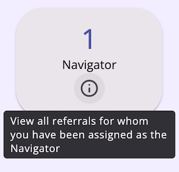
The Navigator widget is only visible for users who are currently assigned as the Navigator for at least one client.
When hovering over the information icon, the tooltip reads:
“View all the referrals for whom you have been assigned as the Navigator”.
Users can click on the Navigator widget for more details. The following columns are displayed by default:
- Client: includes the client name and unique identifier
- Community Queue: the name of the community queue that the referral is on
- Referral Date: the date when the referral was made, which is the date the client was originally referred to the queue
- Days Pending: the number of days that the referral has been pending
- Tracked Characteristics: an icon indicator (not a column).
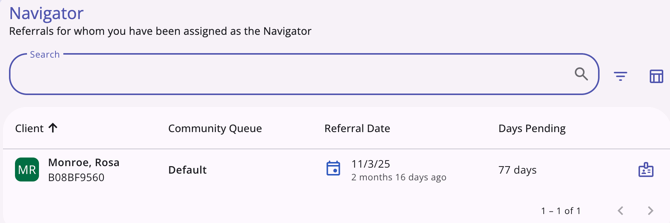
A search bar, filter options, and a column selector is available.
The Search bar allows the user to search the Navigator caseload by:
- First name
- Last name
- Unique identifier
The Filter icon allows the user to filter the Navigator caseload by the available column filters:
- Community Queue
- Referral Date From
- Referral Date To
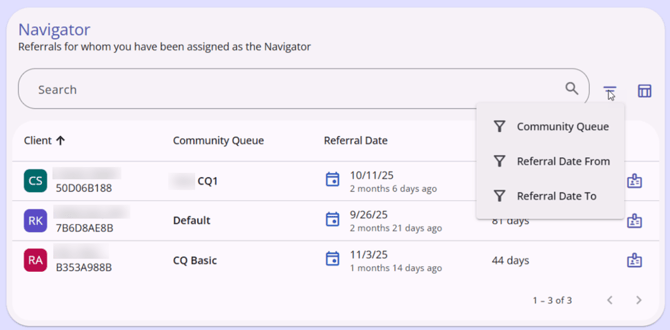
Clicking on the column headers sorts the Navigator caseload:
- The client list will have a default sort order by client name in alphabetical order.
- Clicking the Client or Community Queue column headers sorts the list alphabetically.
- Clicking the Referral Date column header sorts the list by the client’s referral date.
- Clicking the Days Pending column header sorts the list by the number of days the referrals have been pending.
Clicking anywhere on a client row navigates the user to the Referral: Edit page. Clicking on the down arrow to the left of the client’s name expands to show more column data.
- The down arrow only appears when the screen is too small to show all of the available column data.
The left and right arrows at the bottom right are used for page navigation when there are multiple pages of clients on the list, with a number indicator to the left that displays the number of clients on the list and the number of pages.
Video Resource
Click through for a hands-on experience:
Icons & Tooltips
|
Icon |
Icon/Tooltip Name |
Tooltip |
Icon Location |
|
|
Column Selector |
"Show/hide fields" |
All Screens: typically paired with a search bar |
|
|
Filter |
"Add a filter" |
All Screens: typically paired with a search bar |
|
|
Information |
Note: this icon information changes based on the location found. |
All Screens |
|
|
Search |
"Search" |
All Screens:
|


Updated: 04/21/2026