
Table of Contents
Overview
System administrators and staff members with an Access Role with the Restore Deleted Data access right can restore deleted data in a client's record.
Restore Deleted Data
In the screen where data has been deleted, click Restore Deleted Data in the Action Menu (⋮) to the right of the Add (+) icon in the screen header.

If there is no available data to restore and there are no other Action Menu options the Action Menu will not appear.
When selected, the Restore Deleted Data modal appears on the right side of the screen.
Users can selectively choose records listed by clicking the checkbox to the left of the desired records or select/unselect all records with the checkbox in the header row.
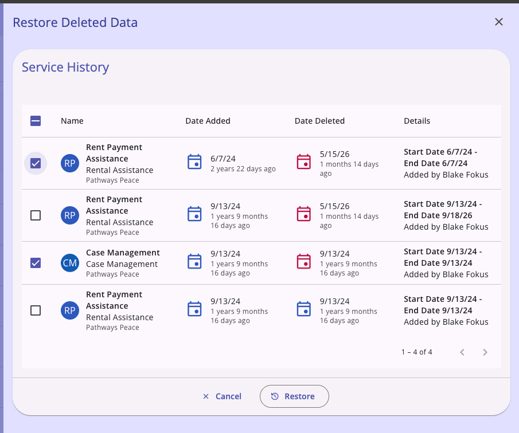
When ready, click the Restore option. After the restore is complete, the panel closes and the restored records appear on the screen without requiring a page refresh.
Unavailable for Manual Restoration
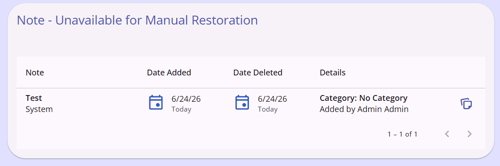
In the Restore Deleted Data modal, there may be deleted data that cannot be restored using this functionality. When that is the case, that data is listed under a [Record Type] - Unavailable for Manual Restoration section of the modal. This section is read only and there is no Cancel or Restore option associated with this data.
Automatic Associated Data Restoration
When a deleted client record or program enrollment is restored, Clarity also restores associated sub-records deleted at the same time as the parent record, for example Notes records will be restored when its related Program Enrollment record is restored.
If the system detects one or more associated sub-records were deleted prior to the parent deletion (and therefore will not be restored as part of this parent restore), the system displays a warning before completing the restore with options to Confirm or Cancel.
- Client restore warning text: “This action restores the client and some associated records. Any items deleted manually prior to the client deletion must be restored separately.Unit Occupancy records cannot be restored.”
- Program enrollment restore warning text: “This action restores the program enrollment and some associated records. Any items deleted manually prior to the enrollment deletion must be restored separately. Unit Occupancy records cannot be restored.”
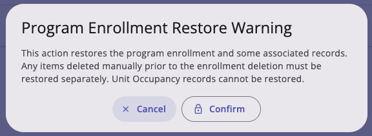
Records that were deleted separately before the parent record was deleted must be restored separately, if they are eligible for restoration.
Note: This update does not apply to Unit Occupancy records because the Restore Deleted Data function does not apply to Units.
Audit Log
Clicking the Action Menu icon then selecting View Audit Log opens the Audit Log, displaying a log of all restored items. The View Audit Log option is visible only to users with the Audit Log permission enabled in their access role.
Updated: 06/29/2026