
This feature is part of the November 2026 Feature Updates. The functionality described in the article will be available on training sites on October 20, 2026, and on production sites on November 3, 2026.
Table of Contents
- Overview
- Access and Location
- Choosing a Data Model
- Building a Look
- Saving a Look
- Additional Resources
Overview
Use the Explore workspace to build ad hoc reports with your community's data directly within the new Clarity interface. This article explains how to access Explore, choose a data model, and save the report you build as a Look.
Access and Location
To access Explore, you need the Data Analysis access right in your access role. See Rights Glossary for Access Roles for details on all Data Analysis rights.
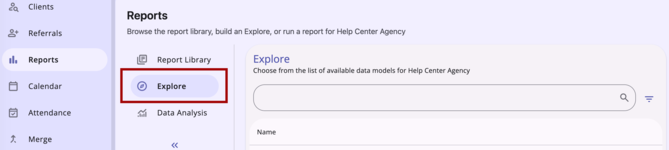
Select Reports in the primary navigation menu, then select Explore. Explore appears between Report Library and Data Analysis.
Choosing a Data Model
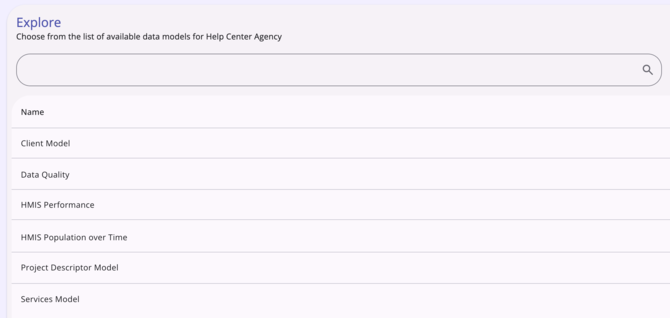
When you select Explore, you'll see a list of the data models available to your community:
- Client Model
- Data Quality
- HMIS Performance
- HMIS Population Over Time
- Project Descriptor
- Services
The models shown are based on what your community and agency can access or have configured.
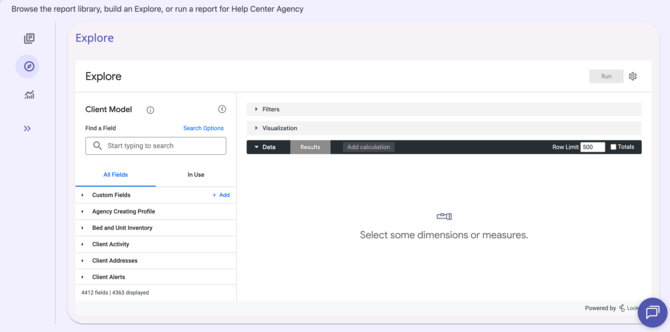
Select a model name to open Looker's Explore interface for that model. It opens directly within the Explore workspace; there's no separate Looker URL or full-page redirect.
Building a Look
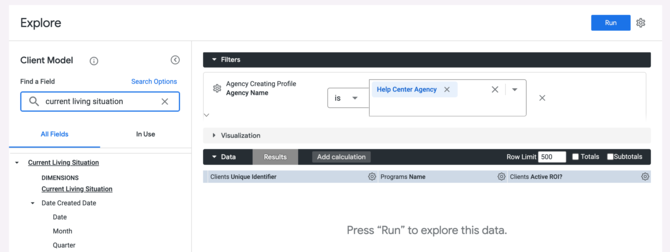
Within the embedded Explore view, search for and select the fields you want in your Look, add filters, and use measures.
Saving a Look
Once you run a query, a Save action becomes available if your access role includes Data Analysis Save.
Click the Gear icon, then select Save to open a dialog:
- Select As a Look, or select an existing Look to overwrite.
- Enter a Name.
- Select Save.
Once saved, a confirmation appears, and the Look appears on your community's Data Analysis tab.
If you leave the Name field empty and select Save, a field-level error appears and the Look isn't saved.
Note: The Save action is hidden for users without Data Analysis Save rights.
Additional Resources
- Embedded Looker: Looker - Clarity Human Services Integration
- Embedded Looker Data Security Overview
- Help Center: Data Analysis Learning Resources
- Looker Data Models - Overview
- Rights Glossary for Access Roles
Published: 10/20/2026