
This feature is part of the November 2026 Feature Updates. The functionality described in the article will be available on training sites on October 20, 2026, and on production sites on November 3, 2026.
Table of Contents
- Overview
- Accessing Data Analysis
- Report Categories
- Running a Report
- If a Report Isn't Available
- Additional Resources
Overview
Data Analysis lets you browse your community's built-in and custom reports, grouped by category.
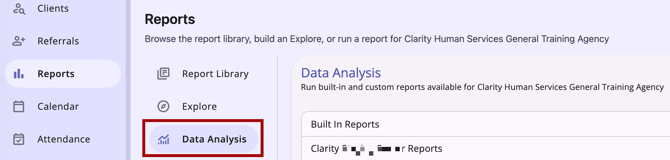
Accessing Data Analysis
Data Analysis appears in the Reports workspace, after Report Library and Explore.
- It's visible only to users whose access role includes the Data Analysis access right.
Refer to the Rights Glossary for Access Roles for all Data Analysis access rights.
Report Categories
Opening Data Analysis shows three categories:
- Built In Reports
- [Instance Name] Reports
- [Agency Name] Reports
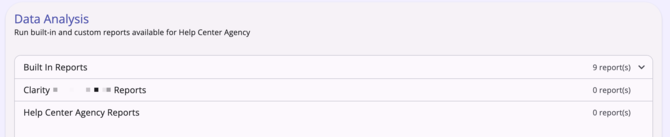
The subtitle underneath reads “Run built-in and custom reports available for [Agency Name].”
- All categories are collapsed by default.
- Each category row shows its name and report count as “X report(s).” A category with zero reports still displays “0 report(s)” but cannot be expanded.
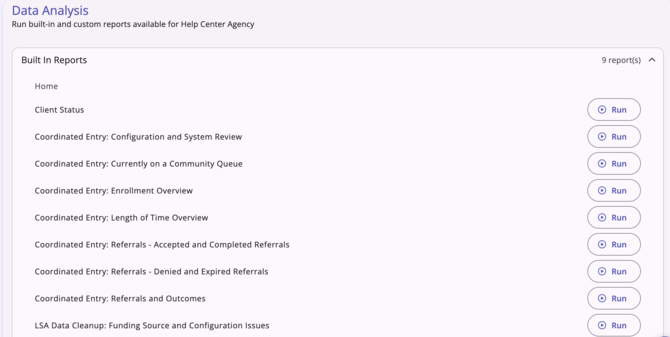
- Selecting a category with one or more reports expands it inline to show the reports inside. Opening a different category automatically collapses the one you had open — only one category is expanded at a time.
- Each report row shows only the report's title and a Run action; there are no status badges, descriptions, or additional detail.
On mobile:
Category rows follow the standard mobile list layout used elsewhere in the new interface: title on the left, report count on the right, and the expand chevron on the far left. The expanded report list stays fully readable without horizontal scrolling.
Running a Report
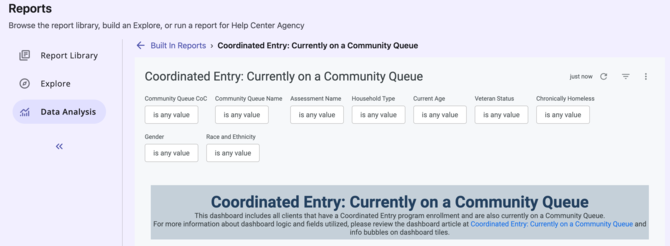
Select Run on any report to open it.
- The report opens as a full-page experience.
- A secondary breadcrumb above the report shows [Report Section] > [Report Name].
- The report's underlying data scope, permissions, and visibility are unchanged from the legacy interface.
- Closing the report returns you to the Data Analysis workspace, with the category you had expanded still expanded.
- Any errors or empty results within a report itself (for example, “Invalid filters” or “No Results”) are shown by Looker directly.
If a Report Isn't Available
The list of reports available for each section is determined by the System Administrator. Read below for more reasons a Report list or report fails to load.
Report List Fails to Load
If the report list can't load because the reporting service is unreachable, an inline error message appears in place of the list:
- An icon, the message “Reports are unavailable right now,” supporting text, and a Try Again action.
- The page header, sub-navigation, and search field stay visible, but search is disabled while the list can't load.
- Try Again re-requests the list. On success, the normal grouped list replaces the error state. On repeat failure, the error state stays.
- You'll never see a mix of partial report data and the error state — it's always one or the other.
- This error does not block navigation to other tabs, such as Report Library or Explore, if permissions allow.
- An icon and the message “This report is no longer available” show
- The message is the same regardless of the actual cause — the system intentionally doesn't reveal whether a report is inactive or permissions do not allow.
- No report content, filters, or data preview appears behind or before this message.
- You can reach this message from a direct link or bookmark to a report you no longer have access to, not only through in-app navigation.
Report Is Inactive or Not Permitted
If a report is inactive, deactivated, or you no longer have permission to run it, opening it shows a generic not-found message instead of the report:
- An icon and the message “This report is no longer available” show
- The message is the same regardless of the actual cause — the system intentionally doesn't reveal whether a report is inactive or permissions do not allow.
- No report content, filters, or data preview appears behind or before this message.
- You can reach this message from a direct link or bookmark to a report you no longer have access to, not only through in-app navigation.
Additional Resources
- Embedded Looker: Looker - Clarity Human Services Integration
- Embedded Looker Data Security Overview
- Help Center: Data Analysis Learning Resources
- LookML Dashboard Library
- Rights Glossary for Access Roles
Published: 10/20/2026