
This article is for the new Clarity interface. Screenshots and descriptions will be updated as features are released. For the current interface article, see Linking Service Items and Reservations to Program Enrollments.
Table of Contents
Overview
Users can link an existing agency-level service item to an active program enrollment.
Accessing the Link Option
On the Services tab of a client's Program Enrollment, an Action Menu (⋮) icon appears to the right of the Add (+) icon in the Program Services header.
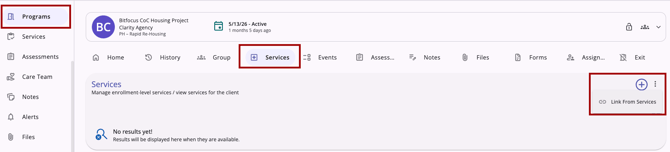
This menu is only available when all of the following conditions are met:
- The Link from History setting is enabled in the program’s settings.
- The user has the required access role permissions ("Edit Agency Programs" or "Edit Any Agency Programs").
- There is at least one service available to link to the current program enrollment.
- The program enrollment is Active (does not have an end date).
If any of these conditions are not met, the Action Menu (⋮) icon does not appear.
Linking a Service
To link a service:
- Click the Action Menu (⋮) icon to display the Link from Services option.
- The Link from Services modal opens on the right side of the screen.
The modal displays a table with available services. The modal only displays services administered to the client that have not already been linked to that program's enrollment.
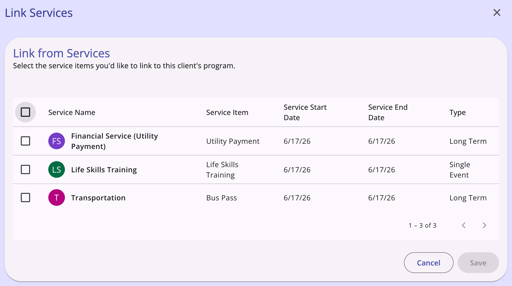
Users can click one or more checkboxes next to the desired Service or select all.
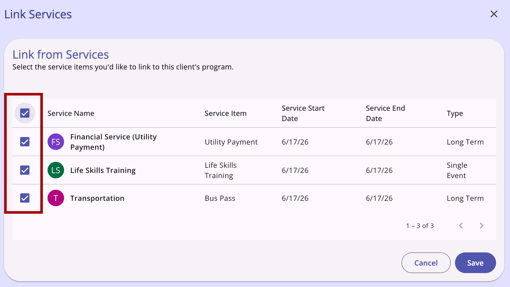
Once you have selected the desired services, click Save. The services will be automatically linked to the program.
Sorting Available Services
The Link from Services modal displays a table with five sortable columns to help you easily locate the correct service to link. Users can click the sort arrow for a column to sort it.
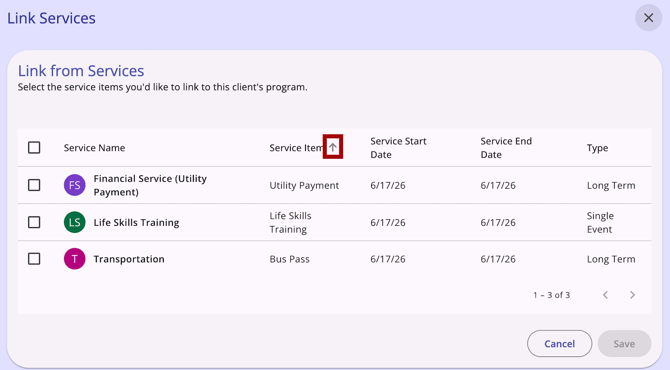
Note: Sort arrows only appear when hovering over a column header.
The table below provides details on column sorting behavior.
| Column | Description | Sort Behavior |
| Service Name | The name of the service | Sortable alphabetically |
| Service Item | The name of the service | Sortable alphabetically |
| Service Start Dat | The start date of the service | Default sort: most recent first. Can also sort oldest first |
| Service End Date | The end date of the service | Sortable by end date |
| Type | The type of service | Sortable alphabetically |
Unlinking a Service from a Program Enrollment
Users can unlink a service from an active program enrollment.
On the Services tab of a client's Program Enrollment, an Action Menu (⋮) icon appears next to each service in the list.
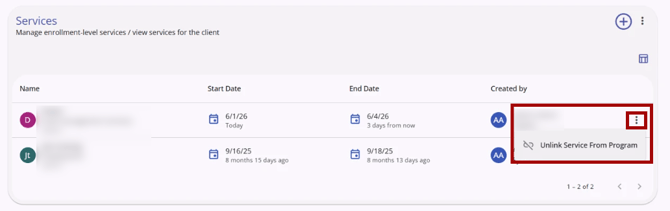
This menu is only visible to users with the Delete Agency Services or Delete Any Agency Services access right permission.
- Click the Action Menu (⋮) icon next to the desired service to display the Unlink Service from Program option.
- Click Unlink Service from Program. A confirmation pop-up displays:
"Are you sure you want to unlink [Name of Service] from [Name of Program the service is linked to]?"
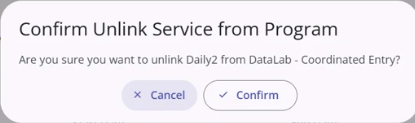
Click Confirm to unlink the service or Cancel to return to the program’s Services tab without unlinking the service.
Published: 06/24/2026