
This article is for the new Clarity interface. Screenshots and descriptions will be updated as features are released. For the current interface article, see Linking Assessments to Program Enrollments.
Table of Contents
Overview
Users can link an existing agency-level assessment to an active program enrollment.
From the client’s program enrollment Assessment tab, there is a new action menu option titled “Link from Assessment” on the Program assessments page. The user can link the assessment:
- If they have an access role that allows them to modify the client program.
- If there is an assessment available to link.
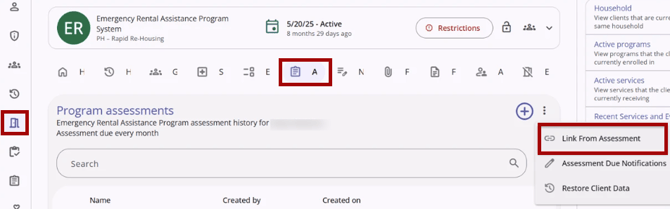
Note: You can only link assessments recorded at the same agency as the enrollment. Ensure that you are switched into the correct agency, and that the same agency provided both the assessment(s) and enrollment.
If the user does not have the appropriate access or there is no assessment to link, the user will not see the action menu icon with the option to “Link from Assessment.”
Linking Assessments
When the user clicks the “Link from Assessment” option, a modal opens up on the right side of the screen titled “Link from Assessment.”
The modal will have two columns:
- “Name” - Assessment Name
- Users can sort the list alphabetically by Assessment Name.
- “Date Completed” - The date the client completed the assessment
- There is a default sort to display the most recently completed assessments first.
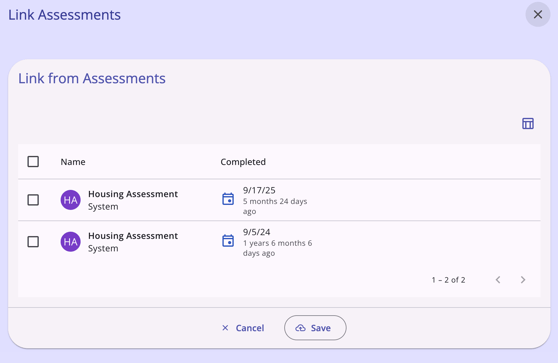
For Assessments that have been marked as “Private," a lock icon displays.
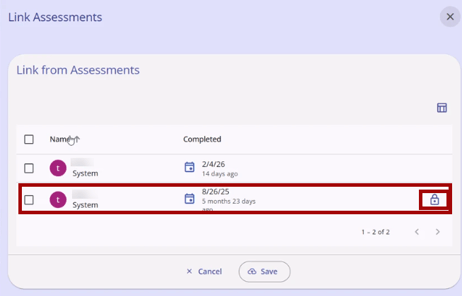
The modal only displays assessments that have not been linked to the current enrollment.
To link the assessment, the user can select the checkbox to the left of each displayed Assessment row, then click Save. Clicking Save links the checked assessments.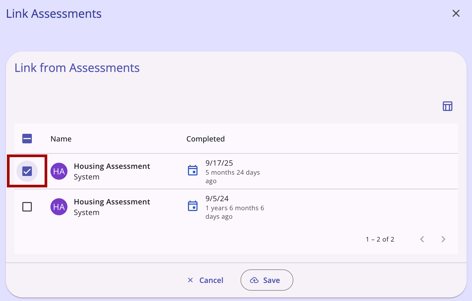
Note: The page displays any assessments that the client has completed with a different program under the same agency as the current program enrollment, as long as the assessment type is enabled for the current program.
Unlinking Assessments
The user can unlink an assessment from an active program enrollment in the new Clarity interface. This option will only appear for users with the Delete access right enabled.
Next to each assessment on the list, “Unlink from Program” appears in the action menu for the user with the appropriate access and for assessments that are linked to a program.
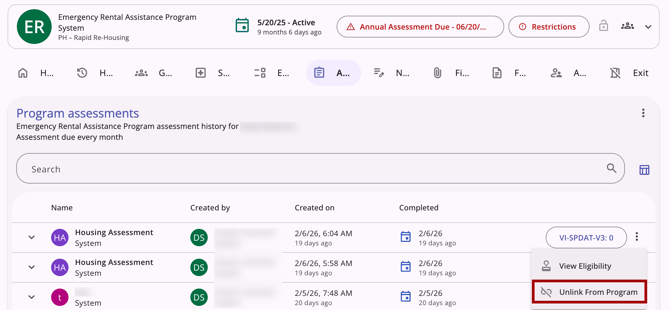
When the user clicks the ‘Unlink from Program’ option, a pop-up confirmation displays on the screen. The pop-up reads: “Are you sure you want to unlink [assessment name] assessment from [program name that the assessment is linked to]?”
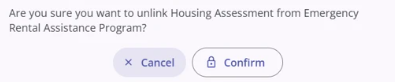
When the user clicks Confirm, the assessment will be unlinked from the program enrollment.
Note: Unlinking an assessment from the program does NOT delete the assessment; it only deletes the program linkage.
Icons & Tooltips
|
Icon |
Icon/Tooltip Name |
Tooltip |
Icon Location |
|
|
Action menu, also known as:
|
"Show more actions" |
All Screens: typically on the far right of a screen or section. |
|
|
Column Selector |
"Show/hide fields" |
All Screens: typically paired with a search bar |
|
|
Confirm Unlink |
(no tooltip) |
Shown on Unlink Confirm popup |
|
|
Link from Assessment |
(no tooltip) |
Action Menu: on a program enrollment's Assessments tab |
|
|
Save |
(no tooltip) |
Shown on Link from Assessments modal |


Updated: 04/27/2026