
Table of Contents
Purpose
The Inventory - Unit/Bed Client Occupancy Overview dashboard provides a comprehensive breakdown of the current status of Inventory units and beds across five categories: Active - Available, Active - Pending Occupancy, Active - Occupied, Inactive, and Offline. The dashboard offers filterable lists within these categories that detail key information about the units and beds, including current and pending occupants.
Additional Inventory Module resources are available through the Bitfocus Help Center.
Dashboard Access
Dashboards are available to all instances with Data Analysis enabled. This dashboard is a LookML Dashboard. How you access this dashboard depends on whether you use standalone or embedded Looker and the access rights assigned to your access role. At a minimum, your access role must have the Data Analysis access right enabled. For details on all access rights, see Rights Glossary for Access Roles.
Standalone Looker
This dashboard is accessible in Looker via the following path: All Folders > LookML Dashboards > Inventory Module - Unit/Bed Client Occupancy Overview.
Once selected, your dashboard will start running. The utilized models are dashboard-dependent.
Embedded Looker
This dashboard is accessible in Clarity by navigating to Reports > Data Analysis > Built In Reports > Inventory Module - Unit/Bed Client Occupancy Overview. Click Run to open and start running the dashboard.
LookML Dashboards accessed through embedded Looker must first be enabled in the Data Analysis settings before they're available. For steps to enable and access these reports, see the Embedded Looker: Looker - Clarity Human Services Integration article.
Dashboard Filters

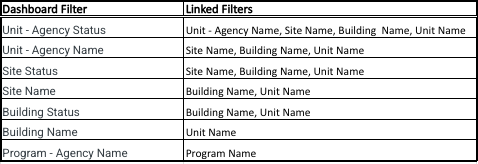
All dashboard filters are linked to every Look on the dashboard. The "Unit Agency Name" dashboard filter narrows results based on the agency within which the units are configured, while the "Program - Agency Name" dashboard filter limits results based on the agency clients are enrolled in when occupying a unit. Additionally, some filters are interlinked to refine the available filter options based on prior selections. The following outlines how these filters are interconnected:
Content
The following Looks comprise the “Inventory – Bed/Unit Occupancy Overview – UTC Program Linked” LookML dashboard. The overview below is broken down by dashboard sections and includes a summary of the Looks’ content. For more information on how each Look is configured, what fields are used, or what custom fields are used, please review the Look by selecting Explore from Here within the ellipses in the upper right corner.
Current Unit/Bed by Availability
This section of the dashboard focuses on the current availability/status of all units and beds regardless of whether individual bed tracking is in use.
Current Unit Occupancy Overview
This Look counts units by the following status/availability categories out of the total configured units:
- Active- Available
- Active- Pending Occupancy
- Active- Occupied
- Inactive
- Offline
Units by Current Availability
This Look contains the same data as the previous Look but displays it in a pie chart.
Current Bed Occupancy Overview
This Look counts beds by the following status/availability categories out of the total configured beds:
- Active- Available
- Active- Pending Occupancy
- Active- Occupied
- Inactive
- Offline
Beds by Current Availability
This Look contains the same data as the previous Look but displays it in a pie chart.
Unit & Bed Availability Lists
This section of the dashboard contains bed/unit lists broken out by current availability/status.
All the Looks in this section of the dashboard include a "Row Limit Alert" column that will turn red when the Look's internal row limit has been reached and the data is being truncated. When this occurs, dashboard filters should be utilized to narrow the reporting universe.
Available Units/Beds
This Look lists all of the currently available beds and units. All dashboard filters are applied to this Look.
Pending Occupancy Units/Beds
This Look lists all currently pending occupancy beds and units, including client data for the pending occupant. All dashboard filters are applied to this Look.
Occupied Units/Beds
This Look lists all currently occupied beds and units, including client data for the current occupant. All dashboard filters are applied to this Look.
Inactive Units/Beds
This Look lists all currently inactive beds and units. All dashboard filters are applied to this Look.
Offline Units/Beds
This Look lists all currently offline beds and units. All dashboard filters are applied to this Look.
Updated: 10/19/2026